

Translating Apricot Pages Using Google Translate
Chrome can be configured to automatically translate any web page you visit into a language of your choice. This can be very helpful for users whose native language is not English.
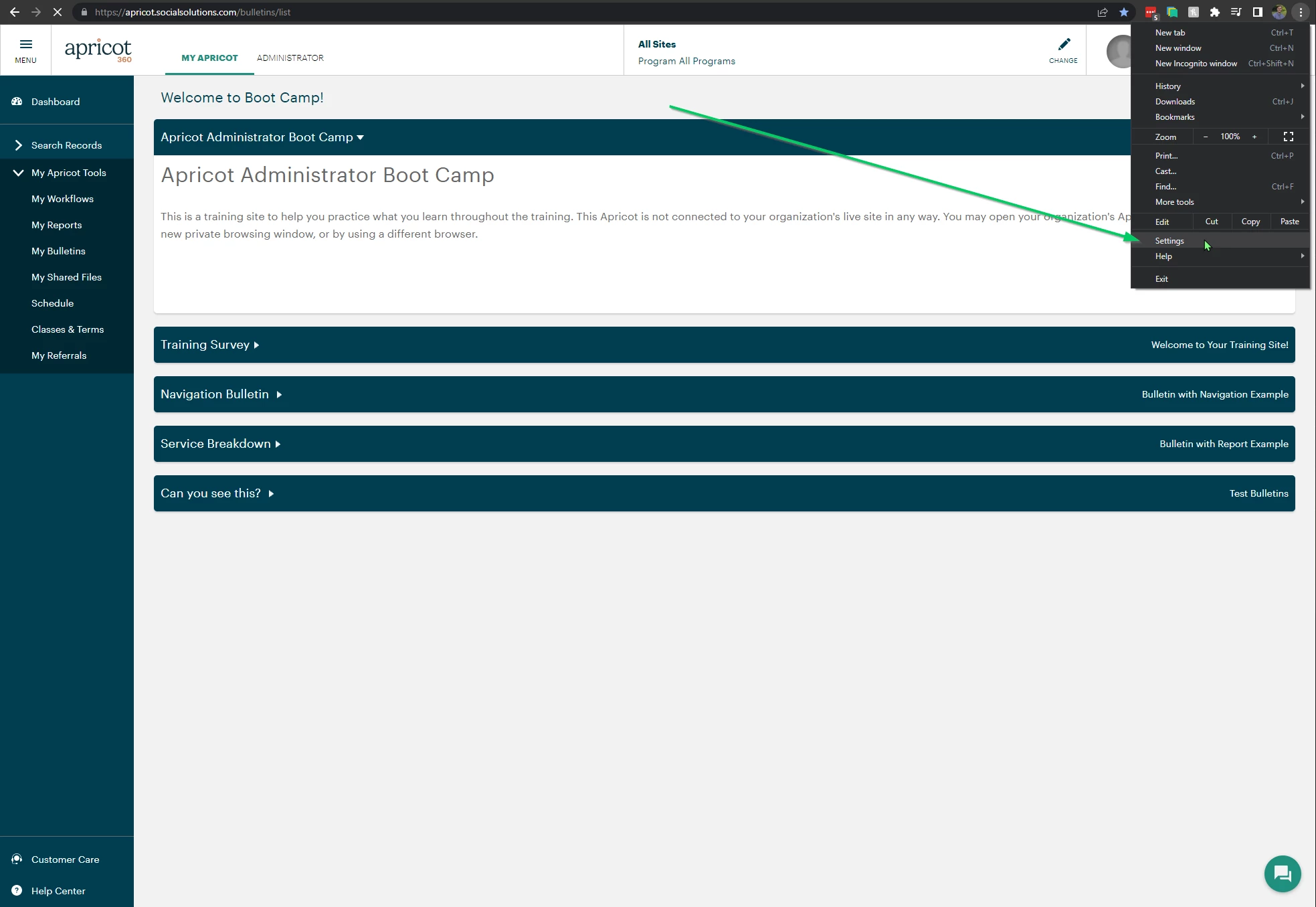
To set this up in your Chrome browser you will need to access your Chrome settings. Follow these steps to access the translation settings:
-
Open a Chrome browser window
-
Go to Chrome settings
-
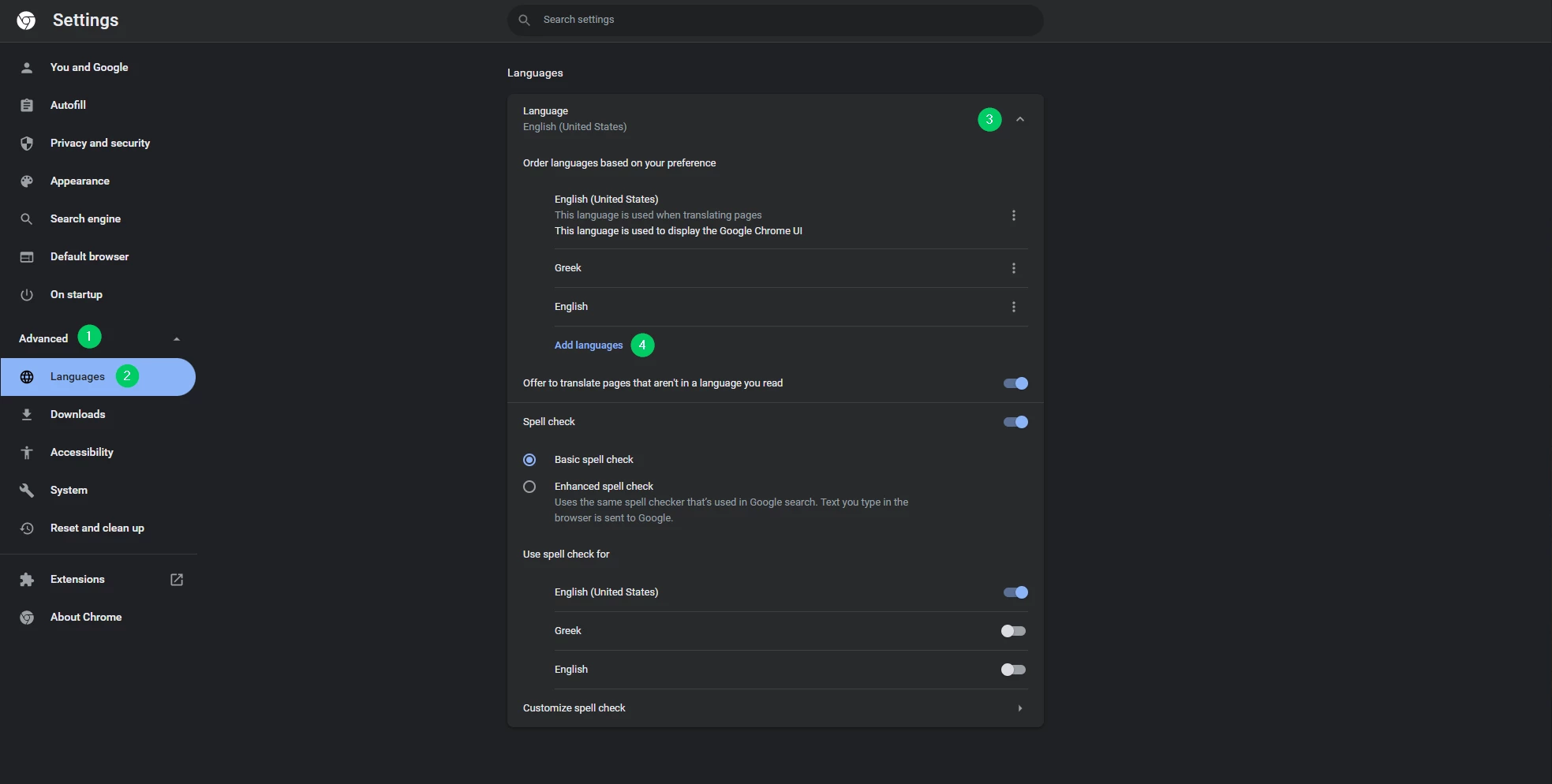
Once in Chrome settings click on Advanced
-
Then select Languages
-
On the languages tab select Add Languages
-
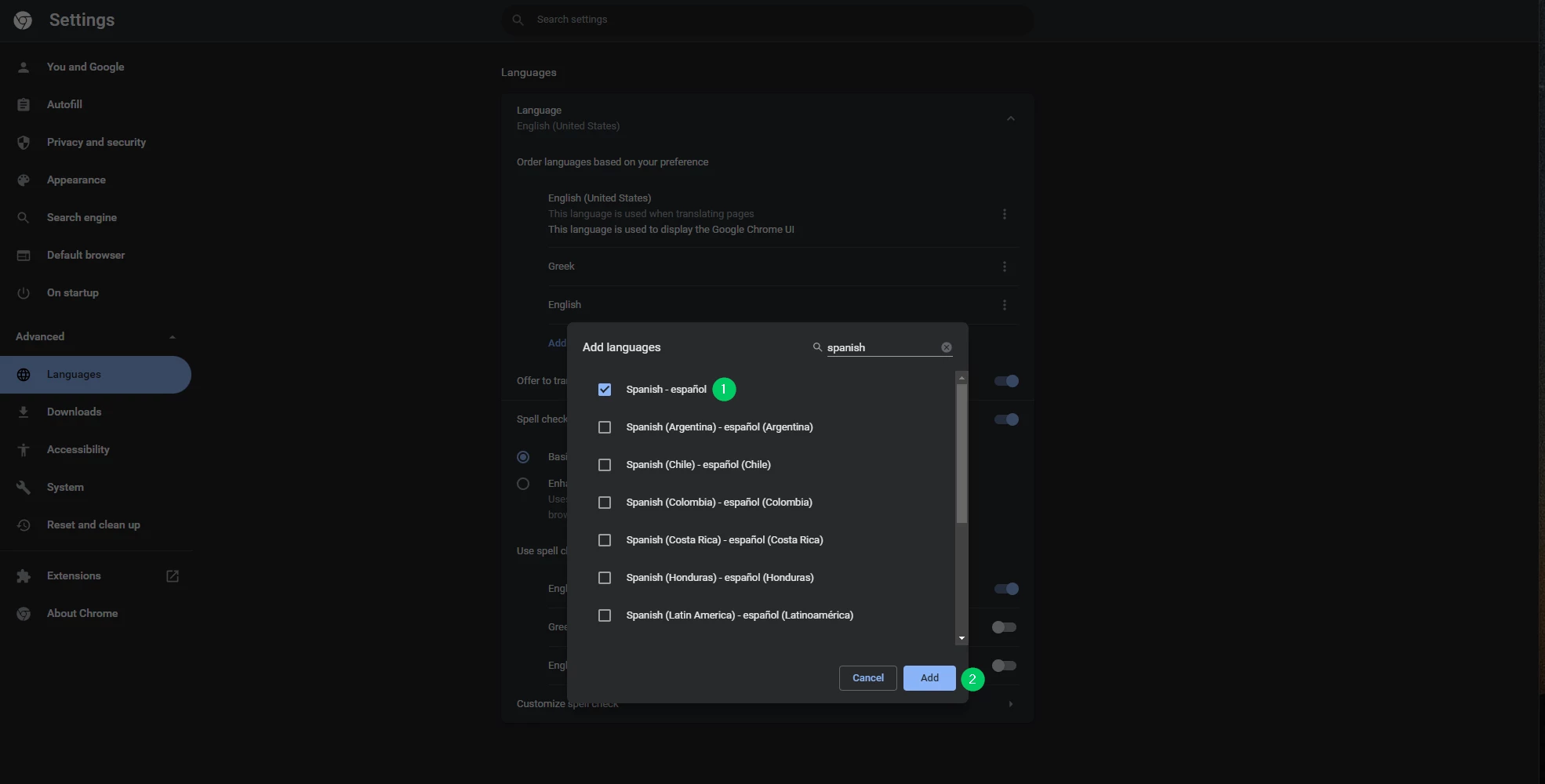
Select which language you would like to have web pages translated to
-
You can select more than one
-
Once you have selected all the languages you would like to use click "Add"
-
No need to save the settings as they save automatically
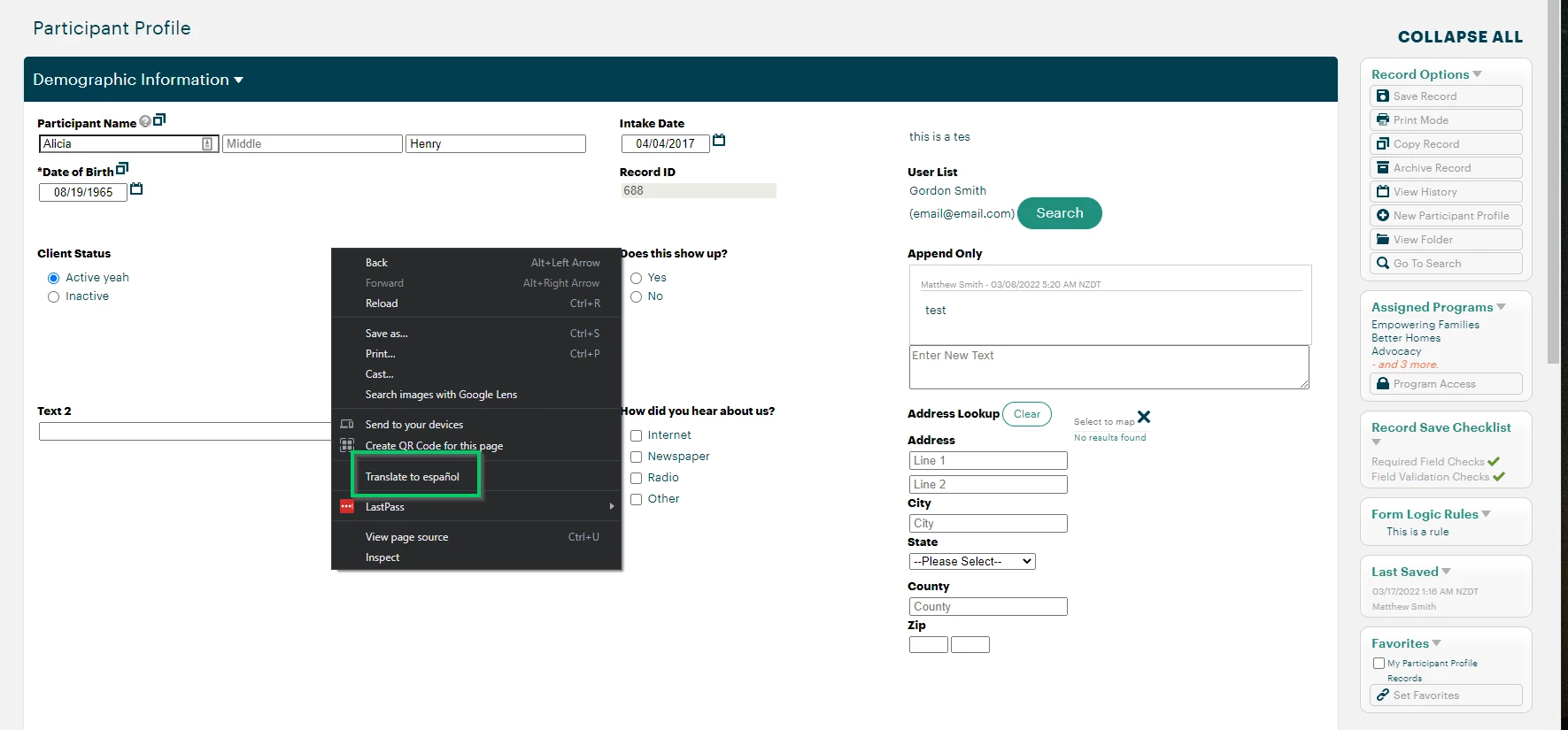
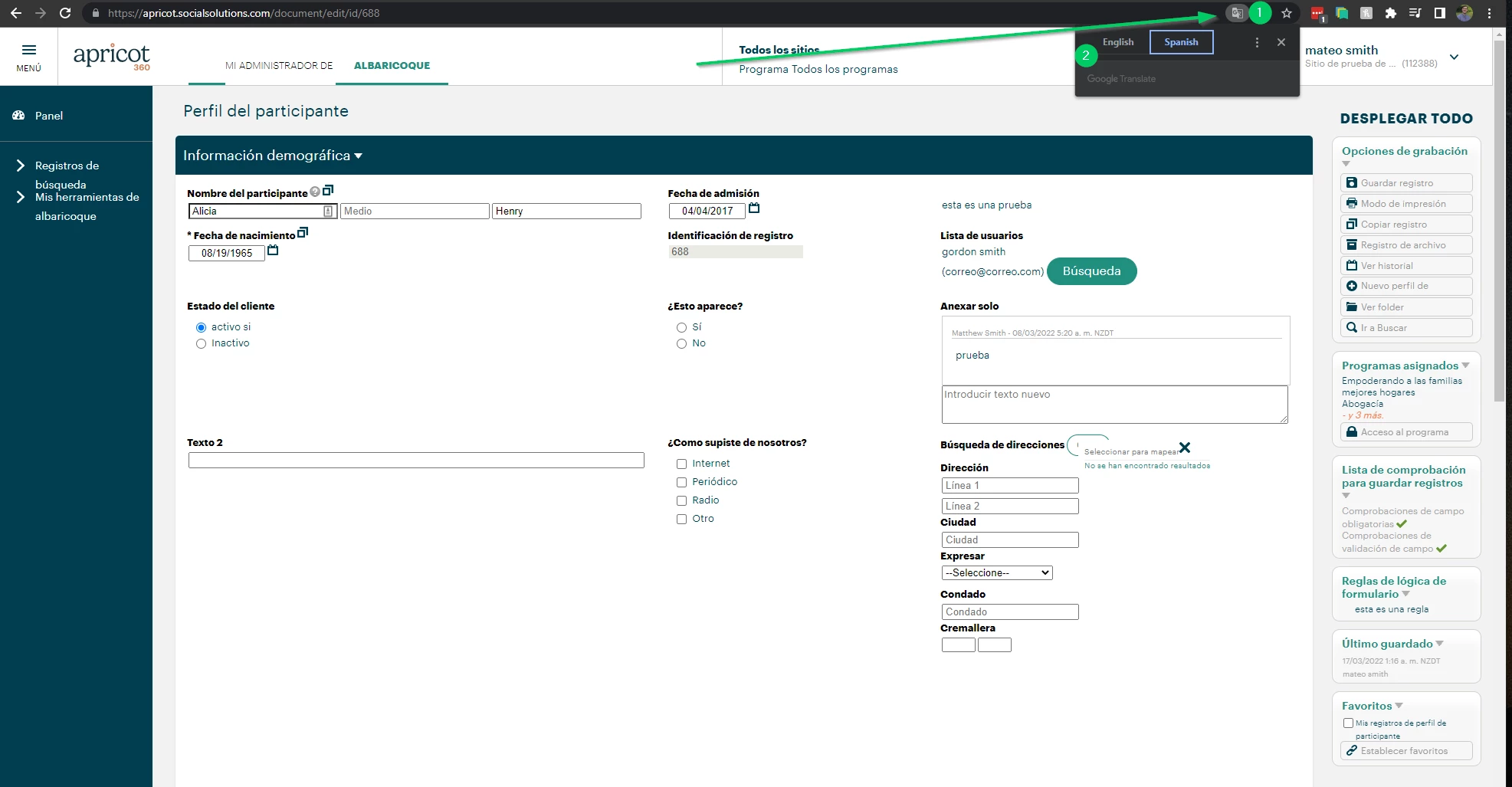
Now that you have your language settings configured you will see a new option when right clicking on any page, "Translate to X language," which would be Spanish in this scenario since we just added it. Clicking this will automatically translate whatever page you're on, and provide you with more options in the search bar of your browser!
-
Click the icon that appears after selecting this option and a pop-out will open with all the different languages you have added
-
You can either toggle between the different languages to translate the page or you can set it to automatically always translate
Please Note:
-
Google Translate is not perfect, it will do it's best to translate your pages but bear in mind that it will not always do so without error
-
Secure Web Forms or Intake forms sent out to non-English speaking participants will require that the participant configures these settings within their Chrome settings. You will not be able to configure this for them
How do I translate Apricot pages into another language | How do I set up Google Translate in Chrome | How do I automatically translate web pages | How do I add multiple languages in Chrome | How do I use right-click to translate a page | Why are some Apricot forms not translating | How do I switch between languages in Google Translate