



Once your files have been cleaned and you are confident in their accuracy, you can send them to the Import Team for processing.
Step 1: Navigate to your 'Donor Management' Dashboard
To upload your files, click the 'Yes, I'd Like to Import' button in the blue banner at the top of your 'Donor Management' Dashboard.

Note: If you dismissed the banner above, you can easily access the importer from your 'Donor Management' Dashboard. Just click the 'Settings' tab on the left navigation panel and select 'Imports' from the newly expanded drop-down list!
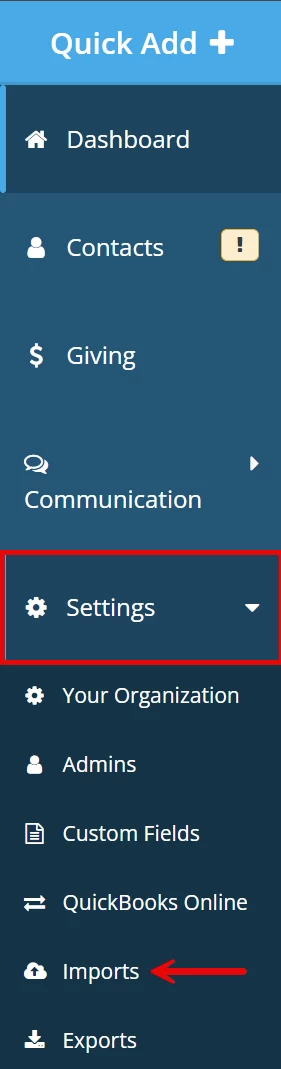
Step 2: Begin your import

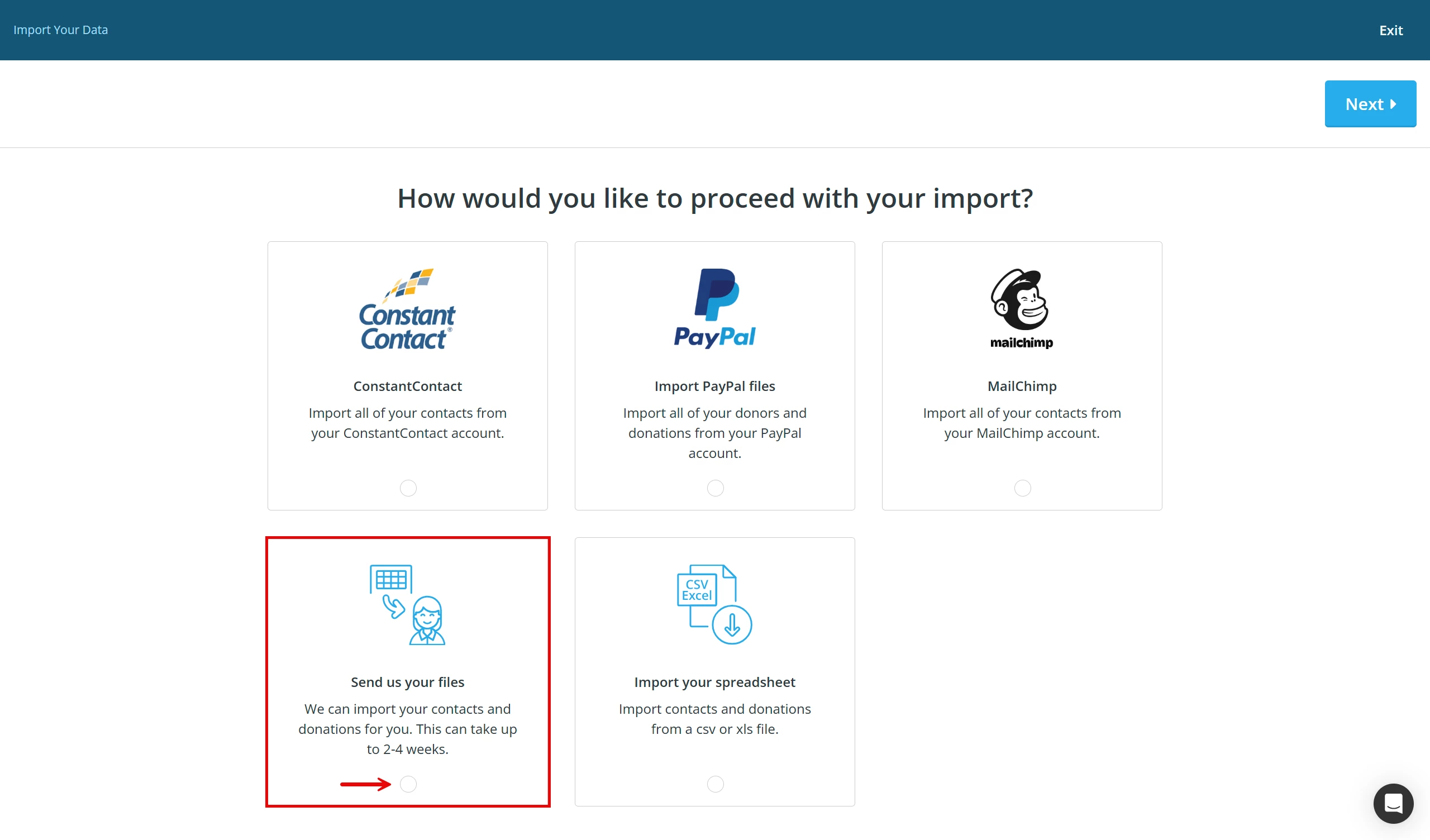
When asked 'How would you like to process with your import?', click the radio button under 'Send us your files'. Click 'Next' to move on to the next step.
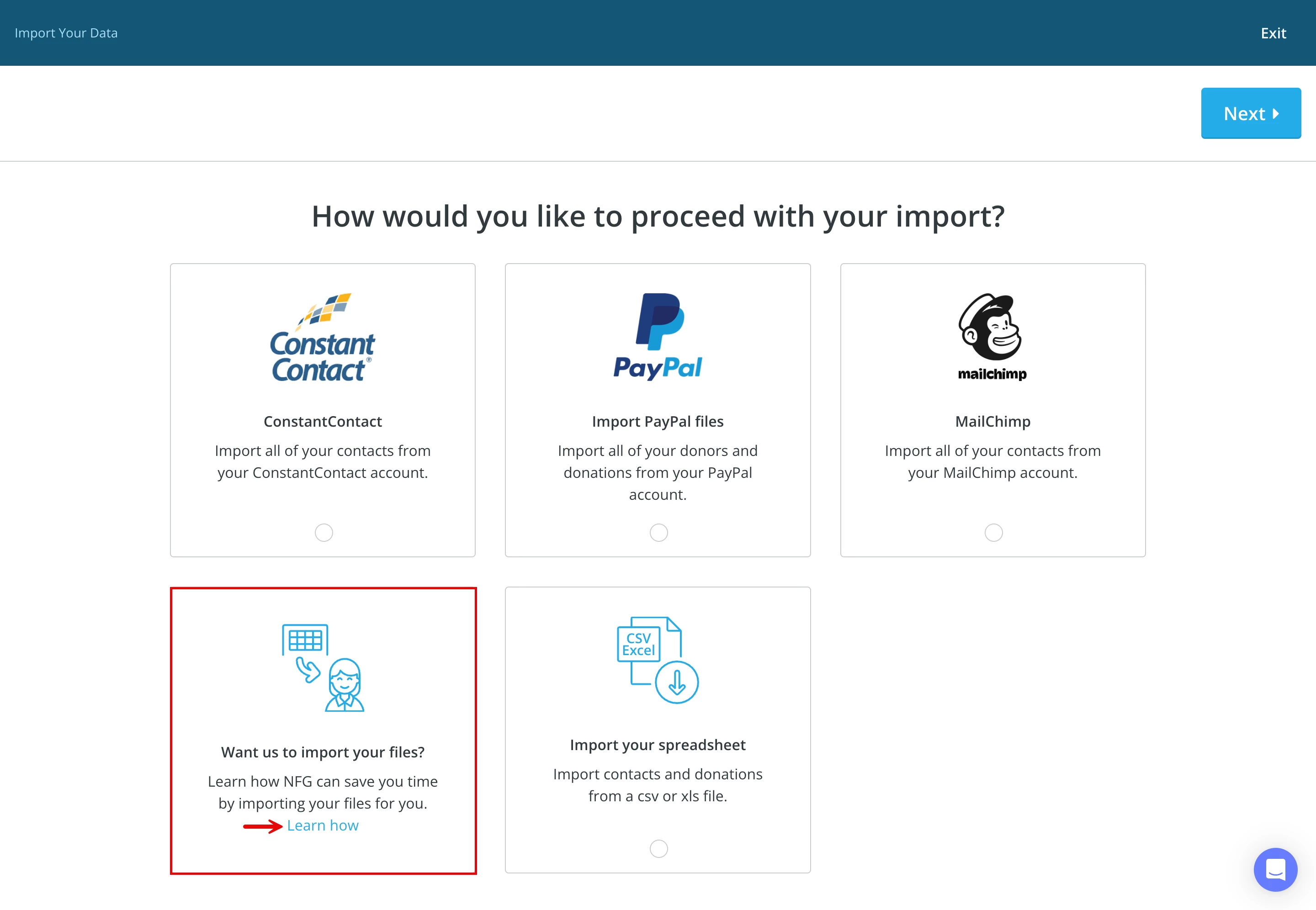
Note: This is a paid feature - if it is not enabled, you will see the text highlighted in the screenshot below. Click here for more information about purchasing an import.
Step 3: Upload your file(s)
Next, drag and drop the files you want to upload, or use the 'click here' link to browse and select the files you want to include.
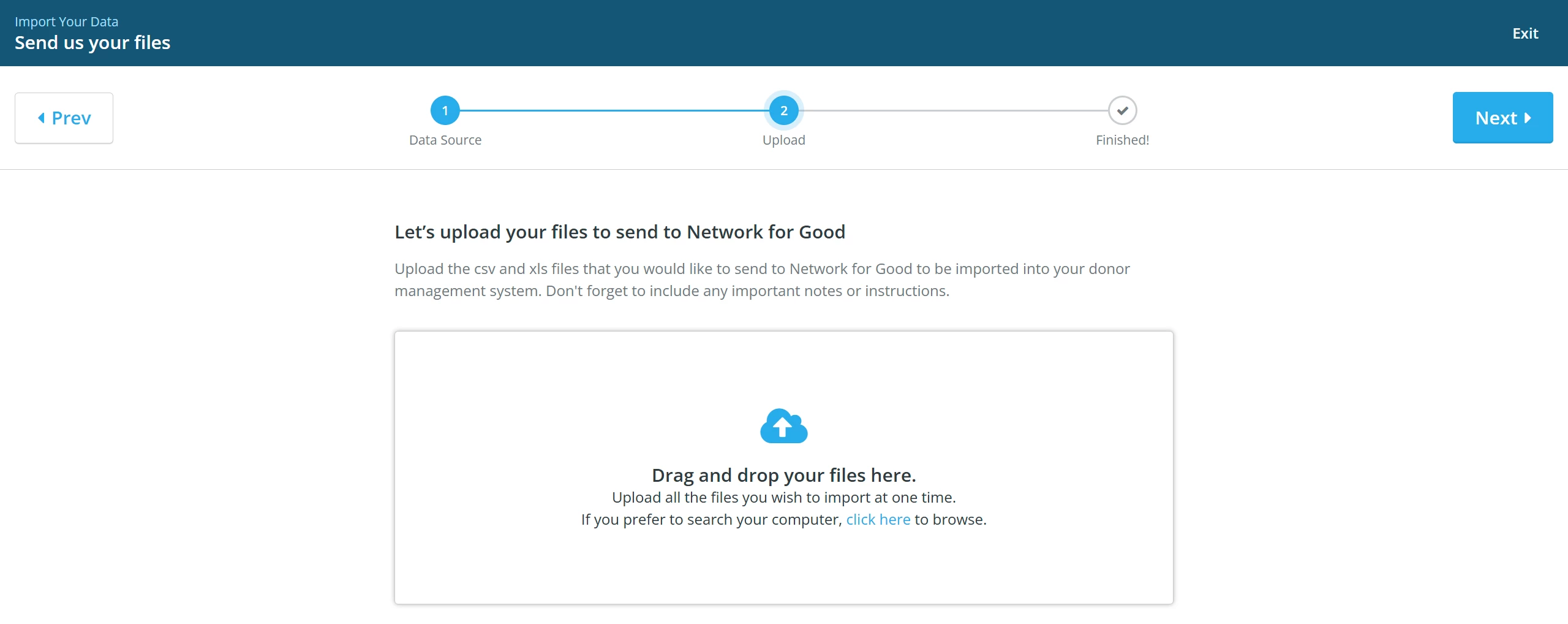
Note: You can also add notes you want to share with the Import team and then click 'Next' in the upper right to complete this process.

Step 4: View your results or exit the importer
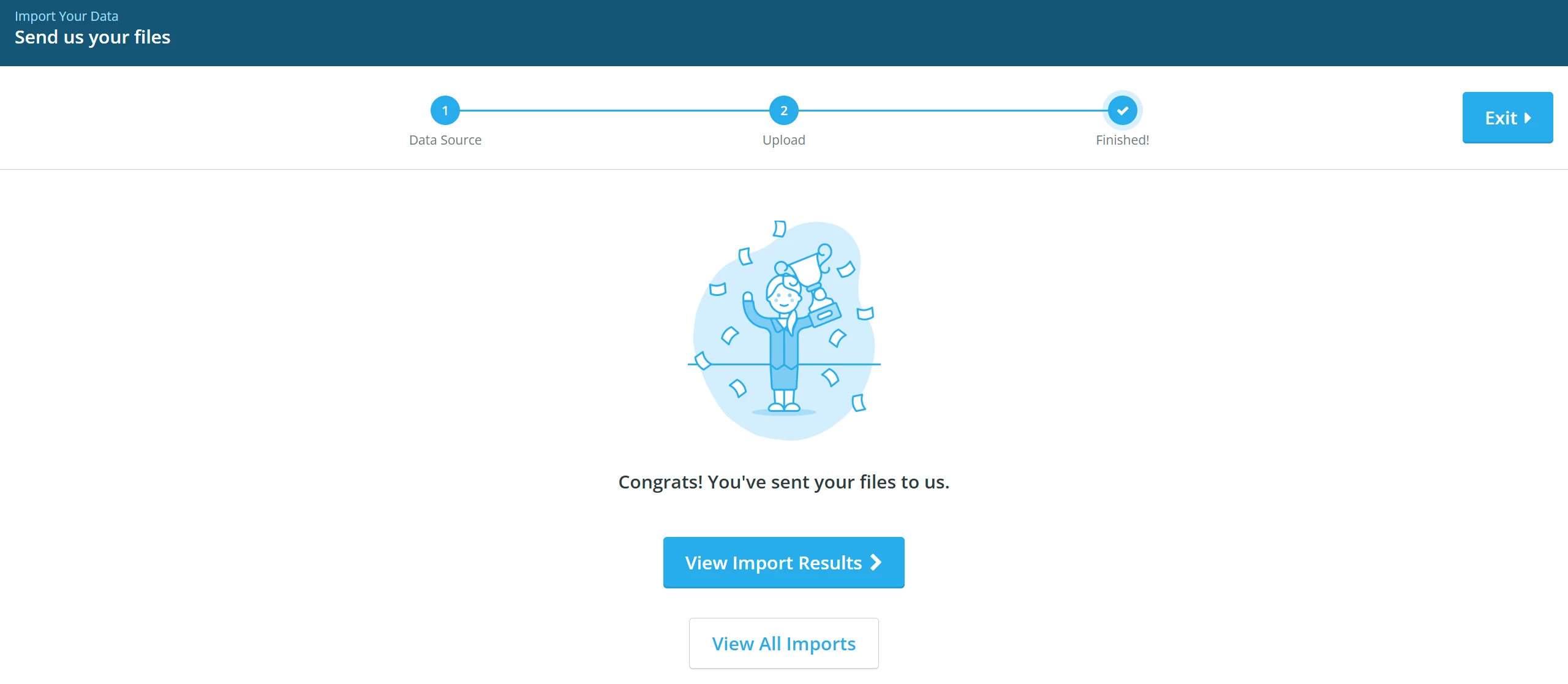
With that, you will have successfully submitted your files to our team! We will e-mail you with any questions - so, check your inbox for updates and confirmation when your data import is uploaded into your system and ready for your final review! In the meantime, you can click to view your import results, view all imports, or exit the importer.
What else do you need help with?
How do I decide what information belongs in Donor Management?
How do I know what each import field represents?
How do I choose the most common or relevant data fields?
How do I prepare my data for self-import?
How do I get assistance exporting historical data from former systems?
How do I import my data through the self-import tool?
How do I map my data for a self-import?
How do I avoid some of the most common self-importing errors?
How do I correct errors following a data self-import?
Not quite what you were searching for?
Navigate back to the Feature Overview.