


How do I add and customize steps in my search?
Step 1: Add a Step to Your Search
In the right column of the Create a List page, locate the Add Step button. Click Add Step to introduce additional criteria to your search.
Step 2: Edit or Remove Steps (Optional)
To edit a step, click the pencil icon next to the step name to modify the criteria within that step. To remove a step, click the trash can icon next to the step name to delete the step from your search.
Step 3: Create a Narrow by Sample Step (Optional)
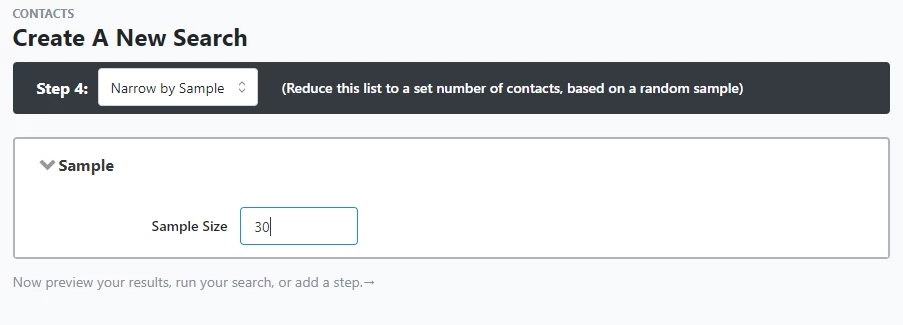
You can create a step called Narrow by Sample, which allows you to pull a random number of contacts from the search that you had just created. For instance, if you solely wanted 30 people that fit the set of criteria you had previously created, you could set your sample size in the Narrow by Sample step to 30.
Not quite what you were searching for?
- Navigate back to the Lists and Saved Searches Resource Index.
How do I add and customize steps in my search? | How does add and customize steps in my search work in EveryAction? | Why can't I add and customize steps in my search? | Where do I add and customize steps in my search in EveryAction? | What is add and customize steps in my search in EveryAction? | How to add and customize steps in my search? | Can I add and customize steps in my search in EveryAction?