

How do I manage user access for a shared folder?
Step 1: Navigate to My Folders
-
Start on the EveryAction home page.
-
From the left-hand menu, go to Contacts > Searches & Lists > My Folders.
-
Or use Search for a page and type My Folders.
Step 2: Select the folder you want to share
Click on the name of the folder you want to share access to.

Step 3: Edit 'User Access'
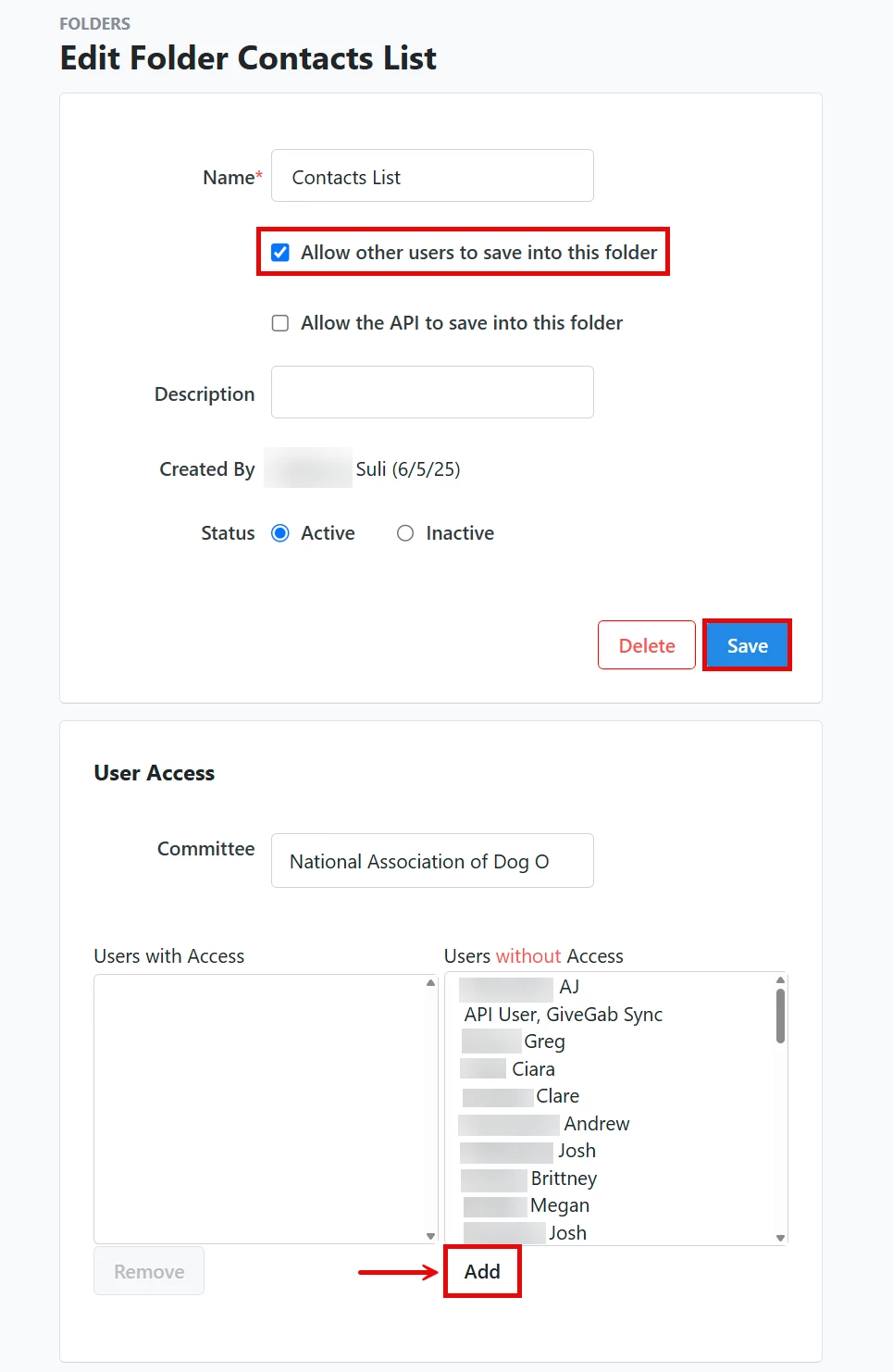
Note: If you want to allow other users to save into this folder as well, check the box next to that option and then click 'Save'.
Here, you can select the names of users who should have access under the 'Users without Access' column and click the 'Add' button. This will automatically move them under the 'Users with Access' column. To revoke access from a user, select their name under the 'Users with Access' column and then click 'Remove'.
Not quite what you were searching for?
- Navigate back to the Lists and Saved Searches Resource Index.
How do I manage user access for a shared folder? | How does manage user access for a shared folder work in EveryAction? | Why can't I manage user access for a shared folder? | Where do I manage user access for a shared folder in EveryAction? | What is manage user access for a shared folder in EveryAction? | How to manage user access for a shared folder? | Can I manage user access for a shared folder in EveryAction?