

How do I split a list?
Occasionally, you may find that an icon or action is greyed out with a message when hovering over it, indicating your list is too large to perform that action. To resolve this, you can split the list into smaller portions.
Step 1: Navigate to My List
-
Start on the EveryAction home page.
-
From the left-hand menu, go to Contacts > Searches & Lists > My List.
-
Or use Search for a page and type My List.
Step 2: Click to split your list
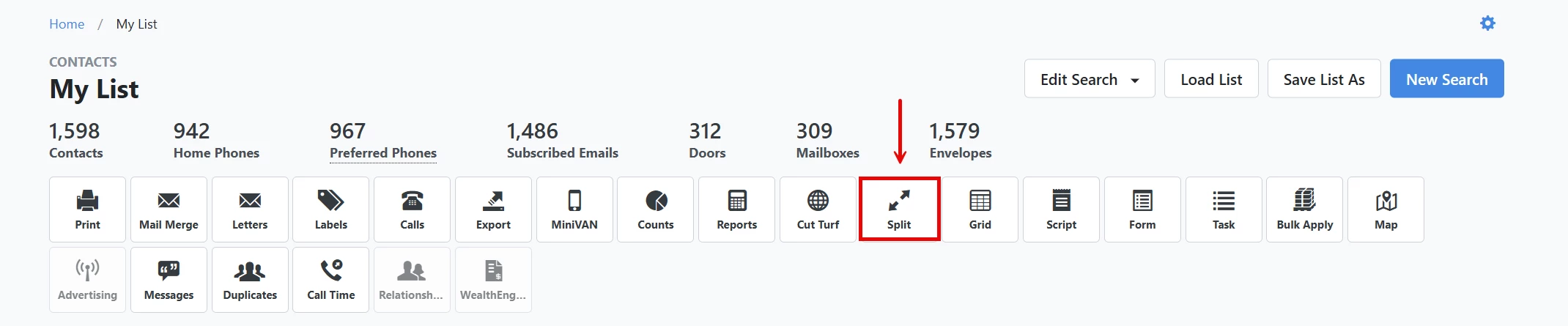
Click the 'Split' button in the banner at the top of your 'My List' page.
Step 3: Split your List
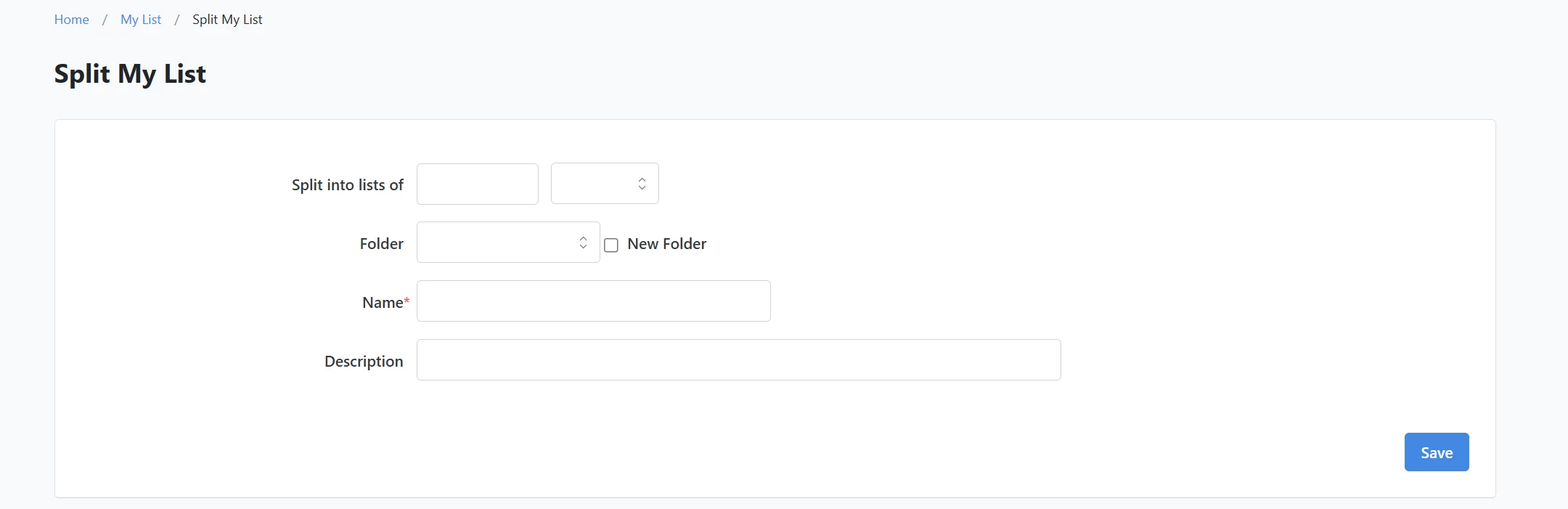
On the next page, specify the number of contacts or phone numbers you want to split your list into. Select the folder (or check the box next to 'New Folder' to create one if it does not already exist), and name your list. You also have the option to add a description before clicking 'Save'.
Step 4: View your lists
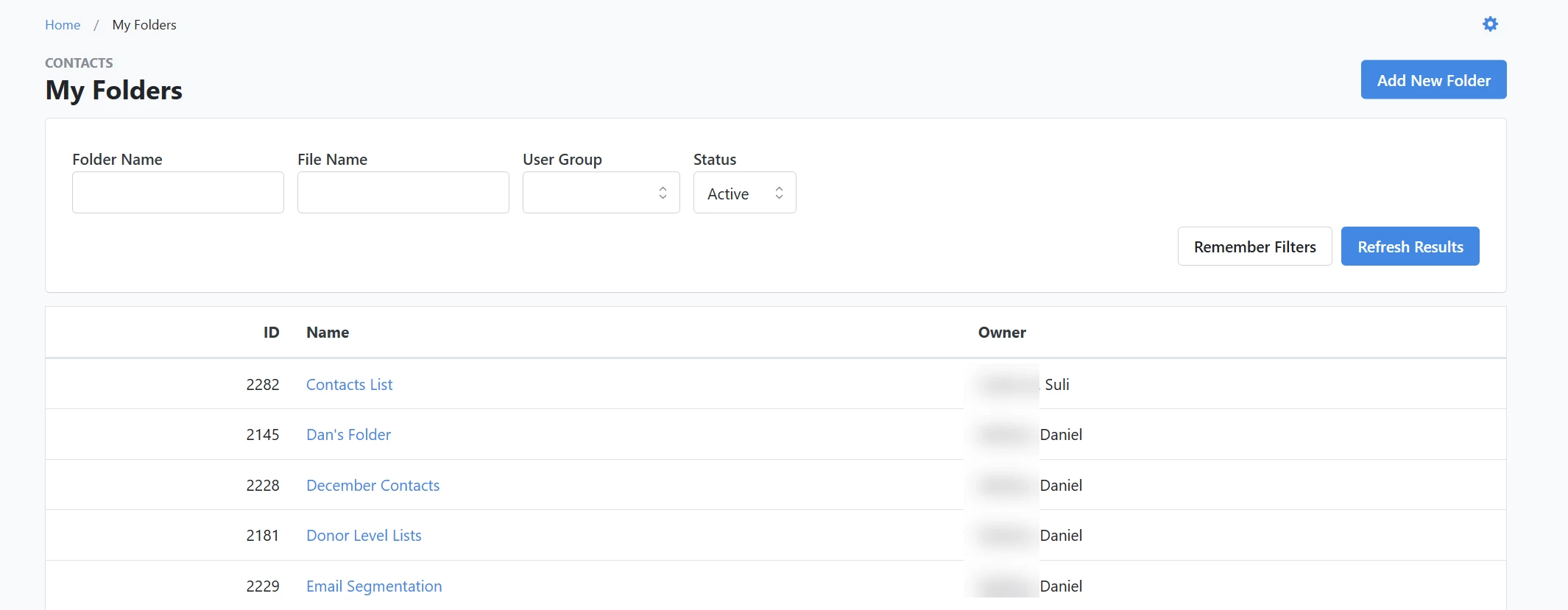
Once your list is saved, you can manage each segmentation under your 'My Folders' page.
Not quite what you were searching for?
- Navigate back to the Lists and Saved Searches Resource Index.
How do I split a list? | How does split a list work in EveryAction? | Why can't I split a list? | Where do I split a list in EveryAction? | What is split a list in EveryAction? | How to split a list? | Can I split a list in EveryAction?