


How do I use 'Advanced Search' with 'Create a List' in EveryAction?
Advanced Search in EveryAction is accessible through the Create a List feature. It allows you to build multi-step, logic-based queries to locate contact records based on detailed criteria.
Step 1: Navigate to 'Create a List'
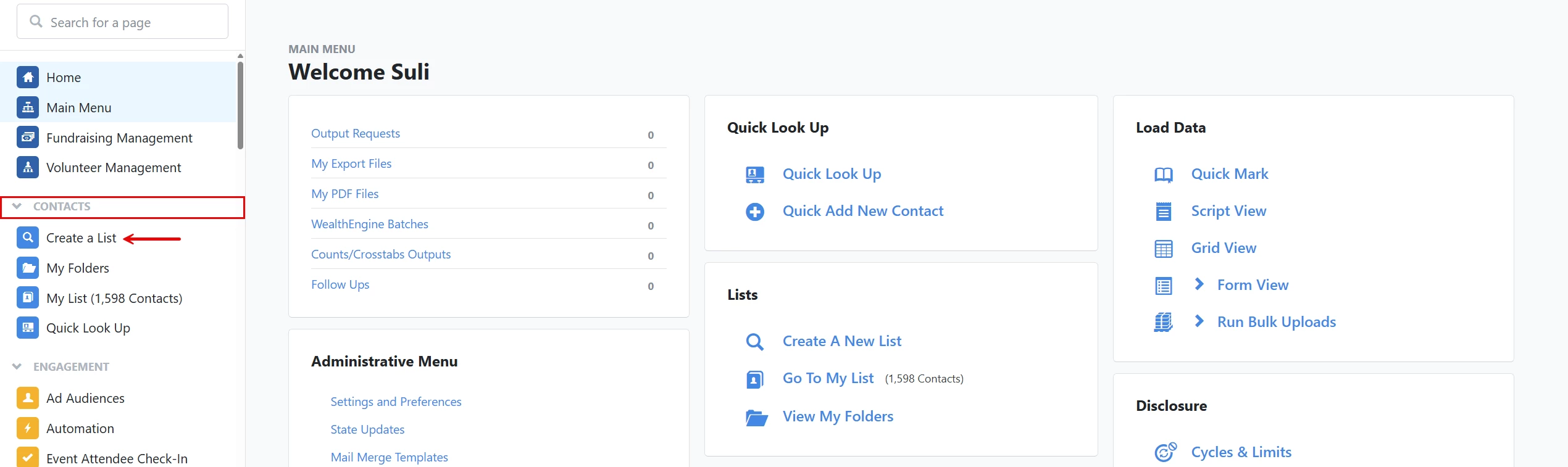
From the 'Main Menu', click 'Create a List' under the 'Contacts' tab on the left navigation panel.
Step 2: Define Your Search Criteria
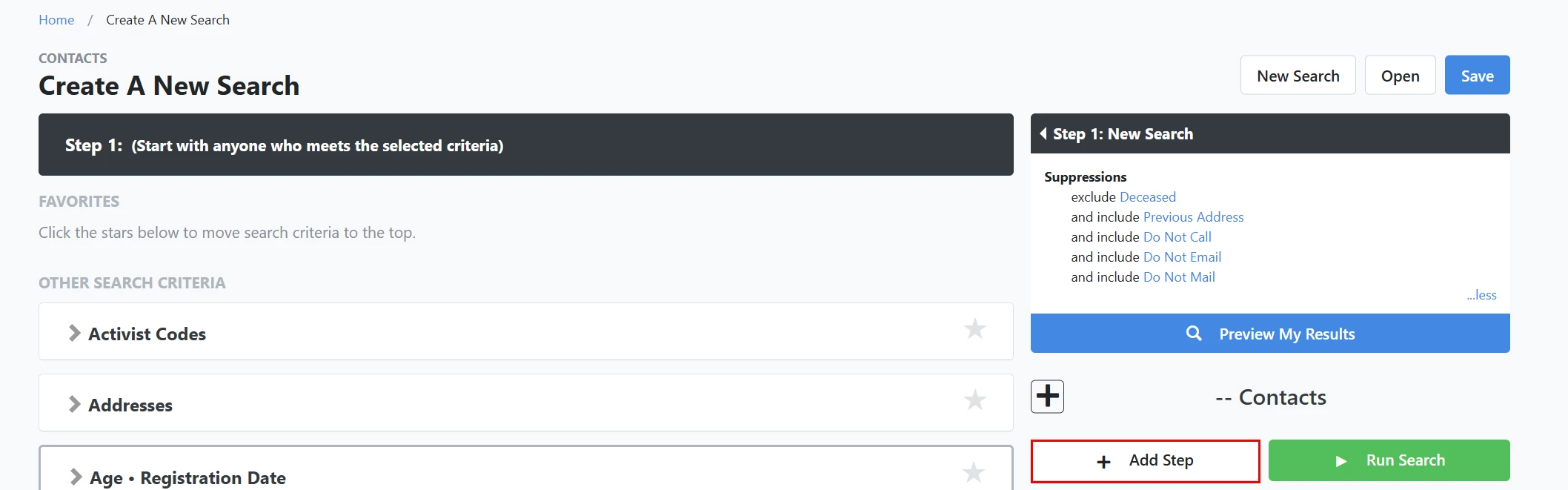
On the 'Create A New Search' page, click the 'Add Step' button to begin building your search.
Then, choose a step type:
-
-
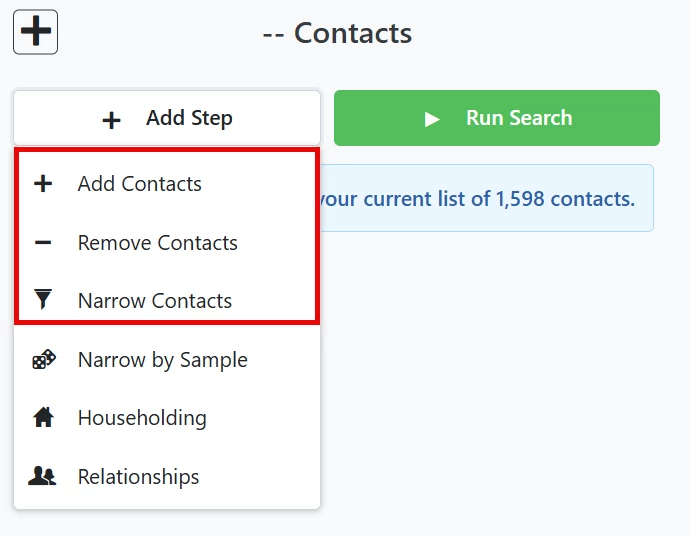
Add Contacts: adds contacts who meet new criteria
-
Narrow Contacts: further filters your results
-
Remove Contacts: excludes specific contacts
-
From the tabs provided (e.g., Addresses, Contributions), select the desired criteria fields and enter values.
Example:
-
Navigate to the Addresses tab.
-
Select DC in the State field to include contacts in Washington, DC.
Step 3: Combine Criteria Across Multiple Steps
Use these options to build complex logic:
-
Add Contacts = “OR” logic (include any matching contacts)
-
Narrow Contacts = “AND” logic (only those who match all criteria)
-
Remove Contacts = “NOT” logic (exclude matching contacts)
Sample scenario:
You want to identify contacts who:
-
have donated over $250
-
whose most recent gift was over a year ago
-
live in DC or within 10 miles of zip code 22201
Steps to build:
-
Add Contacts → Addresses tab → State = DC
-
Add Contacts → Addresses tab → Zip Radius = 10 miles from 22201
-
Narrow Contacts → Contributions tab → Amount = 250
-
Remove Contacts → Contribution Summaries tab → Most Recent Contributions = Current Year
-
(Optional) Narrow by Sample → Choose a random subset of records
Step 4: Save or Export Your Results
After running your search:
-
Save: Click Save to name and store your query.
-
Export: Use the Actions menu to download your results.
-
Create List: Turn your results into a static or dynamic list
Tips & Reminders
-
Use relative dates (like “last 30 days”) for dynamic results.
-
Use Narrow by Sample to randomize outreach or A/B test groups.
-
You can layer additional steps at any time to refine or revise your criteria.
Not quite what you were searching for?
- Navigate back to the Lists and Saved Searches Resource Index.
How do I use 'advanced search' with 'create a list' in everyaction? | How does use 'advanced search' with 'create a list' in everyaction work in EveryAction? | Why can't I use 'advanced search' with 'create a list' in everyaction? | Where do I use 'advanced search' with 'create a list' in everyaction in EveryAction? | What is use 'advanced search' with 'create a list' in everyaction in EveryAction? | How to use 'advanced search' with 'create a list' in everyaction? | Can I use 'advanced search' with 'create a list' in everyaction in EveryAction?