


How do I add Single Sign-On (SSO) users in Microsoft Azure?
Note: Adding users to Microsoft Azure does not create accounts for users in Apricot. Administrators must also add new users in the Apricot software.
Follow the steps listed below to add users to your SSO configuration in Microsoft Azure.
Step 1: Navigate to your application
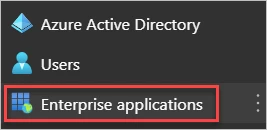
Open the Office 365 Admin Center and navigate to the 'Azure Active Directory'. Next, select 'Enterprise applications'.
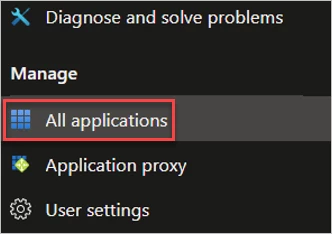
Then, select 'All applications' and click on your Apricot application.
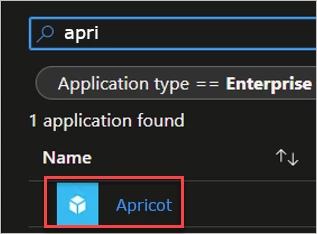
Step 2: Manage the application
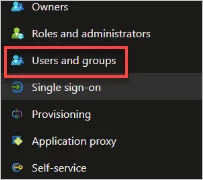
Under 'Manage', select 'Users and groups'. Next, click '+ Add user/group'.

Step 3: Assign users
Choose the specific users or provisioned groups you want to log in to Apricot using SSO, then click 'Assign'.
What else do you need help with?
-
Not what you're looking for? Navigate to overview
How do I add SSO users to Apricot in Microsoft Azure? | How do I assign users to Apricot SSO in Azure Active Directory? | Why can’t my Azure user log in to Apricot with SSO? | How do I add users to an Apricot SSO application in Azure? | How do I manage Apricot SSO users in Microsoft Azure? | How do I give users access to Apricot through Azure SSO? | Why doesn’t adding a user in Azure create an Apricot user account?