


How do I require users to log in through Single Sign-On (SSO)?
Looking to enforce required Single Sign-On logins for your standard users? Check out this video that walks through how to manage your SSO login settings for your organization.
Step 1: Log in to Apricot
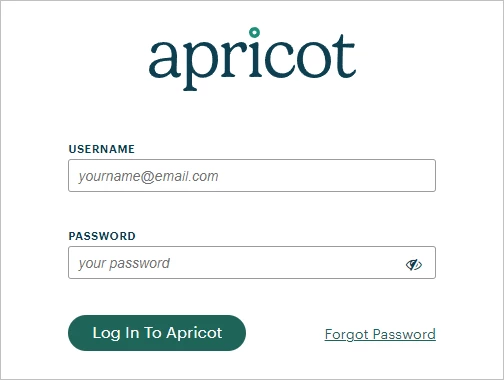
Start by logging in to your Apricot account.
Step 2: Navigate to Manage Federated SSO
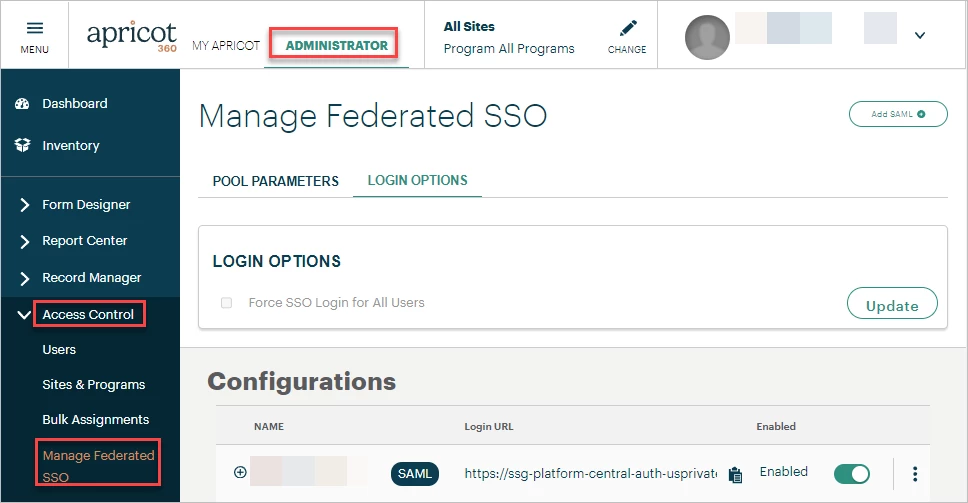
Ensure you're in the Administrator view of Apricot, then expand the Access Control category of the navigation bar.
Select 'Manage Federated SSO' to be directed to that page.
Step 3: Manage login options
Click the Login Options tab to manage settings for your organization.
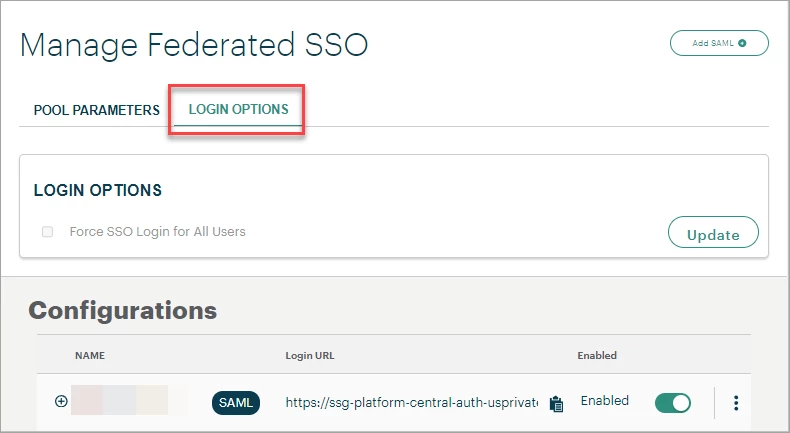
The 'Force SSO Login for All Users' setting allows administrators to require all standard users to log in to Apricot using SSO (administrators may still use the standard login workflow). To turn this setting on, click Update in the Login Options section, check the box, then click Save.


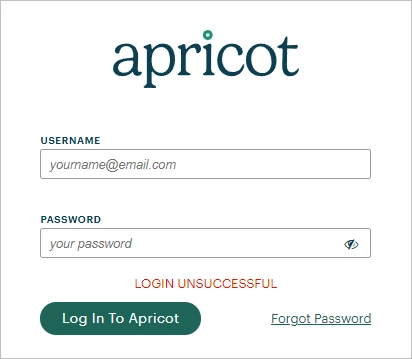
When the "Force SSO Login" setting is toggled on, standard users in your organization that try to log in from the Apricot login page will receive the following error: "Login Unsuccessful".
What else do you need help with?
-
Not what you're looking for? Navigate to overview
How do I require SSO login for all Apricot users? | How do I force users to log in through SSO in Apricot? | Why do users get “Login Unsuccessful” when SSO is required? | How do I manage SSO login options in Apricot? | Can administrators bypass forced SSO in Apricot? | How do I enable “Force SSO Login” in Apricot? | What happens if a user tries to log in without SSO in Apricot?