

How to Create Your Apricot Bonterra Central Account
Welcome to the community! Create your account to narrow down search results to your product and get access to engage in the community.
Setting up an account takes only a few minutes. Once you’re in, you can join product forums, ask questions, and connect with other Bonterra users. Select ‘Login’ in the top right-hand corner to get started!
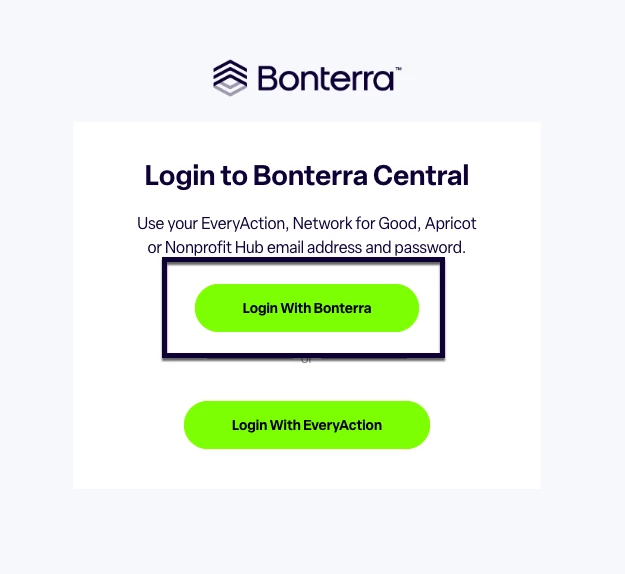
Step 1: Choose how to log in
On the Bonterra Central login page, select Login With Bonterra.
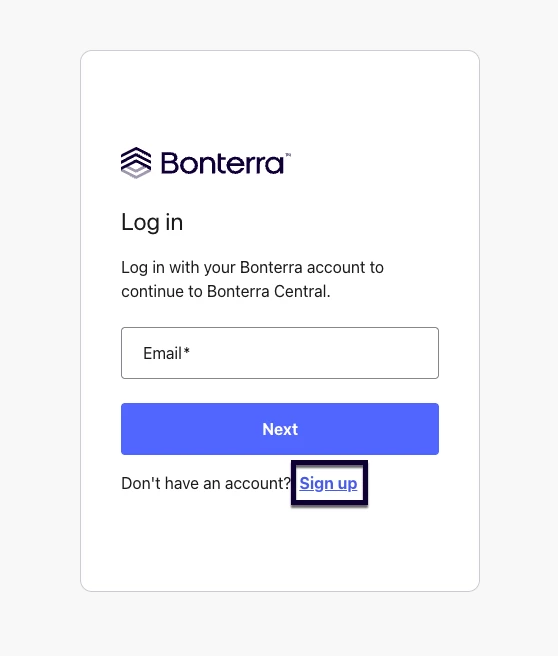
Step 2: Select Sign up
On the Log in screen, select Sign up beneath the Next button (“Don’t have an account?”).
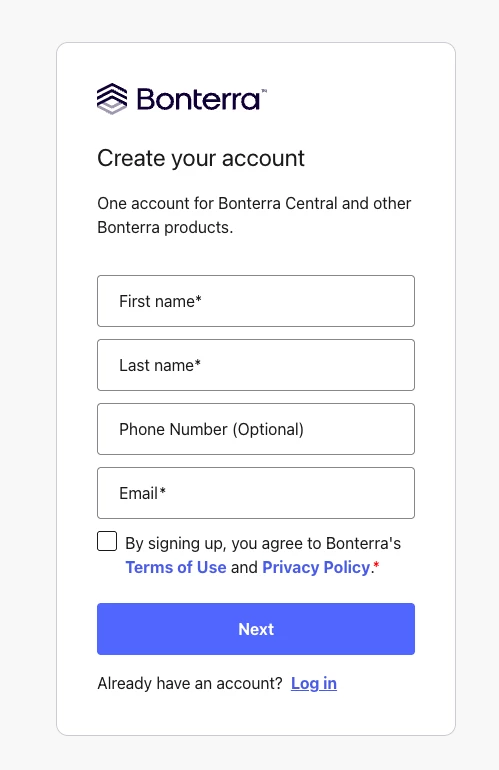
Step 3: Create your account
Complete the following fields:
- First name (required)
- Last name (required)
- Phone number (optional)
- Email (required)
Check the box to agree to Bonterra’s Terms of Use and Privacy Policy, then select Next.
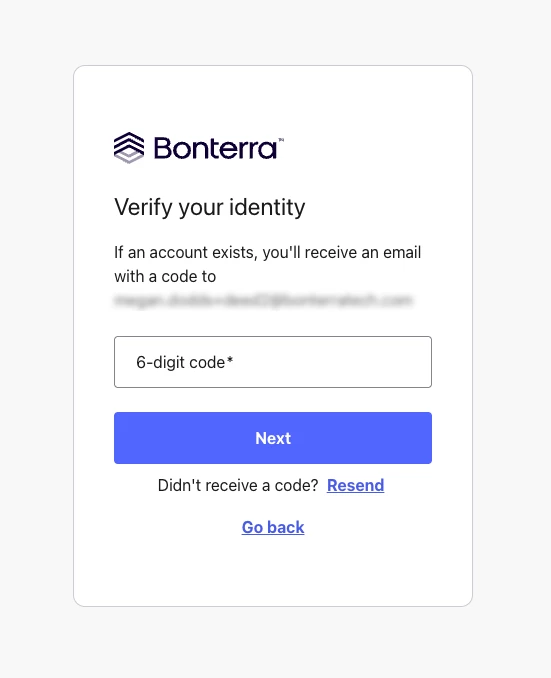
Step 4: Verify your identity
Check your inbox for an email containing a 6-digit code. Enter it in the 6-digit code field and select Next.
If the email doesn’t arrive, check your spam or junk folder, or select Resend. If you entered the wrong email address, select Go back to correct it.
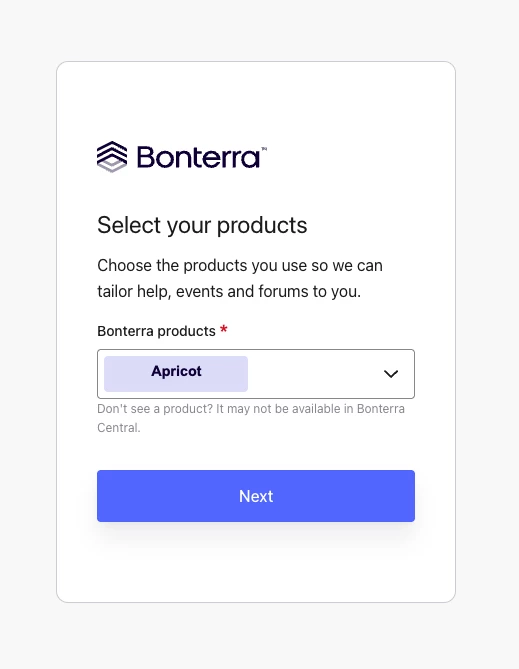
Step 5: Select your products
Choose the Bonterra products you use from the Bonterra products dropdown. You can select more than one. This tailors the help content, events, and forums you see in the community to your product(s). Select Next when you’re done.
Tip: Don’t see your product? It may not be available in Bonterra Central yet.
Step 6: Set your profile details
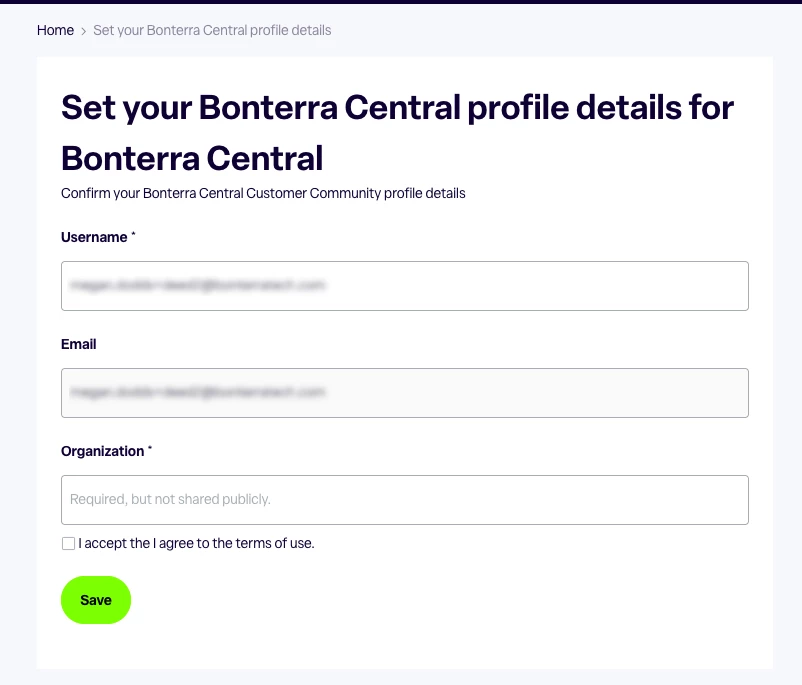
You’ll be taken to the Set your Bonterra Central profile details page. Confirm the following:
- Username (required): the name other community members will see.
- Note: you cannot edit this once you’ve created it, set your name thoughtfully!
- Email: pre-filled from your account and can’t be edited here.
- Organization (required): enter your organization’s name. This is not shared publicly.
Check the box to accept the terms of use, then select Save.
You’re all set!
You can now search content filtered to your products and participate in discussions.
If you run into trouble creating your account, contact Bonterra Support.
How do I create a Bonterra Central account? | How do I sign up for the Bonterra Community? | Why am I not receiving my 6-digit verification code for Bonterra Central? | How do I log in to Bonterra Central for the first time? | Can I change my username in Bonterra Central after I create it? | How do I select my product when signing up for Bonterra Central? | Do I need a new account for Bonterra Central if I already use Apricot?