

How do I create a link between two Apricot forms?

  • February 4, 2026
  • 5 replies
  • 149 views

Evonne Dao
Forum|alt.badge.img

The linking function in Apricot allows you to create connections between records in your database. This is particularly useful when you need to associate data from one form with data from another form. Linking fields also allow administrators to pull fields from the linked forms into the same section of a native report, which is otherwise impossible for unrelated forms.


Linking is recommended anytime you need to establish a relationship between two Tier 1 forms, a Tier 1 form and a Tier 2 form housed under a different Tier 1 form, or two Tier 2 forms housed under different Tier 1 forms. This could include scenarios like:

  • Connecting client profiles to the services they've received

  • Linking event registrations to the attendees

  • Relating household information to individual family members

Follow the steps listed below to learn how to add a linking field to a form and establish a relationship between data entered in two or more forms.


Note: The more linking fields added to a single form, the more likely users will experience performance issues when interacting with the form. The limit for a single form is 100 linking fields.


Step 1: Determine your base and target form

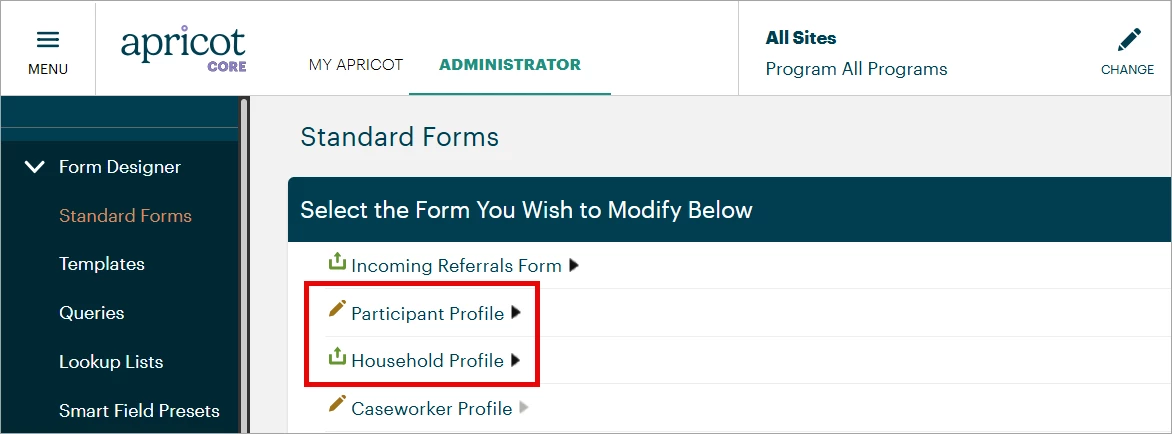
In our example, we have a Tier 1 Household Profile form and a Tier 1 Participant Profile form. Our goal with linking these forms is to have every participant in our database associated with a Household Profile record so we can eventually report on our data by clients or families served.
 

11475680-How_do_I_create_a_link_between_two_Apricot_forms-upload_13244946857.PNG


The Household Profile form will be considered our "base" form. This is the form that users will navigate to first in their data entry workflow and where the linking relationship is created within the Form Designer. The Participant Profile form is then considered the "target" form, meaning that users will be directed to select or create a record for this form as they fill out a record for the base form.


Step 2: Add a Link field to the base form

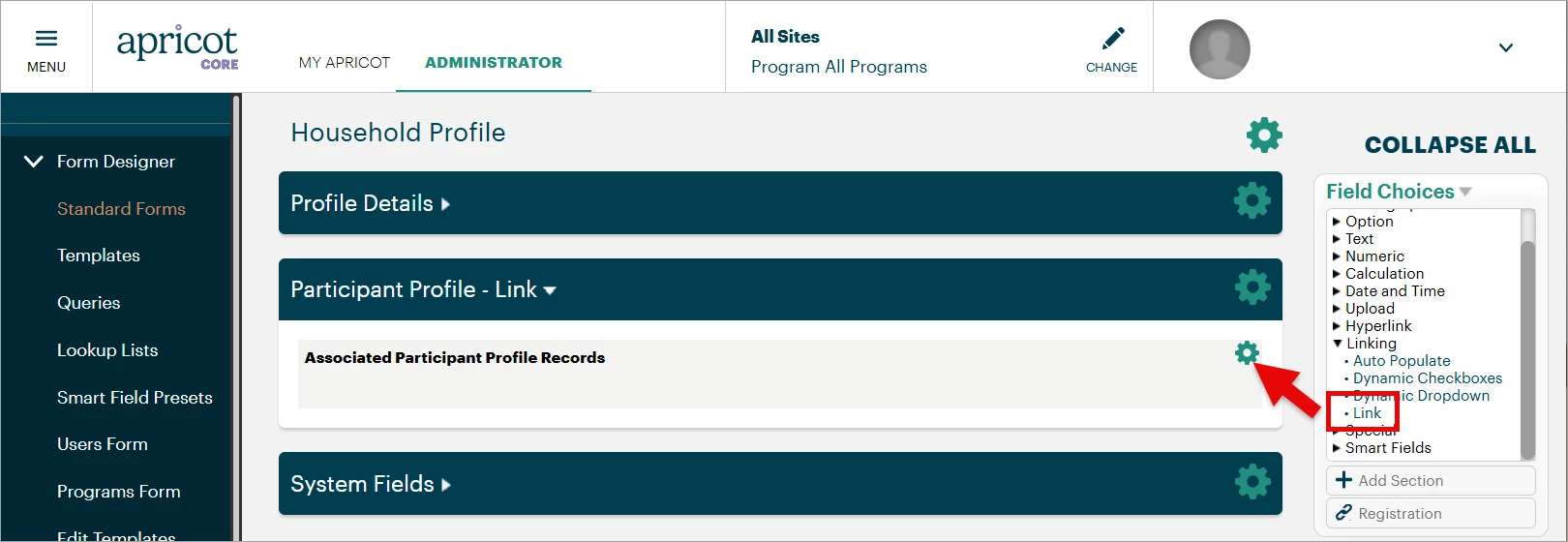
Open your base form in the Form Designer, then expand the "Linking" category in the Field Choices palette. Click and hold the "Link" field name to drag it into a form section.
 

11475680-How_do_I_create_a_link_between_two_Apricot_forms-upload_64187460262.PNG


Next, click on the gear icon at the top-right of the field box to open its properties.
 

11475680-How_do_I_create_a_link_between_two_Apricot_forms-upload_59282891296.PNG


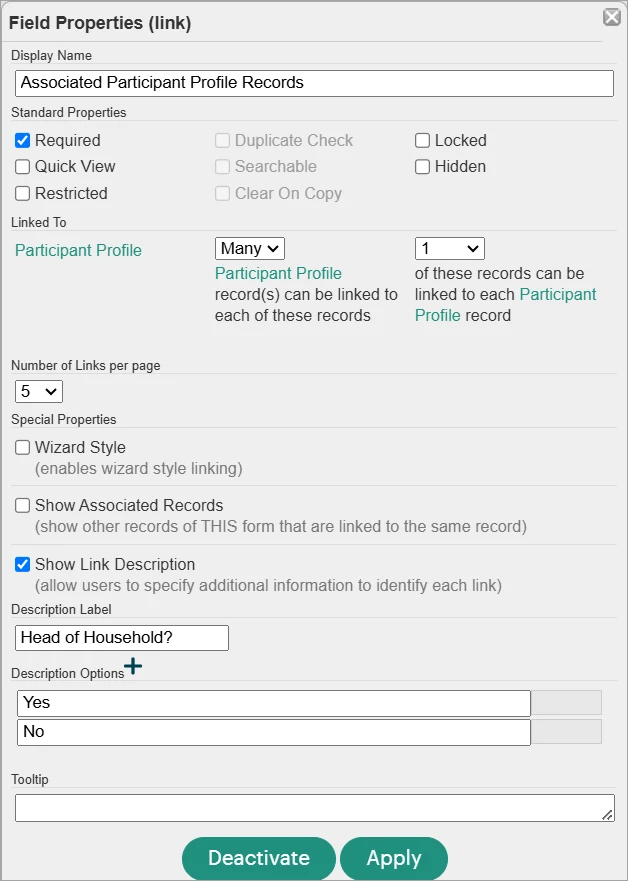
In the "Linked To" section, select the target form from the dropdown. You'll then decide in the following dropdown menus how many links can be created between records of the base form and records of the target form.


In our example, each Household can include many participants. However, our users will only associate each participant with one Household. We selected "Many" Participant Profile records to be linked to each Household Profile and "1" Household Profile record to be linked to each Participant Profile record.


The "Number of Links per page" property determines how many links are previewed when viewing a record; users are able to click into the linked section to scroll through all links when necessary. You can also choose to show associated records of the base form that are linked to the same record or allow users to add a description to identify each link.


Select "Apply" once you've finished setting up your properties, then publish the base form from the Form Actions palette.


upload_3806261465850368623.PNG?expires=1771009200&signature=703f2d4fb9f92d89116694b01dd9f8d3313acb6620ecb8316a599b8ec6ec75ed&req=dSUhHsF8noZZXvMW1HO4zQCT9XpHZgQuBr5fefedAg3T%2F%2F4bZIVoe3UUR9Sg%0ACq9yA5CM6GiqgZcR5M8%3D%0A


Step 3: Configure the target form

Once a linking field has been added to a base form, it'll also appear on the target form under the field name "Link Instructions" by default. Open the target form in the Form Designer and view the linking field's properties by clicking its gear icon.


Snag_5c9ef0.png?expires=1771009200&signature=402dd1e000bc234fe6a5424195cb4685df5a9556edfbf096450ae463ef4c81e9&req=dSckHs52noVeW%2FMW1HO4zTJOxfX%2FhKSVqdHNqgebv%2Bkgi5s8oei1ehd%2FDhyk%0AhPCRe5DWWrKYYOqFUzc%3D%0A


There are fewer property options for you to configure here, but you can still select the number of base form links that appear on records of the target form. You may also choose to show other records of the target form that are linked to the same base form record. In our example, this would allow us to view other Participant Profile records linked to the same Household Profile record


Be sure to click "Apply" and publish the target form to make any changes available to users for data entry.


Step 4: Add a link within a record

Navigate to your base form as though you're creating a new record, then scroll to the Link field you configured in Step 2. Click "+ Add" to connect the record you're creating to a record of the target form.


upload_2889538277506574891.PNG?expires=1771009200&signature=a6981c2875e60e23601e3c53c62ad06f5618ae01d9d16160ca59acb9b46cc018&req=dSUhHsF8noZXWPMW1HO4zag6yTS4eqsLS4mwH0vFfBdLAI%2FsxXd7qkn0vzu9%0AtA6zQqVdvGydKdbAzgM%3D%0A


The search window allows you to view and filter for existing records by a search field. Note: Using the "Link All" button here will link every record currently displayed in your search. If this adds more links than the Link field's properties allow, then none of the links will be saved with the record.


upload_885190047590089909.PNG?expires=1771009200&signature=8e0343e74393e51cac60cb96afe5be7d271127a5afbe3570fb60bb898797d800&req=dSUhHsF8noZXUPMW1HO4zShfNoV8jKZweqHn8%2Bnk2FUyLJr5Ru7NvwIuVV2o%0Aw%2BKONUAJ0GCQ7WgpkMc%3D%0A


Clicking on a record name here will immediately create a link in the base form's record.


upload_2024708177959738759.PNG?expires=1771009200&signature=b684f136f27ae6902583ee2f5145b2ed34f5f60abbb5679fa4c06d2fa77dd5c2&req=dSUhHsF8noZWX%2FMW1HO4zYcO1csxNtQnxSWHNdR7XarO%2BlOPMhXLdw4GahS9%0Aj5WlNejeeFN%2Fl6WCi5Y%3D%0A


upload_11767407619810128403.PNG?expires=1771009200&signature=ffb70cdfdf4ef12346d7636f73b3b6a20c0598ddf38f6c4a293f901a4929d218&req=dSUhHsF8nolfWvMW1HO4zeR1k%2BPsh1deStckPNci7ZTgk957I7YViZnG3rTU%0Aw1dZTRe28Jo8QtCnlHo%3D%0A


Selecting "+ Create New" from the search window will navigate you to a new, blank record of the target form to fill out.


upload_17623561158594013515.PNG?expires=1771009200&signature=51f7f2bef7ce5d4781f3a30d1edea08bf98139d8f05e53c4cdccf5d09a879844&req=dSUhHsF8noleXfMW1HO4zT3OxSZihTojKlZyhdys3xg%2BdsqtXVZel6BKBwBq%0A94Y7WkzdQ%2B7cdHhEAg8%3D%0A


Fill out the target form as usual, then scroll to the linked section to see this record is already linked to the base form record. Once you save the target form record, you'll be brought back to the base form.


upload_12603148803610533685.PNG?expires=1771009200&signature=a8ae12e1120354894df0066978613c73035a1a1cc82253e562734b9ac90cf9ae&req=dSUhHsF8noldXvMW1HO4zcD%2FUhjy%2BZf%2BZIZ3vEObEyDzyQlKVwEry69Zk8DA%0AHAD1Qw2eGpRk9iczmik%3D%0A


Click "Save Record" in the Record Options palette to establish active links between the base form and target form records.


Step 5 (optional): Deactivate or delete a link

You can view the active links within a record in the linked section and click the green text to navigate to an individual record.


If a link was added in error or needs to be removed, you can either deactivate the link by unchecking the box next to the link in the "Active" column or remove it entirely from the record by clicking the trash icon in the "Delete" column.


upload_11968621323241356310.PNG?expires=1771009200&signature=39f434e2cce749edb62954d6ac11565df2bad79ee06a4b469f7897ac0570c77f&req=dSUhHsF8nolcX%2FMW1HO4zdY9tjLP8w38YalMT74TfPxiXYDfQQmxkrbDtd07%0AI4cjJgdeABhe4j7rybQ%3D%0A


Deactivating a link retains the history of that link existing within the record, and you can choose to hide or unhide deactivated links using the checkbox at the top of the linked section. Deleting a link, however, permanently removes it from the record (you can re-add the link following Step 4 again if necessary).


What else do you need help with?


How do I create a link between two Apricot forms? | Where do I set up form linking in Apricot? | Why can’t I link my two forms in Apricot? | How do linked forms affect data entry in Apricot? | How do I choose the field that connects two forms? | How do I view related records across linked forms? | What permissions do I need to link forms in Apricot?

5 replies

Karri Smith
  • First Timer
  • June 30, 2026

Specifically when linking a T2 from one source to a T2 from a different T1 source:  There seems to be a limitation in which a link can only occur if there was already been a prior record linked.

For example: T1 Parent has a T2 called “Visit”.  This T2 needs to connect to the T2 Visit of a T1 Child record.  Within the Parent “Visit” record, the Search (from the link) finds only T1 Child Records where there was already a T2 Child Visit record recorded.  At this point, a NEW T2 record can be created for the T1 Child, but only if there was an existing record.
For practical purposes, this means that I cannot create a NEW  T2 Child record (from T1 Child) from within the T2 Visit record of the Parent T1 because the Child may or may not have an existing T2 Visit Record.  This creates a longer workflow than is desirable.


AnnieNovacek
Forum|alt.badge.img+1
  • Community Manager
  • June 30, 2026

Hi ​@Karri Smith you present an interesting situation. I want to be sure I understand what you are trying to accomplish to see if this is expected behavior or not. Let me know if this aligns:


Tier 1 Parent Profile

  • Tier 2 Parent Visit 🔗


Tier 1 Child Profile

  • Tier 2 Child Visit 🔗

🔗You are looking to link the Tier 2 Parent Visit to a Tier 2 Child Visit.

  • Note: Because you are linking across Tier 1 Profiles (not within a single Tier 1 Document Folder), you don’t have as many options like Same Folder Linking or Wizard Style links. Your workflow doesn’t sound like it requires either of these, but I wanted to mention these as differences you may be seeing compared to other uses of Linking.


Possible Solution:

  • When you are within the Tier 2 Parent Visit and you click to [+Add] the link, the list of available records isn’t showing all Tier 1 Child Profiles, correct? It only shows the ones that have a Tier 2 Child Visit already linked to a previous Tier 2 Parent Visit (not specifically the one you are filling out, but any, right?).
  • If this is the case, I would double check that no search fields are selected in the pop up. This can narrow down the list, especially if the search field selected is from the Tier 2 Child Visit because that would filter down to only Tier 1 Child Profiles with one of these Tier 2 records.


If this doesn’t solve your need, I would reach out to Support so they can take a look at your setup and settings to ensure there isn’t something amiss. I hope this helps!


Karri Smith
  • First Timer
  • June 30, 2026

Thank you Annie.  I have this same setup in a couple of places, where a T2 Adult is attempting to create a NEW T2 Child (bypassing the T1 Child).  I have not used the search filter to return ANY searches.  The reverse is also true; if I am in the Child T2 and try to connect to the parent T2, I will see all Parent T1’s that have that specific Parent T2 but no others.  I have switched the order of these linkages so that they are no longer a CREATE, but simply a LINK to an existing form, since CREATE just doesn’t seem possible (unless one already exists and then I can create a 2nd, 3rd, 4th, etc T2).


AnnieNovacek
Forum|alt.badge.img+1
  • Community Manager
  • July 1, 2026

Hey ​@Karri Smith , thanks for sharing. I would recommend reaching out to our Support team so they can look at your settings to see if I am missing something by not being in your actual system. I would share with them specific form examples. I did test a similar setup in my own demo site, and I am sorry I didn’t have more insight to share. What you are describing sounds possible, so I’m hopeful we can help you streamline your workflow.


AnnieNovacek
Forum|alt.badge.img+1
  • Community Manager
  • July 1, 2026

@Karri Smith I had another thought. 

Have you checked the Record Program Assignment for all of these forms? That’s another thing that could filter which records you see in the list available to link. Any mismatch here could cause an issue or if you are in a specific Program view in Apricot.