


What is Document Folder Print Mode (Beta)?
To print out all the records associated with a participant or entity in Apricot, you can use the "Print" functionality from their Document Folder. This allows you to generate a comprehensive report containing the Tier 1 record information as well as any Tier 2 records like program enrollments, assessments, and other detailed data. To learn more about printing records from a Document Folder, click here.
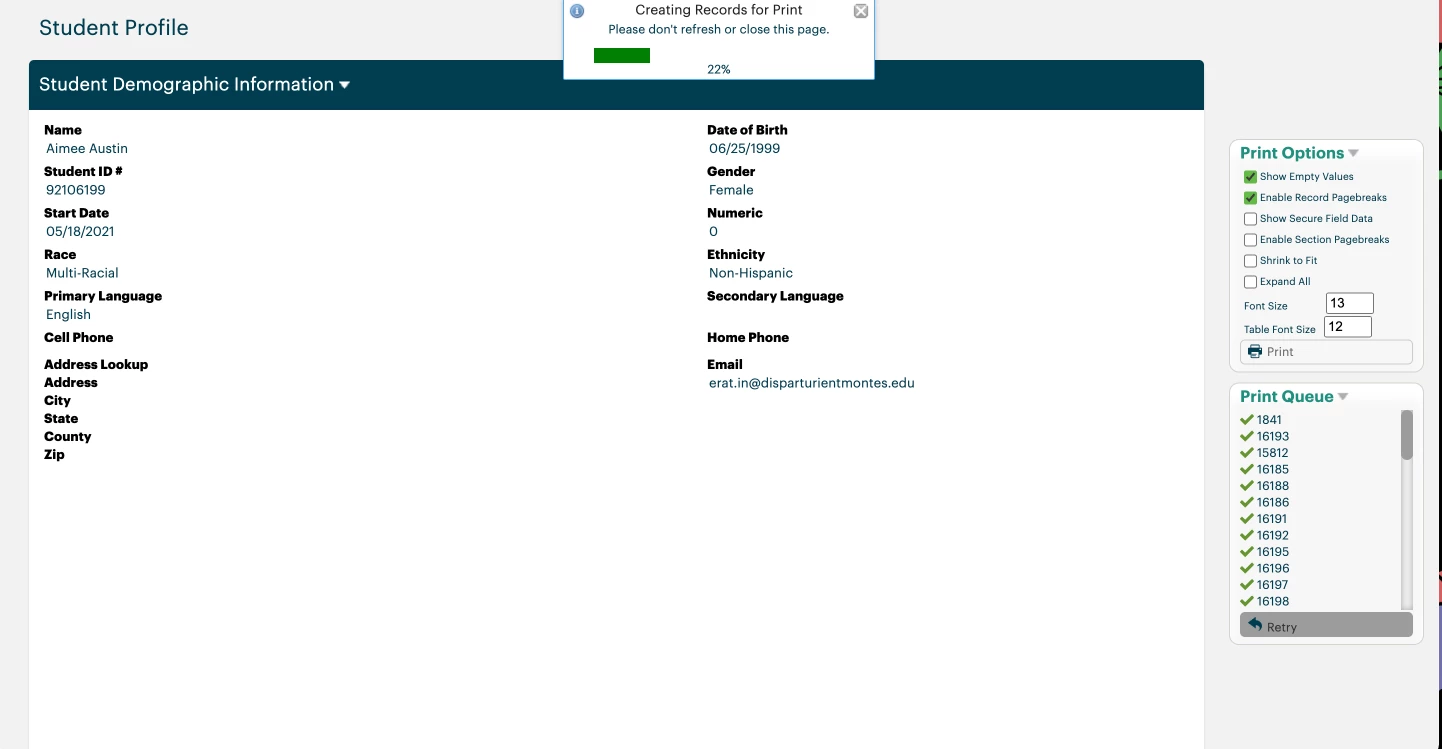
When you print records from the Document Folder, the Print Mode will now load the Tier 2 records one-by-one, rather than all at once. This helps prevent the system from becoming overwhelmed, especially for Document Folders with a large number of Tier 2 forms.
As the records are loading, you'll see a Status Bar that shows progress and a Print Queue that lists which record IDs are still waiting to load or have already loaded successfully.
Important: Do not refresh or leave this page until the status bar says "100%", otherwise you'll have to start this process again.
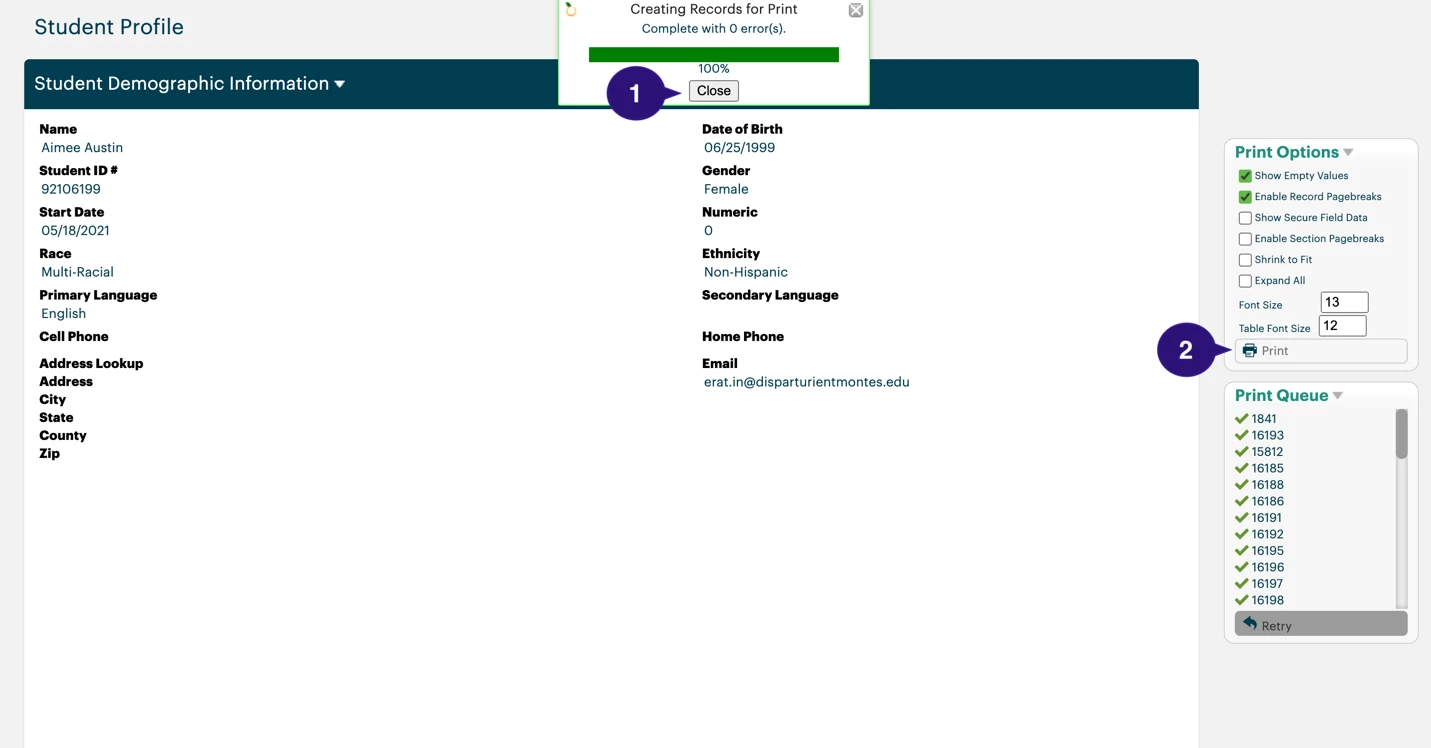
Once all the selected records are ready, a "Close" button will appear below the Status Bar. You can then click "Print" to complete the process and generate the full printout of the Document Folder.
What else do you need help with?
How do I use document folder print mode in Apricot? | What is document folder print mode beta in Apricot? | Where do I find print mode for a document folder? | Why can’t I enter print mode for a folder in Apricot? | How do I select records to print in folder print mode? | How do I export documents from print mode in Apricot? | What permissions do I need to use document folder print mode?