


How to: Canvass with MiniVAN
We’ve made some updates to our login experience! If you come across references to “ActionID” in our help resources, those are being updated to reflect the new name: Bonterra Account. Nothing changes on your end as we tidy up the documentation.
MiniVAN puts your turf packet on your mobile device and gives you everything you need as a canvasser to knock on doors, survey people, gather petition signatures, make calls, and then send the results directly back to your CRM.
Before you begin
If you are the organizer for a canvass, you will need to cut turf or create a distributed contacts universe to include in your effort. You can then generate a list number to share with your canvassers or assign the lists to particular MiniVAN users.
While this article covers the basics of canvassing with the app, you can also use MiniVAN for other types of outreach:
-
MiniVAN Jobs is set up for workplace organizing and allows you to organize your canvass by job site or department.
-
MiniVAN Street Team is set up to survey people without a list of contacts and allows you to link signup or custom contribution forms to your survey.
Read more about using MiniVAN with Street Team
Once you’ve set up the list or turf you’ll be using, make sure that all the canvassers on your team download the app and create an Bonterra Account account if they do not already have one.
Depending on your committee settings, you may be given a Daily Access Code (DAC) for your team to use when signing into the app. When the code is enabled, an organizer or volunteer enters an Bonterra Account, followed by a list number as usual, and then the DAC you provide. This code changes daily.
The final step before you head out to begin your canvass is to make sure everyone on your team knows how to use the app. While MiniVAN is designed to be as intuitive as possible and includes in-app training for new users, you may want to provide more specific instructions for your particular canvass.
Canvassing with MiniVAN (video)
Downloading your list
To start canvassing, load the turf packet assigned to you. After you log into MiniVAN, enter the list number given to you by your organizer or select one of the existing lists on your screen.
Note that if you partially canvass a list, you can later re-download it in order to touch those remaining contacts and your original canvass results will populate.
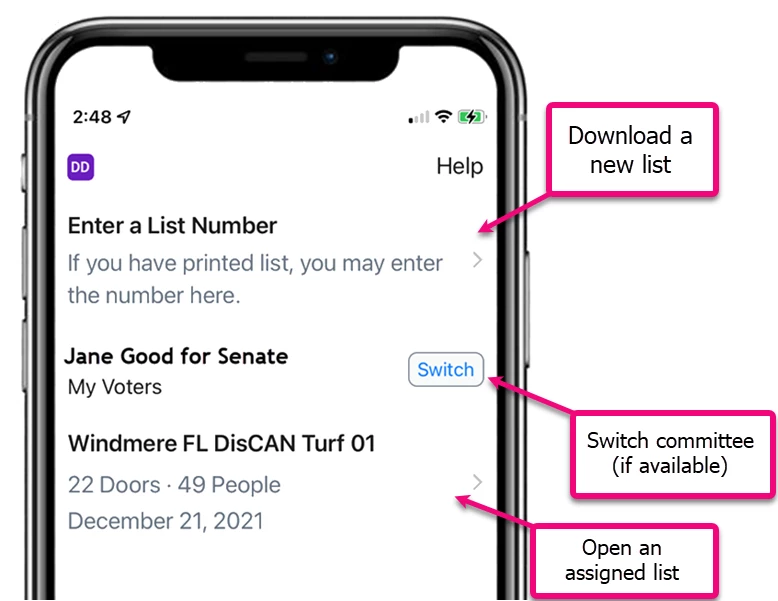
Once your list is loaded, you will see a map of doors (households) assigned to you. You will also see a section with a list view of the households.
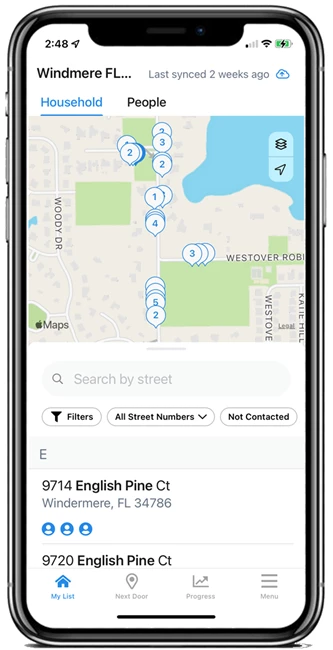
The toolbar on this page gives you access to other actions including:
-
My List - Your current canvass map and list
-
Next Door - Optimizes your walking or driving route
-
Progress - View the progress you are making
-
Menu - Choose to manually sync your data, download a new list, or get more help
To switch to a different list, open the Menu at the bottom of your screen and select Download a New List. Make sure to sync your progress before downloading a new list.
Using the Map view
The default map view shows pins representing the addresses on your list. View the map in full screen by swiping to move your list of households or people out of your way. When you zoom out, addresses located near each other appear as clusters of pins. Zoom in to view individual pins.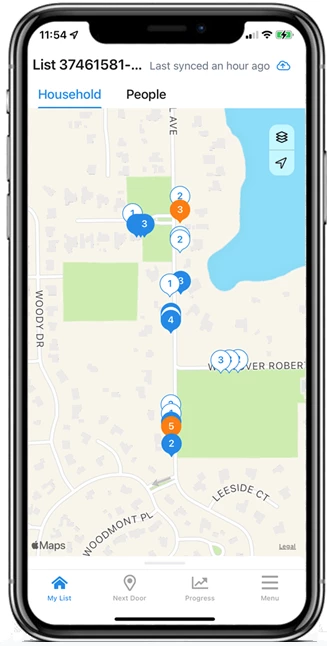
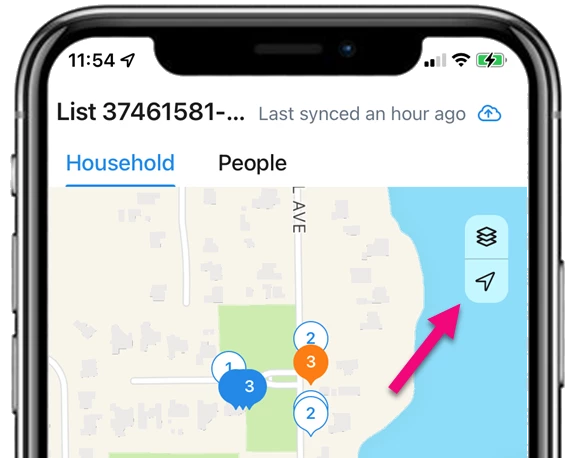
In the upper right corner of your map, you will see options to:
-
Switch between Satellite or regular Map views
-
Automatically recenter the map and zoom out to see the entire area in your list
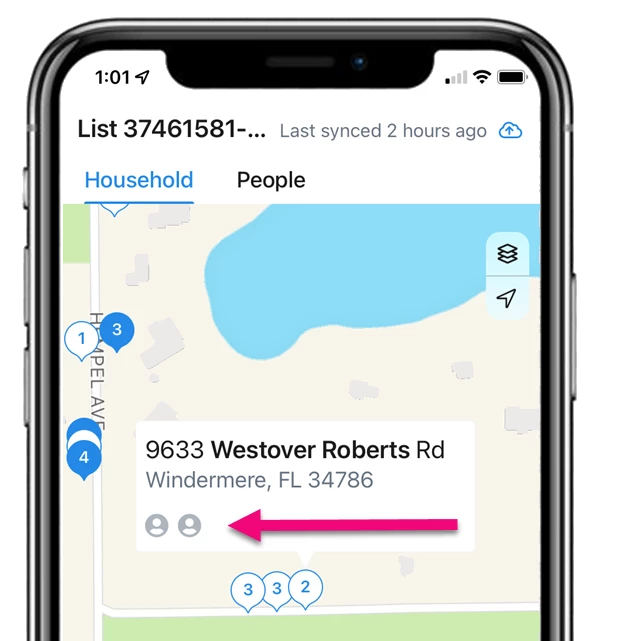
Click on a pin to see details for a particular address. You will see an icon for each person at that address.
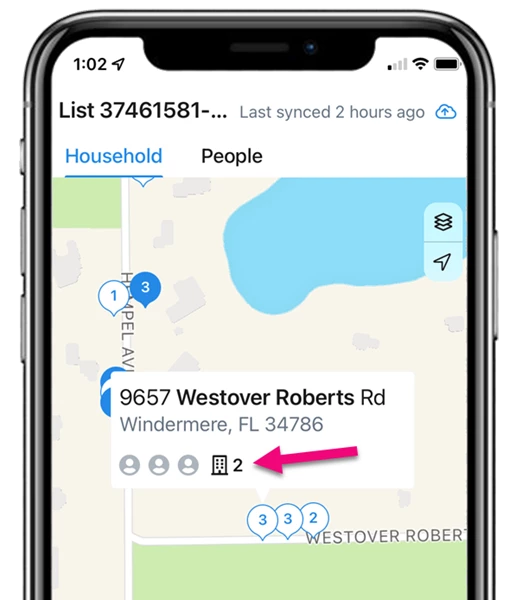
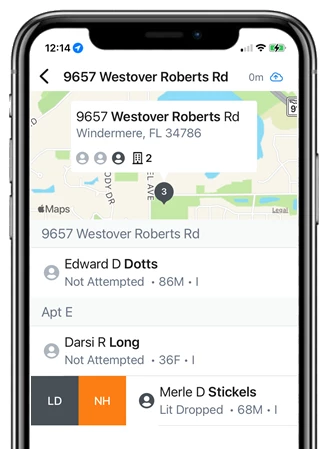
Apartment buildings are marked with a building icon and show the number of units and the number of people living at that address.
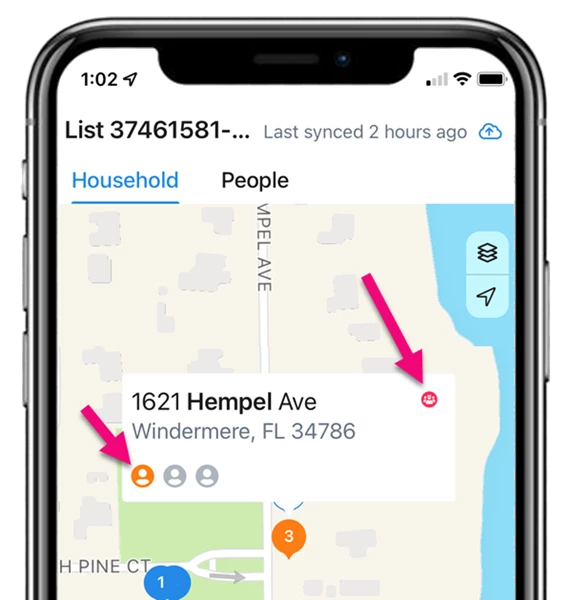
If you participate in a team canvassing effort, the red icon in the upper right corner of the address box shows you if anyone else has canvassed that particular household. The person icon below the address will display as blue for canvassed, orange for not home, or grey for other canvass results.
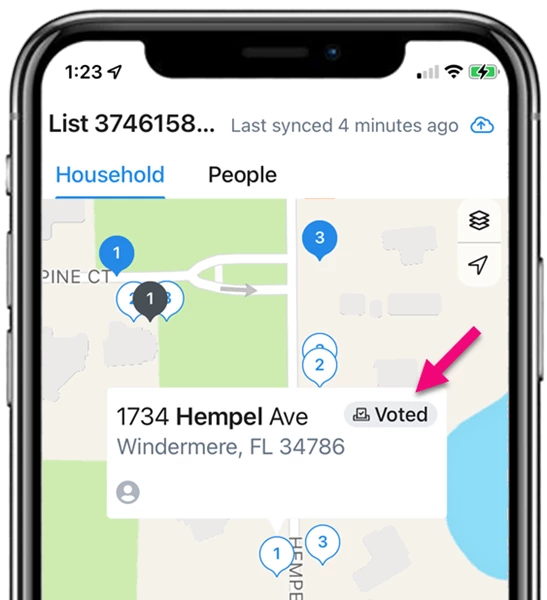
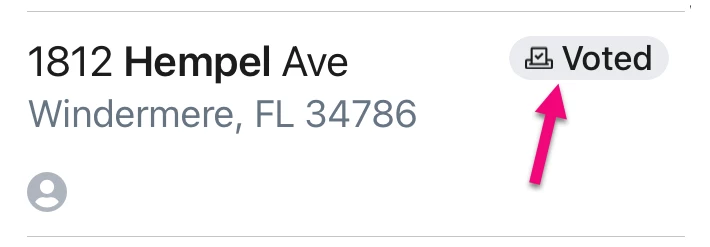
A Voted icon appears in the upper right corner to show that someone in the household has already voted.
Click on any address to find out who is in that household. Clicking on a name opens that person’s details and the script to record canvass responses.
Using the List view
If you prefer to use a list view, swipe to pull the list over your map. Toggle between a list of Households or an alphabetized list of all the People assigned to you by selecting the tabs at the top of your home screen.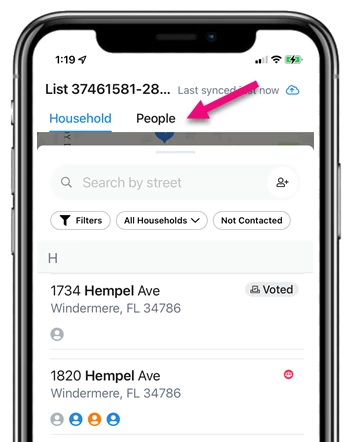
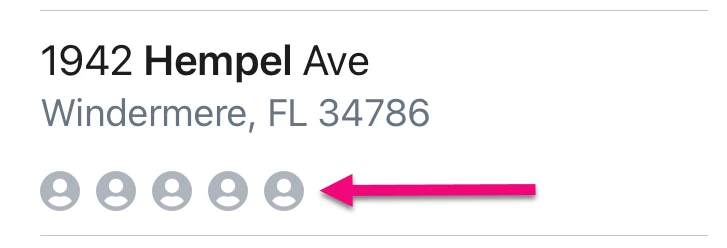
In the Household view, the list is sorted alphabetically by street name. You will see a person icon for each person in that household.
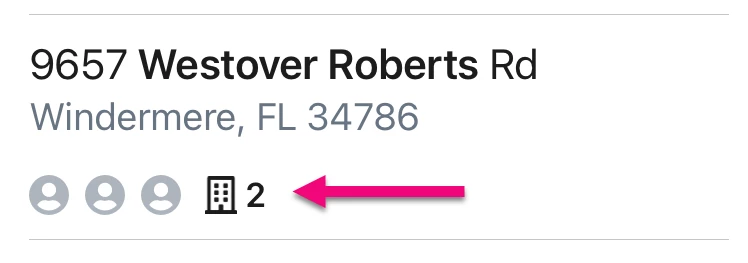
Apartment buildings are marked with a building icon and show the number of units and the number of people who live at that address.
If you are in a team canvassing effort, the red icon in the upper right corner of the address box shows you if anyone else has canvassed that particular household. The person icon below the address updates to another color when some enters results for that contact.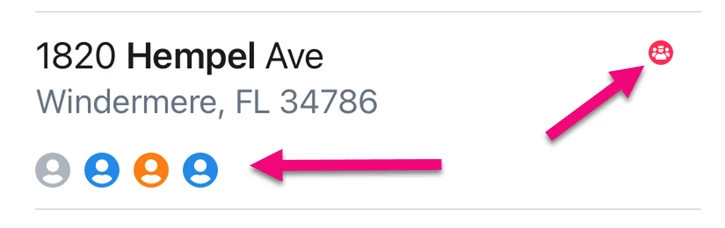
Voted icons in the upper right corner also let you know if any individuals in the household have already voted.
Tap on an address to open the list of people in that household or location.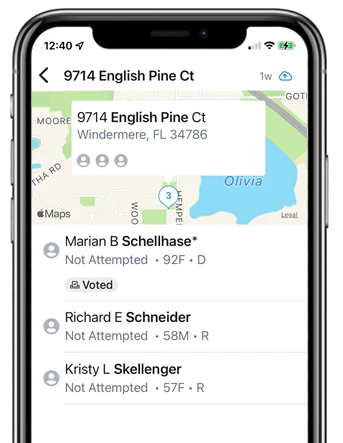
Click on any of the names to view more information about them and open your canvassing script. If you are using the People list, you can directly open a person’s details and canvass options by tapping their name.
Filtering your map or list display
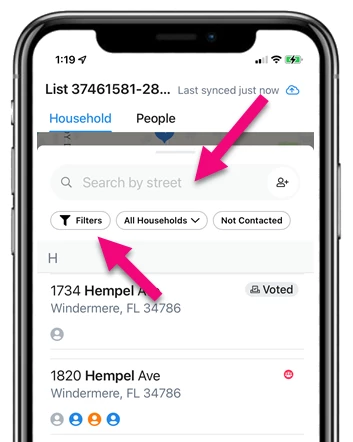
Using filters to narrow the list or number of households displayed on your map is helpful if you are canvassing with a team and you want to avoid canvassing the same territory others have already walked. If you split your doors with another canvasser or only walk one side of a street, you can use the quick filter at the top of your list to view only the odd or even addresses in your list or map.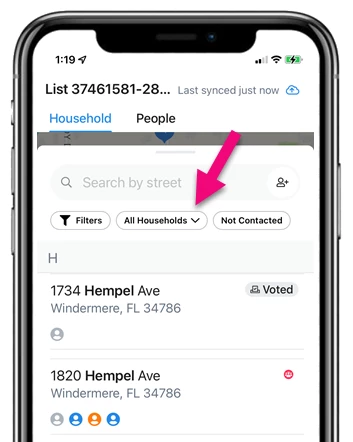
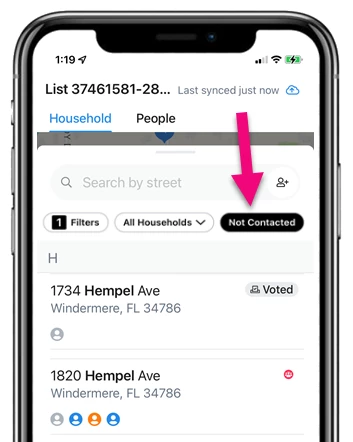
You can also toggle the Not Contacted filter on or off to focus on the households or people that have not yet been contacted.
Searching for people
If you need to refine your list, Search for a specific person or address or open the Filters and select more options to refine your list.
If you encounter someone who is not on your list, add them by using the Add Person icon.
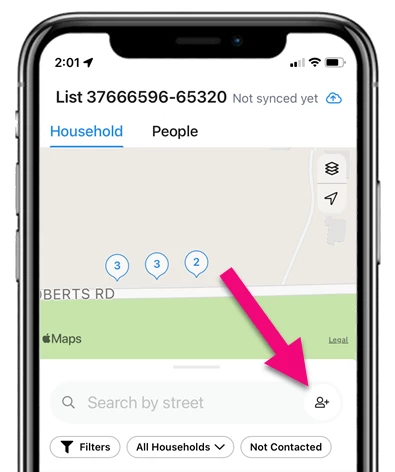
This searches the voter file for their record, if you are working from the voter file, or adds that person to your database, if you are using My Campaign or EveryAction for your canvass.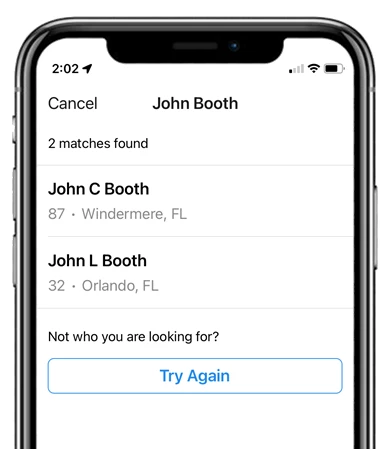
Planning your walk route
Open the Next Door tab to plan your route and order your doors by absolute distance from your current location. Switch between a map or list view using the icon in the upper left corner. Each address on your map or list will show how far it is from you.
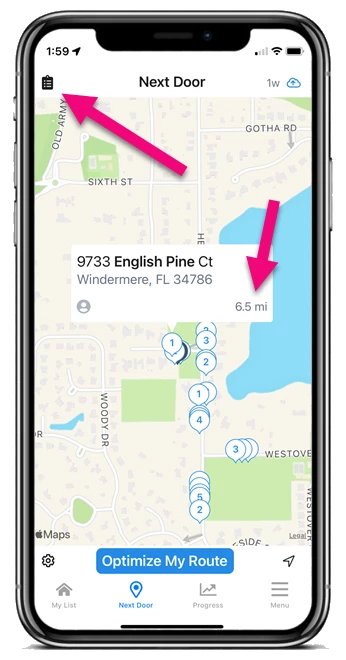
You may also see an option to Optimize My Route, which automatically plots the best driving or walking path for your canvass. After you select your starting and ending points, a numbered route will be added to your map or list.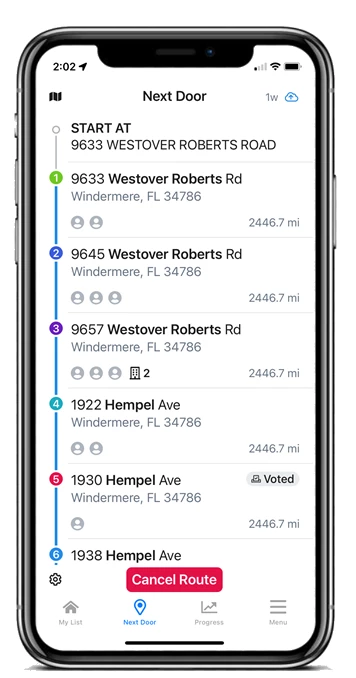
You can use Settings to:
-
Choose whether to include already canvassed doors on your walk map or list
-
Select Satellite view or regular Map
-
Display distances in miles or kilometers
-
Select walking or driving as your transit mode
Using quick mark results
If no one is home, mark a result for everyone in the household by swiping right or pressing and holding on the address to choose NH (not home). If you are doing a lit drop, you will also have the option to select LD (lit drop) instead.
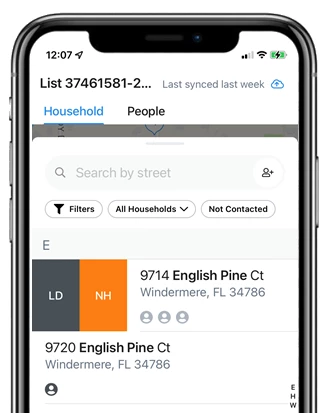
You can mark individuals or the rest of the household the same way by swiping right to choose NH or LD.
Recording canvass results
When you are speaking with someone, select their name from your list to open the script. The tabs below their name provide additional personal details, let you add notes, or display contact history, including answers to survey questions and Activist Codes applied to their profile.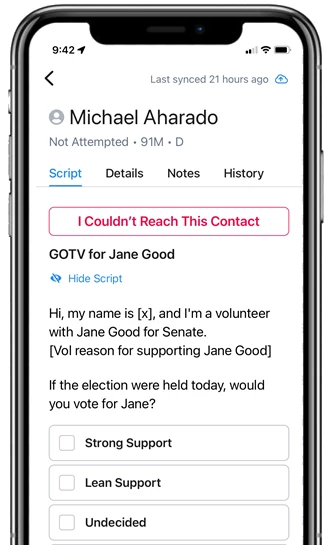
If you are not able to reach a contact, select I Couldn’t Reach this Person and mark the reason why they could not be contacted. If the option you select will remove them from future canvassing, you will see a warning asking you to confirm your choice.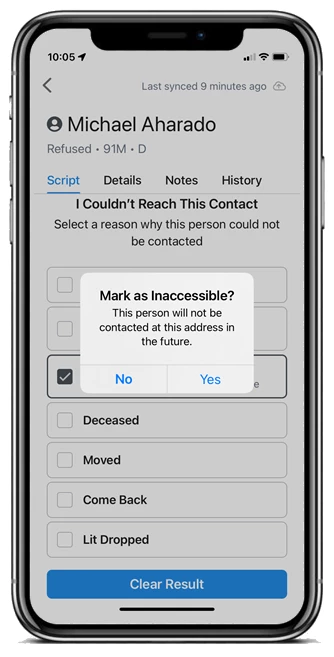
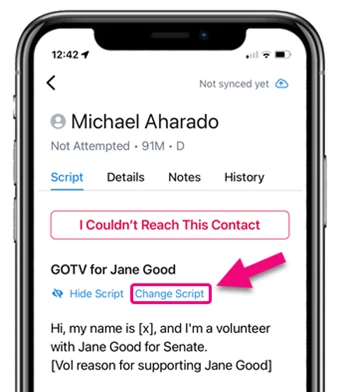
If a person is home and willing to talk with you, follow the script you are given and mark answers to the questions. If you have more than one script available, you can choose the alternative by selecting Change Script.
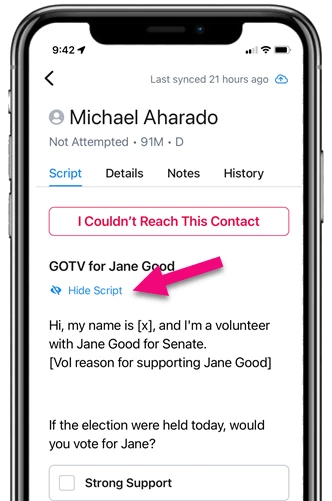
If you no longer need to see the suggested messaging from the script and just want to enter results, toggle the descriptive text on or off using Hide Script.
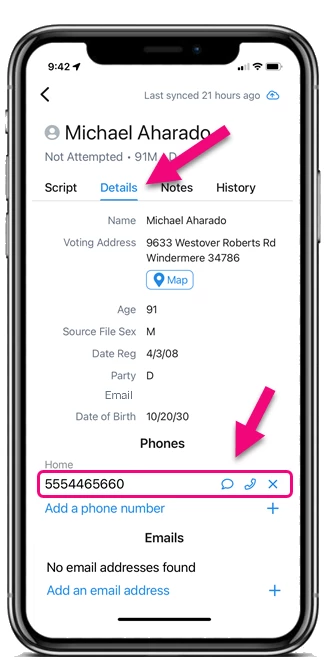
If you are in a virtual canvass or need another way to reach the people on your list you can email, phone, or text them directly from the Details page.
As previously noted, if you partially canvass a list, you can later re-download it in order to touch those remaining contacts and your original canvass results will populate.
Adding or updating other contact details
As you canvass, you may need to update certain contact details or make notes on your conversation. Open the Details page to add or delete phone numbers or email addresses. You’ll also see additional information such as assigned polling locations or early voting locations and any other details your organizer added to your MIniVAN format.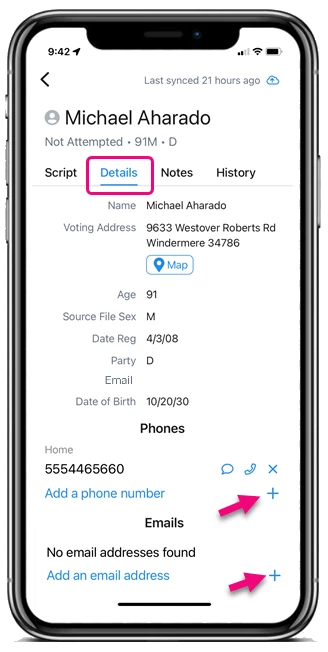
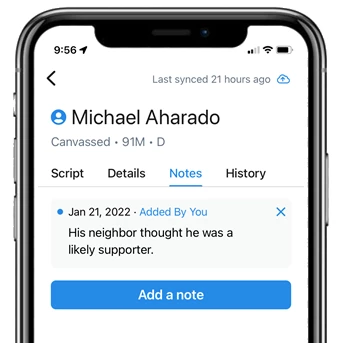
Use the Notes tab to add any additional details or helpful information about your conversation.
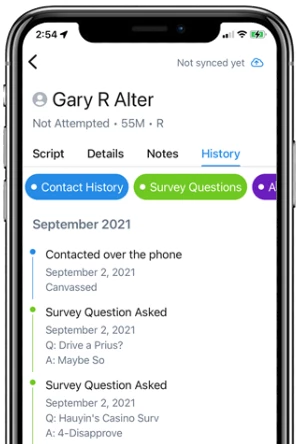
The History tab will show you previous canvassing results including answers to Survey Questions and Activist Codes applied based on previous canvass responses.
Syncing your data
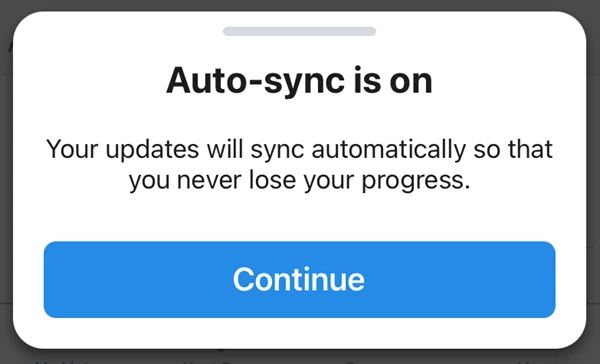
When you first open your list, you should see a message stating that Auto-sync is on. Only Administrators can disable the auto-sync option. Canvass results will automatically sync to the database as long as users have an active data connection.
You will need to be connected to wifi or a data connection to download your list at the beginning of your canvass. But even if you lose your connection while you are walking or driving (or if you only have wifi-enabled devices), the app stores your results and automatically sends them back to the database as soon as a connection is restored.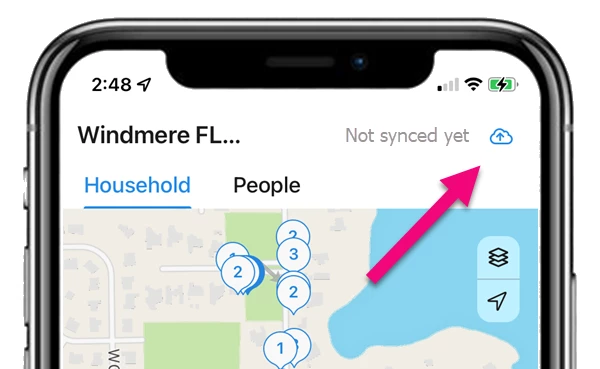
You can always manually sync data using the sync icon in the right-hand corner or from the Menu at the bottom. If you are the organizer, it’s good practice to make sure each of your canvassers has synced their data before they leave for the day.
Scheduling your next shift
At the end of your shift, follow the prompt from Mobilize to to sign up for your next shift.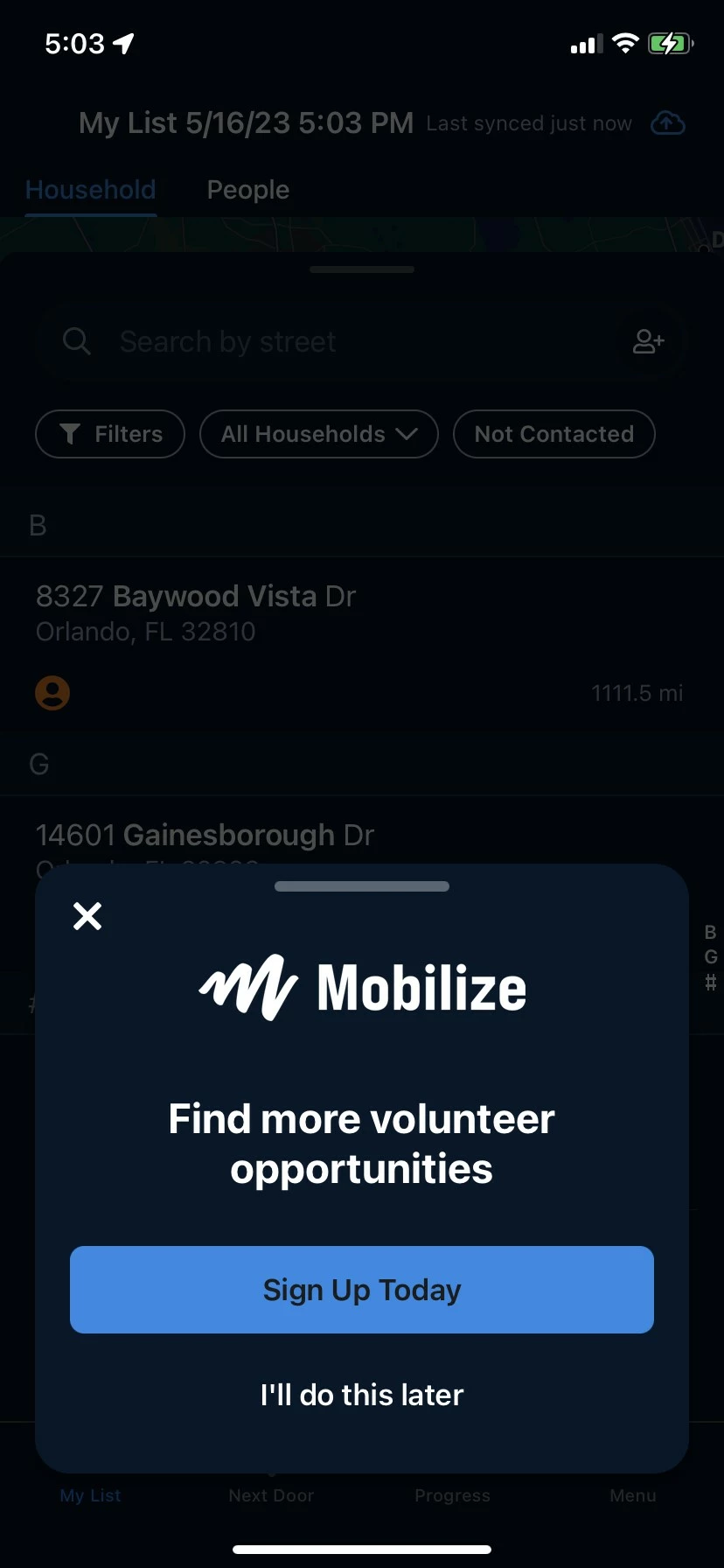
Not quite what you were searching for?
- Navigate back to the MiniVAN Resource Index.
How do I use MiniVAN for canvassing? | How do I download a list in MiniVAN? | How do I record canvassing results in MiniVAN? | How do I sync my MiniVAN data? | How do I update contact information in MiniVAN? | Why isn't my MiniVAN data syncing? | How do I use MiniVAN offline?