

How To: Create Distributed Contacts campaigns
A Distributed Contacts campaign allows you to canvass without cutting turf, which is time saved for your team. Launch a canvass to knock doors or lit drop with a single list number that downloads a list of contacts closest to your canvassers.
Contacts are checked out for a period of time that you set. Any contacts that canvassers are unable to reach at the end of the period are released back into the contact universe for someone else to canvass.
Getting Started
To begin creating a Distributed Contacts campaign, use the search box or find the Canvassing tile on your Main Menu and use the MiniVAN dropdown.
You'll be asked to:
-
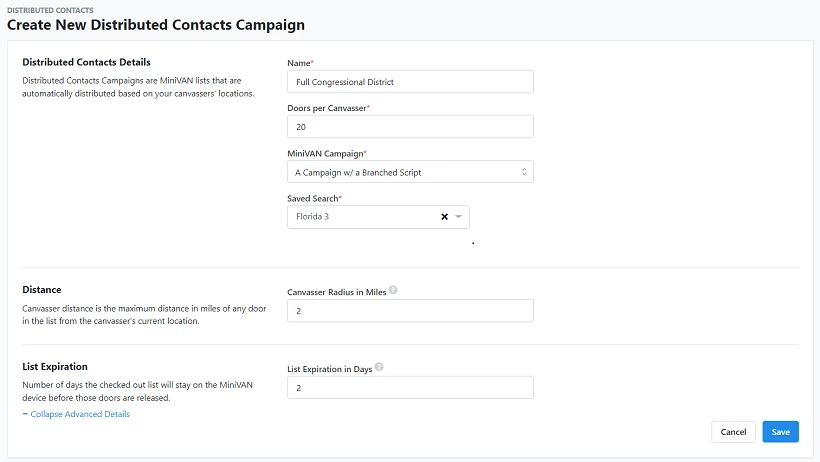
Choose Doors per Canvasser, or the maximum number of doors that will be assigned to an individual canvasser. If a canvasser is in an area with fewer doors than the number you have set, they will get that smaller number.
-
Choose your MiniVAN Campaign. This is the campaign you previously created and contains the format and script.
Read more about creating a MiniVAN Campaign -
Choose your Saved Search. This is your target universe. Consider the number of canvassers you expect to participate and whether the universe you’ve chosen includes enough people/doors for them to contact and excludes people/doors that have already been contacted. Your saved search will refresh overnight and new people will be added, while those newly contacted will be removed.
Read more about creating a list
You can Expand Advanced Details to set:
-
Distance - The maximum distance in miles to a door a canvasser will be prompted to travel from their starting location. The default canvass radius is 10 miles. Knowing the scope of the universe, who is on your list and where your doors are, will ensure canvassers work within a reasonable radius and are not prompted to travel too far afield.
-
List Expiration - When assignments expire, or the date when any doors not canvassed get released back into the contacts universe. By default doors expire after one day.
Using List numbers
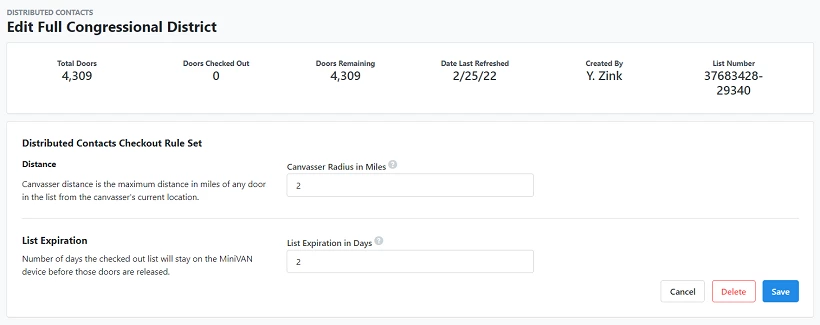
Once saved, your Distributed Contacts campaign generates a list number, which you can find in the second column of your campaigns list page. When you give your canvassers the list number, remind them to enable location services on their devices. Contacts will be assigned to them based on where they are geolocated when they enter the list number.

Running a Distributed Contacts campaign
Your Distributed Contacts campaign list page provides a breadth of information about the status of your canvass. Scrolling from left to right, you will see, among other details:
-
List Expiration
-
Total Doors and Total Contacts
-
Doors Checked Out and Contacts Checked Out
-
Doors Remaining and Contacts Remaining
You can also track how many doors and contacts each of your canvassers has checked out via Report Manager.
Read more about Report Manager

Running a phones Distributed Contacts campaign
While MiniVAN is most often used for canvassing, Distributed Contacts campaigns can be used for phone banking as well. To enable this capability, you’ll make a few different choices as you create your campaign than you would for an in-person canvass.
Script - Enabling your Distributed Contacts campaign to run phone banks begins with your Script. Find Phone Results under Canvass Result Options. Some phone results will be enabled by default. Add or remove options as you need. At least one box must be checked for you to use a script in a phone banking campaign.
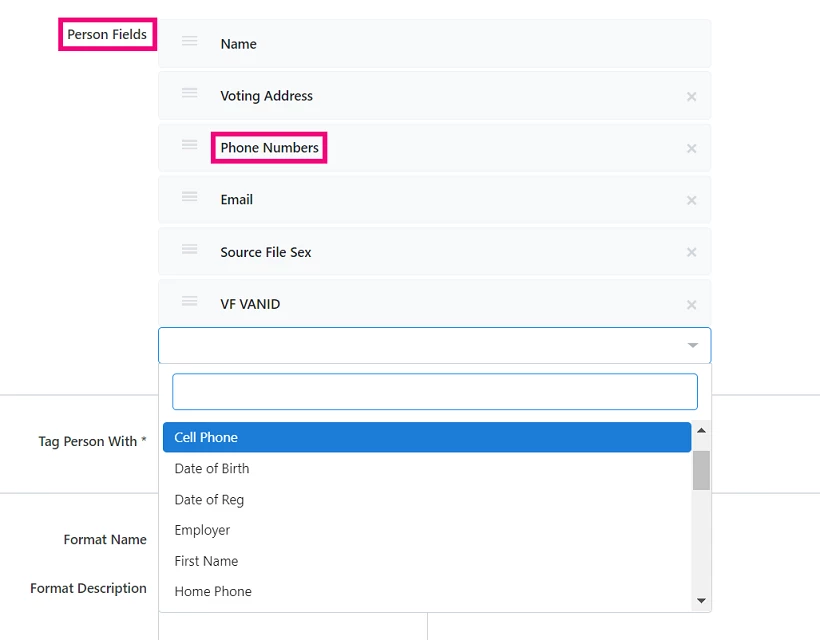
MiniVAN format - When creating your format, make sure that one of the Person Fields is a phone number. There are multiple options for the type of number you can choose.
MiniVAN campaign - Under Campaign Details, select Phone for Contacted How.
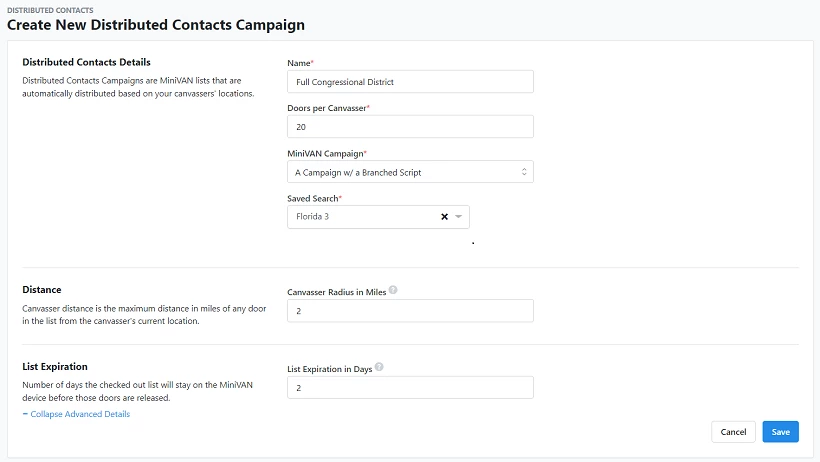
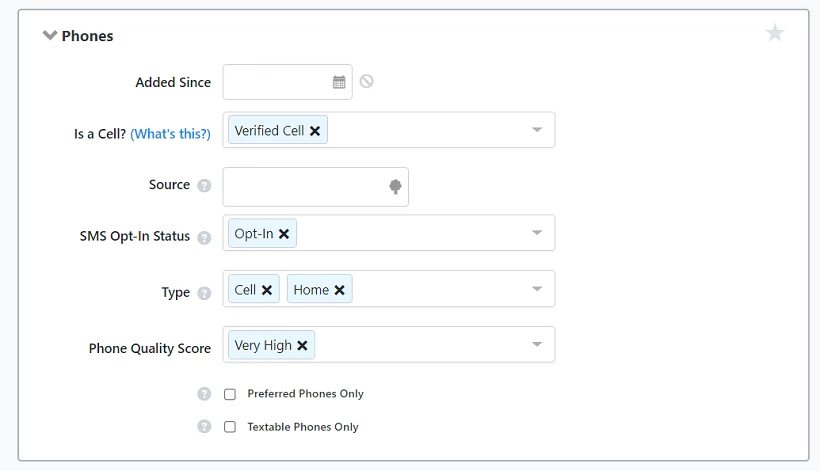
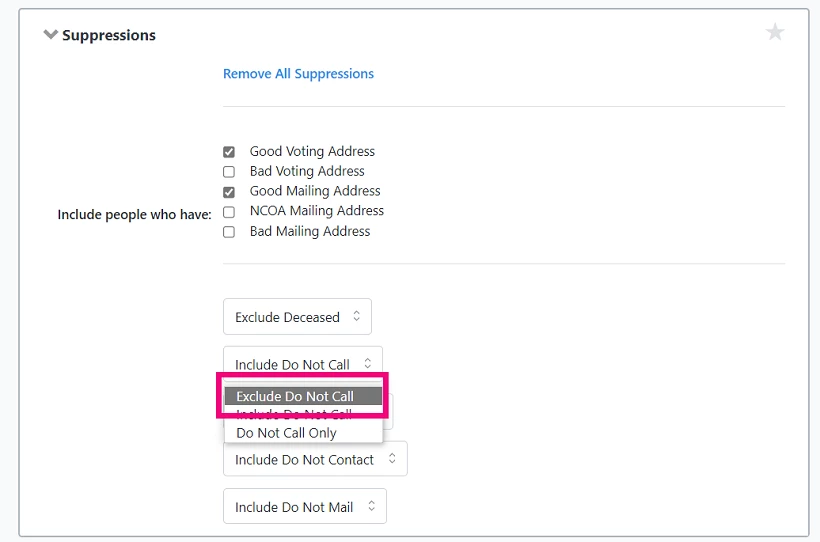
Create a list - The Phones dropdown of Create A List will limit your targets to people with phone numbers. Begin by choosing the Phone Type - home, cell, etc. To have the option of contacting people with SMS, you’ll want to use Is a Cell? Both Phone Type and Is a Cell allow you to choose multiple responses. Then, before you run your search, use the Suppressions section to Exclude Do Not Call.
Phone banking with the MiniVAN app - In the app, tap on a contact. Find the Details tab. You will see the personal data of that contact, including a phone number that you can tap to dial or SMS text.
Read more about canvassing with MiniVAN
How do I how to: create distributed contacts campaigns? | How does how to: create distributed contacts campaigns work in EveryAction? | Why can't I how to: create distributed contacts campaigns? | Where do I how to: create distributed contacts campaigns in EveryAction? | What is how to: create distributed contacts campaigns in EveryAction? | How to how to: create distributed contacts campaigns? | Can I how to: create distributed contacts campaigns in EveryAction?