

How do I review my SmartLinks?
Note: SmartLinks are intended to work specifically for the email recipient and our recommendation is not to forward them. When you click on a SmartLink in an e-mail, it can load data onto the form for a supporter based on the identifiers in the link, regardless of whether or not they have a cookie in their browser to pre-fill data on the form. So, forwarding a SmartLink can result in pre-filling data, including the credit card token stored in FastAction, for the original recipient, even when the recipient of the forwarded email clicks the link. For this reason, we recommend indicating that these links are designed to be one-time use for the original e-mail recipient.
Step 1: Open Link Icon
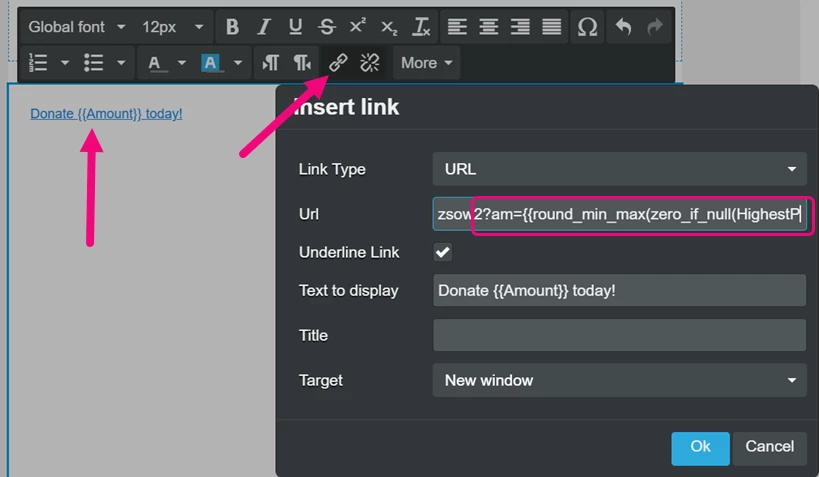
After adding Smart Links, click on the link icon in your Text block. If you scroll to the right, you should see your query after the question mark.
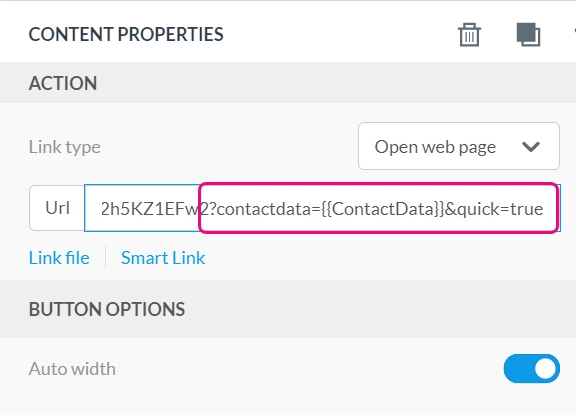
For Smart Links added to Buttons or Images, look in the Content Properties > Action section for the URL.
Step 2: Check URL and Query String
Verify the full URL and query string that was appended.
Step 3: Correct Errors
When you get to the Review step of your Targeted Email, you will receive a warning if there is a problem with any of your URLs that have query strings. You should then return to your Compose step to Edit your message and correct your errors.
How do I review my smartlinks? | How does review my smartlinks work in EveryAction? | Why can't I review my smartlinks? | Where do I review my smartlinks in EveryAction? | What is review my smartlinks in EveryAction? | How to review my smartlinks? | Can I review my smartlinks in EveryAction?