


How do I use Apply Left to Give?
The “Apply Left to Give” feature is available on Targeted Email and Mobile Messaging for clients with disclosure, and customizes suggested contribution amounts to prevent a supporter from exceeding their personal Left to Give amount (found on the contact record).
When you use the Optimized Ask feature, you’ll see an Apply Left to Give option that can be toggled on or off. Toggling this on will further customize the optimized suggested contribution amounts to ensure that you don’t go over your cycle period limit.
Read more about setting cycle period limits
Apply Left to Give in Targeted Email
There are 2 different ways to enable Apply Left to Give in Targeted Email: via the Compose Message step, or by using Smart Links within the email.
On the Compose Message step, check Use predictive analytics to automatically personalize ask amounts for this email.
Toggle on Apply left to give.
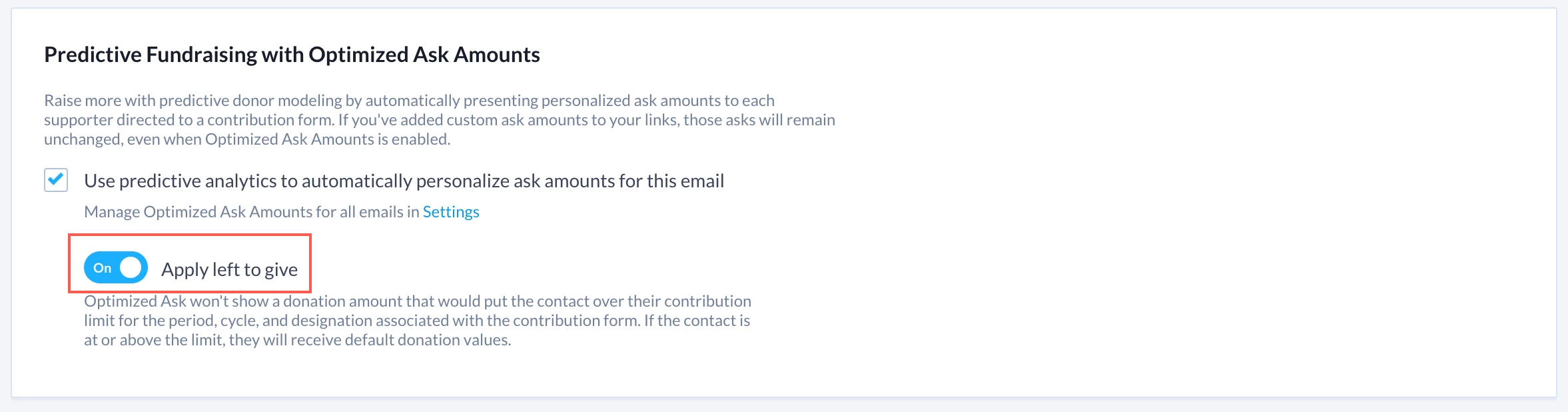
You can also enable Apply Left to Give through the Smart Links workflow.
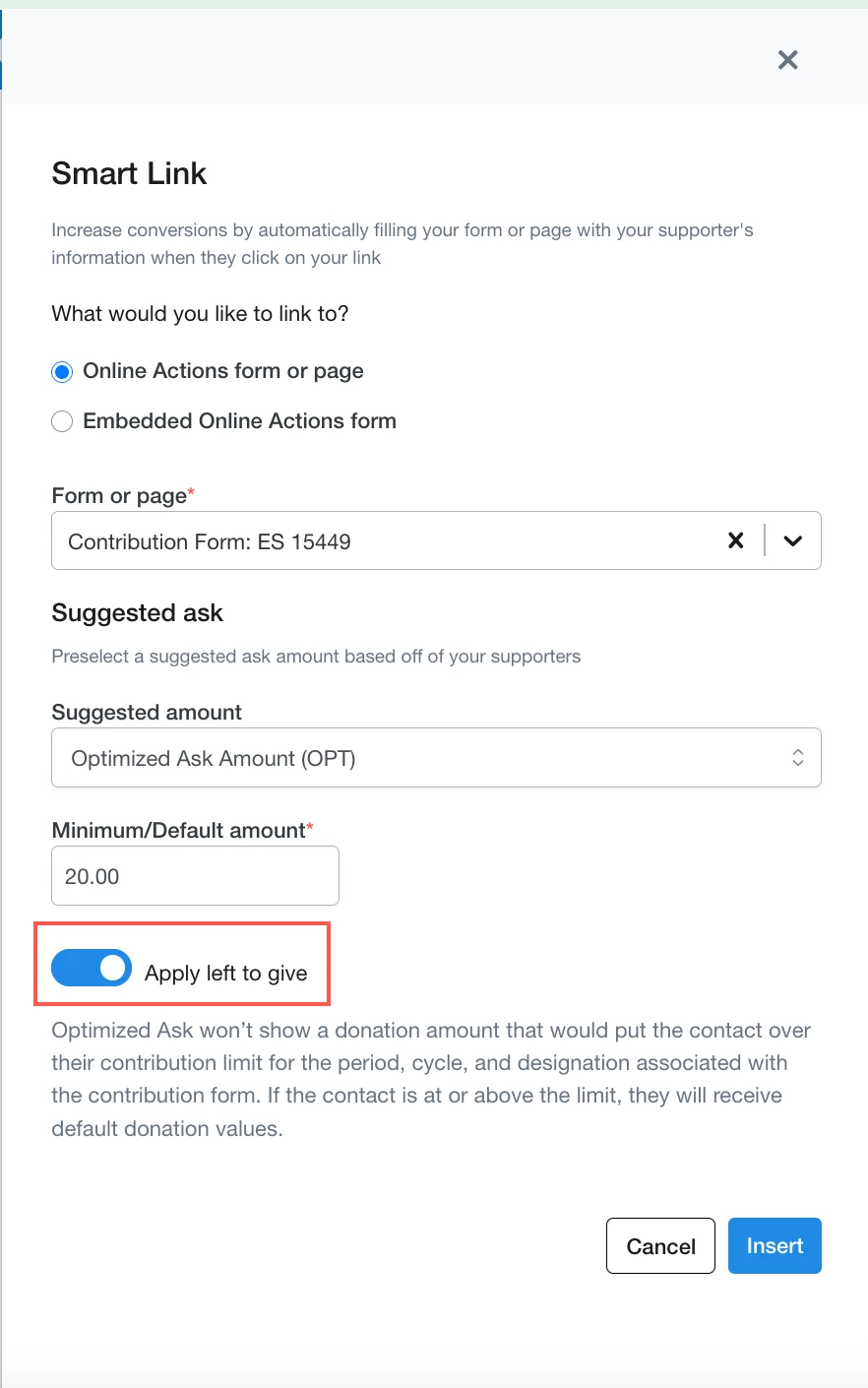
After selecting a Custom contribution form from the Forms dropdown, select Optimized Ask Amount (OPT) from the Suggested Amount dropdown.
Toggle on Apply Left to Give.
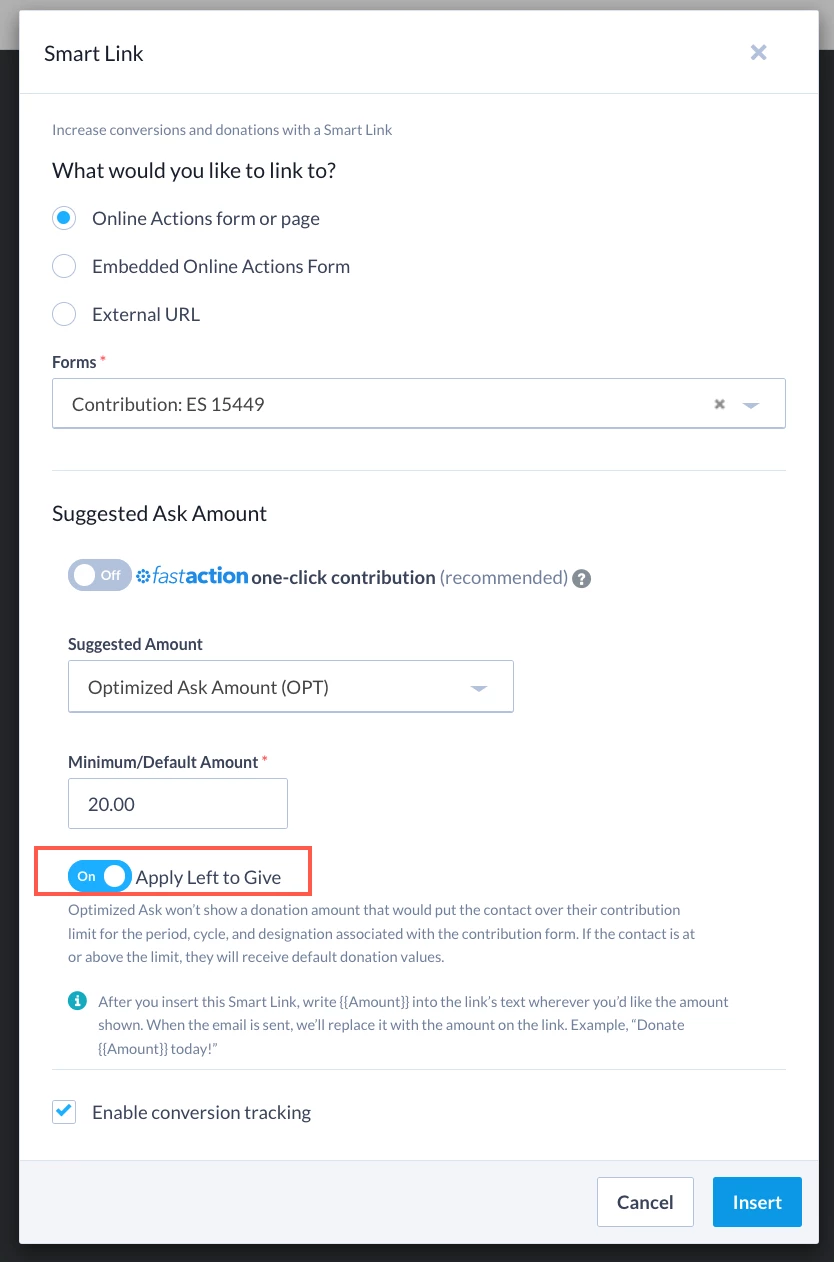
Now, a supporter will see a donation amount in the email that won’t put them over their contribution limit for the period, cycle, and designation associated with the custom contribution form.
Read more about using Smart Links in the Drag & Drop editor
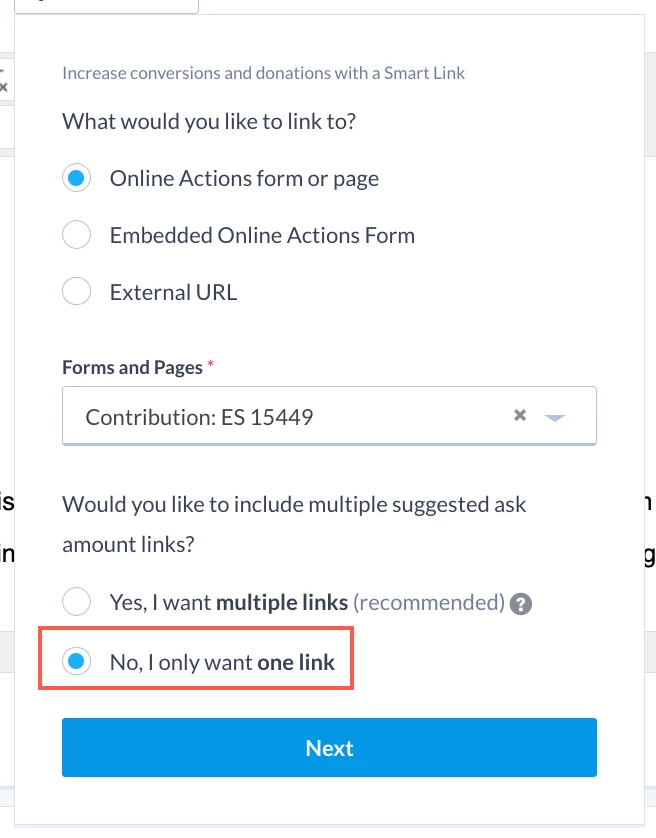
If you’re using the Classic editor, you can use Apply Left to Give through the Smart Link option. After selecting your custom contribution form, select “No, I only want one link” and click Next.
On the next step, make sure Apply Left to Give is toggled on.
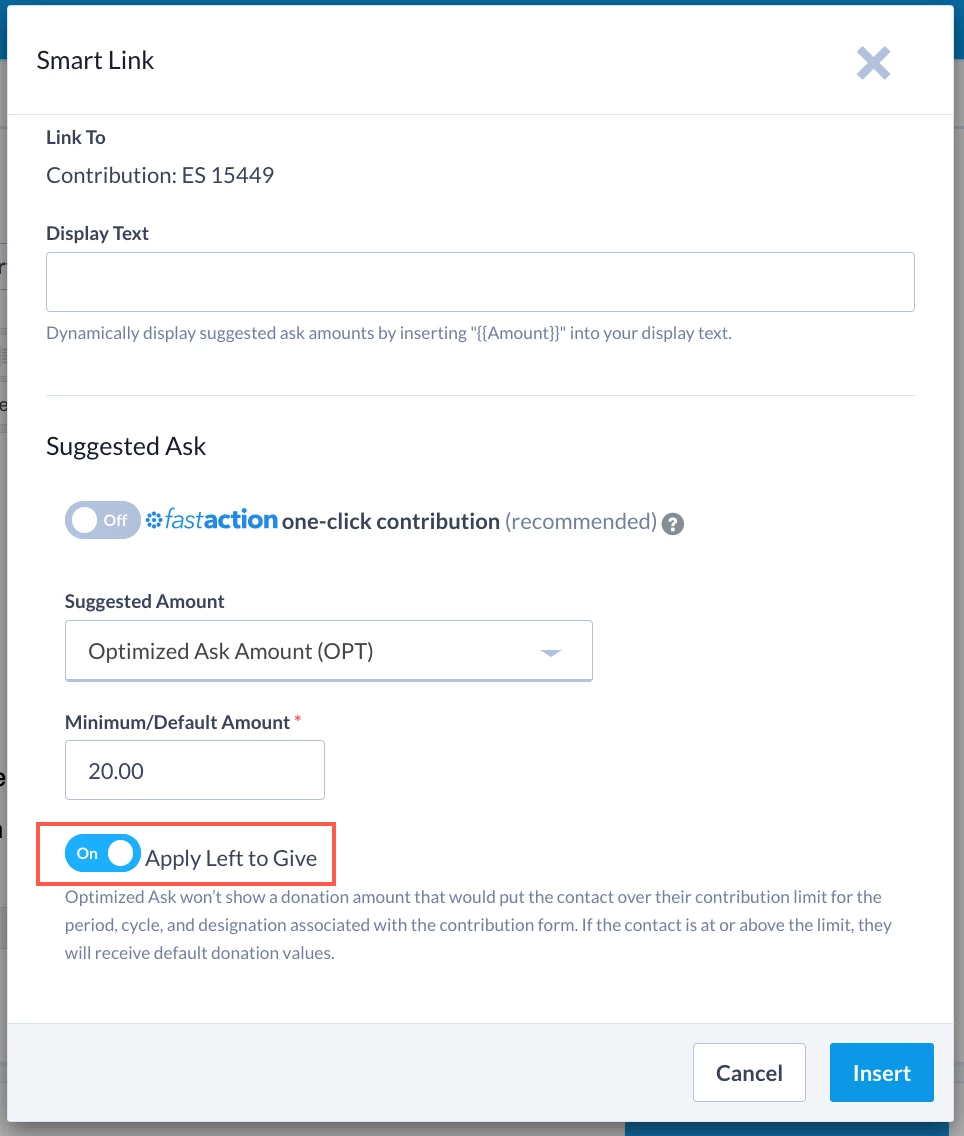
Read more about using Smart Links in the Classic editor
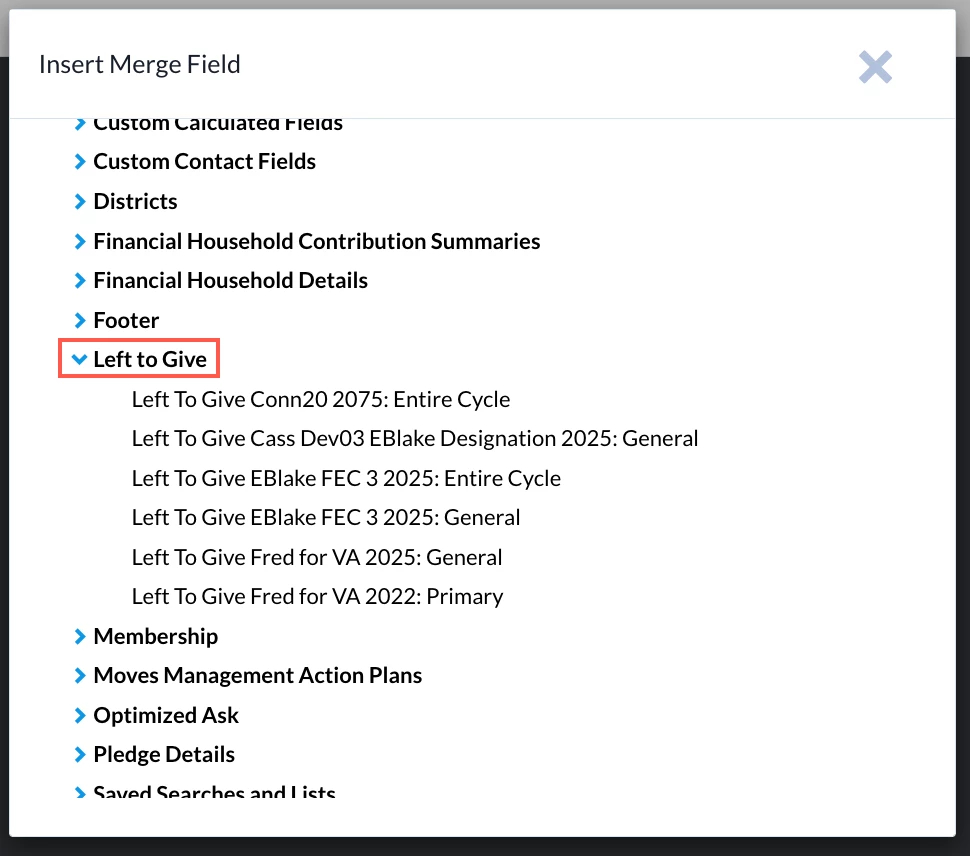
You can also insert a Left to Give merge field by selecting the Merge Fields button in the Targeted Email editor (same for the Drag & Drop and Classic editors).
You can choose from different designations in your committee and the cycle within the designation. This merge field will display the amount a supporter can give before hitting their contribution limit for the specified period.
Apply Left to Give in Mobile Messaging
In the Compose your message section, select Link, then Smart Link, then Next.
In the Smart Link window that opens, select your custom contribution form and confirm Apply left to give is toggled on.
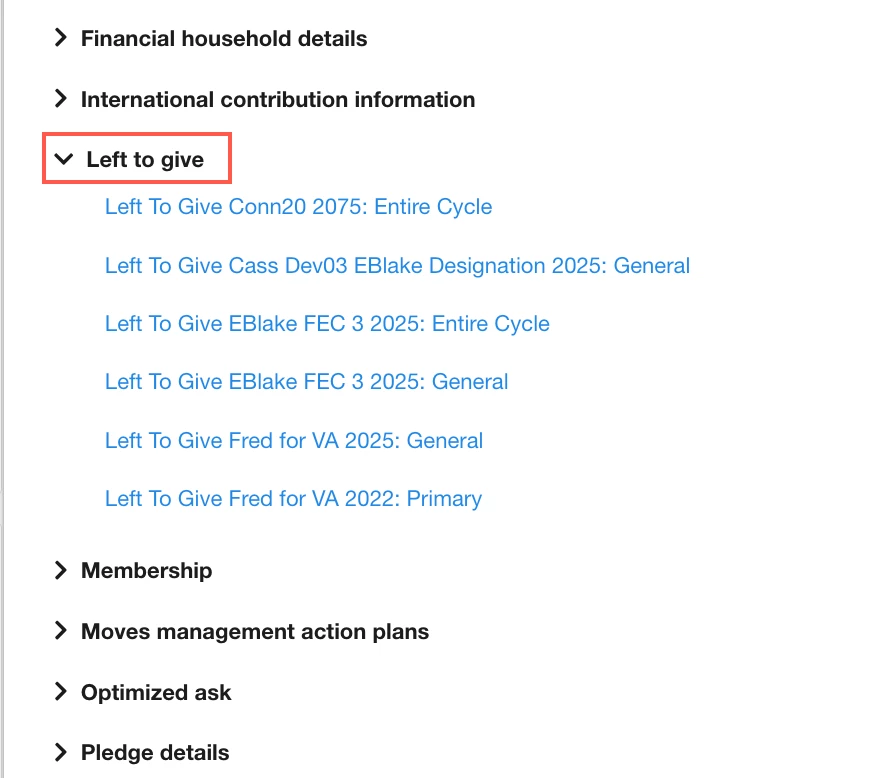
You can also insert a Left to Give merge field by selecting Merge field and then choosing Left to give. Select your desired merge field to insert it into the message.
Learn more about Mobile Messaging
Not quite what you were searching for?
Navigate back to the Feature Overview.
How do I use apply left to give? | How does use apply left to give work in EveryAction? | Why can't I use apply left to give? | Where do I use apply left to give in EveryAction? | What is use apply left to give in EveryAction? | How to use apply left to give? | Can I use apply left to give in EveryAction?