

How to: Manage Online Actions form statuses and redirects
(3 min read)
You can manage the status of your forms from the Online Actions dashboard.
- To learn more about the dashboard, read Overview: Online Actions.
- If you are new to Online Actions, read more about How to: Create Online Actions forms.
Viewing the status of your form
From the Forms Overview list, you can easily see the current status of each form in the list. If a form is active but you selected a Deactivation Date when you created the form, you will see a countdown that will indicate how long the form will remain active.

Use the Status drop-down menu above Forms Overview to narrow your list of forms to display your Published or Deactivated forms or all forms with a Scheduled Deactivation.
Activating and deactivating your form
If you want to edit the status of a form, you can use the drop-down menu to the right of the form summary. The choices from this menu depend on the status of your form.
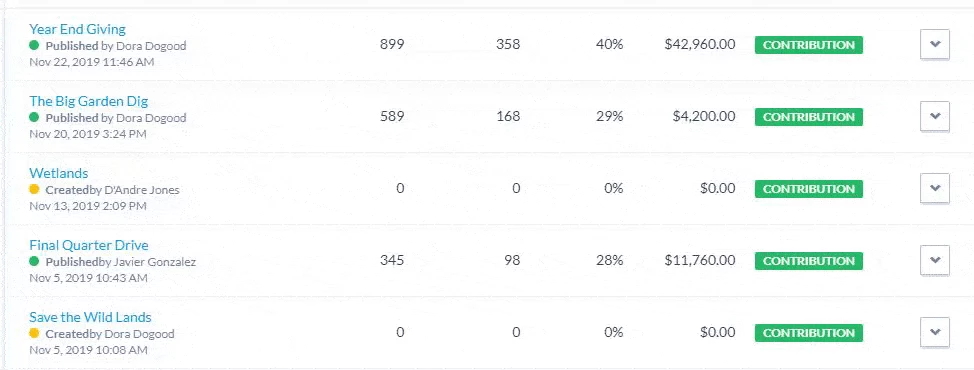
On Published forms, you can Edit, Copy, View Published Form, or Deactivate the form.
On Draft forms, you'll be able to Edit, Copy, Preview Draft, or Delete your form. (You can publish your form once you have finished all the editing steps).
If your form is Deactivated, you can Edit, Copy, View Deactivated Form, or Reactivate the form.
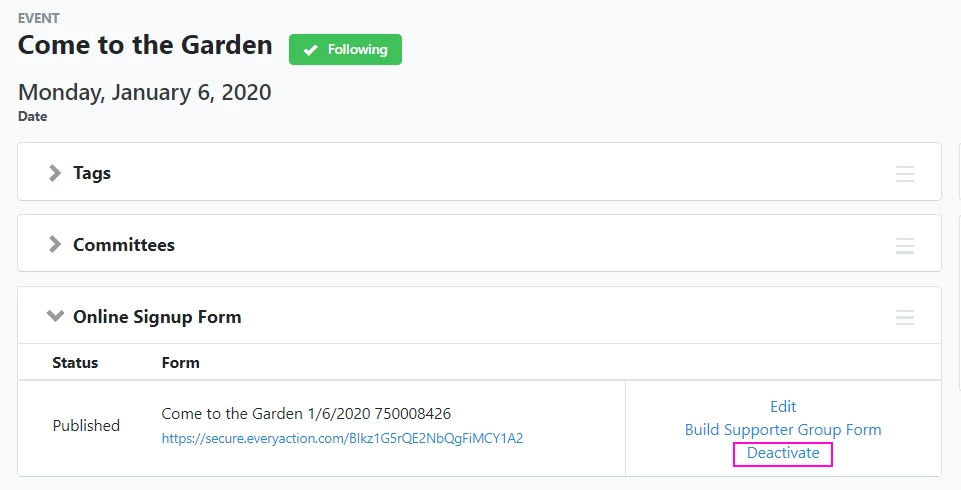
Note: Event Signup forms need to be deactivated or reactivated from the individual event listing. Visit the Main Menu > Events > Event List to find the event you wish to update.
Managing Redirects for deactivated forms
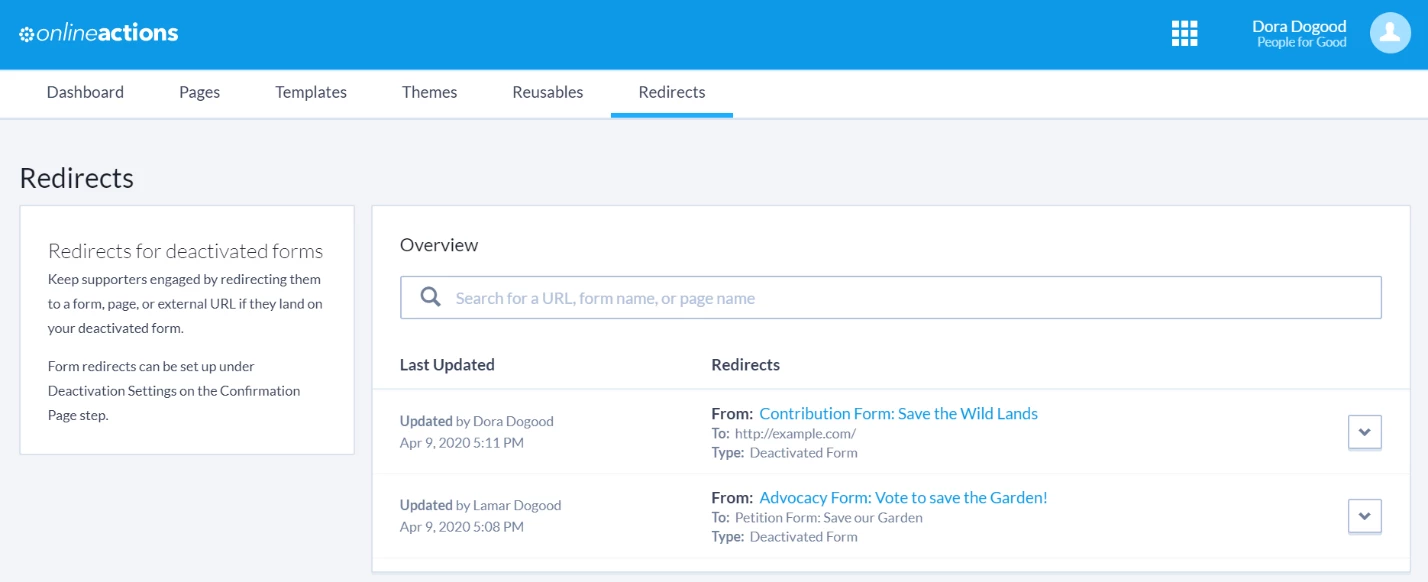
When you first created your form, you were offered a chance to choose what happens when a supporter reaches a form that has been deactivated. Supporters will either see a message that you choose or they can be redirected to another Online Actions form or web address.
Once a form is deactivated, you can visit the Redirects tab at the top of your dashboard to see a list of deactivated forms that redirect your supporters elsewhere.
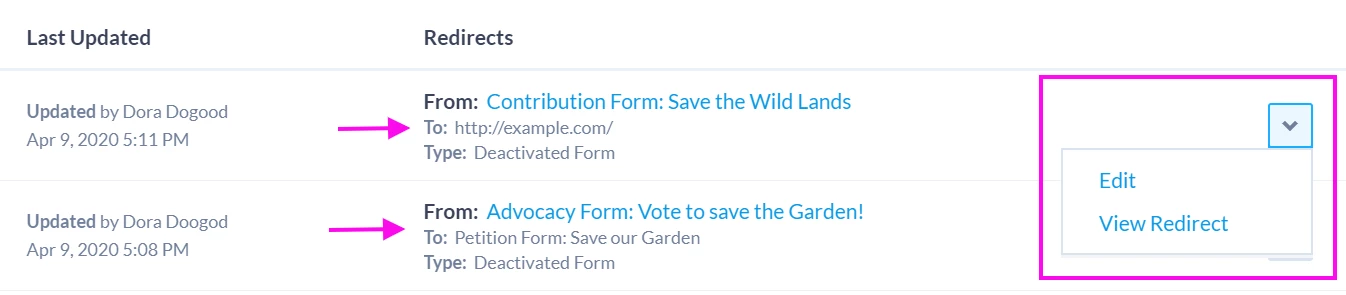
If you need to check that your settings are correct, you can use the drop-down menu to View Redirect and see if the re-directed form is going to the right spot. If you need to update that form’s redirect setting, Edit will take you directly to the section to update the deactivation behavior.
Using Shortcut Redirects with Vanity Domains
If you have a Vanity Domain, you can select a custom URL when you create an Online Actions form or page.
Shortcut Redirects let you create additional custom URLs that redirect supporters to Online Actions forms or pages, or external websites. This is an easy way to create short, memorable URLs that can be used for things like events or advertisements.
Once you’ve created a Shortcut Redirect, you can always update it to redirect to a different Online Actions form or page, or external website
For example, if you created a custom contribution form tied to a specific fundraising campaign, such as:
https://myorganization.org/a/september-giving-drive
you can create a simpler shortcut redirect that points to that form, like this:
https://myorganization.org/a/give-now
Once your campaign is finished, you can then update the URL to point to your main donation form and you won't have to worry about supporters following your link to a deactivated or old form.
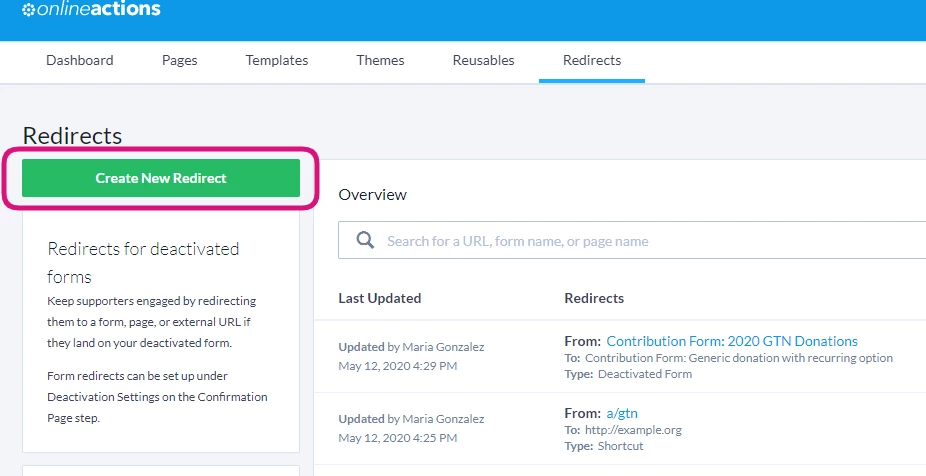
To get started, open Redirects from the Online Actions dashboard and select Create New Redirect.
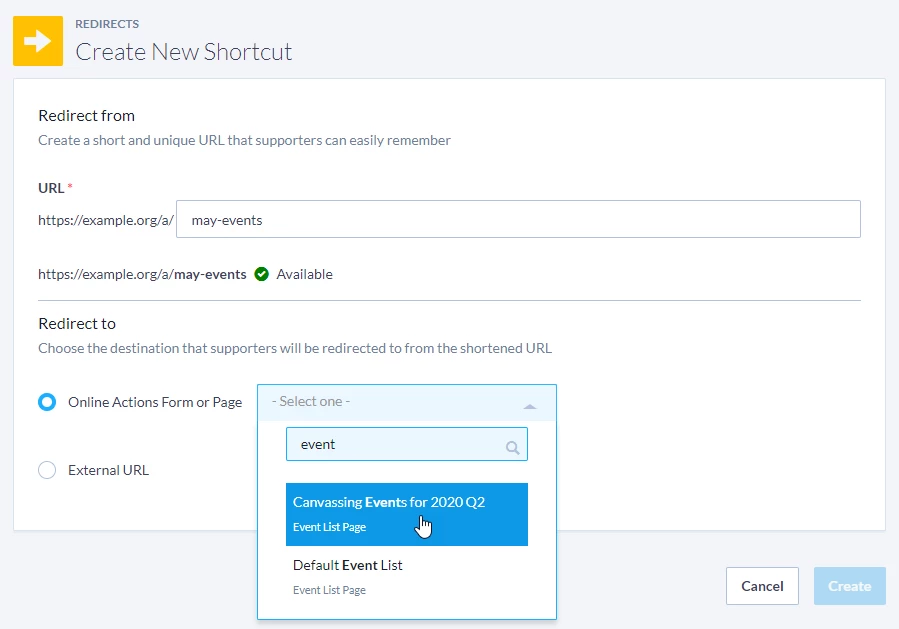
Select the URL you want to use and then select the form, page, or external website where you want to redirect supporters. If the URL is already in use by another Shortcut Redirect or Online Actions form or page, you'll be prompted to choose another one.
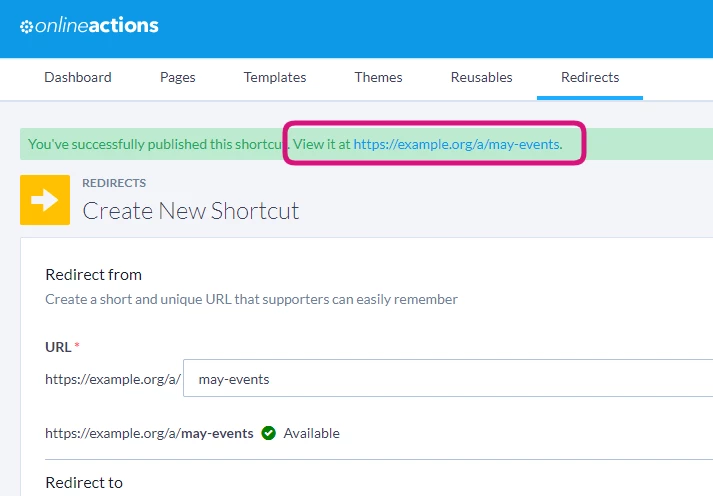
You'll see a success message once your URL has been set up.
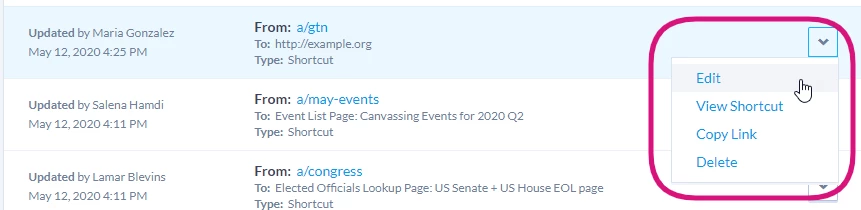
You can later edit, view, copy, or delete your link from the main Redirects list using the dropdown menu.
How do I how to: manage online actions form statuses and redirects? | How does how to: manage online actions form statuses and redirects work in EveryAction? | Why can't I how to: manage online actions form statuses and redirects? | Where do I how to: manage online actions form statuses and redirects in EveryAction? | What is how to: manage online actions form statuses and redirects in EveryAction? | How to how to: manage online actions form statuses and redirects? | Can I how to: manage online actions form statuses and redirects in EveryAction?