
Bonterra API for Apricot | Self-Service Credentials
Overview
Use this article to create self-service Bonterra API credentials — your Client ID and Client Secret. You'll use these credentials to authenticate your integration when making API requests.
Before you start
Make sure the following are true:
- You can sign in to the Bonterra Account Portal: https://account.bonterra.network/
- Your user has permission to manage APIs for your organization.
- If you don't see Manage APIs, contact your Bonterra administrator.
- You have a secure place ready to store secrets (for example, a secrets manager or password vault).
- Treat your Client Secret like a password.
Create your API credentials
Step 1: Sign in
Sign in with your Bonterra credentials.
Step 2: Open API management
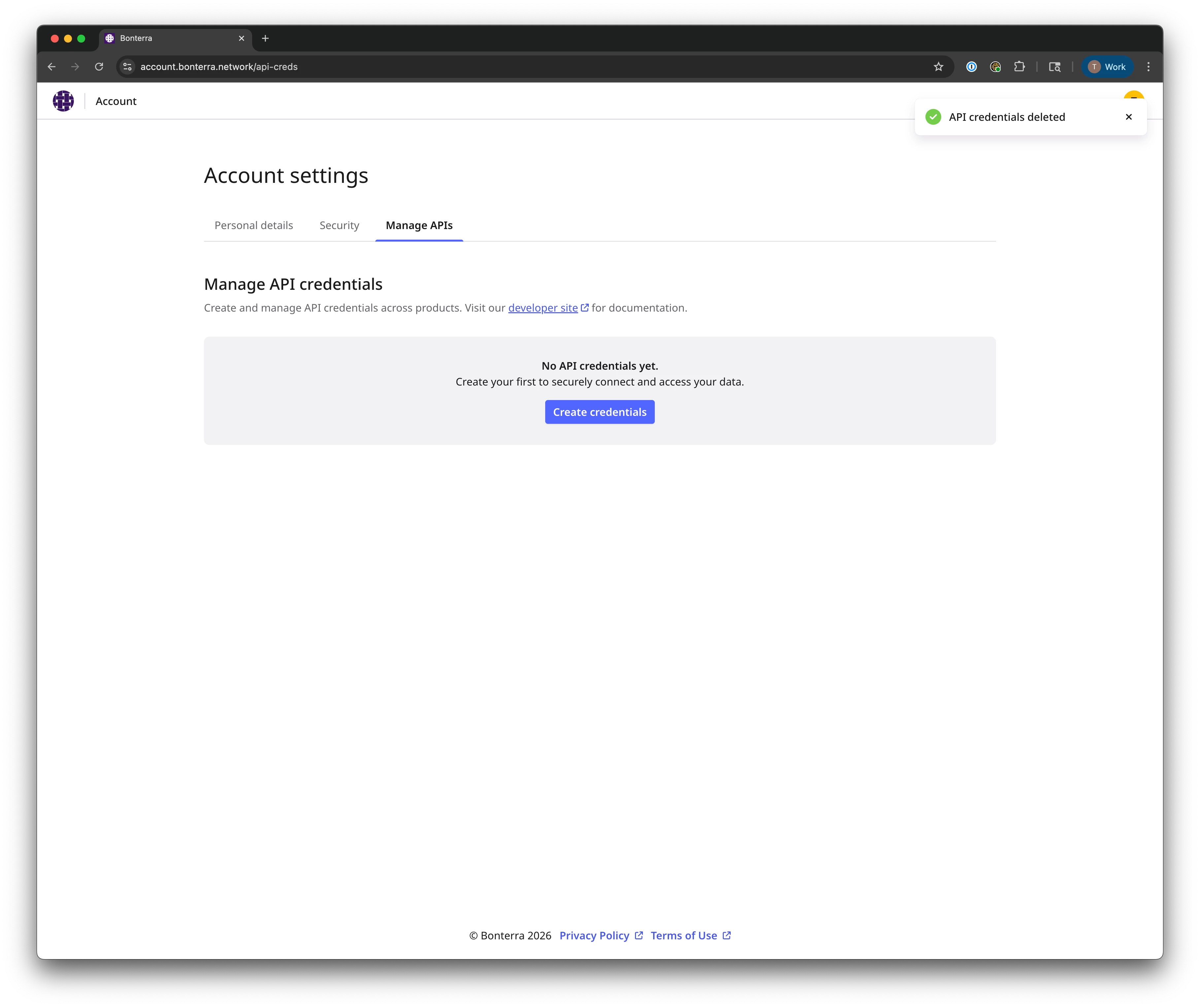
Select Manage APIs.
Step 3: Create credentials
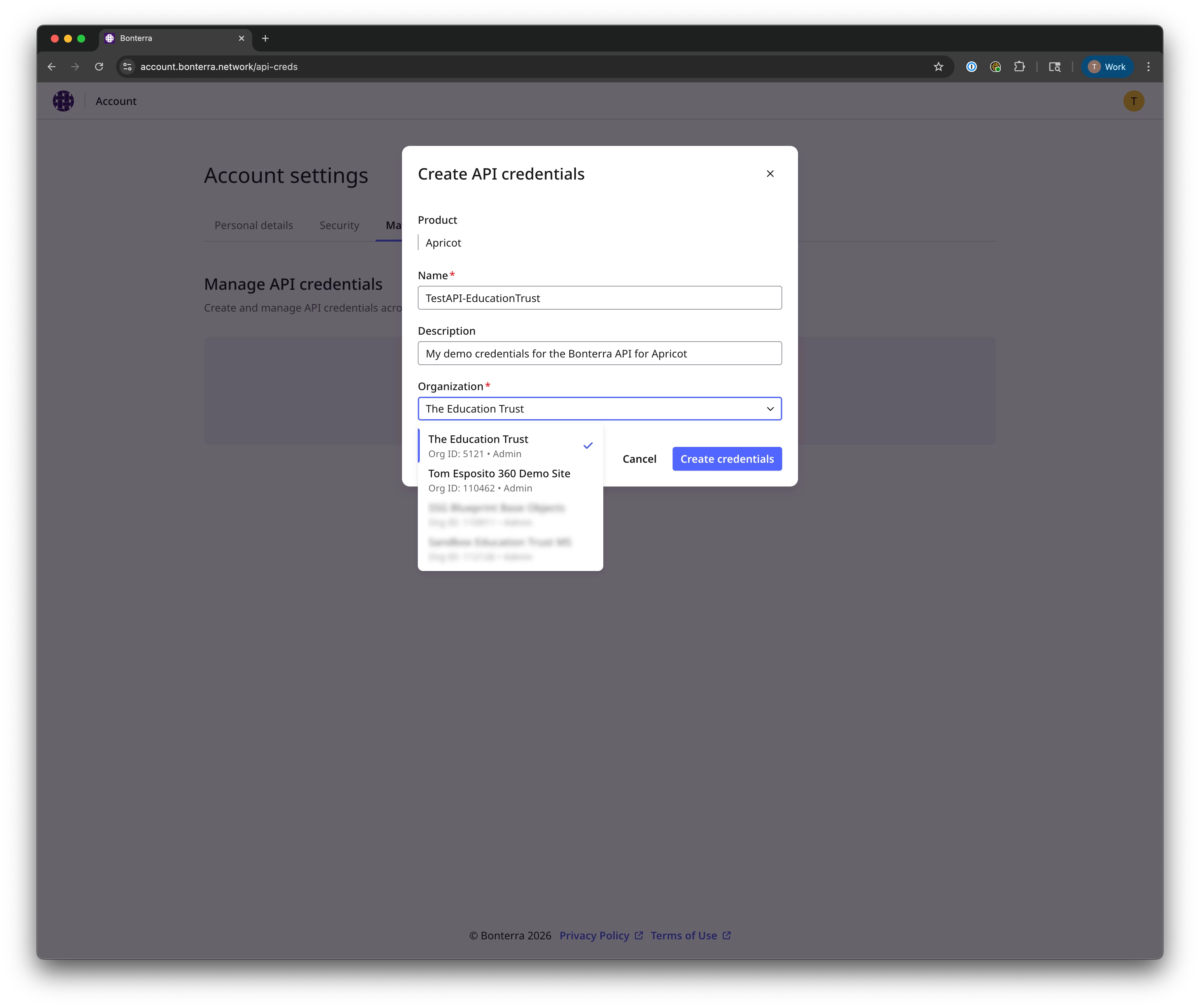
Select Create Credentials.
Follow the on-screen prompts to finish creating your credentials.
Step 4: Save your values
Copy your Client ID.
Copy your Client Secret.
Store both values somewhere secure.
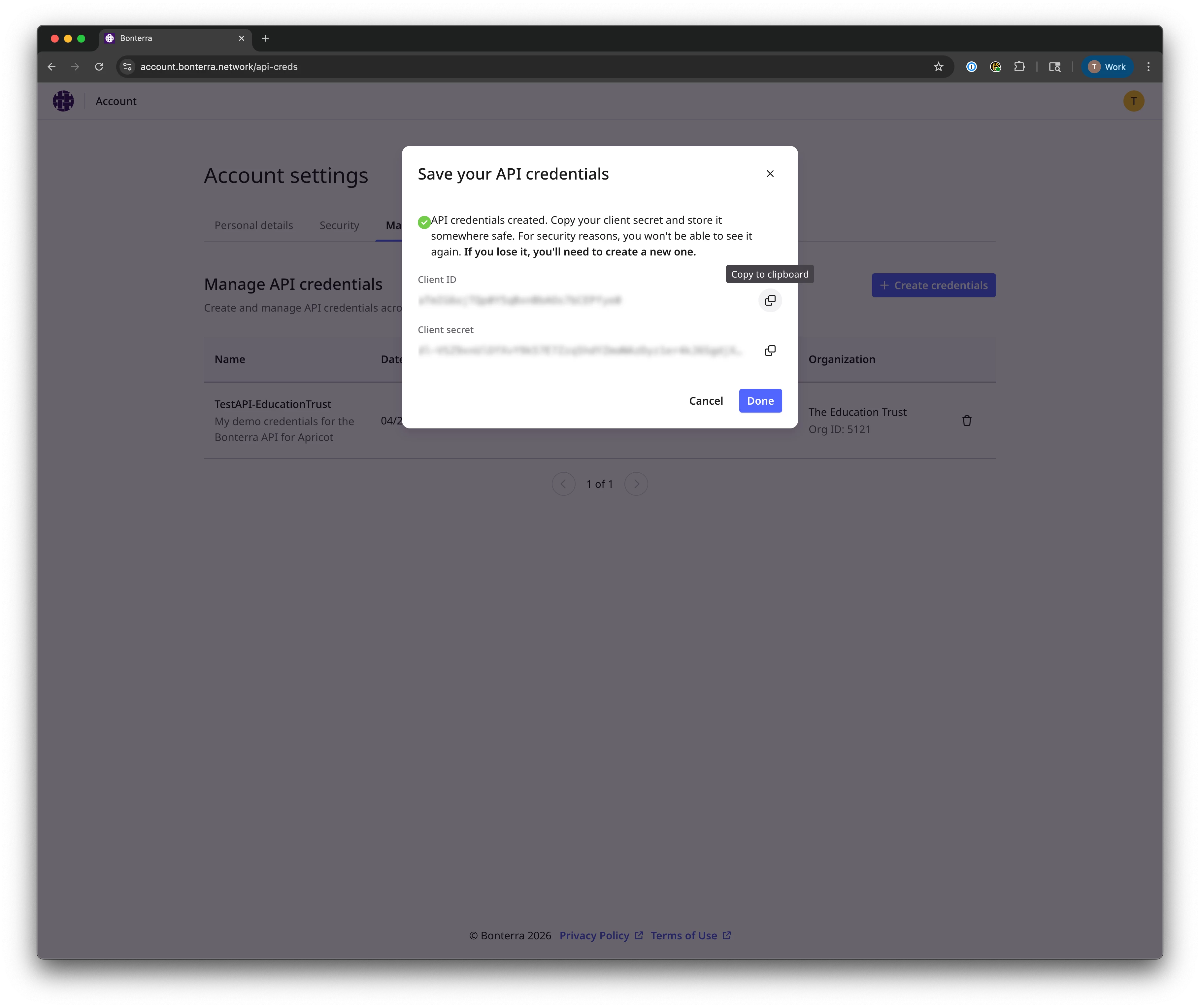
Important: Anyone with your Client ID and Client Secret may be able to authenticate as your integration. Don't share these values in email, chat, screenshots, or documentation.
Security tips (recommended)
- Do not store credentials in source control (GitHub, Bitbucket, etc.).
- Restrict access to only the people and systems that need it.
- If you believe your secret is exposed, create a new credential set and update your integration immediately.
Next steps
Once you have your Client ID and Client Secret, go to the Developer Portal to start making requests:
Troubleshooting checklist
I don't see "Manage APIs."
Your user likely doesn't have API admin permissions. Contact your Bonterra administrator.
I lost my Client Secret.
For security reasons, secrets are often not recoverable. Create a new credential set and update your integration.
I'm not sure which credentials my integration is using.
Check where your app stores secrets (environment variables, secrets manager, CI/CD settings) and confirm you're using the intended credential set.