


How to: Create a RoboCall Recording
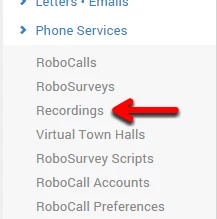
To begin creating a recording in advance, select Recordings from the Phone Services menu.
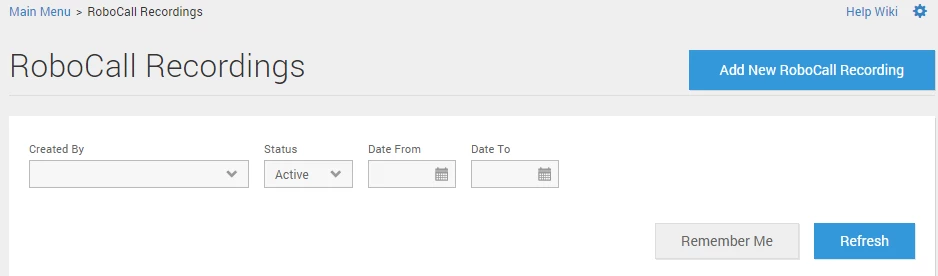
Once on the RoboCall Recordings List Page, click Add New Recording (this can also be done in the recording tab in the RoboCall wizard). You may also create new recordings by clicking New Recording for a specific element while building a RoboSurvey script.
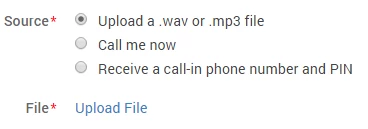
To upload a .wav or .mp3 file, select Upload a .wav or.mp3 file and an Upload File link will appear in the box below your options. Click on the Upload File link and follow the instructions to upload from your computer or network.
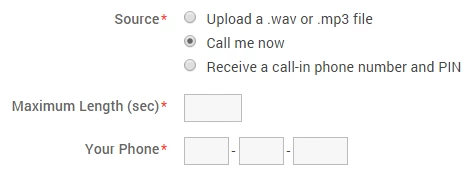
To have the system call you to record a message, choose the Call Me Now option. Designate the maximum length (in seconds) you want to the recording to run. Enter the phone number you want the system to call, you will receive the call in about 45 seconds. Follow the instructions given during the call to record, review, and save the call.
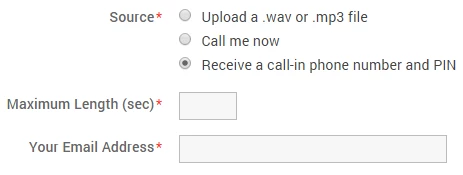
To receive a call-in number and PIN for you or another person to record the message at a later time, select Receive a call-in phone number and PIN. Designate the maximum length (in seconds) you want the recording to run. Enter in your email address. VAN will send you an email for you to distribute. If the recording is for a RoboSurvey element, the email provided will have a script form which your recording talent can read.
Once the recording is complete, the recording status button on your Recordings list page (click on Phone Services in the main menu and then Recordings) will be filled in with green.
How do I how to: create a robocall recording? | How does how to: create a robocall recording work in EveryAction? | Why can't I how to: create a robocall recording? | Where do I how to: create a robocall recording in EveryAction? | What is how to: create a robocall recording in EveryAction? | How to how to: create a robocall recording? | Can I how to: create a robocall recording in EveryAction?