


How to: Create a RoboSurvey Script
RoboCalls and RoboSurveys allow you to send automated recordings or surveys to your segmented contact phone lists.
You can use RoboSurvey Scripts to create messages that can be included in your calls.
Getting started
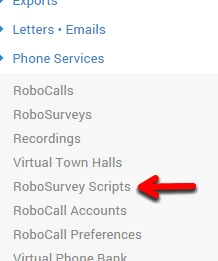
Select, RoboSurvey Scripts from the Phone Services menu.
Then select Add New RoboSurvey Script.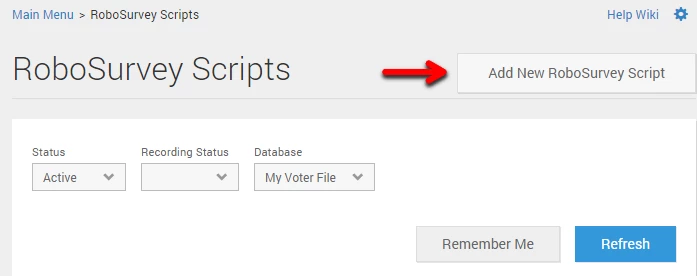
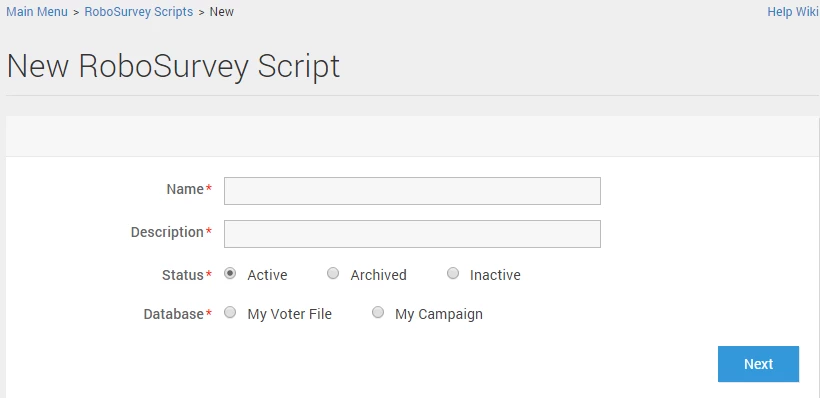
Name the script and select which database you want it applied to (My Voters, My Campaign, etc). You may also give it a description. Click, Next to start creating your script.
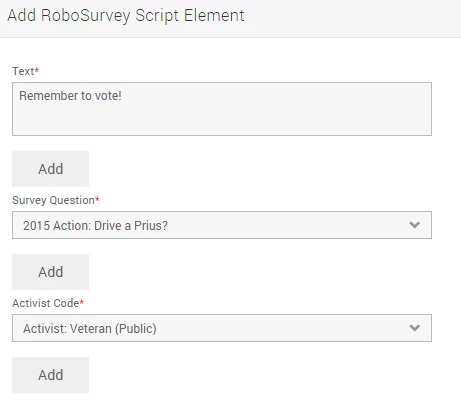
RoboSurvey Scripts are broken down into elements. Elements can be survey questions, activist codes, or simple static text.
Note: If you do not see the element you are looking for, you can create new ones by following the Survey Question or Activist Code instructions.
VAN allows you to transfer, skip elements, or hang up depending on the response.
In the example below, the first question asked of the caller is “Would you like to drive a Prius?”. If the caller answers Maybe, we would like to transfer them to another number by selecting Transfer from the dropdown menu and typing in the number.
If they select Yes, we can skip to the next element to ask them another question by selecting GoTo and the number of the element.
If they select No, we can hang up and move on to the next person by selecting GoTo and Next.
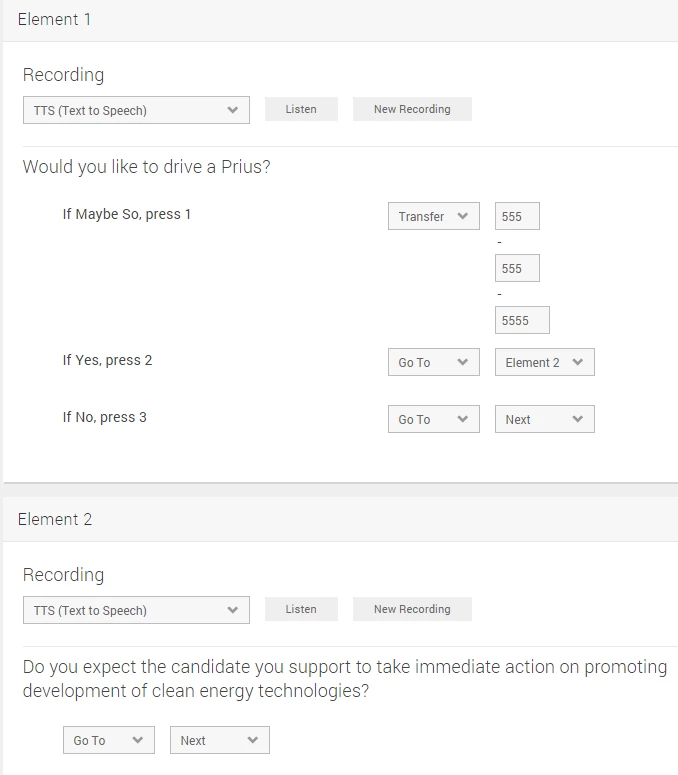
A sound recording (or Text to Speech) must eventually be associated with each element before you can send your RoboSurvey.
Read more on creating a recording >>
When finished building the survey, click Save near the top of the screen.
How do I how to: create a robosurvey script? | How does how to: create a robosurvey script work in EveryAction? | Why can't I how to: create a robosurvey script? | Where do I how to: create a robosurvey script in EveryAction? | What is how to: create a robosurvey script in EveryAction? | How to how to: create a robosurvey script? | Can I how to: create a robosurvey script in EveryAction?