

How to: Set up VPB Connect
(4 min read)
VPB Connect is a feature that makes your Open Virtual Phone Banks more efficient and accessible.
Read more about how to use Virtual Phone Banks
When VPB Connect is enabled for an Open Virtual Phone Bank, volunteers can click to dial and VPB Connect places the call through their browser. When callers sign into an Open Virtual Phone Bank that has VPB Connect enabled, they will be prompted to grant their browser access to their microphone, which is needed to make calls.
Any results that you've entered when using VPB Connect will show up in the Contact History with the Input Type of VPB Connect. This makes it much easier to track which responses came from your VPB Connect efforts.
VPB Connect makes phone banks more efficient as callers do not have to dial numbers. VPB Connect also reduces dependency on callers' phones and phone plans.
There are two steps to setting up VPB Connect:
Step 1:
Email salesteam@ngpvan.com or salesteam@everyaction.com to purchase it through our Sales Team. There is a one-time setup fee, plus the cost of minutes. Subsequent minutes can be purchased through Sales as you need them.
You will be asked to provide:
- The caller ID number(s) you’d like to use
- The name and email address of the person who will receive notifications about low minutes (To avoid missing these notifications, we recommend using a listserv email address so that these notifications are seen by multiple people.)
- The initial number of minutes you’d like to purchase
- Credit card information for billing purposes
- The URL for your product landing page
- The Committee name
- The brand name or brand logo (see screenshot below)

Step 2:
Once we’ve made the feature available for your campaign or organization, you can check a box to enable it on each Virtual Phone Bank.
Enabling VPB Connect for Virtual Phone Banks
Once you’ve purchased VPB Connect, including minutes, you can enable it in the settings for each Virtual Phone Bank. Start by checking Publish to openvpb.com under Sharing - your callers will need to use Open Virtual Phone Bank in order to click-to-dial. Then check Enable VPB Connect under Display Settings.
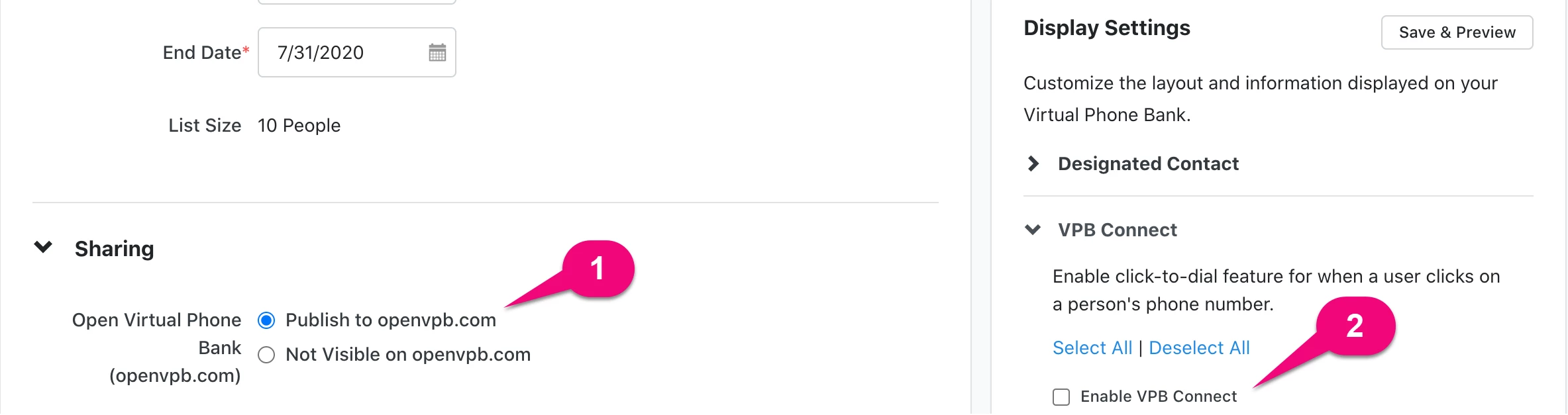
We also strongly recommend providing a Designated Contact for your campaign or organization so that volunteers can easily reach you with questions, and you can get them back on the phone as quickly as possible. This setting is found under Display Settings.
Purchasing and managing minutes
The VPB Connect page is where clients who have purchased VPB Connect can see Calls Available, Calls Used, and Calls Purchased along with a transaction history. To see the VPB Connect page, type VPB Connect Accounts into the Sidebar.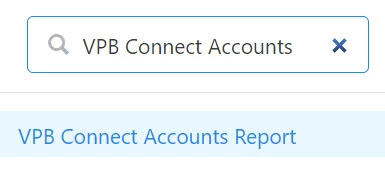
To purchase additional minutes, email salesteam@ngpvan.com or salesteam@everyaction.com with the name of your committee and the number of minutes you would like to purchase. We recommend including more phone numbers than you would for a phone bank that was not using VPB Connect, as callers will not have to dial numbers and therefore will go through phone numbers more quickly.
You can calculate the total minutes needed in this way:
(number of contacts) x (number of volunteers) x (number of hours each person will be making calls)
If the committee runs out of minutes while the phone bank is happening, VPB Connect will be disabled until more minutes are purchased. Volunteers will still be able to manually dial calls. Once more minutes are purchased, the click-to-dial option will reappear when they move to the next call.
When your committee is at 50% and 20% of the minutes purchased, and at 0 minutes left, the system will send a notification to the email address you provided when purchasing VPB Connect. We will also send If you need to update the contact information, please contact salesteam@ngpvan.com or salesteam@everyaction.com.
Why isn’t the click-to-dial option appearing?
Your callers may be missing the click-to-dial option because:
-
You’ve run out of minutes. To purchase additional minutes, email salesteam@ngpvan.com and salesteam@everyaction.com with the name of your committee and the number of minutes you’d like to purchase.
-
The caller(s) did not grant their browser access to their microphone. To do this, have users edit their browser settings. If you or the volunteer is unsure of how to do so, we recommend seeking instructions online.
-
Callers are using a browser and device combination that is not supported. To resolve the issue, check which device the person is using and direct them to use one of the browsers with a green checkbox for that device (see the supported browsers chart below).
-
Your volunteers are not using Open Virtual Phone Bank. To resolve this issue, make sure your phone bank is enabled for Open Virtual Phone Bank, and then direct callers to go to openvpb.com and enter the phone bank code. Users accessing Virtual Phone Bank from your site will not be able to see the click-to-dial option.
VPB Connect works with the device and browser combinations indicated in the chart below. For example, on a Windows device, volunteers should use Chrome, Firefox, or Edge.
|
| Chrome | Firefox | Safari | Edge - Chromium |
|---|---|---|---|---|
| Android | ✅ | ✅ | ❌ | ❌ |
| iOS | ❌ | ❌ | ✅ | ❌ |
| Linux | ✅ | ✅ | ❌ | ❌ |
| macOS | ✅ | ✅ | ✅ | ❌ |
| Windows | ✅ | ✅ | ❌ | ✅ |
How do I how to: set up vpb connect? | How does how to: set up vpb connect work in EveryAction? | Why can't I how to: set up vpb connect? | Where do I how to: set up vpb connect in EveryAction? | What is how to: set up vpb connect in EveryAction? | How to how to: set up vpb connect? | Can I how to: set up vpb connect in EveryAction?