

How to: Use and manage Virtual Phone Bank
We’ve made some updates to our login experience! If you come across references to “ActionID” in our help resources, those are being updated to reflect the new name: Bonterra Account. Nothing changes on your end as we tidy up the documentation.
(8 min read)
Setting up your phone bank
To set up your phone bank for a successful outreach effort, you will:
-
Create a list of people to call
-
Choose what information your callers can see about each person
-
Schedule your phone bank
-
Administer additional settings
Creating a list
Before you can set up your phone bank, you will need to have a list created. If your list is prepared you can create a new phone bank from the Virtual Phone Bank list page. Open Virtual Phone Bank List from the sidebar.
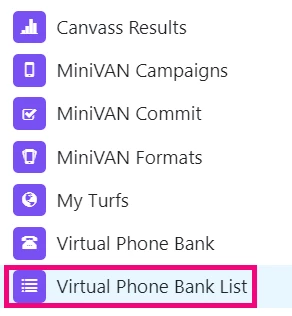
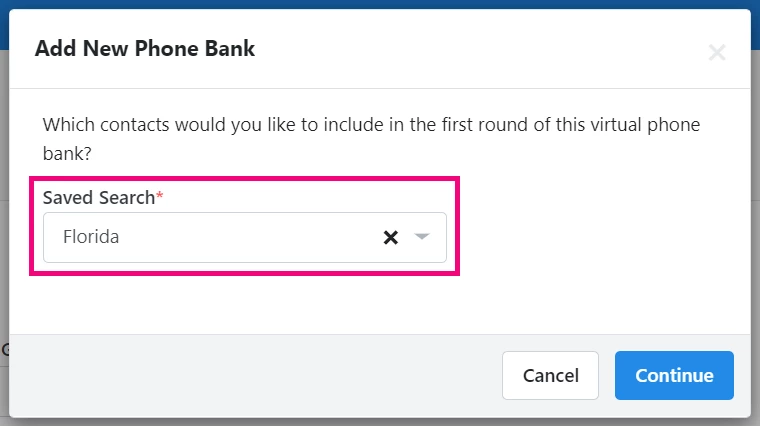
Select Add new phone bank and choose your Saved search.

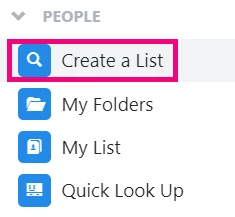
 If you’re starting without a list, find Create a List on the sidebar.
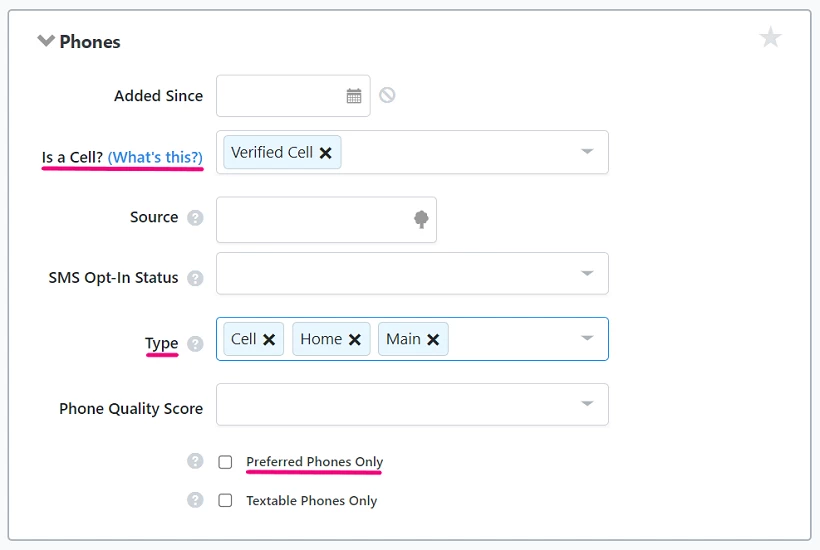
The Phones dropdown will limit your targets to people with phone numbers. Choose the Phone Type - home, cell, etc. You may also choose to include only those numbers that have been manually verified by checking Preferred phones only.
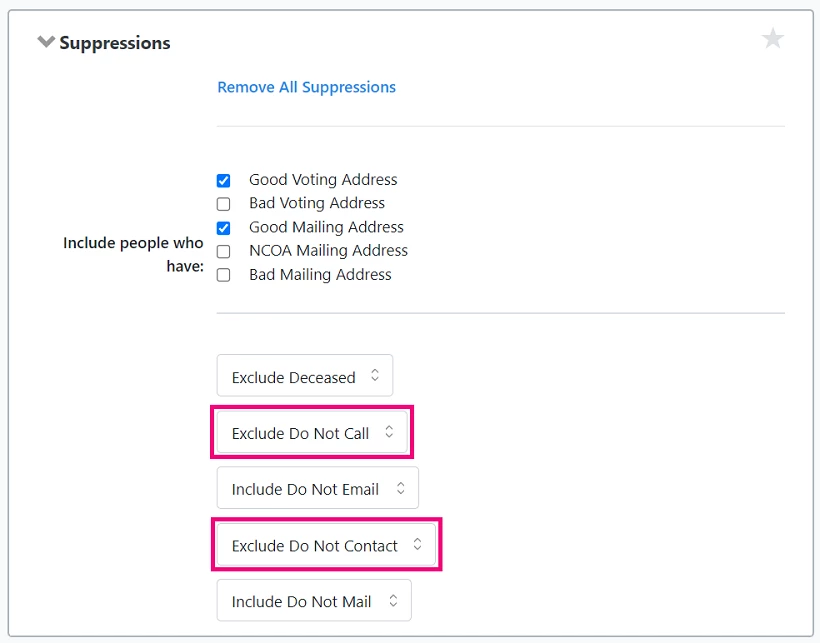
Use the Suppressions section to Exclude Do Not Call and, depending on your outreach goals, you may also want to filter by Early Voting status at this time.
Before you run your search, you’ll want to be sure that you have enough phone numbers for your callers. You can calculate how many numbers you will need using the following formula:

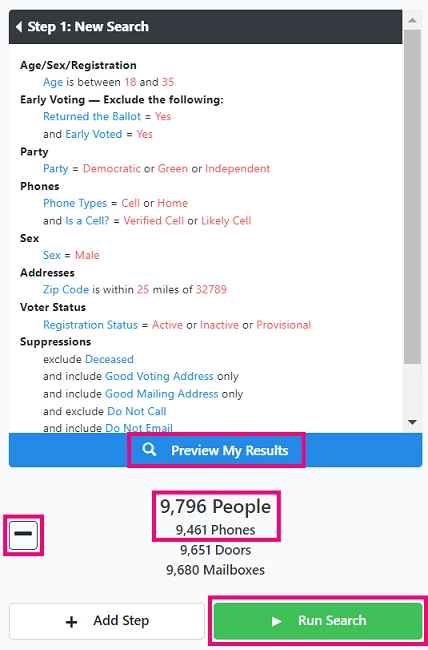
Select Preview My Results to see the number of contacts and phones you have and adjust your search criteria until you achieve the right list size.
Read more about creating a list
After you run your search, Home Phones and Preferred Phones appear at the top of My List. Use Edit Search if you need to make adjustments.

Getting Started
To phone bank with the list you just created select Calls then Virtual Phone Bank (VPB). To access lists or saved searches you created previously, select My Folders on the Sidebar. 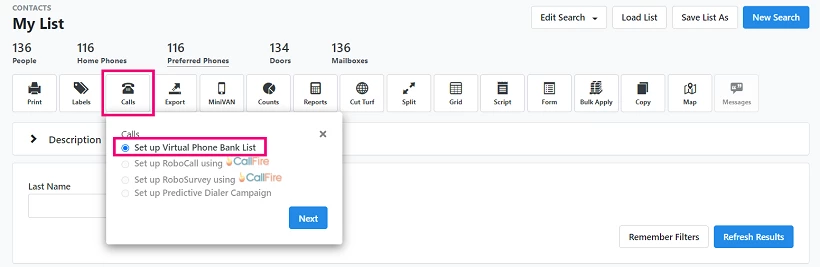
You will have the choice of using a static list or a saved search. A static list is a fixed universe of contacts. It will remain the same, one calling round to the next, regardless of call results. A Saved Search is dynamic, the universe refreshes when you move to the next round of calls. Continue to proceed to the Virtual Phone Bank settings.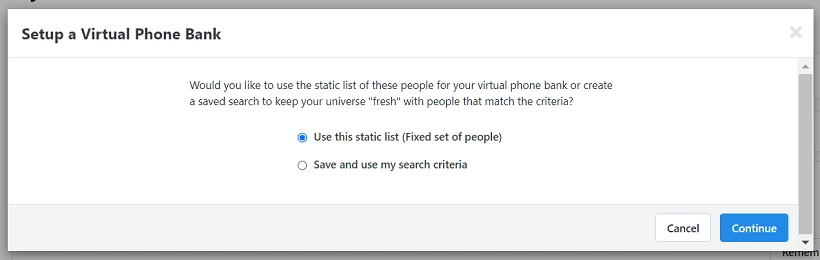
You will be asked for information in the following sections:
-
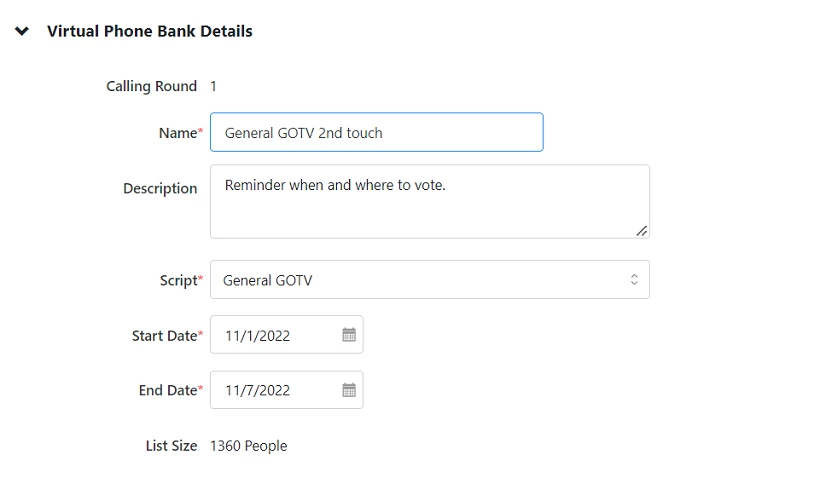
Virtual Phone Bank Details
-
Sharing
-
Events
-
Additional Settings
Setting Virtual Phone Bank Details
-
Choose your preferred script and consider whether you will run a standard Virtual Phone Bank or use OpenVPB. VPB only supports linear scripts, whereas OpenVPB supports both linear and branched ones.
Read more about scripts -
Set the Start and End Date. This is the period during which callers can access the phone bank. Callers who attempt to log into the phone bank outside of this period will see a message about an invalid code. After the end date, the phone bank status will convert to Inactive.
Publishing to OpenVPB
Sharing allows you to make your phone bank available in OpenVPB, where you can run a phone bank without creating new users.
When you select Publish to openvpb.com, callers use that web address, log in with an Bonterra Account, enter the phone bank code you provide, and start making calls right away.
By default, phone banks are set to Not Visible on openvpb.com. If you do not toggle to OpenVPB and callers attempt to login with your code, they will receive a message that the code is invalid.

Enabling Events
You can give callers to ability to schedule people for upcoming events.
Narrow the list of events your callers can view on VPB and OpenVPB by filtering according to Event Date, Role, Type and Status. You can select a date range of up to one week.
You will need to have created Event Types, Roles, and Statuses previously for options to appear in the dropdown menu.
Event Scheduler is available for phone banks in My Voters, My Campaign, and EveryAction, but you can only create and edit events in My Campaign and EveryAction. If callers schedule people for events using a phone bank you created in My Voters, that information copies to My Campaign or EveryAction.
Additional Settings
Additional Settings are optional, but allow you to further customize your phone bank in support of your outreach goals and in consideration of your volunteer and staffing capacity.
-
Daily Availability - Limit when callers are able to phone bank each day. You may, for example, only want calls going out during lunch time, or after the close of business but no later than 9pm. If callers attempt to join a phone bank outside of the hours you’ve set, they will see a message stating when the phone bank is available.
-
Time Limit - For VPB you can limit the length of time an individual caller can spend on the phone bank per session. A session is defined by when a caller logs in to the phone bank and when they log out.
-
Contact Limit - For VPB you can limit the number of attempted or successful calls per session. A call is successful when a contact is reached and results are entered in the script. If you choose to include a progress bar (see below) of individual progress, the contact limit will determine the total number of contacts represented.
-
Repeat - Allow callers to log out of Bonterra Account and back in to continue phone banking after they have reached the time or contact limit.
-
Distribute Contacts - Selecting Distribute voters by zip code will prompt the caller to enter their zip code before they begin making calls and serves them contacts in that zip code or nearby zip codes. If the contact universe does not include anyone in a particular zip code, the phone bank with proceed with calls to other zip codes.
-
Householding - Householding groups contacts who share the same primary phone number in the phonebank. Choosing Do not display Also in Household displays one member of a household at a time. Show only people in Household from Virtual Phone Bank list displays information of a contact and only that of other household members who are also on the list. Show all Also in Household allows a caller to see the information of everyone in a household, even those household members who are not on the list. Contacts marked as Do Not Contact / Do Not Process in their records will not be included when householding is enabled.
-
Alternate Numbers - You can allow callers to try multiple phone numbers associated with a contact if you choose Attempt all alternate numbers. Callers will see one number at a time with an indicator of how many numbers are on the record. If they enter a result that means no contact was made, they will be given the choice of calling another number. Numbers are ordered from most recent entry into the database to the oldest. Select Don't attempt alternate numbers so that the preferred phone number is the only option.
If householding is enabled and other members of a household have different primary numbers on their contact records, the caller will be able to call those other primary numbers, regardless of whose contact record they are on.
-
Skipping - Allow callers to skip people or households. Enabling this feature may shorten the length of a caller’s phonebank session.
-
Exclude Absentee & Early Voted and Exclude anyone who has voted on Election Day - This setting is available for phone banks in My Voters and allows you to exclude people who have already early or absentee voted, per the latest early vote update. Excluding these groups may eliminate a high volume of contacts from your universe.
-
Status - Your phone bank status is set to Active when you create it and becomes Inactive 24 hours after its designated end date. You can manually inactivate your phone bank early if you need. Reactivate an inactive phone bank by editing the end date to a point further into the future.
To find an inactive phone bank, open your Virtual Phone Bank List page from the sidebar, change the status to Inactive, and Refresh Results.
Choosing Display Settings
Use Display Settings to control the information your callers see while phone banking. If there are fields you want to display in the phone bank that are not included, submit a Support Request to see if we can make it available for you. Find Support Requests on your Main Menu.
-
Designated Contact - Provide contact information for the person volunteers can reach out to with questions or issues during the phone bank.
In VPB, the Designated Contact information appears to the right of the information for the person you’re calling.
In OpenVPB, the Designated Contact information appears above the information for the person you’re calling.
-
Basic Demographics - Choose which demographic information from the voter file will appear for each of your contacts.
-
Contact & Location Information - These fields are read-only. Options include registration information, contact information, voting address, polling location, and specific districts.
-
Editable Contact Details - When enabled, these fields will be editable for callers.
In VPB, certain fields - phones for example - are only editable if a user’s profile has been set up with the proper permissions. In OpenVPB the only editable fields are Phones, Email, Notes, and Self Reported demographics.
Read more about user profiles -
Additional Contact Details - These fields are read-only and display information from contact records.
Including a Progress Bar
In VPB you have the option of including a progress bar that will appear at the top of the phone bank. Choose a progress bar that displays the number of calls made against the contact limit or against the total number of contacts.
How do I how to: use and manage virtual phone bank? | How does how to: use and manage virtual phone bank work in EveryAction? | Why can't I how to: use and manage virtual phone bank? | Where do I how to: use and manage virtual phone bank in EveryAction? | What is how to: use and manage virtual phone bank in EveryAction? | How to how to: use and manage virtual phone bank? | Can I how to: use and manage virtual phone bank in EveryAction?