

Troubleshooting: Virtual Phone Bank
We’ve made some updates to our login experience! If you come across references to “ActionID” in our help resources, those are being updated to reflect the new name: Bonterra Account. Nothing changes on your end as we tidy up the documentation.
(5 min read)
Here are answers to the most common questions about Virtual Phone Bank.
Which browsers are compatible with VPB Connect?
Because this feature uses a Twilio integration, VPB Connect works with the device and browser combinations that Twilio supports, as indicated in the chart below. On a Windows device, volunteers should use Chrome, Firefox, or Edge.
|
| Chrome | Firefox | Safari | Edge - Chromium |
|---|---|---|---|---|
| Android | ✅ | ✅ | ❌ | ❌ |
| iOS | ❌ | ❌ | ✅ | ❌ |
| Linux | ✅ | ✅ | ❌ | ❌ |
| macOS | ✅ | ✅ | ✅ | ❌ |
| Windows | ✅ | ✅ | ❌ | ✅ |
What happens if I see Call Dropped, Doesn’t Go Through, or Doesn’t Ring?
If you are getting one of these messages, you've probably reached a disconnected number or there was a carrier error. This can also happen with landlines that ceaselessly ring or give a busy signal.
These calls are automatically marked as Not Home after 20 seconds.
Why aren't my volunteers seeing everything in Open Virtual Phone Bank?
For security reasons, we purposefully prevent some information from displaying on Open Virtual Phone Bank. Anyone with a phone bank code can create an Bonterra Account and make calls via Open Virtual Phone Bank, whereas a user account is created for a specific person.
The following are not displayed in Open Virtual Phone Bank:
-
Home Address
-
Email
-
Notes
-
Activist Codes
-
Scores
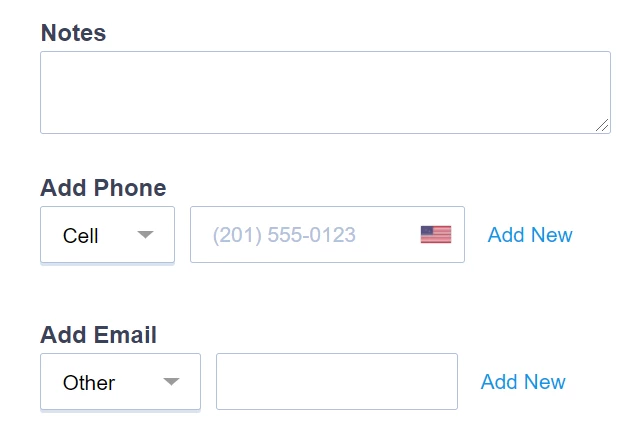
Your OpenVPB callers will be able to use the following editable fields:
-
Email
-
Phones
-
Notes
If you need callers to see more information, use the in-app Virtual Phone Bank, create user accounts for the callers, and provide them with the code.
Is OpenVPB accessible?
OpenVPB is manually tested against Web Content Accessibility Guidelines (WCAG 2.1) with assistive technologies, including screen readers, keyboard accessibility, speech recognition, and screen magnification. A complete Voluntary Product Accessibility Template (VPAT) is available by contacting Support.
Why are my volunteers unable to make calls?
Sometimes callers receive a message notifying them that they are no longer able to make calls. Callers may hit roadblocks as result of your Virtual Phone Bank settings. Here are those messages and settings and what you can do to potentially achieve different results.
"Thank you. The list is complete for now. Please try again later."
When this message appears, the phone bank is out of phone numbers. If you don’t think the caller should be seeing this yet, check to see if these settings are enabled:
-
Exclude anyone who has Early Voted or Absentee Voted - If you enable this setting, VPB removes people who have already voted, even if they are on the VPB list. To see how many people are being excluded this way, run your Saved Search or Saved List and Exclude anyone who has Early Voted or Absentee Voted in the Early Voting section of Create a list. It is also possible your Saved Search or Saved List has already been configured to Exclude anyone who has Early Voted or Absentee Voted. Find under Additional Settings.
-
Skipping - You can permit callers to skip contacts. If you enable this setting, some callers may use this ability liberally and run out of contacts quickly. Find under Additional Settings.
-
Sending to Round 2 (or 3, etc) - If you move a phone bank from one round to the next without any calls being made, it’s possible that no contacts get moved over. In this case, you will need to create a new phone bank.
"Your job is completed. Thank you for helping us toward victory."
When this message appears, the caller has reached a preset limit. Check to see if these settings are enabled:
-
Time Limit - You can set a limit to the amount of time an individual caller can spend on the phone bank each session. If a caller logs out of an Bonterra Account and back in, they can continue making calls until they reach the time limit again. Find under Additional Settings.
-
Contact Limit - You can set a limit to the number of successful contacts a caller makes in a session. Success means that the caller has reached the person and entered results in the Script. A session is the period a caller is logged into the phone bank. If a caller sees this message, they can log out then back in to continue making calls until they reach the contact limit again. Find under Additional Settings.
“This Virtual Phone Bank is available from 00:00 AM to 00:00 PM”
Check this setting:
-
Daily Availability: You can set the hours your phone bank is open to prevent callers from making ill-timed calls. Find under Additional Settings.
“Invalid code”
Check these settings:
-
Not Visible on openvpb.com - If you enable this setting, callers attempting to access your phone bank from openvpb.com will see this message. Find under Sharing.
-
Daily Access Code - If you enable this setting, callers may see this message if they enter the code incorrectly or if the code is reset but is not distributed. Find under Virtual Phone Bank Details.
-
Start Date and End Date - You can set the date range for your phone bank. Callers cannot access the phone bank before or after this period. Additionally, phone banks expire after the end date. To activate an expired phone bank, filter your Virtual Phone Bank List page to view Inactive phone banks. Open the phone bank you want and change its start and end dates to reactivate it. Find under Virtual Phone Bank Details.
When does the Saved Search refresh?
If you are using a Saved Search - rather than a Saved List - to power your Virtual Phone Bank, it refreshes when you send it to the next round.
When is a contact returned to the VPB universe?
When a caller enters Refused, Disconnected, and Moved in response to a call, that contact record is removed from the from the phone bank entirely.
When a caller enters Not Home, Left Message, Busy, and Call Back in response to a call, that contact record is removed from the first round, but will reappear in the second round.
Skip removes a contact from the calling round for one hour, after which time it is re-entered into the pool for someone else to call. If a skipped contact is not called, or no one enters a response into the script, such as Refused, Disconnected, or Moved, it is carried over to the next calling round.
When can I use the Event Scheduler in Virtual Phone Bank?
The Event Scheduler is available in both My Voters and My Campaign, even though calendar events only exist in My Campaign. If a voter file contact is scheduled for an event, the voter file record is copied to My Campaign and the event information is recorded on that new record.
Event Scheduler is also available in Open Virtual Phone Bank.
How does Householding work?
Householding allows a caller to view all the contacts that share the same Primary phone number.
You can configure this setting one of three ways:
-
Do not display Also in Household - Callers will only see one contact at a time
-
Show only people in Household from Virtual Phone Bank list - For each person they call, the caller will see that contact's information and that of everyone else in their household only if those additional household members are on the list. The caller can enter results for the additional members of the household.
-
Show all Also in Household - For each person they call, the caller will see that contact's information and that of everyone else in their household, even if those additional household members are not on the list. The caller can enter results for the additional members of the household.
When creating your phone bank, narrow your Saved Search or Saved List to people with phone numbers, using the Phones section in Create a List. If a person appears on a record that does not have a phone number, that person will not be part of a household, even if they are located at the same physical address.
Contacts that are marked as Do Not Contact / Do Not Process will not be included when householding is enabled.
How do alternate phone numbers work?
The Alternate Numbers setting allows you to make all the phone numbers on a contact record available to your caller.
You can configure this setting one of two ways:
- Don't attempt alternate numbers - Only the Preferred phone number displays.
- Additionally, Virtual Phone Bank will only display preferred phone numbers. Only Home and Cell numbers can be considered "preferred", so Virtual Phone Bank is not recommended for contacting businesses or people at their offices.
- Attempt all alternate numbers - The caller sees one number at a time, beginning with the Preferred number. Entering a result that means no contact was made, such as Not Home or Busy, the caller can move on to the next available number. Numbers are ordered according to how recently they were added to the record.
Alternate Numbers and Householding
If householding is enabled and the other members of the household have multiple phone numbers on their contact records, the caller will also be able to call through those numbers, regardless of which contact record they are on.
How does distributing contacts by zip code work?
Distribute voters by zip code prompts the caller to enter a zip code, the caller’s own, before phone banking. Voters in that zip code will be served to the caller first. If the call universe does not contain anyone in that zip code, the phone bank will serve the caller contacts at random, regardless of their proximity to the priority zip code. For example, it is possible to enter 94102 (San Francisco) and get contacts in 90036 (Los Angeles), if the call universe does not include or has run out of records in the priority area.
How do I troubleshoot : virtual phone bank? | How does : virtual phone bank work in EveryAction? | Why can't I troubleshoot : virtual phone bank? | Where do I troubleshoot : virtual phone bank in EveryAction? | What is : virtual phone bank in EveryAction? | How to troubleshoot : virtual phone bank? | Can I troubleshoot : virtual phone bank in EveryAction?