

Understanding Que Manager: Admin Guide
This guide is for Apricot Administrators. It covers how to manage Que settings, control skill access, and monitor credit usage across your organization.
Overview
Que is Apricot’s AI-powered assistant that helps staff work more efficiently. Que Manager gives Administrators complete control over how Que operates across your organization, from enabling or disabling it site-wide to controlling which skills are available and which users can access them.
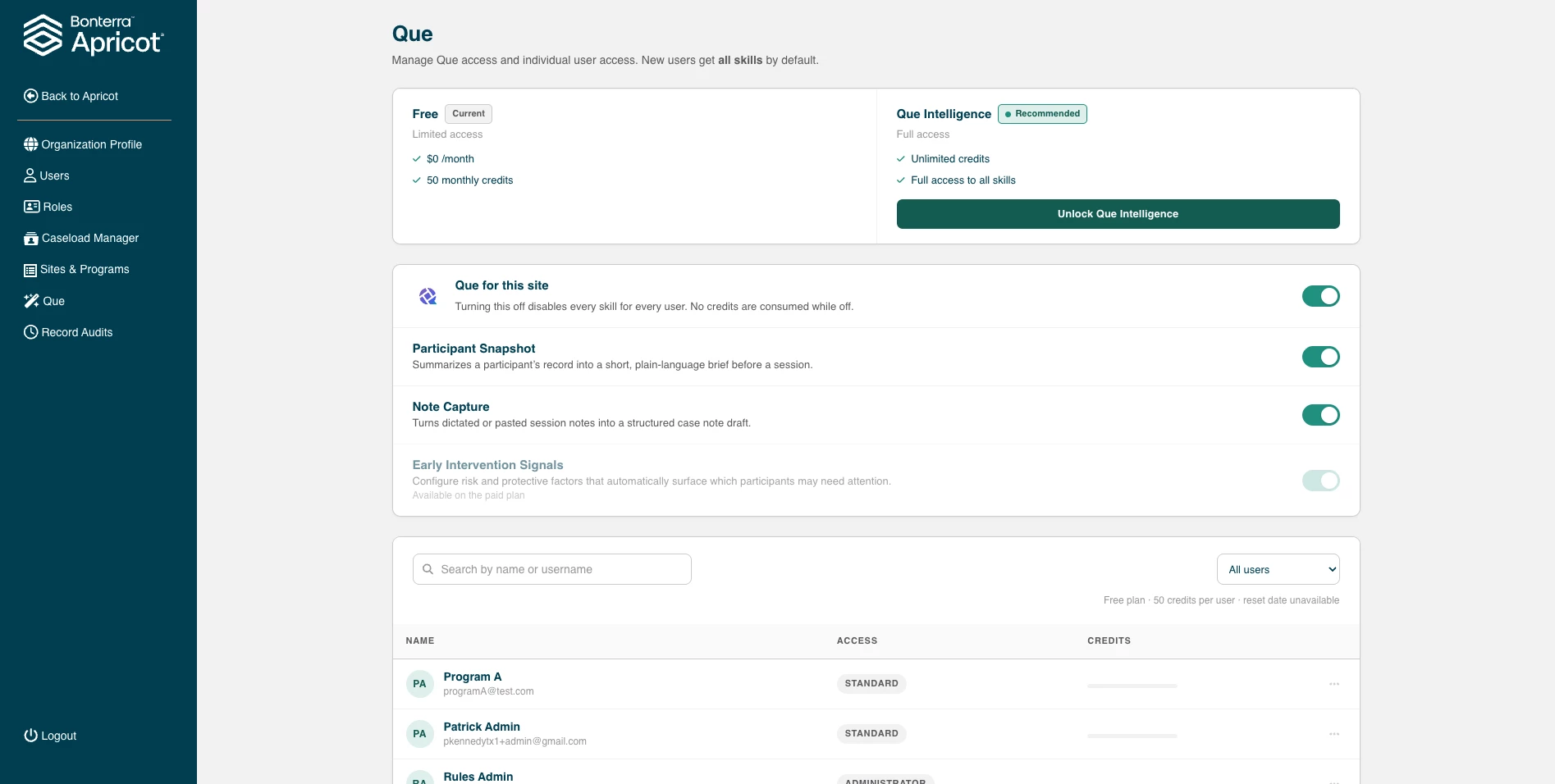
Accessing Que Manager
To open Que Manager, navigate to Account Management beneath the Admin name in the top right corner, then locate Que in the left navigation menu. Only users with Administrator access can view and manage this page.
Turning Que On or Off for the Entire Site
The Que for this site toggle at the top of the Que Manager page controls whether Que is active for all users across your organization.
-
OFF: Every Que skill is disabled for every user. No credits are consumed while Que is off.
-
ON: Skills are available based on each user’s individual access settings and which skills are enabled.
Turning Que off site-wide is the fastest way to temporarily suspend all AI activity in your account. No individual user changes are needed.
Managing Available Skills
Each Que skill can be enabled or disabled independently using its toggle on the Que Manager page. The table below describes the currently available skills.
| Skill | Description | Availability |
| Participant Snapshot | Summarizes a participant’s record into a short, plain-language brief before a session. | All plans |
| Note Capture | Turns dictated or pasted session notes into a structured case note draft. | All plans |
| Early Intervention Signals | Configures risk and protective factors that automatically surface which participants may need attention. | Que Intelligence only |
| Data Integrity Review (coming to Que Manager later this month) | Scans enabled forms nightly, flags likely duplicate record pairs, and routes each to the admin for merge or dismissal ahead of reporting cycles. | Que Intelligence only |
Early Intervention Signals is only available on the Que Intelligence plan. The toggle appears grayed out and can’t be enabled on the Free plan.
Managing User Access
The user table at the bottom of Que Manager shows every user in your organization along with their current Que access level. You can search by name or username, or filter by access type using the dropdown at the top right.
Access levels
| Access level | What they can do |
| Standard | Access enabled Que skills. Consumes credits when using them. |
| Administrator | Same skill access as Standard users, plus the ability to manage Que settings for the entire organization. |
Tip: Use the dropdown filter at the top right of the user table to quickly view users by access level. It’s helpful when auditing who has Administrator access.
Monitoring Que Credits
On the Free plan, each user receives 50 Que credits per month. Credits reset automatically at the start of each billing month. The user table displays each user’s remaining credit balance so Administrators can monitor usage across the team.
Credits are a per-user limit, not a shared pool. One user running out of credis doesn’t affect other users’ balances.
When a User Runs Out of Credits
If a user tries to use a Que skill but has no credits remaining, they’ll see a warning message inside the skill panel:
⚠ Your Que credits have been used up. Credits reset at the start of each month.
The user can’t run any additional Que skills until their credits reset at the start of the following month, or until your organization upgrades to Que Intelligence.
Upgrading to Que Intelligence
Que Intelligence is the full-access plan that removes all credit limitations and unlocks additional skills. Once your organization purchases the package:
-
Users have no monthly caps or reset dates.
-
All skills, including Early Intervention Signals and Data Integrity Review, become available to enable.
-
The credit column in the user table no longer applies.
To upgrade, select Unlock Que Intelligence on the Que Manager page to schedule a meeting with an Account Executive. After upgrading, your existing skill toggle settings are preserved. Review your skill and user access settings to confirm everything is configured as intended.
What do you need help with?
How do I turn Que on or off for my whole site in Apricot? | Where do I find the Que Manager in Apricot? | What skills are available in Que for Apricot? | How do I control which users can use Que in Apricot? | How many Que credits does each user get on the free plan? | What happens when a user runs out of Que credit s? | When do Que credits reset each month? | What is the difference between Standard and Administrator access in Que? | Which Que skills are only available with Que Intelligence? | How do I upgrade to Que Intelligence in Apricot?