

How do I sync transactions to QuickBooks Online?
Once you establish the integration between 'Donor Management' and QuickBooks Online, you can immediately begin syncing your transactions into QuickBooks.
Read on to learn how to sync those transactions!
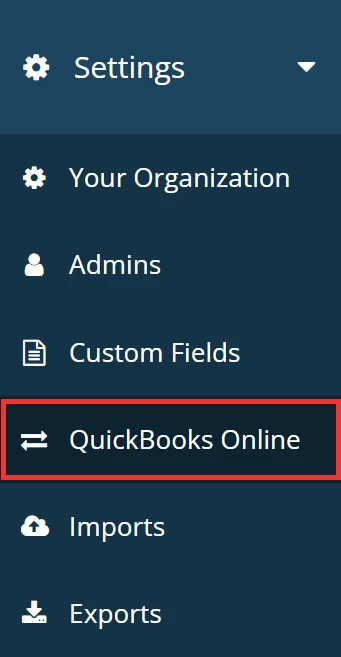
Step 1: Navigate to your organization's settings
From your 'Donor Management' Dashboard, click the 'Settings' tab on the left navigation panel once you set up the integration. Then, select 'QuickBooks Online' from the drop-down list of options.
Step 2: Click to view your transactions
Click the 'View Transactions' button.
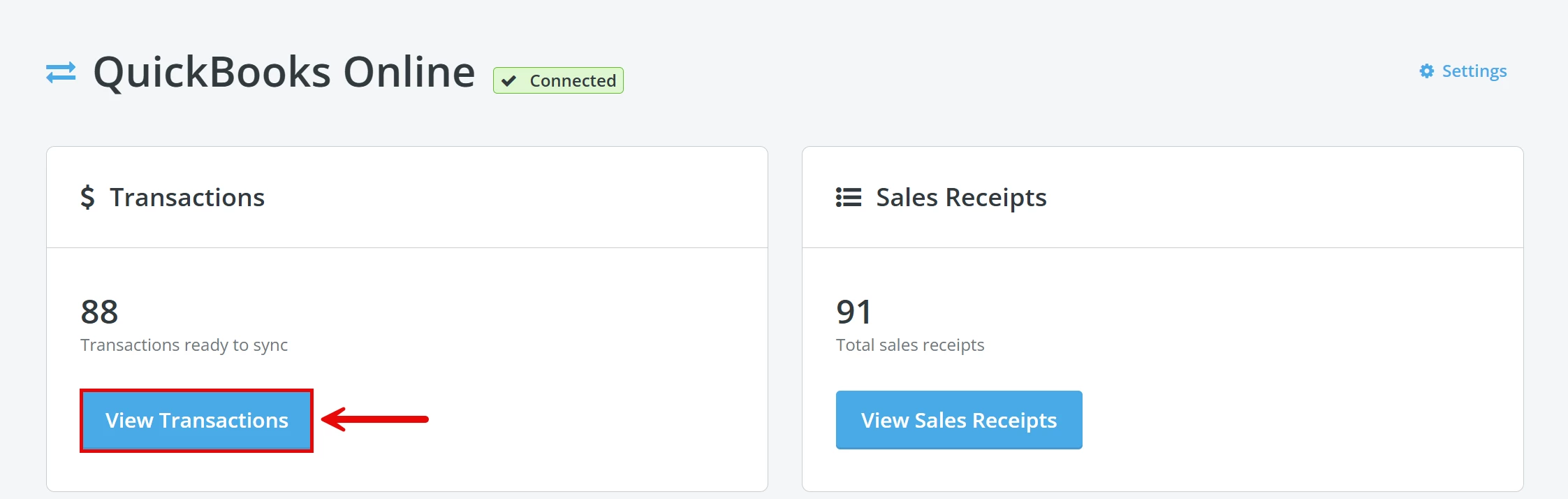
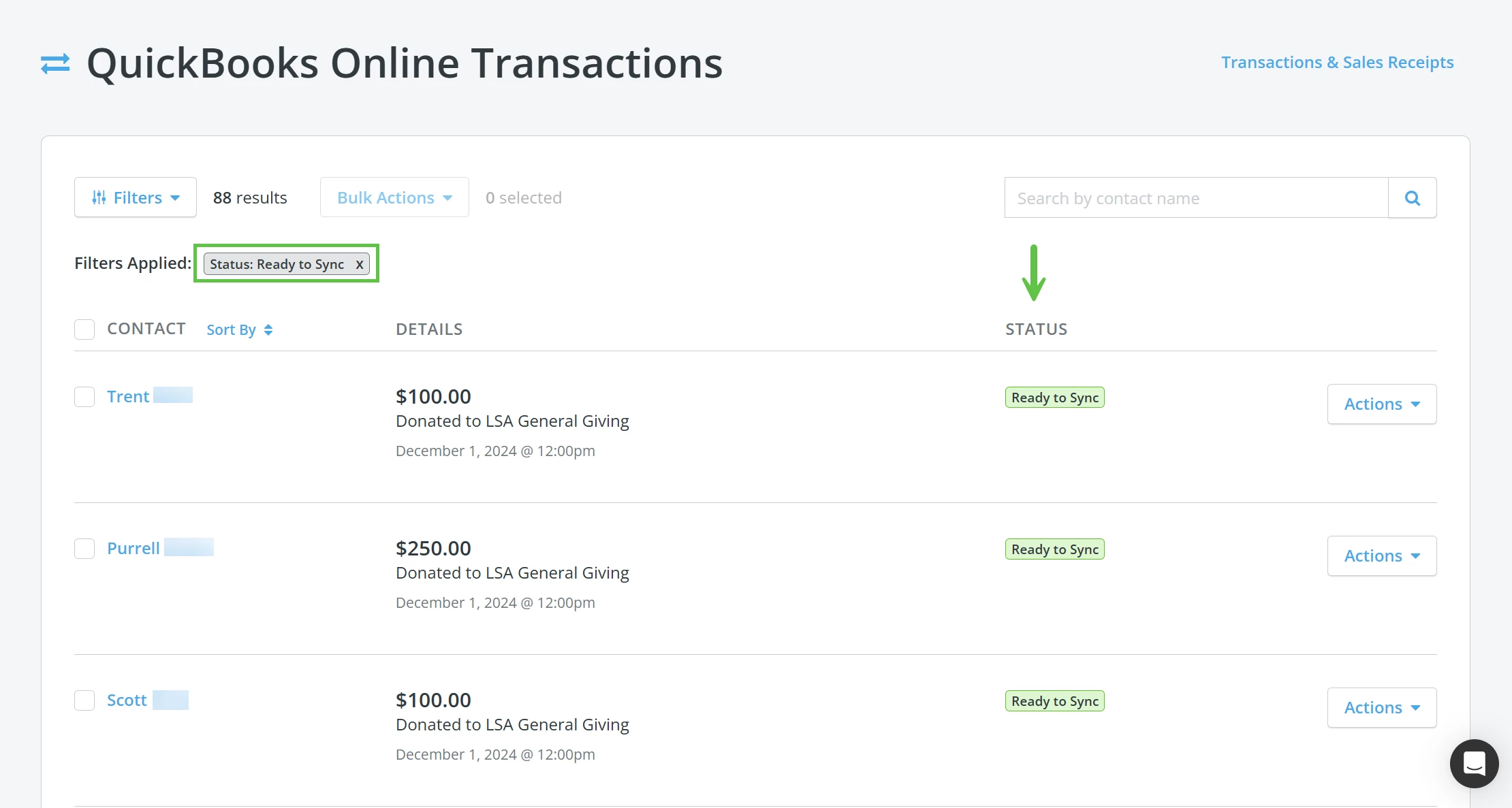
You will be taken to a page where you can view and manage all 'QuickBooks Online Transactions' 'Ready to Sync'.
Step 3: Select which transactions you want to sync
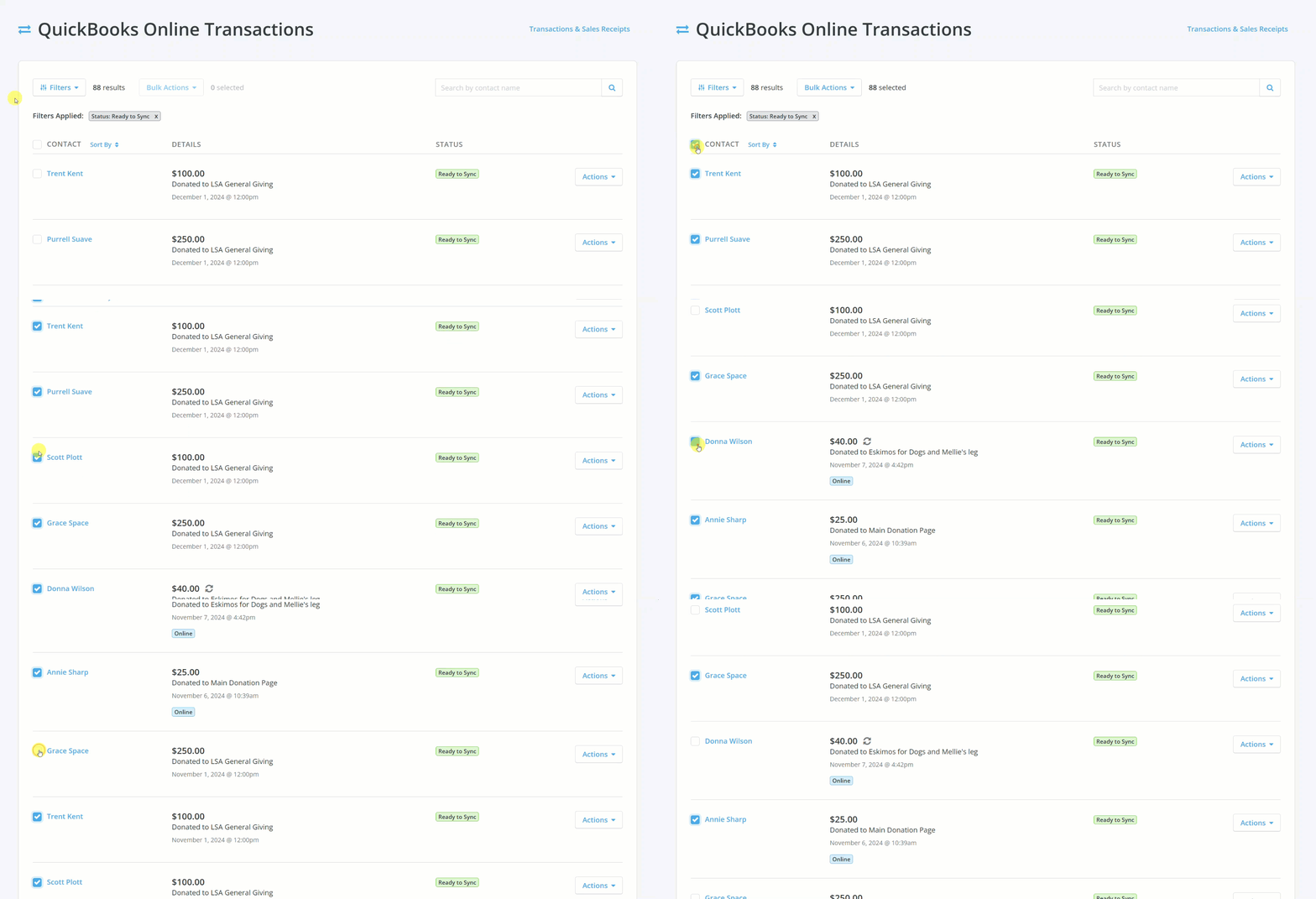
Check the box next to each transaction you want to sync.
Note: To sync all the transactions, check the box next to the 'Contact' header above that column.
Step 4: Sync your transactions
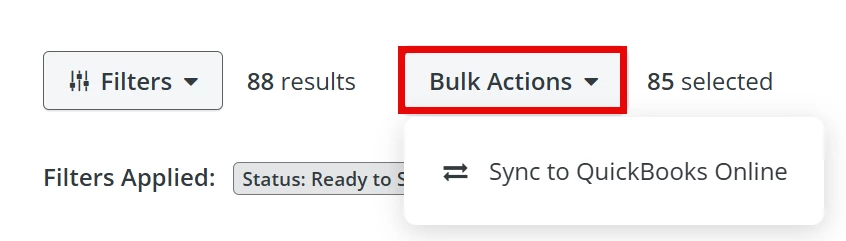
When you are ready, click 'Bulk Actions' and then click 'Sync to QuickBooks Online' from the drop-down.
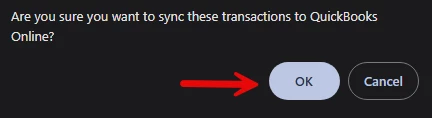
A pop-up window will appear - click 'OK' to confirm you want to sync these transactions.
A banner will appear near the top, confirming the sync is in progress when the page reloads.

Note: You can verify the transactions have synced by applying the filter 'Status: Synced' and running a search or checking your QuickBooks Online account directly.

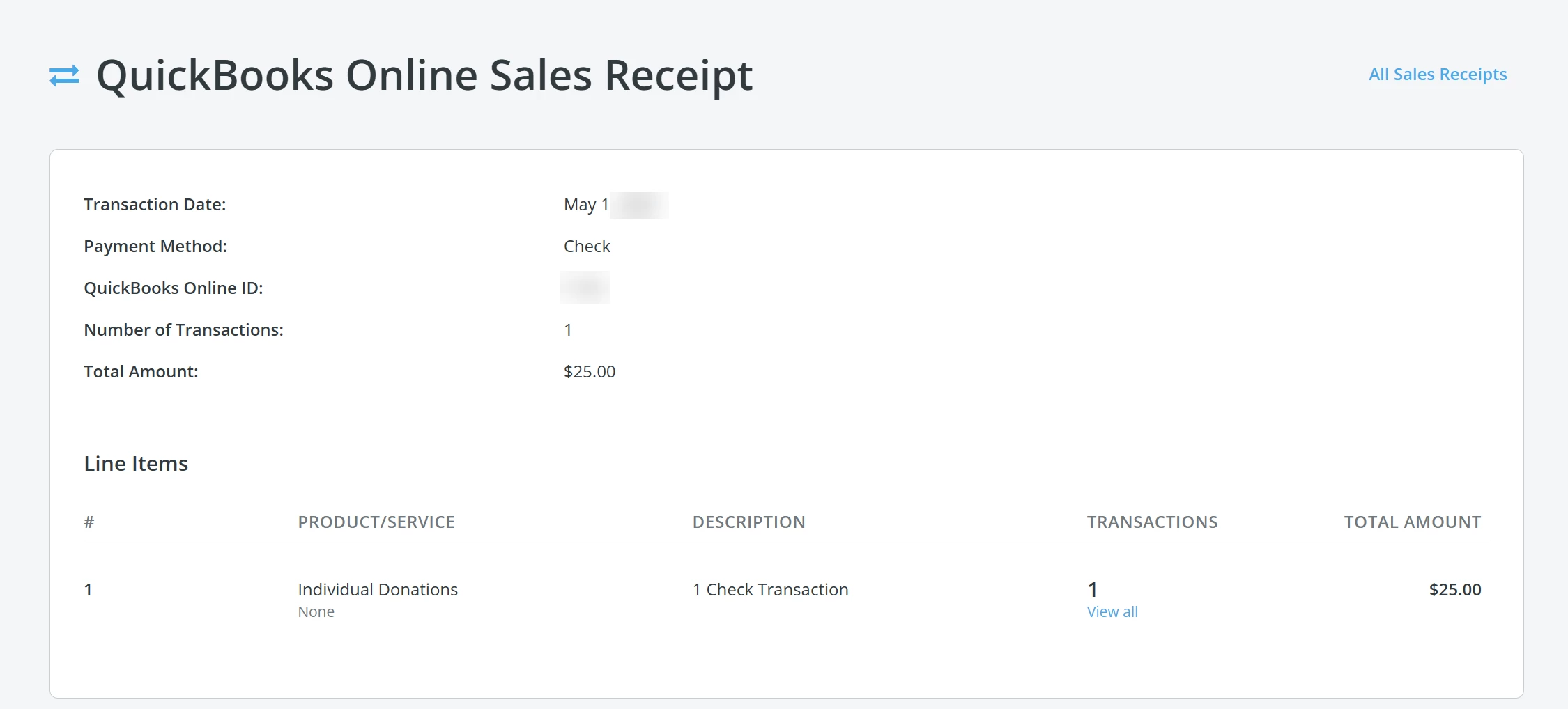
Viewing transaction details within a QuickBooks Sales Receipt
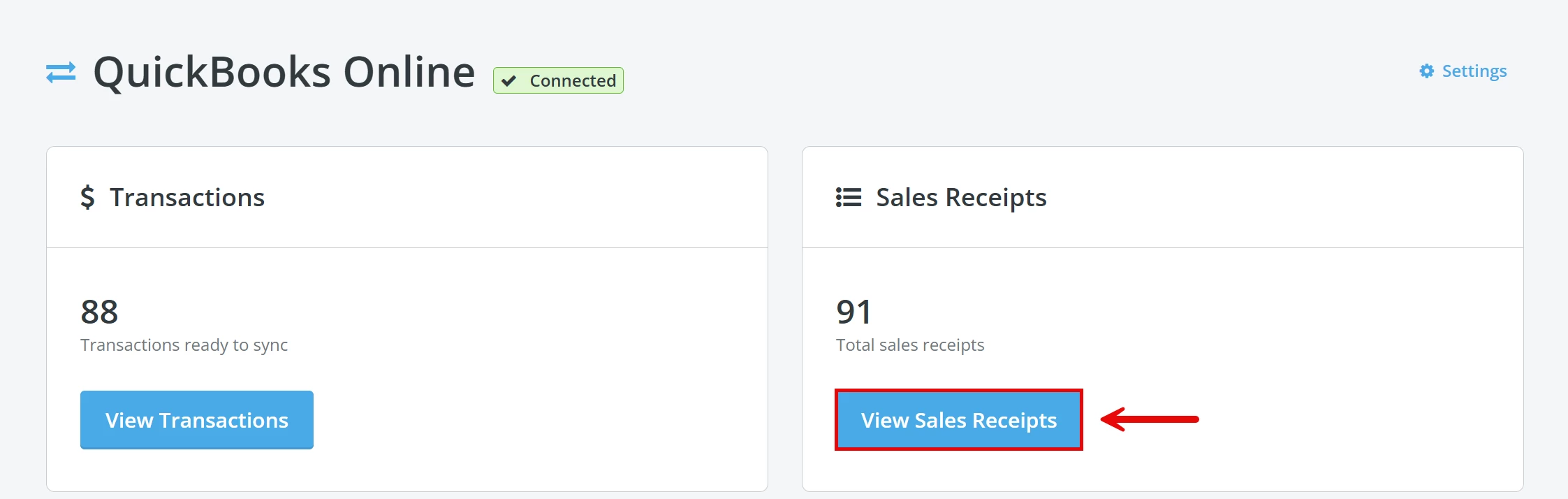
To view transaction details within a sales receipt, search by the QuickBooks Online ID and click the 'Details' button next to the correct record.

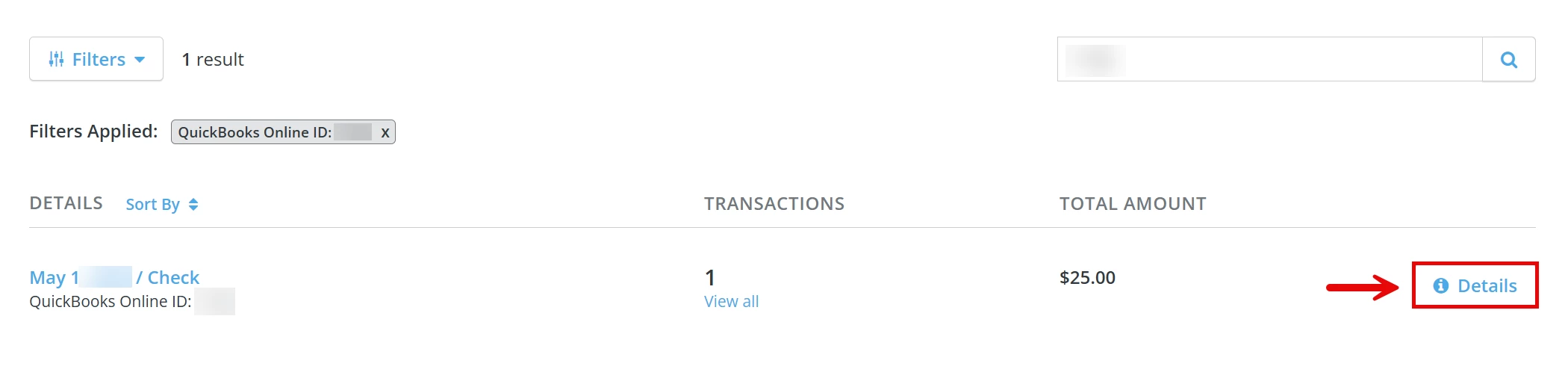
You should then be able to view the date and transaction type included in that receipt, a list of transactions, and any other relevant details you might need.
What else do you need help with?
- How do I enable and set up the QuickBooks Online integration?
- How do I troubleshoot the QuickBooks Online integration?
- How do I export historical data from my QuickBooks Online account?
Not quite what you were searching for?
Navigate back to the Donor Management Resource Index.
Looking for training?
Explore this feature at your own pace - join a live training session or watch a recorded webinar by clicking the link below.
How do I add attributions through bulk upload or bulk apply? | How does add attributions through bulk upload or bulk apply work in EveryAction? | Why can't I add attributions through bulk upload or bulk apply? | Where do I add attributions through bulk upload or bulk apply in EveryAction? | What is add attributions through bulk upload or bulk apply in EveryAction? | How to add attributions through bulk upload or bulk apply? | Can I add attributions through bulk upload or bulk apply in EveryAction?