


Best Practices: Using Fundraising Analysis Reports to improve outcomes
The data you've collected on your donors is a valuable tool to improve your fundraising outcomes. Our Donor Comparison Reports help you:
- Compare fundraising performance by calendar or fiscal year for the last 10 years.
- Track how many donors lapsed, reactivated, upgraded or downgraded from year to year.
- Review average gift sizes by donor type or fundraising source.
- View total donor tallies by the amount and date of their Highest Previous Contribution
Finding the Fundraising Analysis Reports
In the Report Manager, use the Fundraising Analysis Reports link to find our four Donor Comparison Reports.
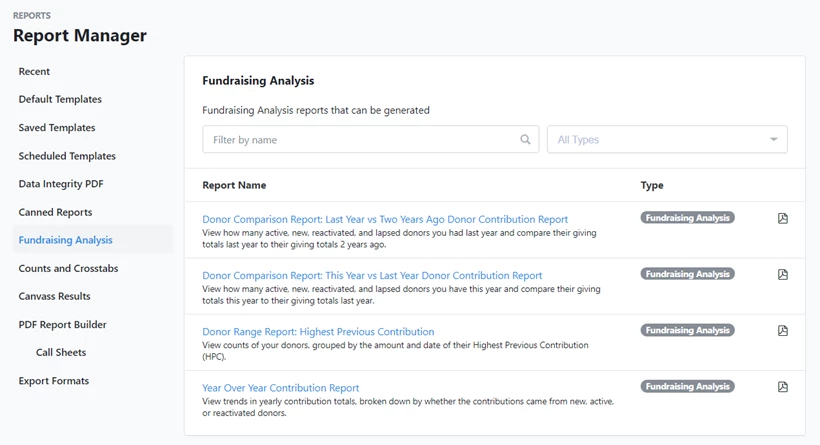
You can customize these reports to a subset of contributions using the filters. This gives you a closer view into what is happening with your fundraising program.
Running the report creates a downloadable PDF document.
Understanding Donor Comparison Reports
There are four Donor Comparison Reports for you to work with.
- Year Over Year
- This Year vs Last Year
- Last Year vs Two Year Ago
- Highest Previous Contribution
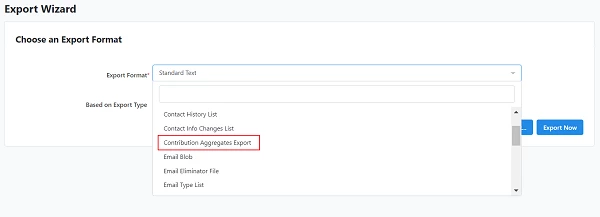
The Year Over Year report tracks trends in yearly contribution totals, broken down by whether the contributions came from new, active, or reactivated donors. You can look at up to 10 years worth of data with this report.
- New Donors are those who have given for the first time in the year being reported with no other history of contribution.
- Active Donors are those that made a contribution during the year being reported AND in the prior year.
- For example - An Active Donor in 2018 is one who gave a contribution in 2018 AND in 2017.
- Reactivated Donors are those who gave this year but didn't give last year AND their first gift was in a year that was before the prior year.
- For example - A Reactivated Donor for 2018 gave a contribution in that year, did not give in 2017, but did make a gift prior to 2017.
The This Year vs Last Year report shows you how many active, new, reactivated, and lapsed donors you have this year and compares their giving totals this year to their giving totals last year. Donors are grouped by their status.
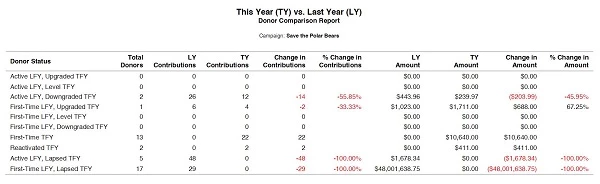
The first group on the report are Active donors who are continuing from previous years (they were not new donors last year or this year).
- Upgraded This Year (Active LY, Upgraded TY) - These donors made a contribution last year but who contributed MORE this year.
- Level This Year (Active LY, Level TY) - These donors made the same contribution this year that they did last year.
- Downgraded This Year (Active LY, Downgraded TY) - These donors contributed less this year than they did last year.
- Lapsed This Year (Active LY, Lapsed TY) - These are donors who gave last year but did not contribute this year.
We also show you First-Time donors from last year who:
- Upgraded This Year (First-Time LY, Upgraded TY) - These donors made a contribution for the first time last year but they contributed MORE this year.
- Level This Year (First-Time LY, Level TY) - These donors made a contribution for the first time last year and they matched that amount this year.
- Downgraded This Year (First-Time LY, Downgraded TY) - These donors contributed for the first time last year but gave less this year.
- Lapsed This Year (First-Time LY, Lapsed TY) - These are donors who gave last year for the first time but did not contribute this year.
Finally, you will see:
- First-Time Donors This Year (First-Time TY) - These are donors who gave for the first time THIS year.
- Reactivated Donors This Year (Reactivated TY) - These are donors who gave in the past and contributed THIS year but not last year
The Last Year vs Two Years Ago report looks at all your active, new, reactivated, and lapsed donors from last year and compares their giving totals to what they gave 2 years ago.
The donor categories for this report are the same as above but substituting Last Year and Two Years ago.
The Highest Previous Contribution report tallies your total donor base grouped by the amount and date of their Highest Previous Contribution (HPC). This report is broken into two groups based on their lifetime gift count.

- Multis are contacts who have more than one contribution ever.
- Singles are contacts who have only ever given one donation.
If you aren't sure if a report is what you are you looking for, you can see what typical output looks like by selecting the View Sample Report link under the description. This will show you what kinds of data are included in the report using sample data (not your own).
Customizing Donor Comparison Reports
Each of these reports have similar options for customization.
Date Range
All of the reports based on Calendar comparisons (Year Over Year, This vs Last, Last vs Two Years Ago) let you do some customization of the Date Range for your report. The This vs Last and the Last vs Two Years Ago reports will let you choose the Calendar or the Fiscal year.
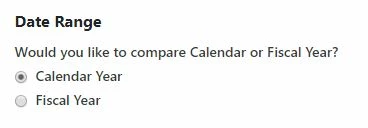
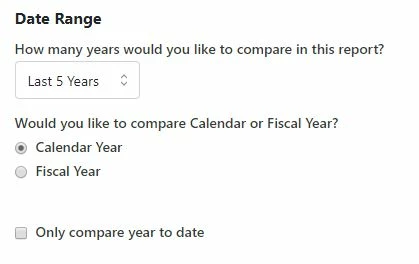
The Year Over Year report gives you the option to choose the Calendar or Fiscal year and also to specify a range of dates. You can also measure the current period against the same period in previous years with a year to date comparison.
For example, if you run the report on May 15th, you'll see totals raised between the start of the year and May 15th for each of the years in the report.
The Highest Previous Contribution report assumes you wish to see total counts over your entire database, so you do not have the option to customize the dates.
Contribution Type
If you only want to see certain kinds of contributions from donors, you can narrow your search based on the type of contribution.
- One Time - This includes all one-time payments and any recurring gifts that are not monthly.
- Pledge Payments - These are contributions that are linked to a To Give or a To Raise pledge.
- Recurring Commitment (monthly only)

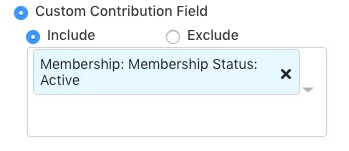
You can further refine your report by choosing one contribution detail for more granular filtering. You can use these to include or exclude groups of donor contributions from your report.
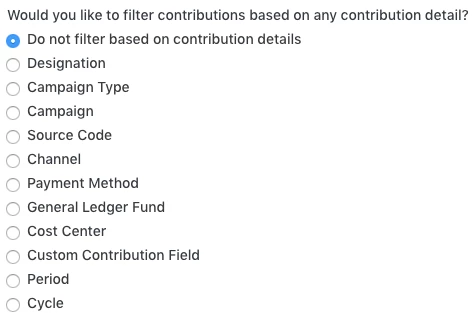
You may have several options under each contribution detail. You can insert as many as you wish using the dropdown menu.
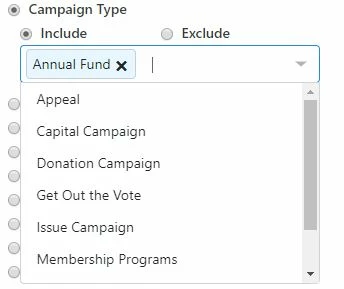
If you filter on the Custom Contribution Field, you can only use the values available in the checkbox and dropdown type. Dates, currency, number, and free text cannot be filtered.
Audience
Finally, you can narrow your search to a particular group of contacts who made the types of contributions you specified above.
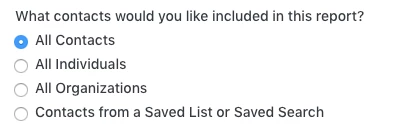
You can further narrow the list by filtering on other contact details as your search criteria. With this choice you can include or exclude contacts acquired from particular channels, a specific origin source, based on the date or dollar amount of their highest previous contribution, and so on. This works much the same as the contribution detail filter.
After you choose which detail you want to use as a filter, you will see several options you can include or exclude in the dropdown menu.
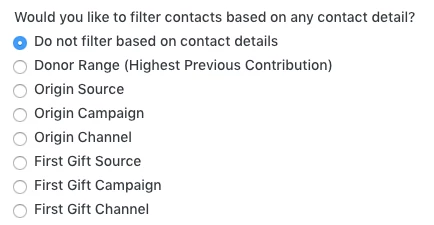
Note: Because the HPC report includes all donors, the Donor Range filter is ignored on that report. You can choose various ranges but the results will be identical to not choosing that option.
Once you have everything set up, you can choose to immediately generate a one-time PDF file or you can save and share the report using Save As.
How do I using fundraising analysis reports to improve outcomes? | How does fundraising analysis reports to improve outcomes work in EveryAction? | Why can't I using fundraising analysis reports to improve outcomes? | Where do I using fundraising analysis reports to improve outcomes in EveryAction? | What is fundraising analysis reports to improve outcomes in EveryAction? | How to using fundraising analysis reports to improve outcomes? | Can I using fundraising analysis reports to improve outcomes in EveryAction?