


How do I manage, export, and take actions on Reports?
Sorting your results
If there is a particular column you'd like to sort your results by, you can click on the column header. The sort is an automatic toggle that lets you sort by:
- Least to Most (or A to Z) - an UP arrow will display
- Most to Least (Z to A) - a DOWN arrow will display
- No sort - NO arrow appears
You can also sort by multiple columns. The number next to the column will show where it is in the sort priority.
You can also use Group by to help you make sense of your report results. This is an easy way to see big picture results or compare results to each other. The groups can then be expanded and collapsed to dig into more detail.
Click into the Group by search field to see a list of criteria you can use for grouping. This search field also does predictive typing so if you begin typing in the field you want to use for grouping, you should see it come to the top of the list.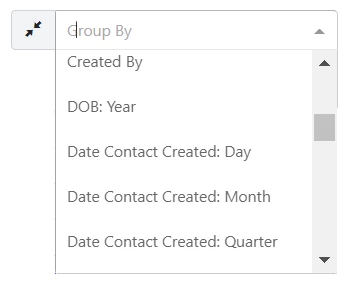
While results are grouped, you can still change the sort options but you cannot edit the columns available or rearrange them unless you ungroup the results.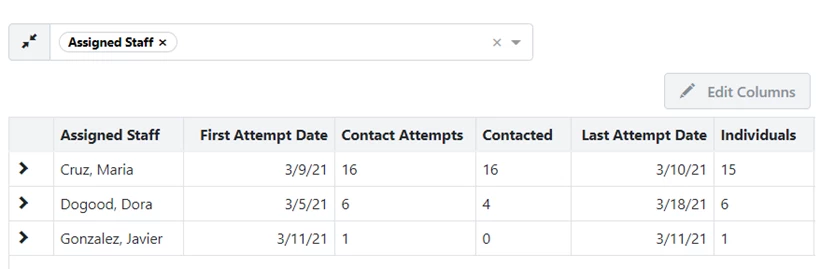
Exporting Reports
At the top of your report, you will see links Export and for more Report Actions.
Most reports can be exported as an Excel file, a text file, or a Google Sheets file. After you export your file, you can download it from My Export Files. Search for My Export Files in the Sidebar or find the link at the top of the Main Menu or your dashboard home screen.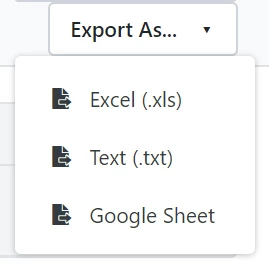
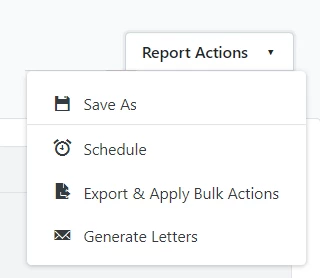
Depending on the type of report, Report Actions will let you do things like:
- save your report as a template using Save As
- Schedule your report to go to particular email addresses on a regular basis (daily, weekly, etc.)
- take bulk actions on the records in the report such as Bulk Edit, Bulk Apply, or Generate Letters (for Acknowledgment reports)
Managing and editing saved reports
Once a report has been saved or scheduled, it can be viewed in Report Manager > My Saved Report Templates or Scheduled Reports.
All Saved Report Templates includes templates created by you, as well as those shared by other users in your committee.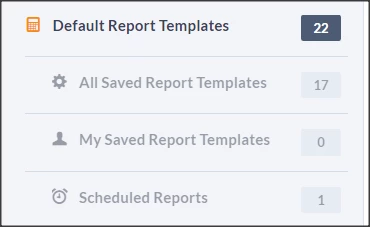
After you edit a report, make sure you re-run it and re-save it.
Not quite what you were searching for?
- Navigate back to the Reporting Resource Index.
Looking for training?
Explore this feature at your own pace - join a live training session or watch a recorded webinar by clicking the link below.
How do I manage, export, and take actions on reports? | How does manage, export, and take actions on reports work in EveryAction? | Why can't I manage, export, and take actions on reports? | Where do I manage, export, and take actions on reports in EveryAction? | What is manage, export, and take actions on reports in EveryAction? | How to manage, export, and take actions on reports? | Can I manage, export, and take actions on reports in EveryAction?