


How to: Report on call results
(5 min read)
There are three reports to help you analyze your contact results for Virtual Phone Bank, RoboCalls, and other phone outreach:
-
Phone Number Report: View phone type, preferred status, and cell phone status across phone numbers.
-
Virtual Phone Bank Report: See all the results for one phone bank at a time.
-
Phone Contact History Report: View phone contact results through the last 31 days. Narrow to specific types of phone campaigns or view results across your efforts.
-
Canvass Result Reports: While these reports are not specific to phone campaigns, you can use the report filters to narrow results to phone outreach.
Phone Number Report
The phone number report allows you to view phone type, preferred status, and cell phone status across phone numbers and is a great way to get a sense of how many phone numbers you have to work with.
This report provides the following summaries:
-
Contacts
-
Phones
-
Verified Cells
-
Likely Cells
-
Likely Not a Cell
-
Not a Cell
The filters include:
-
Contact Records: Leave set to All Contacts, or narrow to a Saved Search or Saved List.
-
Is Cell?: Indicates if the phone number is likely a cell phone number.
Read more on phone numbers -
Phone Type: This can be Cell, Fax, Home, Main, Other, or Work.
The default columns include:
-
VAN ID: The unique ID on each record in the voter file or My Campaign.
-
Contact: The name of the person contacted.
-
Home Address: The home address on the contact record.
-
Home City: The home city on the contact record.
-
Phone Number: This report has one row per unique phone number.
-
Is Cell?: Indicates if the phone number is likely a cell phone number.
-
Is Preferred?: Indicates if the phone number is the Preferred number on the contact record. See Overview: Phone numbers for more information about Preferred phones.
-
Phone Type: This can be Cell, Fax, Home, Main, Other, or Work.
-
Source: The options can occasionally differ from one site to the next but generally include Bulk, Mobile, User, or Voter File.
Like with other reports in Report Manager, you can Group By various columns to identify trends in your phone numbers. For example, you could group Contact to see how many phone numbers are on multiple contact records.
Virtual Phone Bank Report
To quickly see how each Virtual Phone Bank is going, use the more arrow on the Virtual Phone Bank List page > View Report.
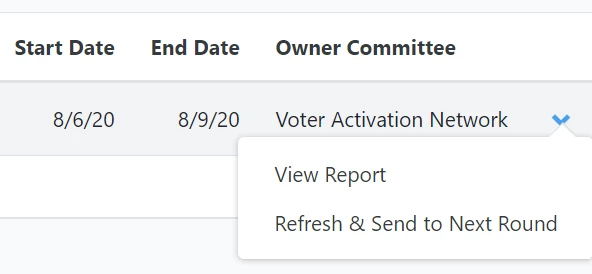
If your phone bank extends more than one day, you may want to filter the results by date. You can also filter the results to Canvassed Only (instead of All Attempts) in order to see only people your callers were able to speak with.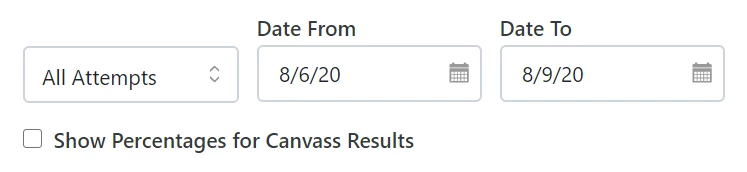
By default, you can scroll to the right to see both your Canvass Results and Script Results. As it’s often difficult to see all the results on the same screen, you can use the specific tabs to narrow your focus to one or the other.

Phone Contact History Report
The Phone Contact History Report is located in Report Manager.
This report provides the following summaries:
-
First Canvass Attempt Date
-
Last Canvass Attempt Date
-
Number of Callers
-
Canvass Attempts
-
Individuals
-
Number of Callers
-
Canvassed
-
Not Home
-
Left Message
-
Disconnected
-
Refused
-
Moved
-
Other Language
-
Other Result
The filters include:
-
Contact Records: Leave set to All Contacts, or narrow to a Saved Search or Saved List.
-
Date Contacted: Narrow to the date that people were contacted.
-
Contacted By: Filter by canvasser to see the results of their outreach.
-
Contact Type: The way the person was contacted.
-
For Open Virtual Phone Bank results, this will be Phone
-
For Virtual Phone Bank results, this will be Phone
-
For RoboCall results, this will be Robocall
-
For Distributed Contacts phone campaigns, this will be Distributed Call
-
-
Result: Narrow by the result of the call, such as Do Not Home. If the person was reached and the script questions were entered, the result will be Canvassed.
-
Input Type: How the data was entered into the system.
- For Open Virtual Phone Bank results, this will be OpenVPB
- For VPB Connect results, this will be VPB Connect
- For Virtual Phone Bank results, this will be VPB
- For RoboCall results, this will be Mobile
- For Distributed Contacts phone campaigns, this will be Distributed
- Created By: Filter to results entered by a particular person or people.
- Campaign Type: If you are using Campaigns and Campaign Types, you can filter results based on those.
- Campaign: If you are using Campaigns and Campaign Types, you can filter results based on those.
- Division Name: If you are using Teams and Divisions, you can filter results based on those.
- Team Name: If you are using Teams and Divisions, you can filter results based on those.
- Virtual Phone Bank: Narrow to results for a particular phone bank, or multiple.
- MiniVAN Campaign: Narrow to results for a particular phone canvass, or multiple.
The default columns include:
-
Voter File VAN ID: The unique ID on each record in the voter file. If you are running the report in My Campaign, this column will be VAN ID instead.
-
Contact Name: The name of the person contacted.
-
Date Contacted: The date the person was contacted.
-
Result: The result of the call, such as Do Not Home. If the person was reached and the script questions were entered, the result will be Canvassed.
-
Contact Type: The way the person was contacted.
-
Contacted By: The canvasser who spoke with the person.
-
Created By: The person who entered the data.
-
Date Created: The date the contact result was entered. This is often the same day as Date Canvassed, but can be different if, for example, you bulk uploaded your information into the system on a different day. By making calls through our internal tools, you avoid having to import and export data, making your phone outreach more efficient.
-
Input Type: How the data was entered into the system.
-
Virtual Phone Bank: If the contact result was entered for a phone bank, the name of the phone bank will appear here.
Canvass Result Reports
There are a number of different Canvassing Result Reports. While these are not specific to phone banks or campaigns, you can use filters like Input Type and Contact Type to narrow to results that came in via phone outreach.
How do I how to: report on call results? | How does how to: report on call results work in EveryAction? | Why can't I how to: report on call results? | Where do I how to: report on call results in EveryAction? | What is how to: report on call results in EveryAction? | How to how to: report on call results? | Can I how to: report on call results in EveryAction?