

How do I run a filter and/or export my bidder's information?
You can easily run a filter or export a report of your winning bidder’s information right from the “Bidders” section of your Auction page’s Dashboard.
Step 1: Click on the "Bidders" tab of your auction.
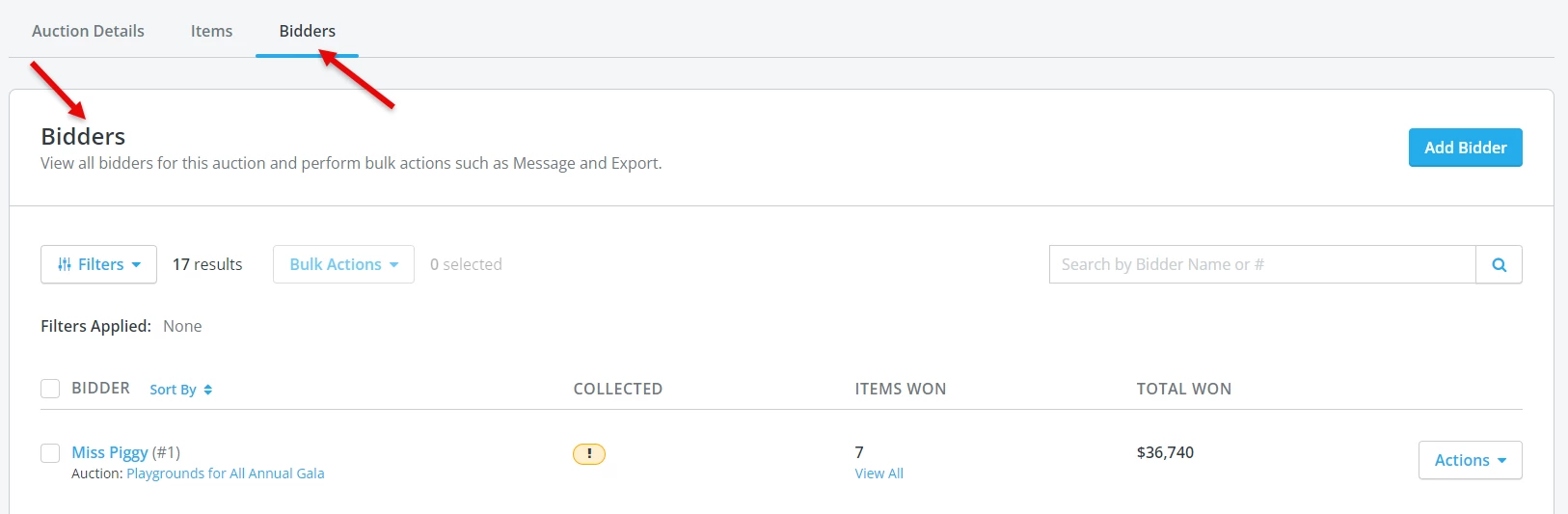
The page should reload and display a list of all bidders who have participated in this auction.
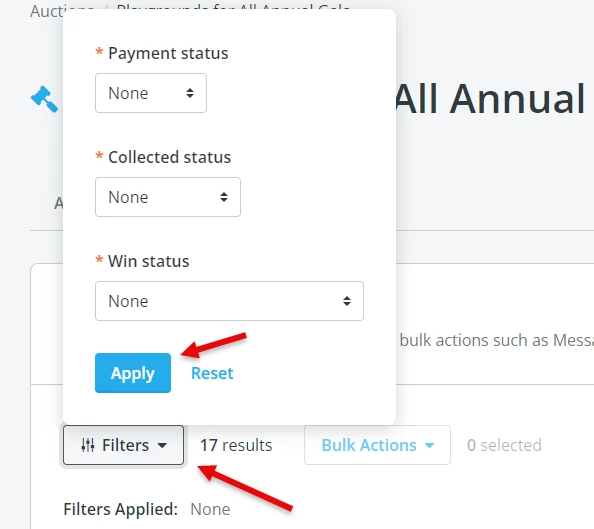
Step 2 (optional): Use the "Filters" button to narrow down your group of bidders.
From this page, you can filter for bidders based on their payment status, participation in the auction, and whether or not their winnings have been collected.
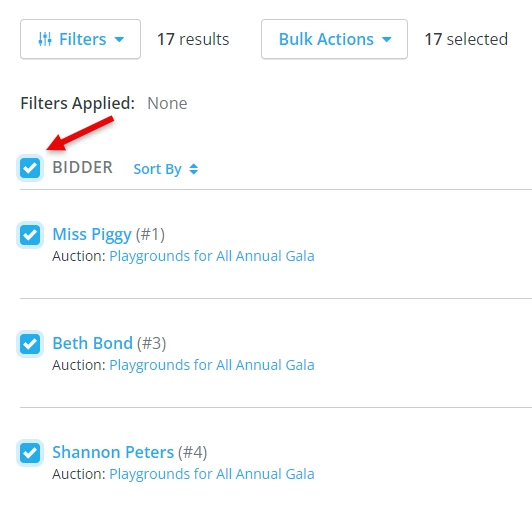
Step 3: Click on the small checkbox next to the word "Bidder."
To select all of the bidders within your list (filtered or not!), click on the small square next to the word "Bidders", located right above the displayed list of bidders. This should add a blue checkmark next to all of the items in the list.
Step 4: Click "Bulk Actions," then select "Export."
You can then click on the "Bulk Actions" button, located next to the "Filters" button, and select "Export" from the drop-down.
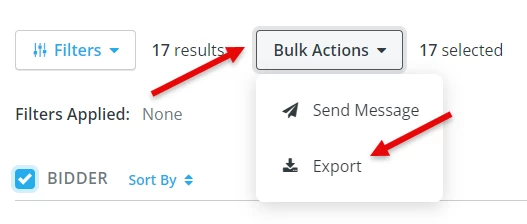
This will then automatically download a .CSV report of your selected bidders to your computer or device.
As a note, this report can be generated at any point during or after your auction, but we recommend downloading a finalized version of this report once the auction has concluded.
What else do you want to do?
-
How do I run a filter and/or export item information from an auction?
-
How do I locate a winning purchase on a bidder's contact record?
-
How do I reconcile transactions from my bank with funds from my auction?
Not what you're looking for?
Go back to the Feature Overview.
How do I monitor payment corrections? | How does monitor payment corrections work in EveryAction? | Why can't I monitor payment corrections? | Where do I monitor payment corrections in EveryAction? | What is monitor payment corrections in EveryAction? | How to monitor payment corrections? | Can I monitor payment corrections in EveryAction?