


How do I exit multiple participants from a program at once?
If you need to end program enrollments for several participants at the same time, Apricot provides a quick and efficient way to do so. This can be helpful when a program has ended, been discontinued, or when a group of clients are no longer participating.
Follow the steps listed below to learn how to exit multiple participants from their program enrollments at once.
Step 1: Navigate to a Record Search page
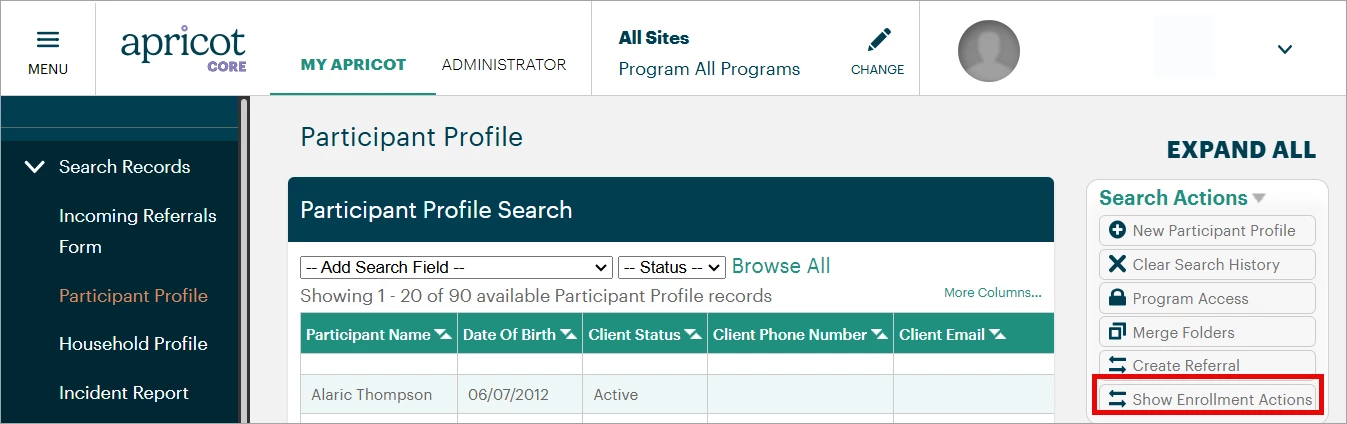
From the "My Apricot" tab, expand the Search Records category of the navigation bar and select the Tier 1 form that contains the records you want to exit from a program.
Then, select "Show Enrollment Actions" from the Search Actions palette.
Step 2: Select your participants
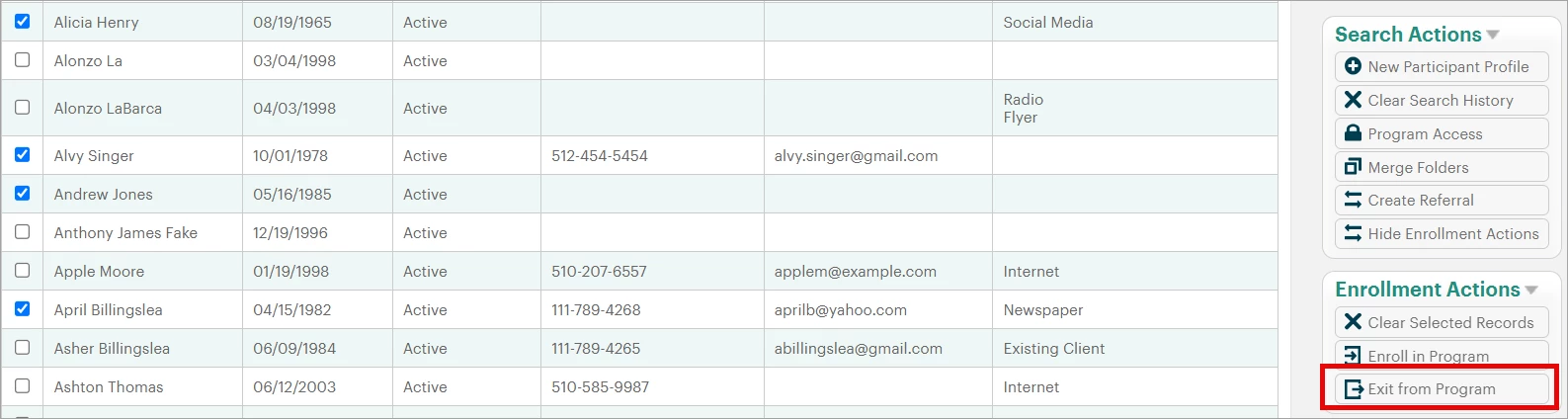
The page will refresh, and you can check the box next to each record whose program enrollment has ended. Select "Exit From Program" in the Enrollment Actions palette to continue.
Step 3: Enter the exit details
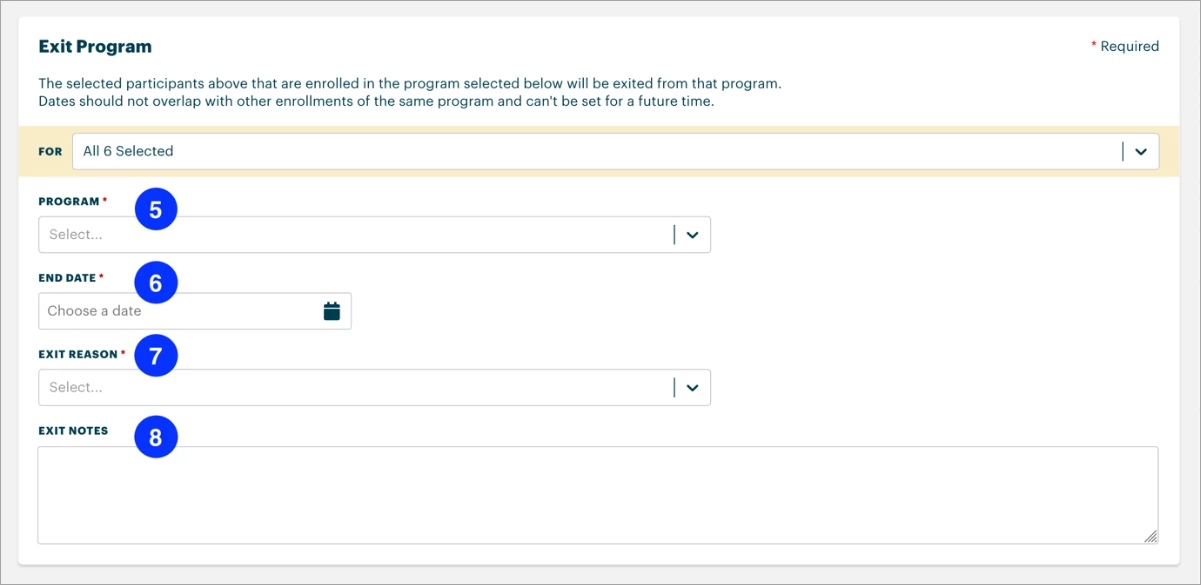
In the "Exit Program" section of the page, submit the following details:
-
Program (required): The specific program they are exiting.
-
End Date: The date the enrollments are scheduled to end or did end. Once this is saved, the enrollments are considered inactive. This field is required when exiting participants from a program.
-
Exit Reason: The reason the enrollments have ended. If none of the set options apply, selecting "Other" allows you to type a reason in the Exit Notes text box. This field is required when exiting participants from a program.
-
Exit Notes (optional): Any notes that are important for the participants' exit from the program.
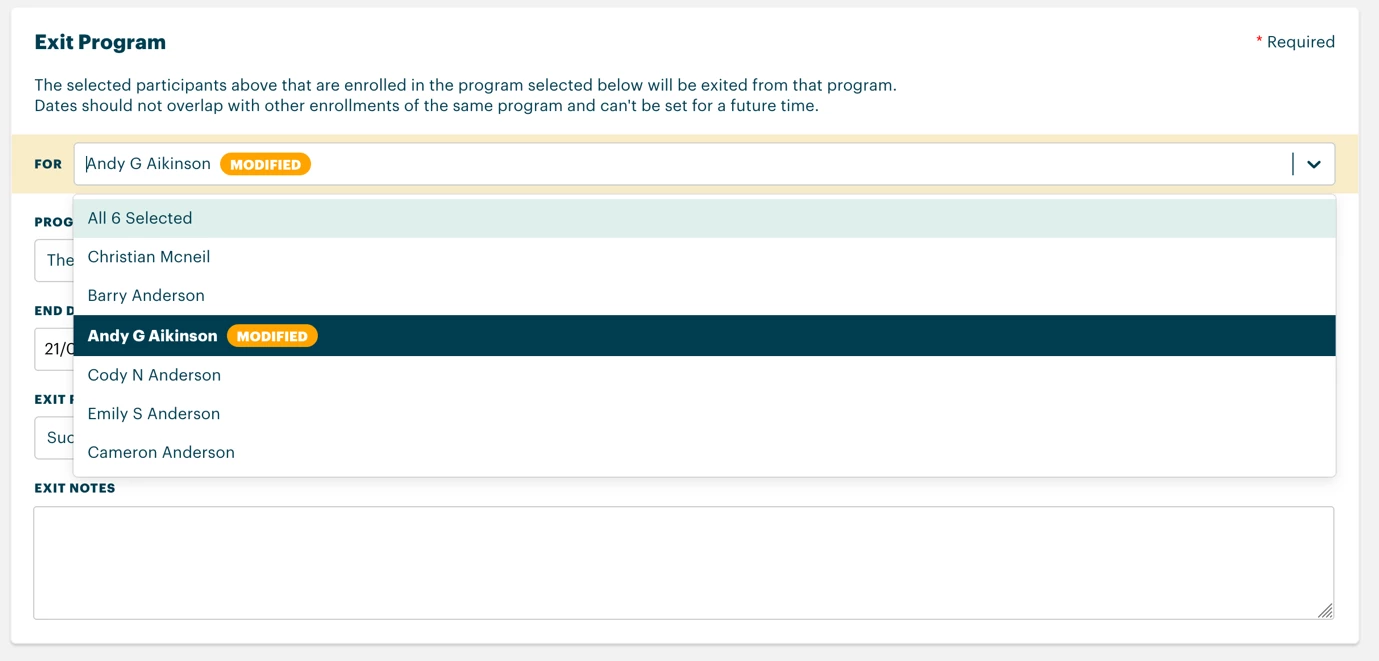
Important: When "All [Number] Selected" is present in the "For" dropdown, the details you enter for these fields apply to every selected participant's enrollment. If you need to submit information that only pertains to a certain individual, you can select their name in the "For" dropdown to make this change. You'll then see the text "Modified" next to their name in the dropdown.
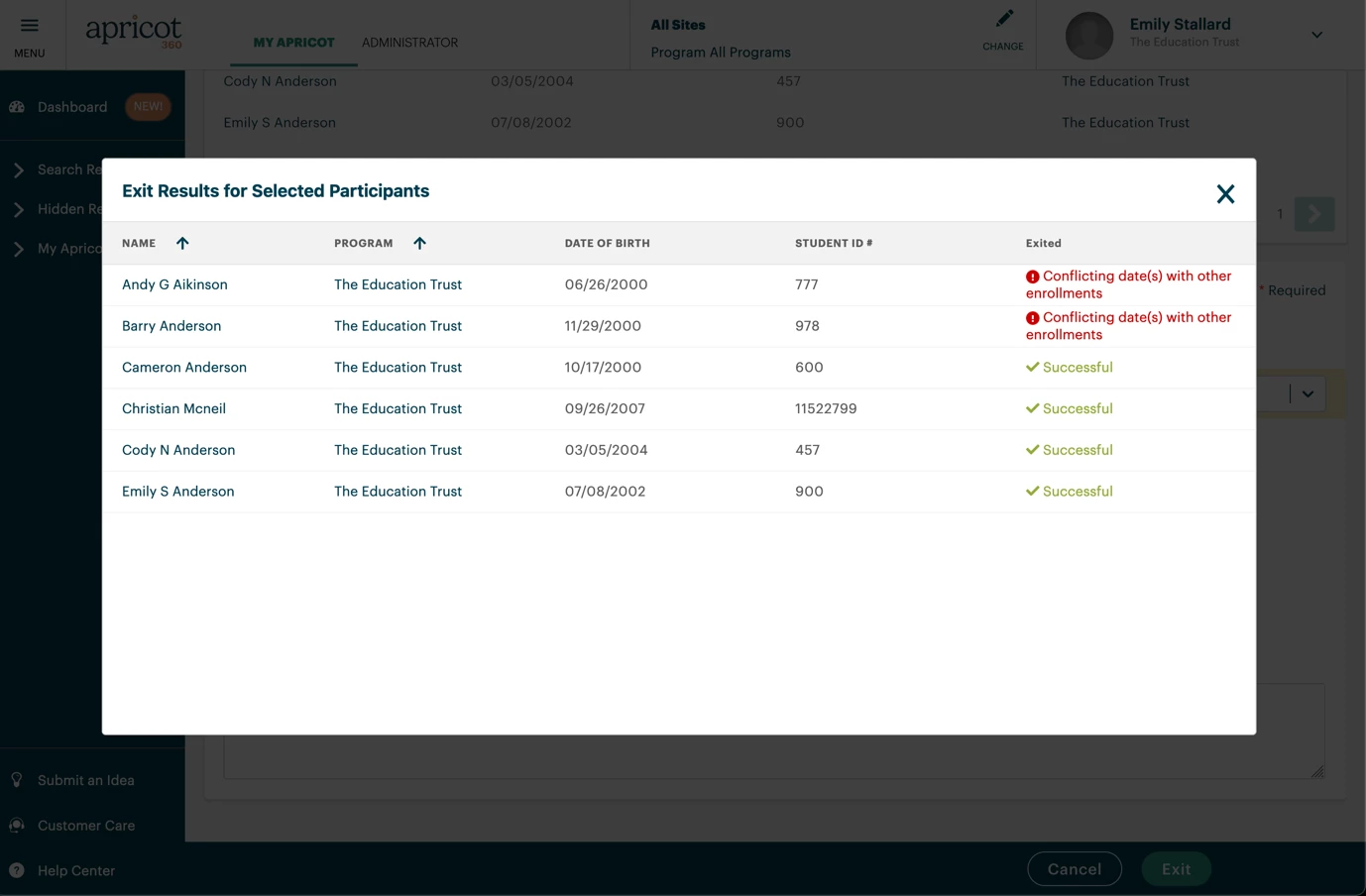
Click "Exit" at the bottom of the page to complete the process, then review the Exit Results to confirm all enrollments were successfully ended.
What else do you need help with?
How Do I Exit Multiple Participants From a Program at Once in Apricot? | Where Do I Unenroll Several Participants From a Program in Apricot? | How Do I Batch Exit Participants From a Program in Apricot? | Why Can’t I Remove Multiple Program Enrollments in Apricot? | How Do I Select Multiple Participants to Exit From a Program? | What Happens When I Exit Participants From a Program in Apricot? | How Do I Undo an Exit for Multiple Participants in Apricot?
How do I what data does van relay share (and not share)? | How does what data does van relay share (and not share) work in EveryAction? | Why can't I what data does van relay share (and not share)? | Where do I what data does van relay share (and not share) in EveryAction? | What is what data does van relay share (and not share) in EveryAction? | How to what data does van relay share (and not share)? | Can I what data does van relay share (and not share) in EveryAction?