


How do I report on participants' Assigned Staff in Program Enrollments?
We're excited to announce that we've expanded reporting capabilities for Program Enrollments in Apricot! As of February 26, 2025, all Apricot clients are able to report and filter on the "Assigned Staff" field within the Native Reporting tool.
This new functionality is the latest enhancement to the Program Enrollments feature, which was introduced to help organizations better capture participant journeys and program outcomes. By allowing you to report on which staff members are assigned to each Program Enrollment, you can more effectively manage your team's workloads and ensure participants are receiving the support they need. To learn more about getting started with Program Enrollments, check out our article on migrating data to Program Enrollments with the Import tool.
Follow the steps listed below to add the Assigned Staff field to a Native Report.
Step 1: Open your report
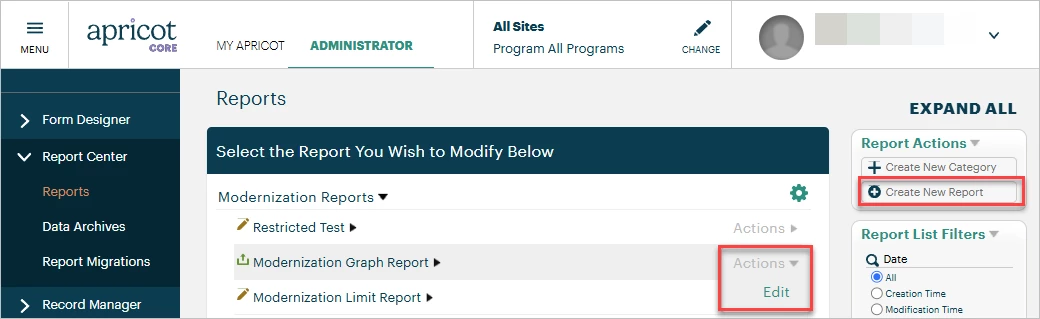
In the Administrator tab of Apricot, expand the Report Center category of the navigation bar and select "Reports". You can edit an existing report on this page or click "Create New Report" in the Report Actions palette to start from scratch. To learn how to build a basic report, click here.
Step 2: Add the "Assigned Staff" field
Note: If you're creating a new report, we recommend pulling the Name fields from your Tier 1 Client/Individual/Participant form into your report first to establish your root form.
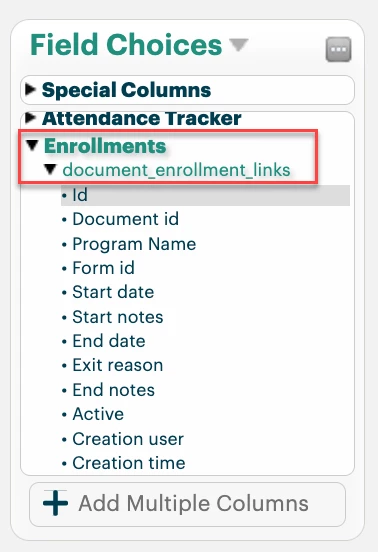
In the Field Choices palette, click the Enrollments category then the "document_enrollment_links" subcategory to view its available fields.
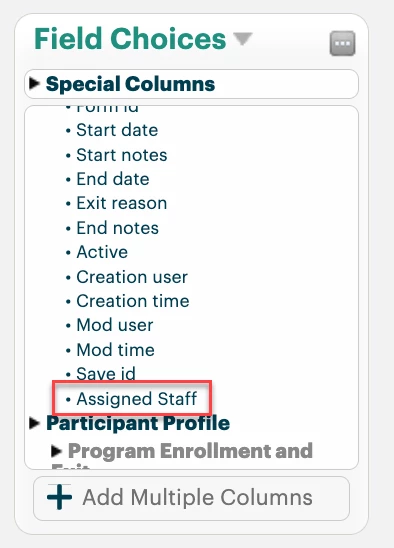
At the bottom of this list is the Assigned Staff field. Click and hold the field name, then drag it into a report section. You may also choose to include other fields from this subcategory (ex. Program Name) in your report.
Step 3: Run the report
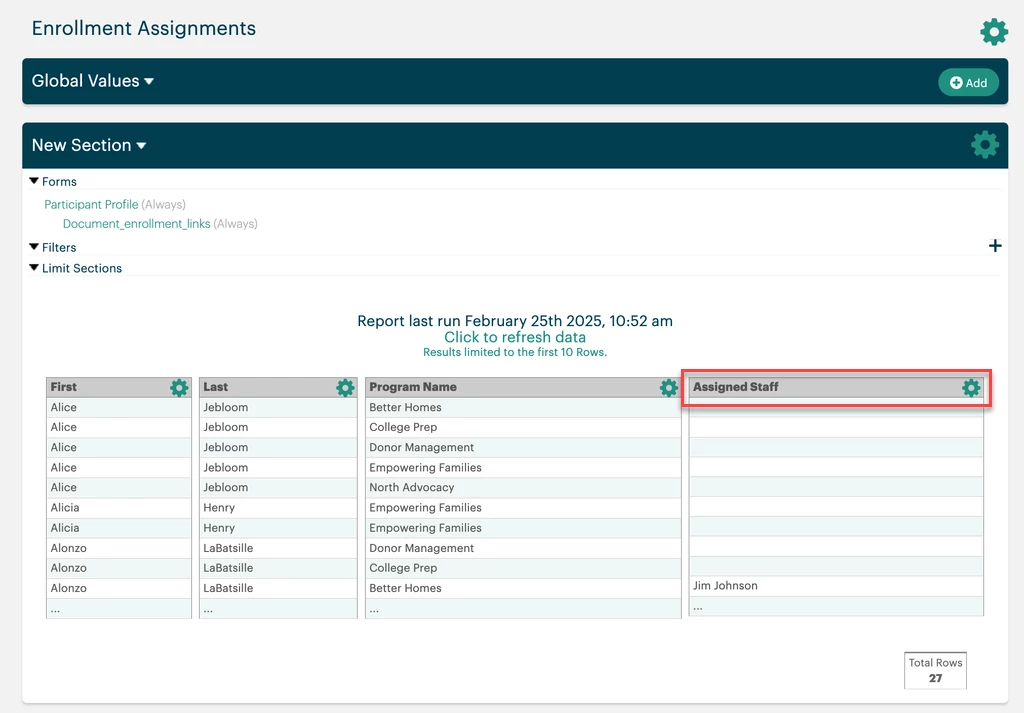
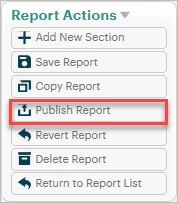
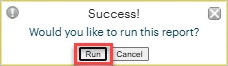
Select "Publish Report" from the Report Actions palette to apply your changes to the report, then choose to run the report in the confirmation pop-up. This allows you to view all report data as opposed to just the first 10 rows.
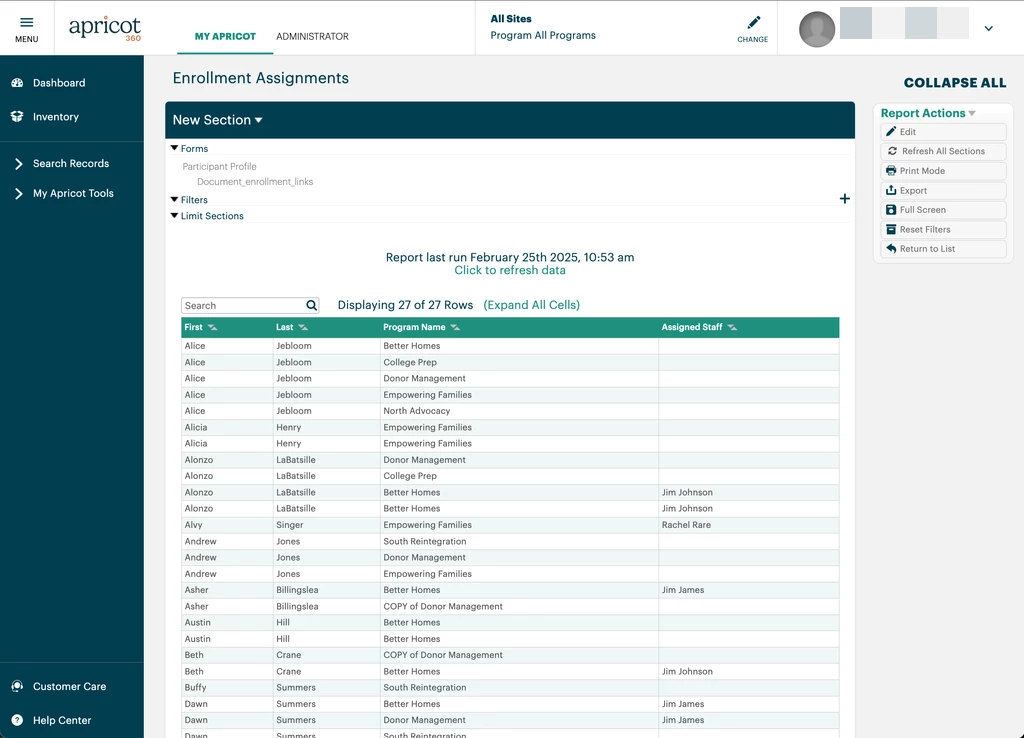
Each row in the report represents a separate Program Enrollment for the associated Tier 1 record. If a user was selected as the assigned staff within the Program Enrollment, the user's name will appear in the Assigned Staff report column.
Step 4 (optional): Edit the column properties
You can surface clearer insights about users' workloads by grouping your report data by the Assigned Staff column or counting the number of distinct users who have been selected as a participant's assigned staff.
Group By Assigned Staff
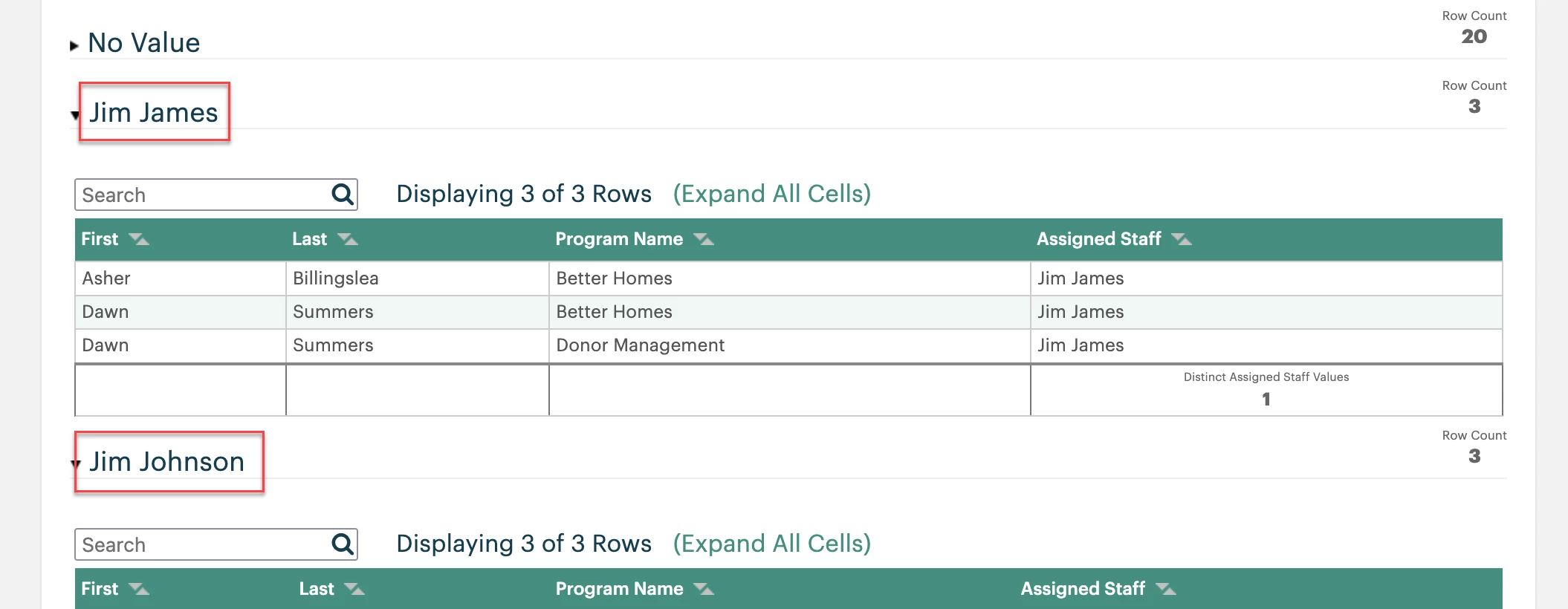
Below is an example of a report that's grouped by the Assigned Staff column. Each section can be collapsed or expanded to display every Program Enrollment record associated with the named user.
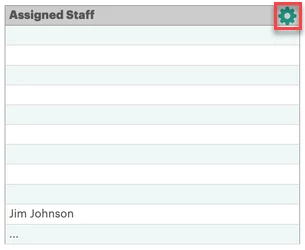
To reflect this in your report, return to the report builder and click the gear icon in the Assigned Staff column header to open its properties.
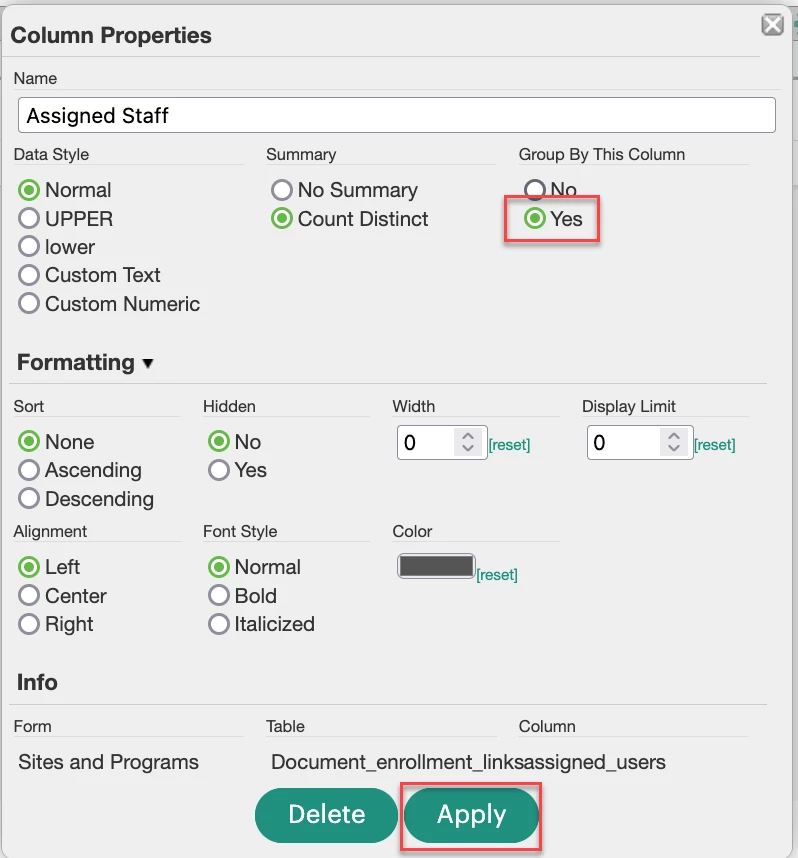
This will open the Column Properties window. Select "Yes" in the "Group By This Column" section, then click "Apply" once you're finished to close the window.
Publish the report again to make this change available to all users who may access it.
Count Distinct Users
Our second report is one that's instead grouped by the Program Name column. We've also added a "Count Distinct" summary value that displays how many unique users are listed in the Assigned Staff column per program.
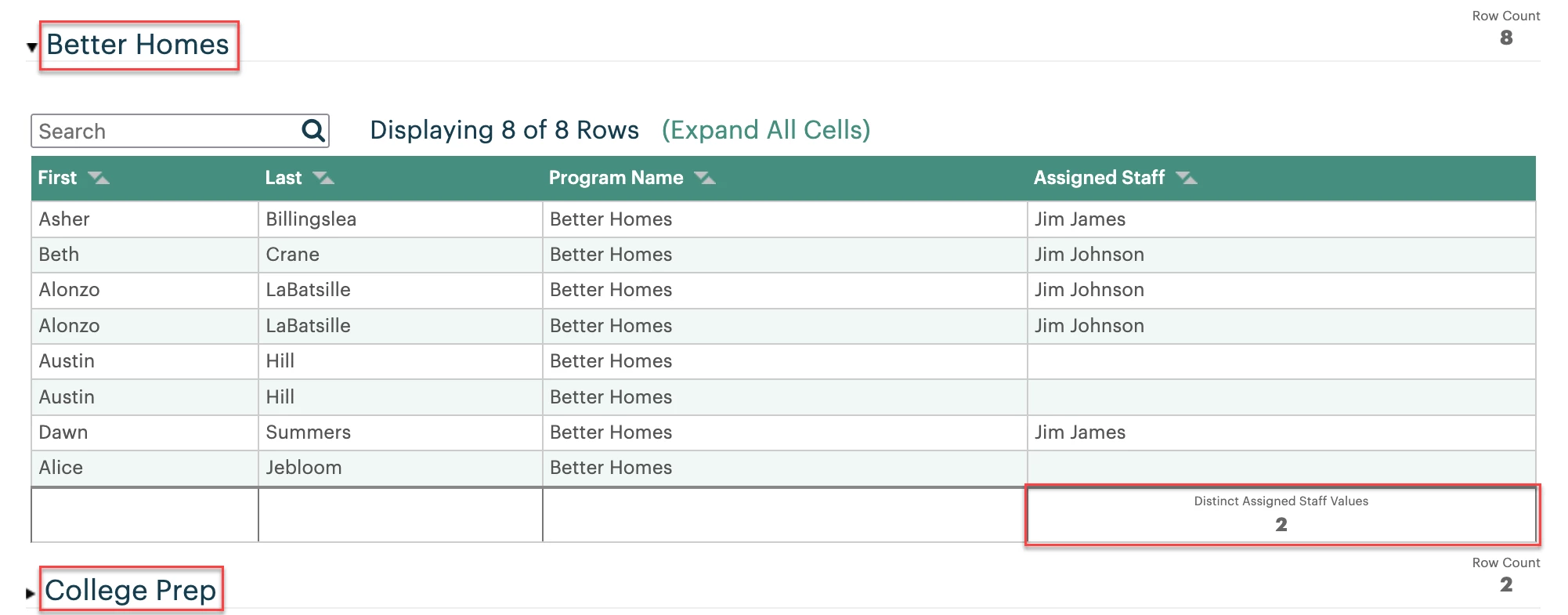
You can achieve this by editing the Program Name column's properties to enable grouping. Next, edit the Assigned Staff column's properties to select "Count Distinct" in the Summary section.
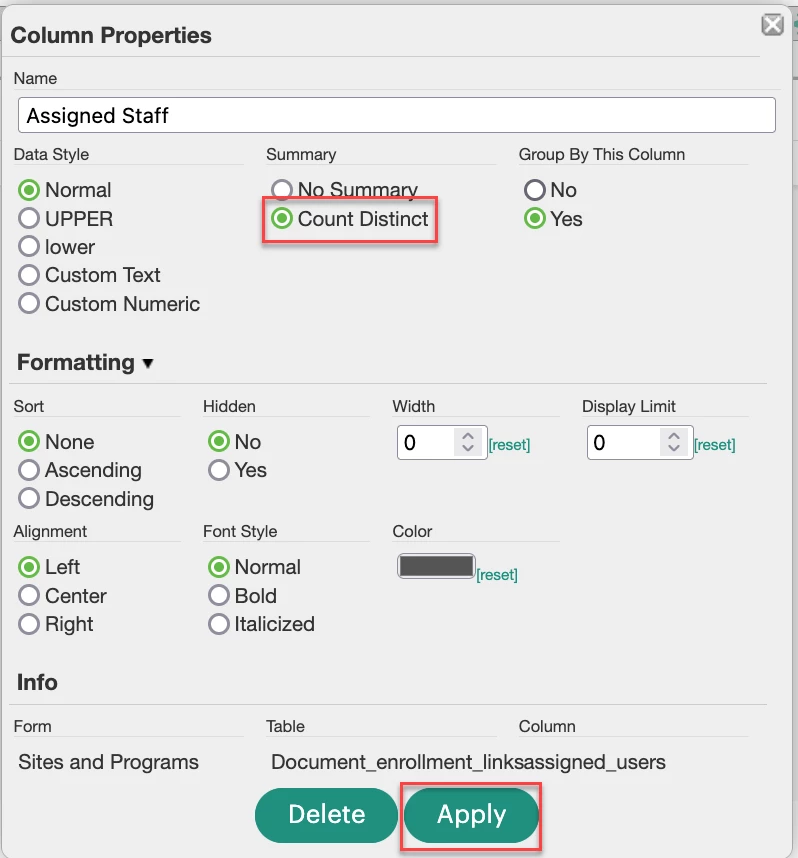
Apply your changes and re-publish to finalize your Program Enrollments report.
What else do you need help with?
How Do I Report on Participants and Assigned Staff in Program Enrollments? | Where Do I Run a Program Enrollment Report in Apricot? | How Do I Include Assigned Staff in a Program Enrollment Report? | Why Isn’t Assigned Staff Showing in My Program Enrollment Report? | How Do I Filter Program Enrollment Queries by Assigned Staff? | What Fields Do I Use to Report on Assigned Staff in Program Enrollments? | How Do I Export a Report of Participants and Assigned Staff in Apricot?
How do I create survey questions? | How does create survey questions work in EveryAction? | Why can't I create survey questions? | Where do I create survey questions in EveryAction? | What is create survey questions in EveryAction? | How to create survey questions? | Can I create survey questions in EveryAction?