


How do I report on Tier 2 data attached to Program Enrollments?
Apricot's Program Enrollments feature provides organizations with a standardized way to track participant journeys and better capture programmatic outcomes. As of April 10, 2025 for US clients and April 11, 2025 for Australian and New Zealand clients, this feature is getting even better - users are now able to report on Tier 2 data attached to Program Enrollments directly in Apricot's Native Reporting tool!
By increasing the reportability of Program Enrollments in Apricot, organizations are better able to quality-assure their data and streamline how they report to funders the true impact of their programs. To learn more about getting started with Program Enrollments, check out our article on migrating data to Program Enrollments with the Import tool.
Follow the steps listed below to add Program Enrollment data and their attached Tier 2 records in a Native Report.
Step 1: Open your report
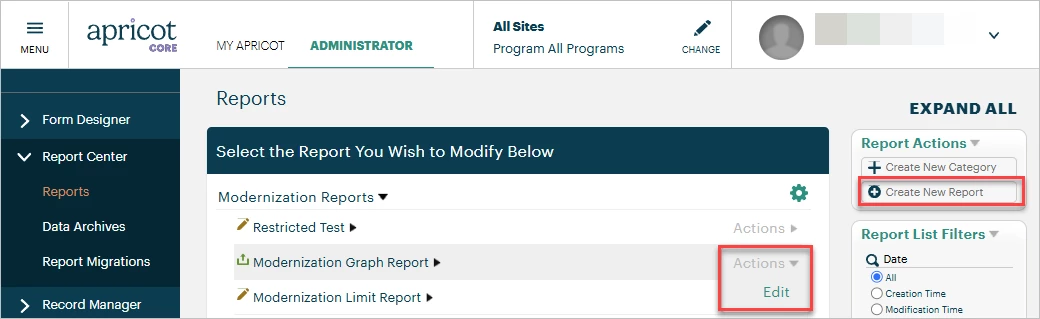
In the Administrator tab of Apricot, expand the Report Center category of the navigation bar and select "Reports". You can edit an existing report on this page or click "Create New Report" in the Report Actions palette to start from scratch. To learn how to build a basic report, click here.
Step 2: Add your desired fields
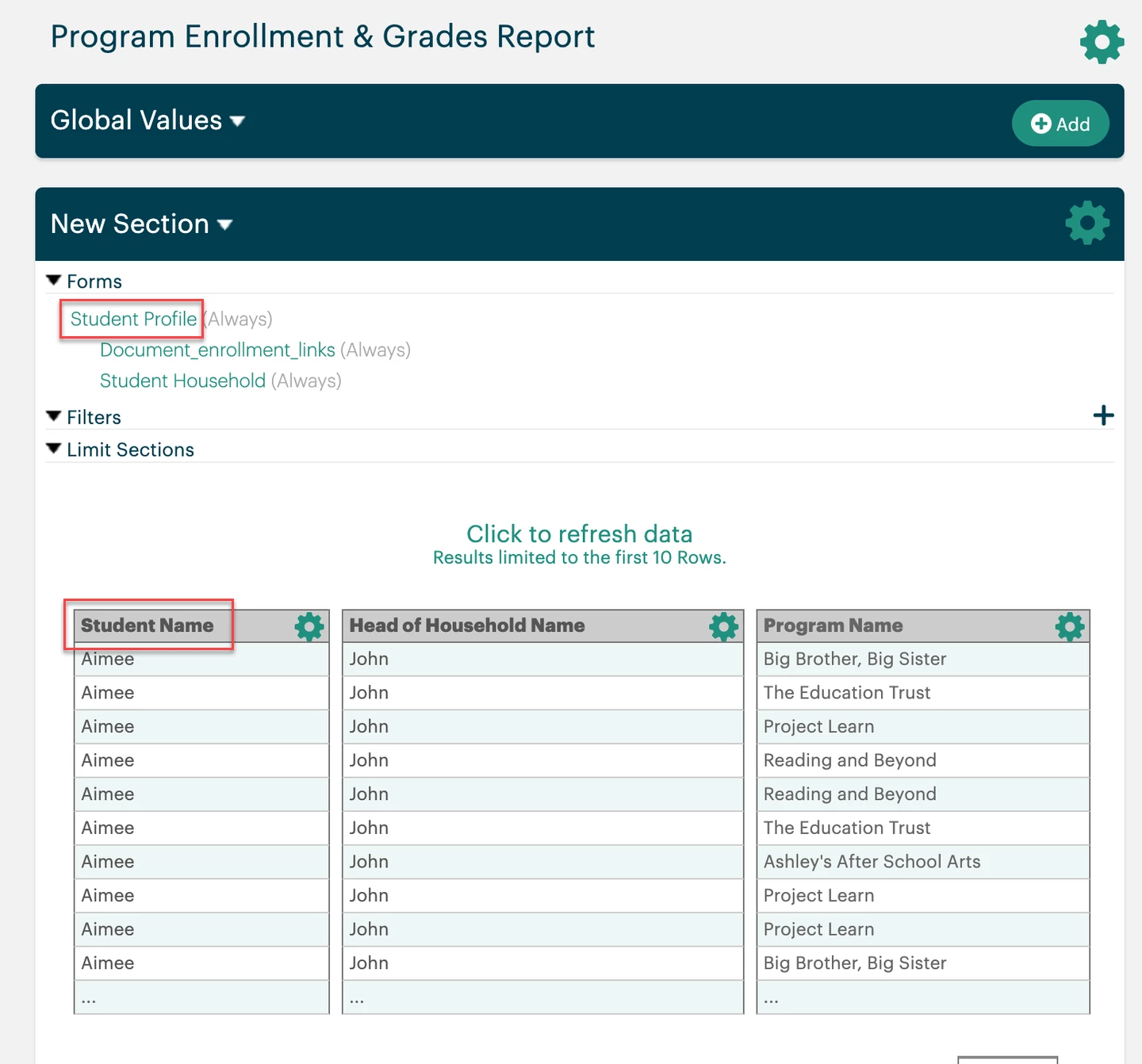
While you may work with multiple Tier 1 forms in a single report, your root form in this instance should be the Tier 1 form your Program Enrollments are associated with (ex. Participant Profile, Client Intake). This will determine which Tier 2 data can be pulled into your report.
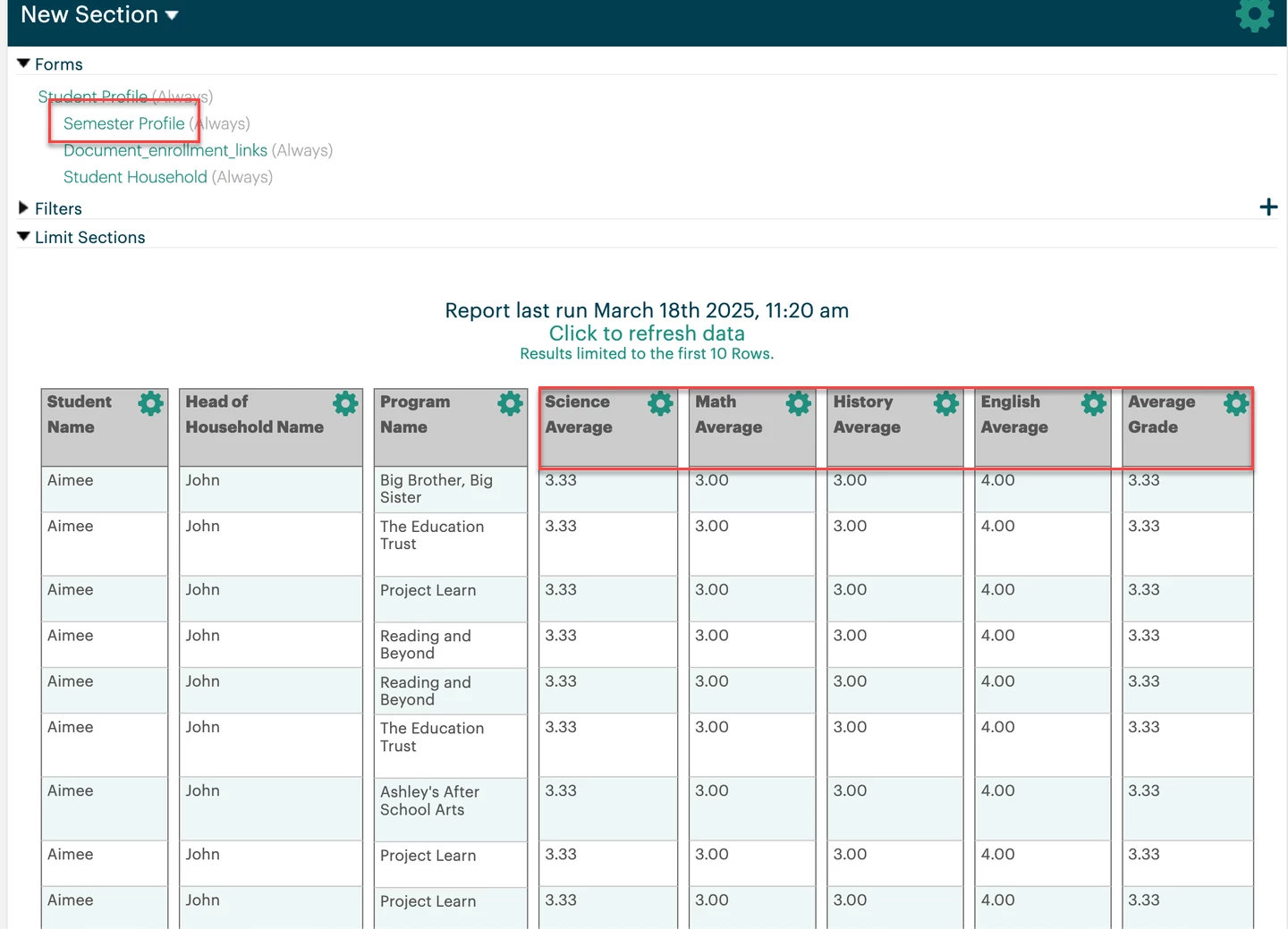
In our example database, each "Student Profile" Tier 1 record has an associated Program Enrollment. Therefore, we've added the "Student Name" field into the report section first to establish the "Student Profile" Tier 1 form as our root form.
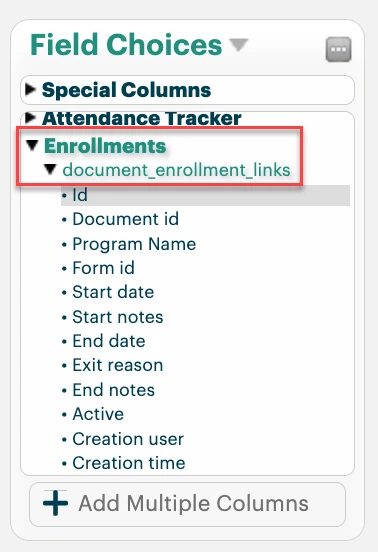
In the Field Choices palette, click the Enrollments category then the "document_enrollment_links" subcategory to view the available Program Enrollment fields you can report on. Hold the field name you want to add to your report, then drag it into the report section.
Step 3: Select the Program Enrollment association
Adding an Enrollment field to a report will list "Document_enrollment_links" under the Tier 1 form at the top of the report section. Click into the text here to open the Form Properties window.
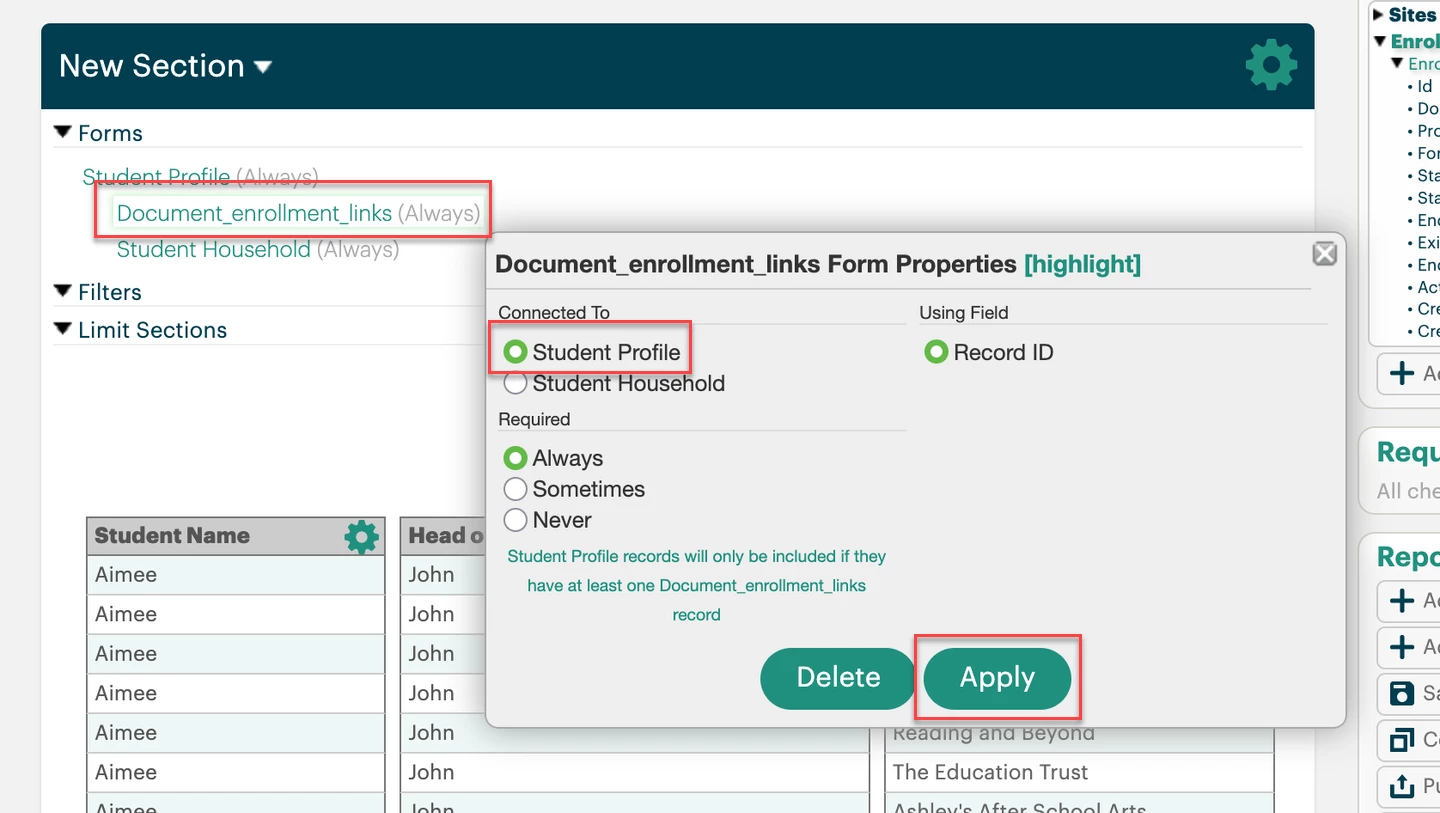
In the "Connected To" section, double-check that the Tier 1 form your Program Enrollments are associated with is selected. Then, click Apply to save any changes.
Step 4: Add the attached Tier 2 data
Use the Field Choices palette to find an associated Tier 2 form, then drag-and-drop your desired fields into the report section.
Step 5: Publish the report
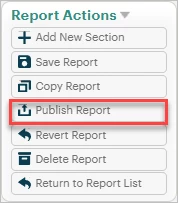
Select "Publish Report" from the Report Actions palette to apply your changes to the report.
What else do you need help with?
How Do I Report on Tier 2 Data Attached to Program Enrollments in Apricot? | Where Do I Include Tier 2 Fields in a Program Enrollment Report? | How Do I Show Tier 2 Record Information With Program Enrollments? | Why Isn’t My Tier 2 Data Appearing in My Program Enrollment Report? | How Do I Build a Query That Includes Tier 2 and Program Enrollment Data? | What Fields Do I Use to Link Tier 2 Data to Program Enrollment Reports? | How Do I Export Tier 2 Attached Data in a Program Enrollment Report?
How do I understand data sharing in everyaction? | How does data sharing in everyaction work in EveryAction? | Why can't I understand data sharing in everyaction? | Where do I understand data sharing in everyaction in EveryAction? | What is data sharing in everyaction in EveryAction? | How to understand data sharing in everyaction? | Can I understand data sharing in everyaction in EveryAction?