

Apricot Support | Support Portal
As of May 27, 2026, support cases are tracked in the Bonterra support portal at bonterra.zendesk.com. This is where you can create, view, and manage your support requests with the Apricot Support team.
Please note: We’re currently in a transition period and your support cases may be spread across two portals. We recommend checking both to get a full view of your support history and open requests. We’re actively working to consolidate everything into a single location and will update this guidance once that’s complete.
Accessing the portals
- New portal: bonterra.zendesk.com
- Previous portal: help.bonterratech.com/help/s/cases
Accessing the portal
The easiest way to reach the portal is by going directly to bonterra.zendesk.com. This is where you can view and manage any support requests submitted through the in-product chat.
Clicking Apricot under the “Help Centers” section of the portal home page will bring you to the Apricot Help Center. Continue reading to learn how to access the support portal and submit new requests.
Note: Past support history from before May 27, 2026 will soon be available in the portal as well.

If this is your first time accessing the portal, click Sign in then Sign up on the next page.
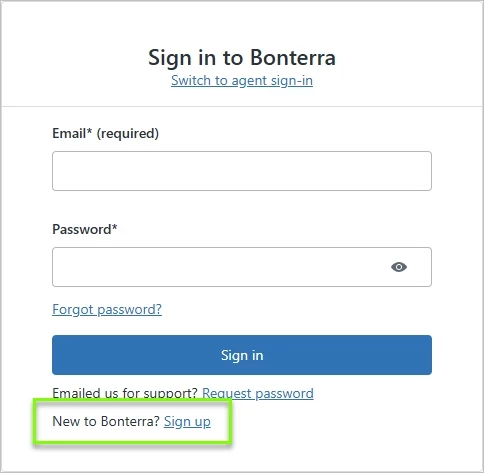
Use the email address associated with your Apricot account to create your login.
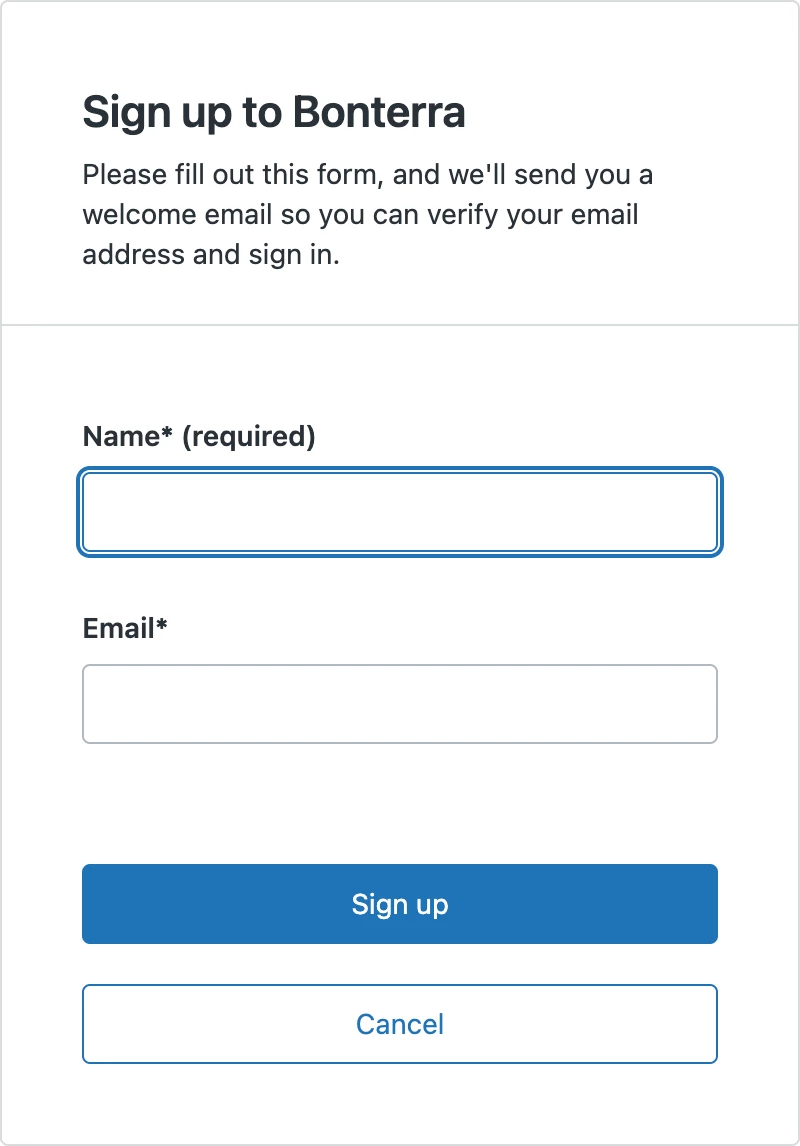
Once logged in, click your user badge and select Requests to view open and past tickets. From within any ticket you can review the full conversation thread, check the current status, reply to add more information, and create a follow-up request if your issue wasn't fully resolved.
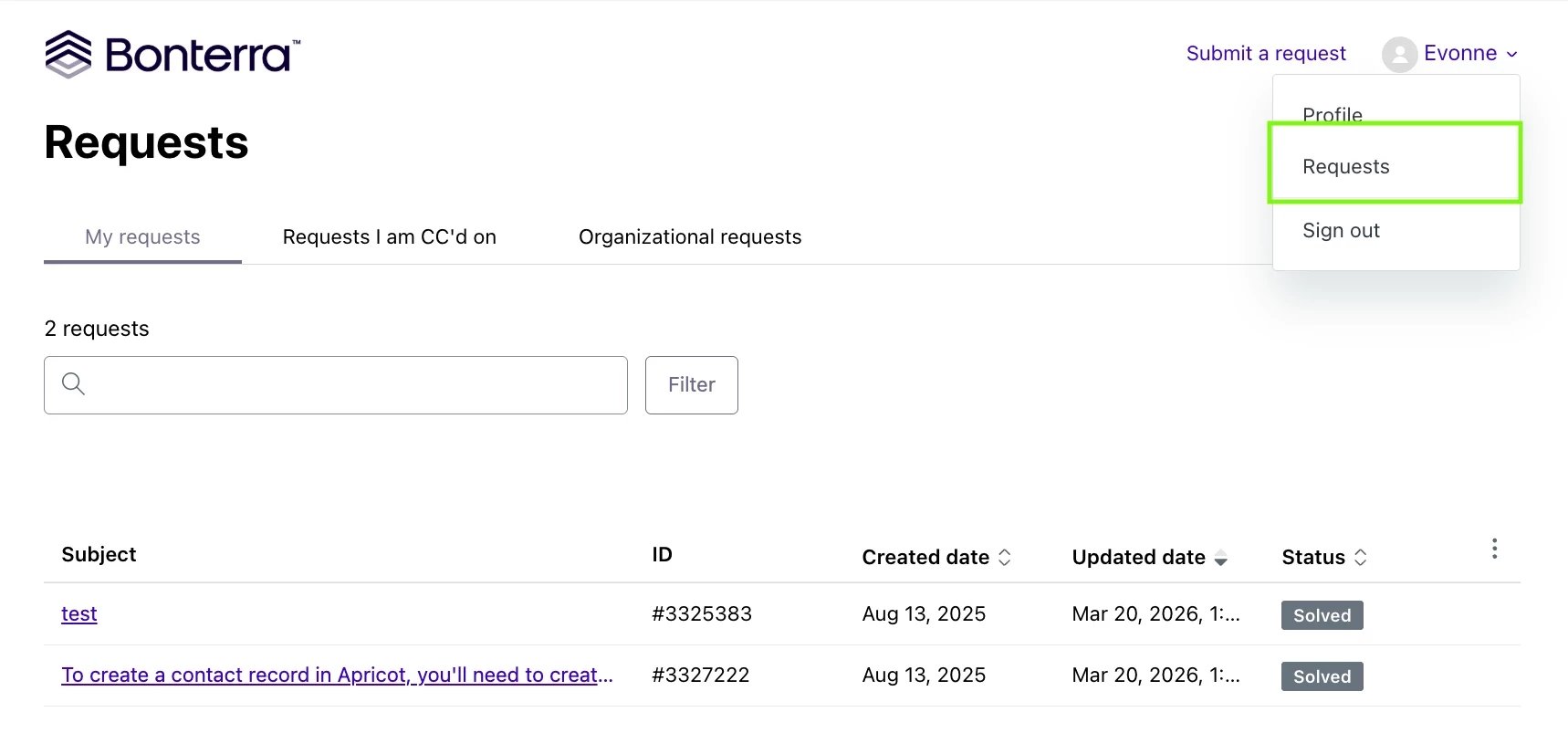
You can also submit a support request directly from the portal by clicking Submit a Request and completing the form with details about your issue — the more context you provide, the faster the team can help.
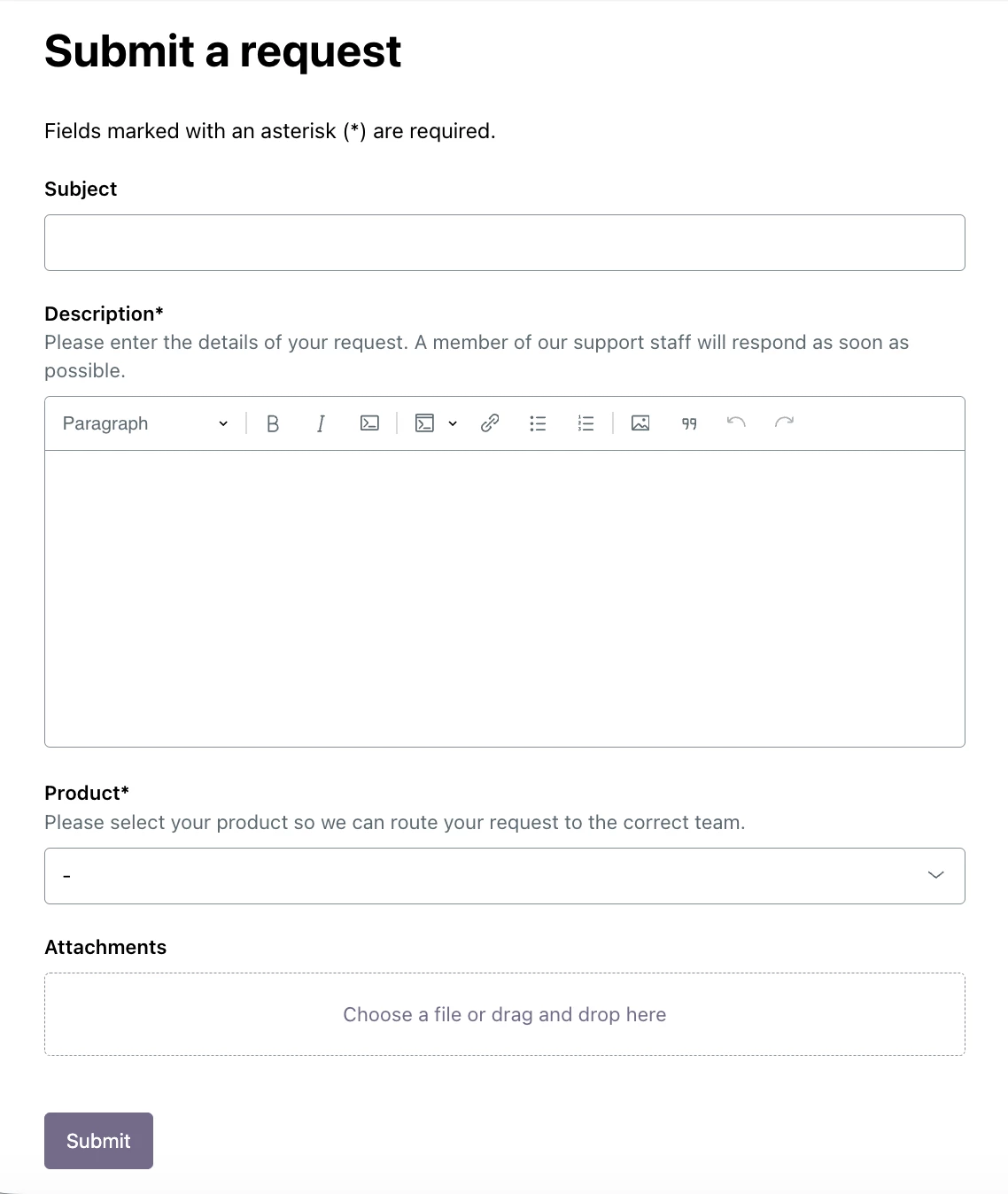
Enter the following required case details in the pop-up window:
| Subject | A subject line or title relevant to the case issue. |
| Description | All relevant information regarding your issue: replication steps leading to the error, error descriptions, specific examples of the issue (withholding PII). This helps Support to best prioritize and resolve your case. |
| Product | Select 'Apricot' in the dropdown field. |
You can also attach relevant screenshots, videos, or other documents by clicking the Attachments section at the bottom of the case.
Click Submit to finalize your support request. A Request ID will be generated and displayed on the Requests page.
How do I access the Apricot Customer Portal? | How do I create a support case in the Apricot Customer Portal? | Why do I need to reset my password for the new Apricot portal? | Can I use SSO to log into the Apricot Customer Portal? | How do I check the status of my Apricot support case? | How do I upload attachments to an Apricot support case? | What do the case status options mean in the Apricot portal?