

How do I create a ticket for my event?
One of the most crucial parts of any event is knowing how many attendees you should anticipate showing up - having a registration or ticketing option can help you know exactly who (and how many) will be attending. Our Events pages offer multiple ticketing options for your event, so you can offer different price points or even a free registration option for your participants.
You may have already created a ticket during the creation of your event - but if you skip that step, we've got you covered. Below, we've created a step-by-step guide on how to create a ticket directly within your Events page - letting you more easily track crucial data on your attendees.
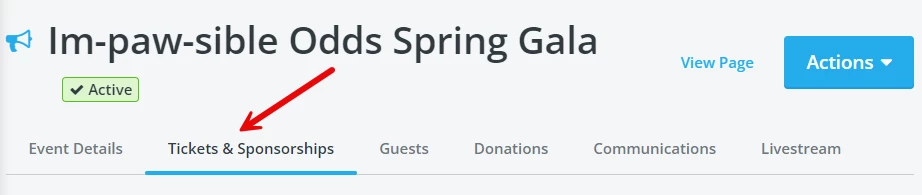
Step 1: Click on the "Tickets & Sponsorships" tab on your Event Dashboard
Step 2: Select "Add Ticket Type"
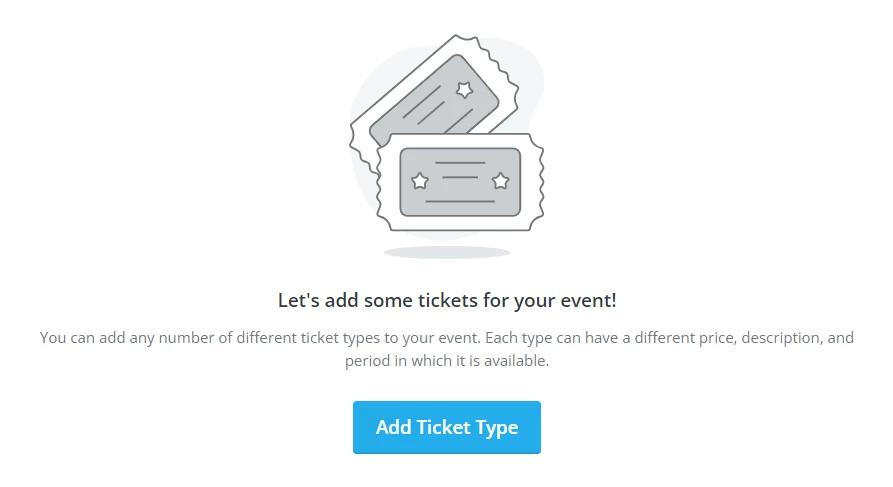
If you haven't created a ticket type yet, you should see an option to "Add Ticket Type" in the center of the page.
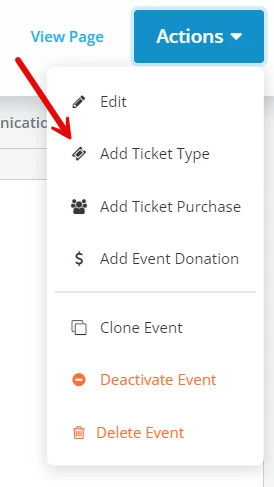
If you've already created a ticket type while creating your page, you instead will want to select the blue "Actions" button towards the top-right of the page, and select "Add Ticket Type" from the drop-down options.
Step 3: Enter the relevant details for your ticket type
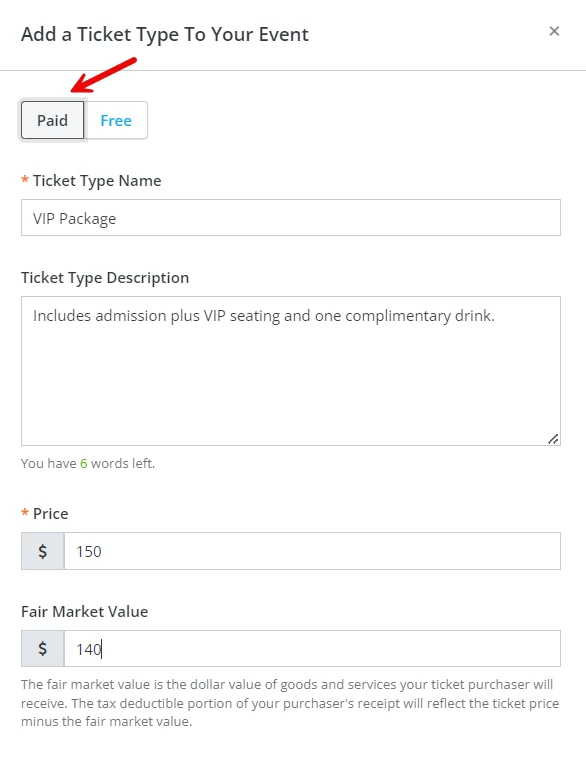
A pop-up should appear on the screen, prompting you to add the necessary information needed for your new ticket type.
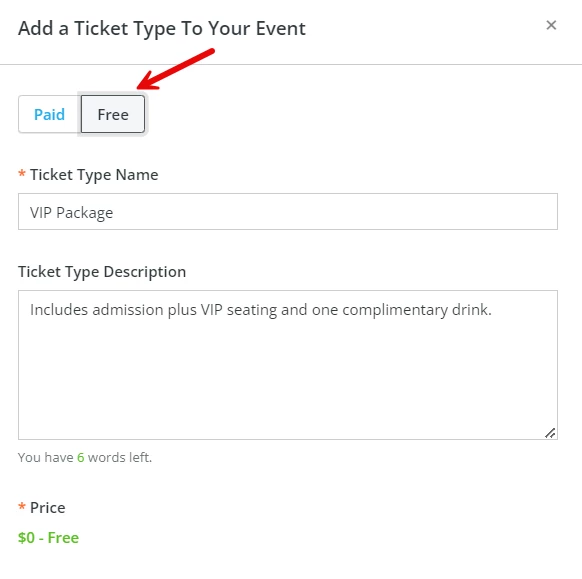
You'll first need to determine whether the ticket is a "paid" ticket that will require purchase, or a "free" ticket (sometimes referred to as a "registration").
Depending on which option you select, you'll then be asked to fill in additional details. For a "paid" ticket, you'll be asked to provide a unique name for the ticket type, a brief description of the ticket, the price of the ticket, and the "fair market value" of the ticket (if applicable).
If you select a "free" ticket option, the fields for the ticket's price and fair market value will disappear, though the other fields will remain the same.
For either ticket type, you'll also need to include how many total tickets of that type are available, and whether or not the ticket represents a guest (or something else, like a table or group).
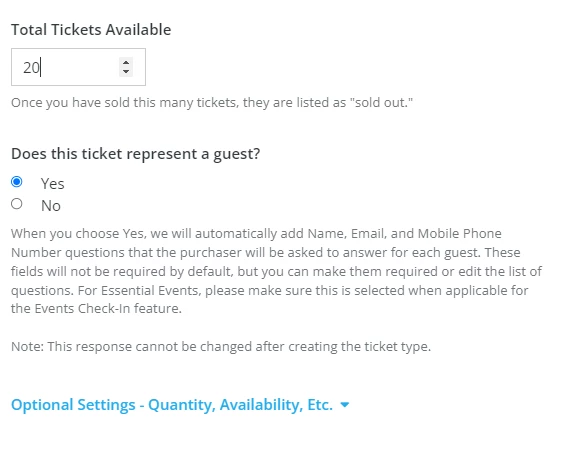
If you do not want to limit the number of tickets available, you can leave the "Total Tickets Available" field blank.
Step 4: Enter any optional details for your ticket, if necessary
The last set of fields for your ticket type can be expanded by clicking on "Optional Settings - Quantity, Availability, Etc."
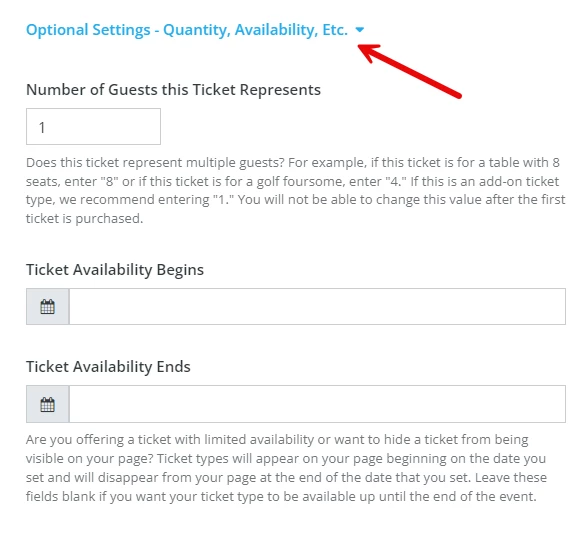
You'll have the option to change the number of guests the ticket represents - such as "8" for a table of eight; you'll also have the option to set specific dates in which this ticket type appears on your Events page, so you can limit the availability of things like "early bird" tickets.
Step 5: Click "Create Ticket Type."
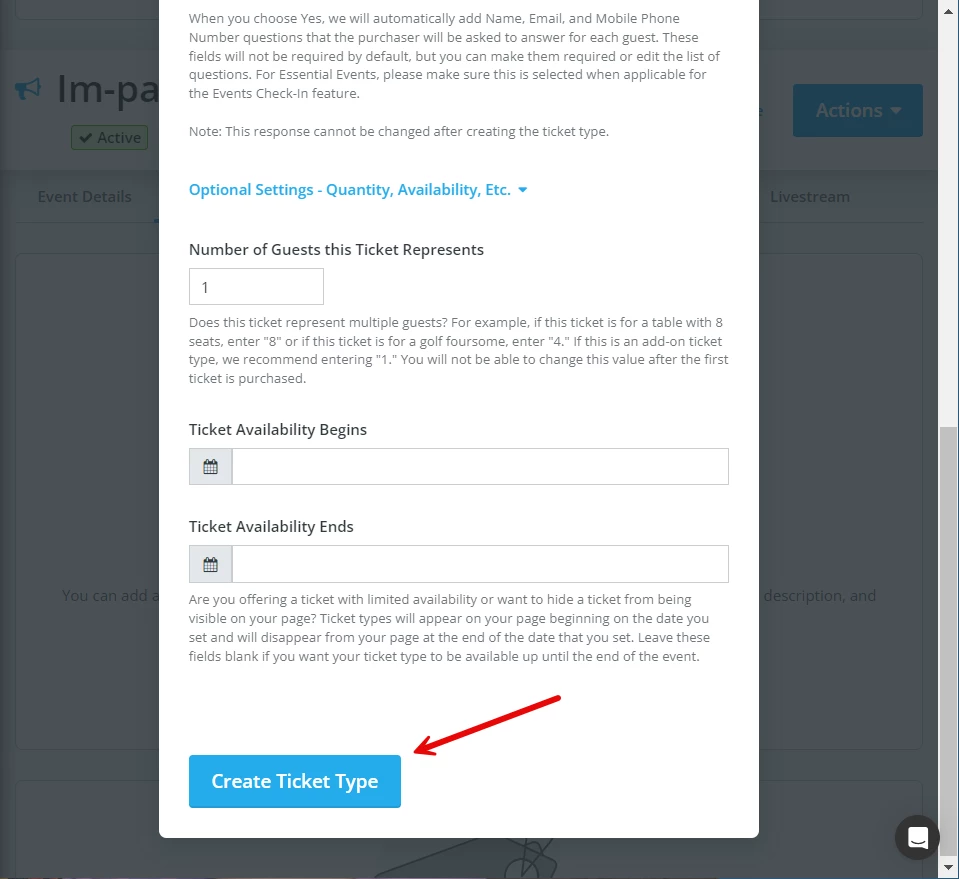
Step 6: Repeat for any additional ticket types you may need to create
Once you've created your ticket types, you should see them displayed on the Tickets and Sponsorships tab.
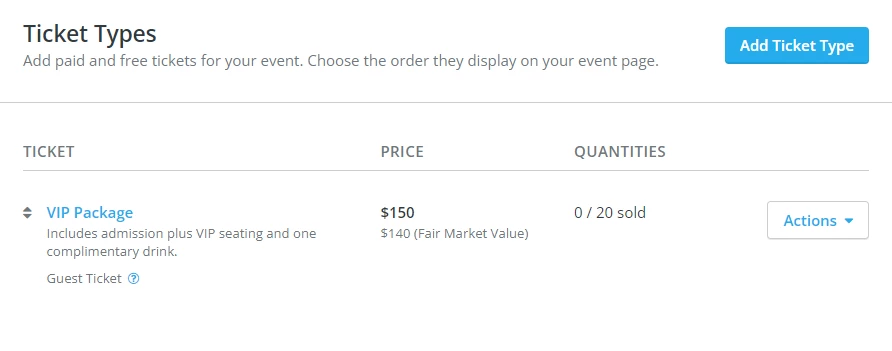
By default, they are sorted by the order in which they were created - but you can adjust the order that they display by clicking on the ticket and dragging it above or below the other ticket types.
What else do you want to do?
Not what you're looking for?
Go back to the Feature Overview.
Looking for training?
Explore this feature at your own pace - join a live training session or watch a recorded webinar by clicking the link below.