

How do I edit a guest's details?
It is inevitable that guest names and preferences might change, or need to be updated as your event approaches. You may also have guests who purchase tickets offline, who bypass answering the questions designed to collect their information.
Below, we've created a step-by-step guide on how to edit a guest's details, so that you can accurately capture or update information for your guests after they've already purchased their tickets.
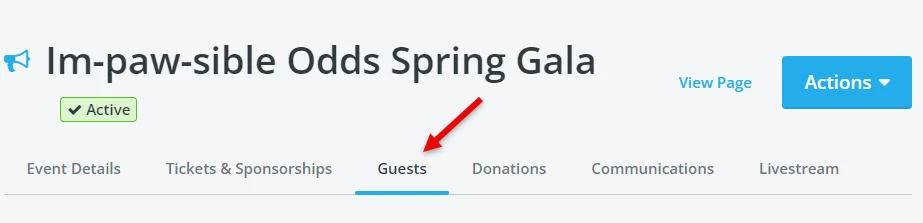
Step 1: Click on the "Guests" tab on the Event Overview
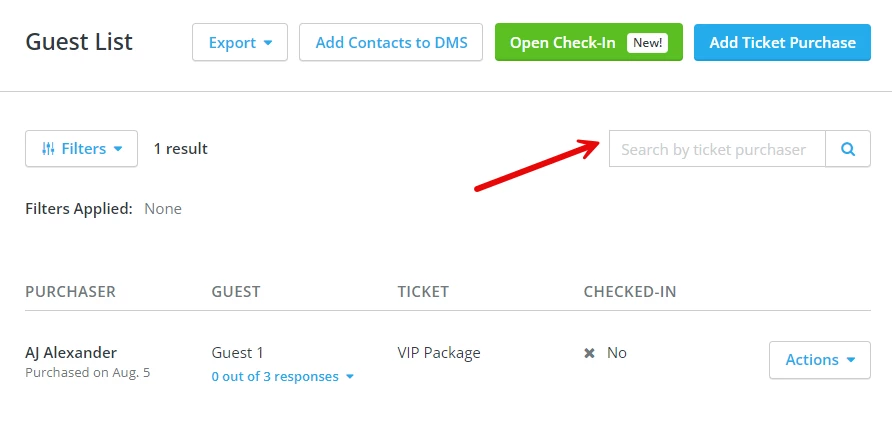
Step 2: Locate the ticket purchaser you need to update
You'll want to find the ticket purchaser you need to adjust either by using the "search" bar towards the top-right corner of the guest list, or by manually scrolling down the guest list until you locate the ticket.
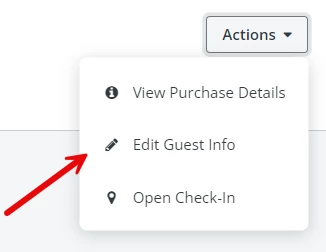
Step 3: Click "Actions" next to the ticket purchase, then select "Edit Guest Info"
Step 4: Update the guest's info as needed
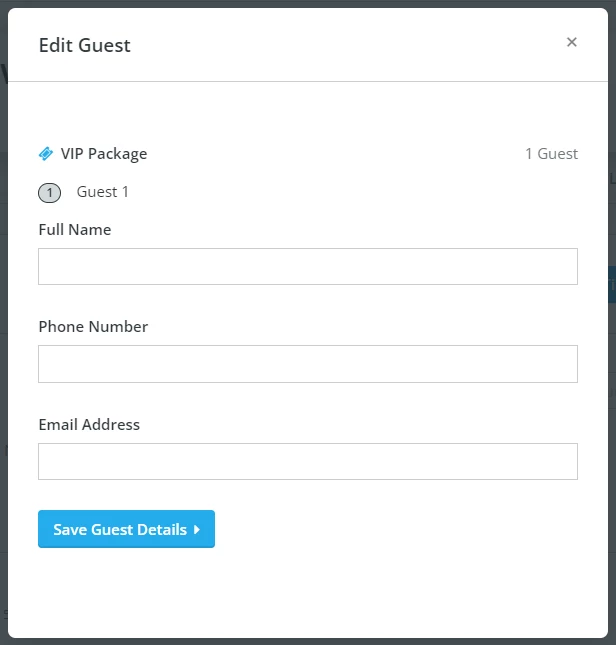
A pop-up should appear, where you can edit those details.
Step 5: Click "Save Guest Details"

What else do you want to do?
Not what you're looking for?
Go back to the Feature Overview.
How do I edit event guest information in Network for Good? | How do I change a guest name on an event ticket? | How do I update attendee details after ticket purchase? | Where do I edit guest info on my event page? | How do I fix incorrect guest information? | Can I update guest details for an offline ticket purchase? | How do I search for a specific guest on my event page?