



(2 min read)
Customize your contact records to include images of your contact and brief biographical data to familiarize staff members with key funders, community contacts, or other supporters.
Uploading an image
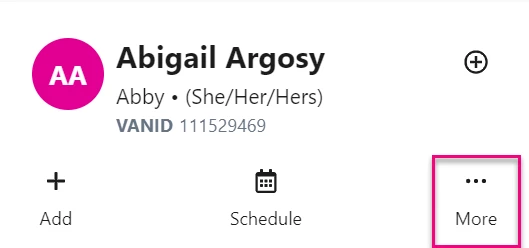
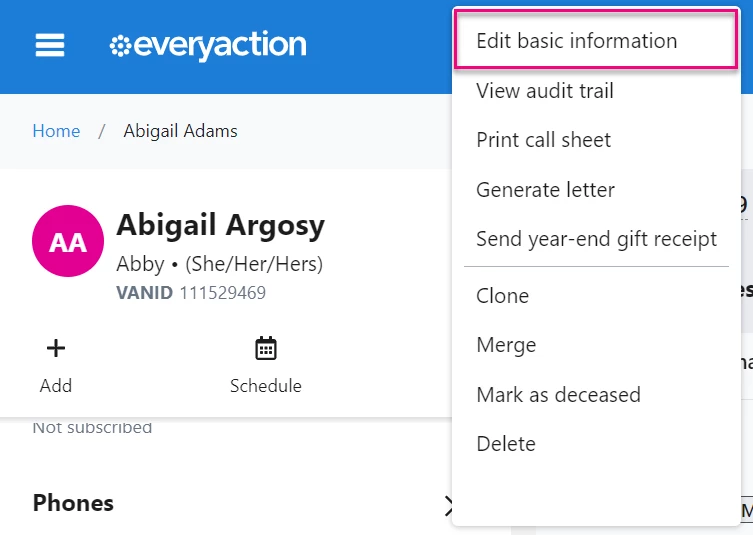
To upload an image in the Contact Record view, open a contact record and select the More menu at the top left of the contact record and then Edit basic information.
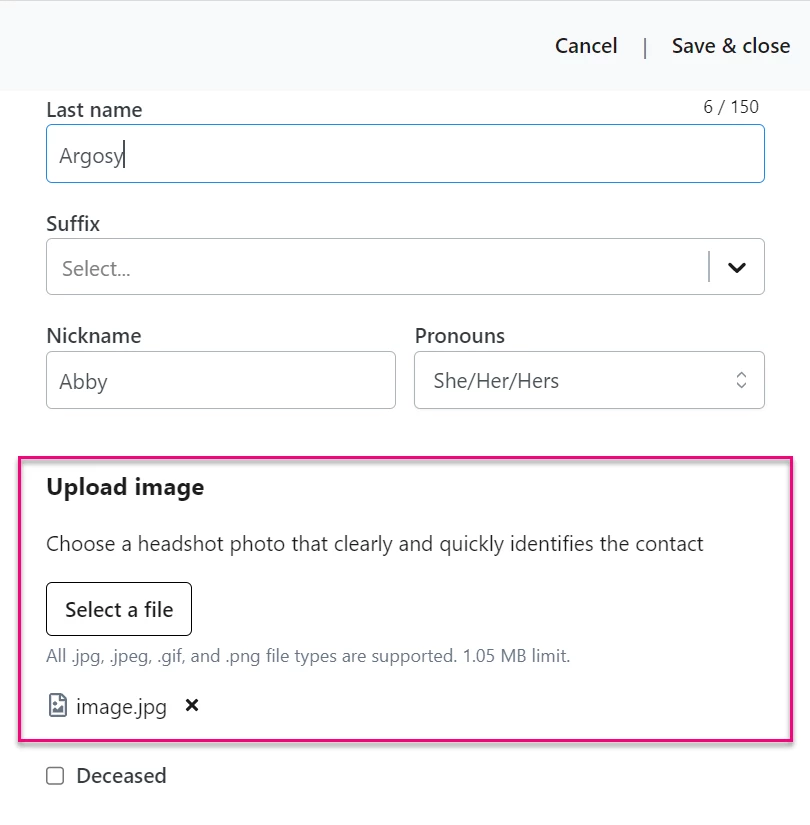
A drawer will open on the right hand side of your screen. Scroll to the bottom Upload Image. Select and upload an image from your computer. Note the guidelines for file size and accepted types.
To upload an image using the All Details view, select Change below the contact’s monogram.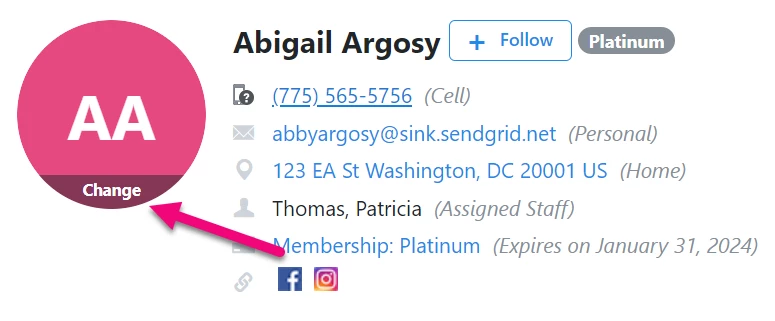
Select and upload an image from your computer. Note the guidelines for file size and accepted types.
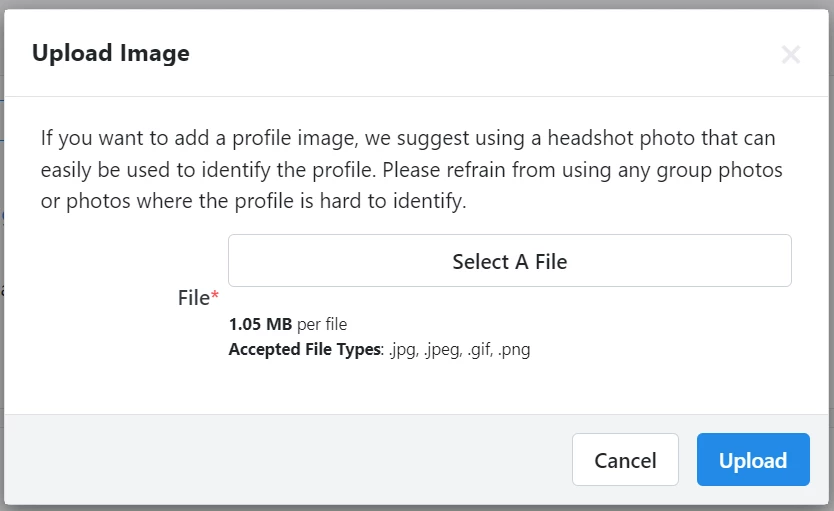
Images can be updated at any time. When there is no image associated, the contact’s initials will display instead.
Adding a biography
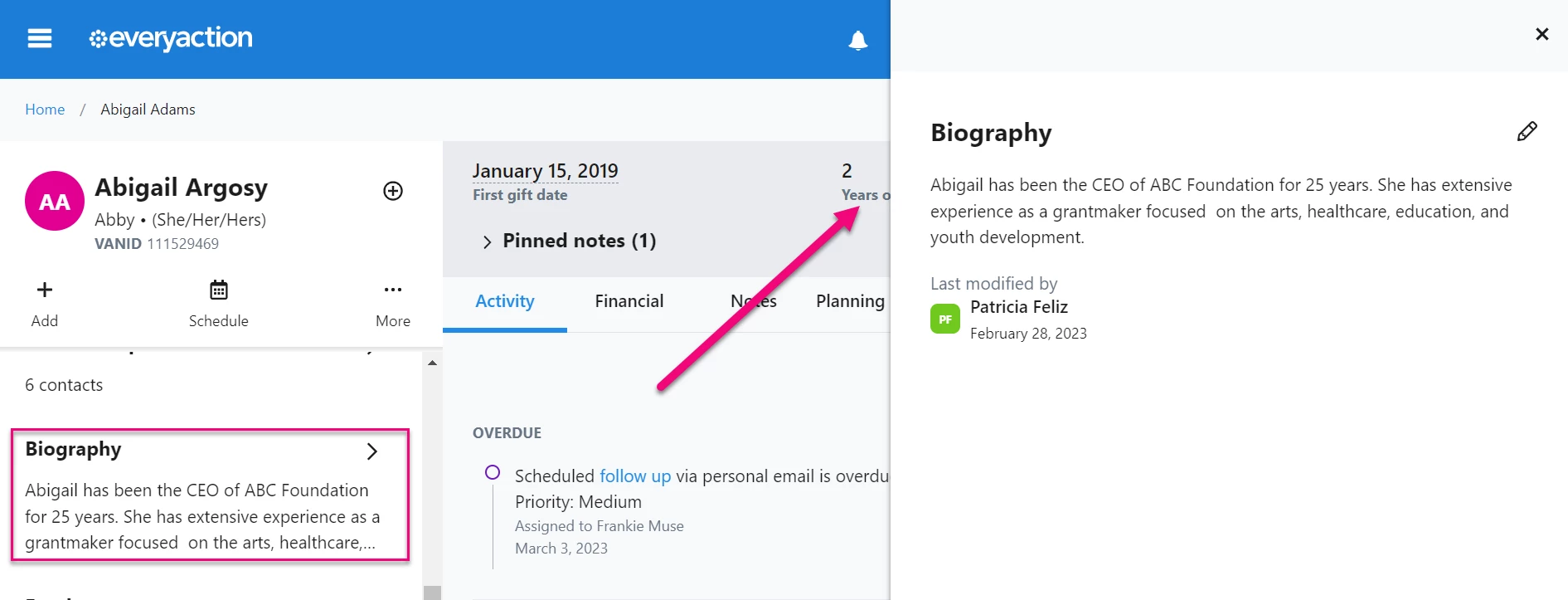
To create and edit a Biography on a contact record, open the Biography drawer on your About column on the left-hand side of the screen.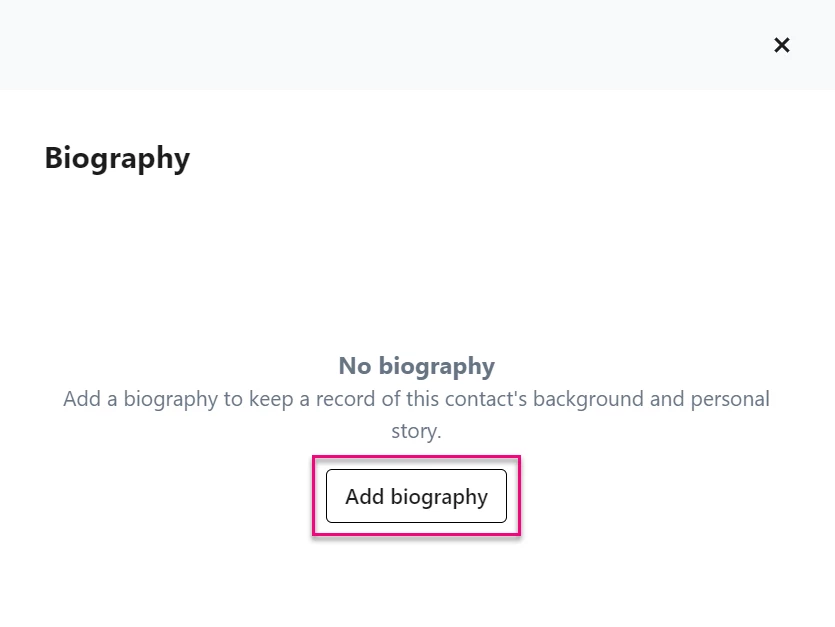
Select Add biography to open the text editor. Draft the biography directly in the editor, or paste text from another source.
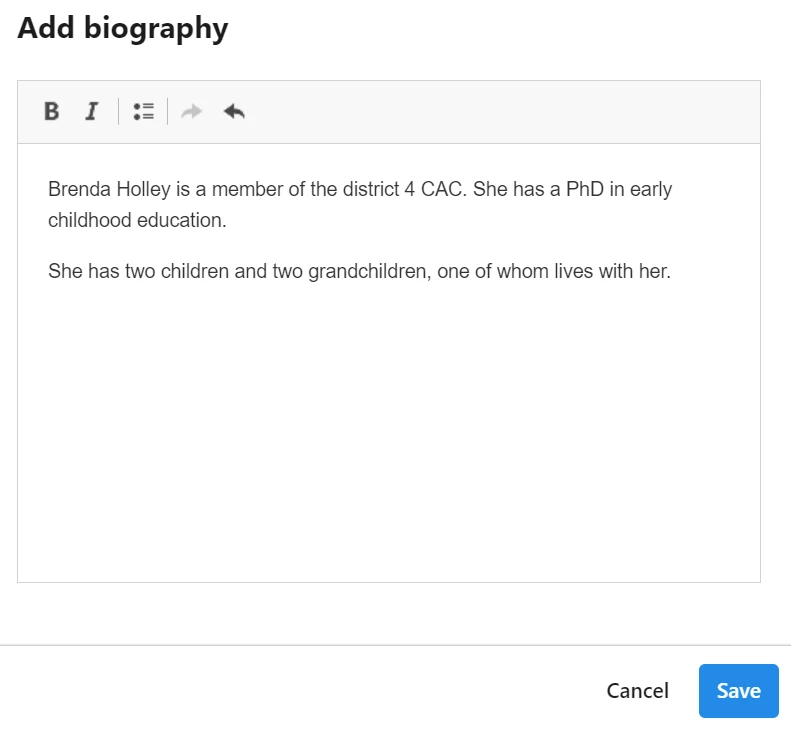
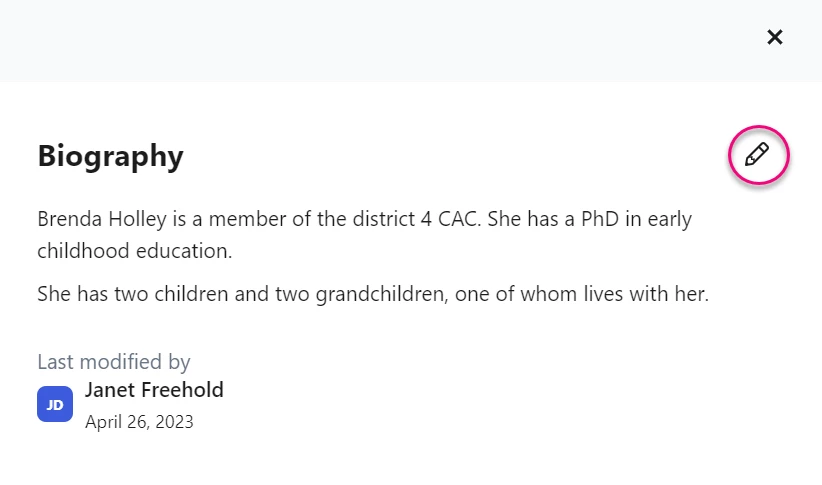
Save your text. When you need to update a Biography, click the pencil icon on the drawer to open the editor.
Merging records with different bios or images
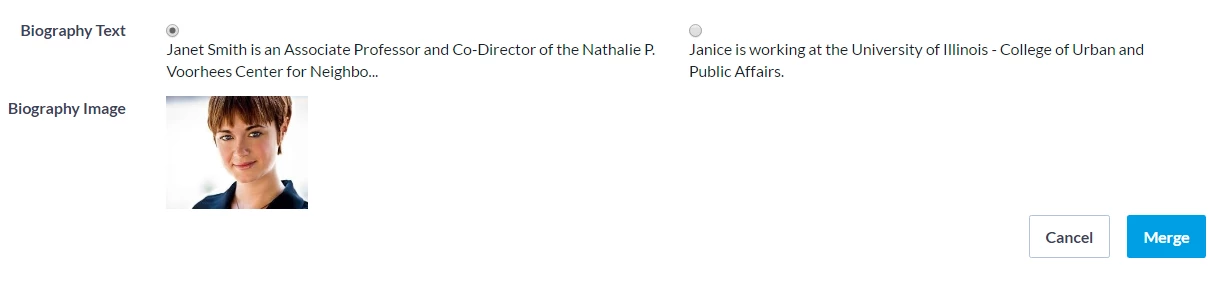
Incomplete or duplicate contact records can be merged and if records-to-be-merged include images and biographies, you can preview those elements before the merging is complete. You can view the first 100 non-html characters of the Biography and select from among the available images.
Read more about merging duplicate contact records
Using Bulk Upload to create bios
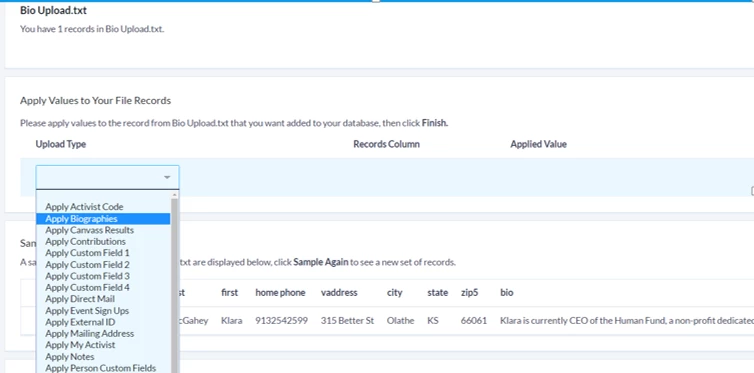
Bulk upload Biographies by selecting the bulk upload type of Apply Biographies. You can include HTML tags in the Biography text field of your file.
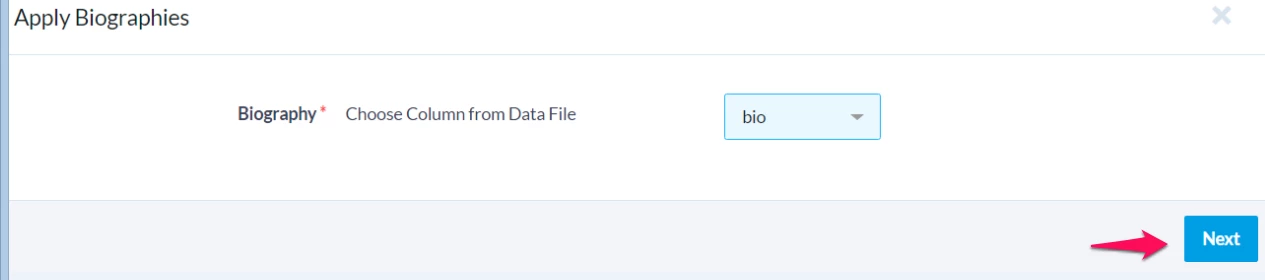
Select the column containing the Bios and click Next:
The column will turn light blue indicating it has been correctly mapped. Click Finish.
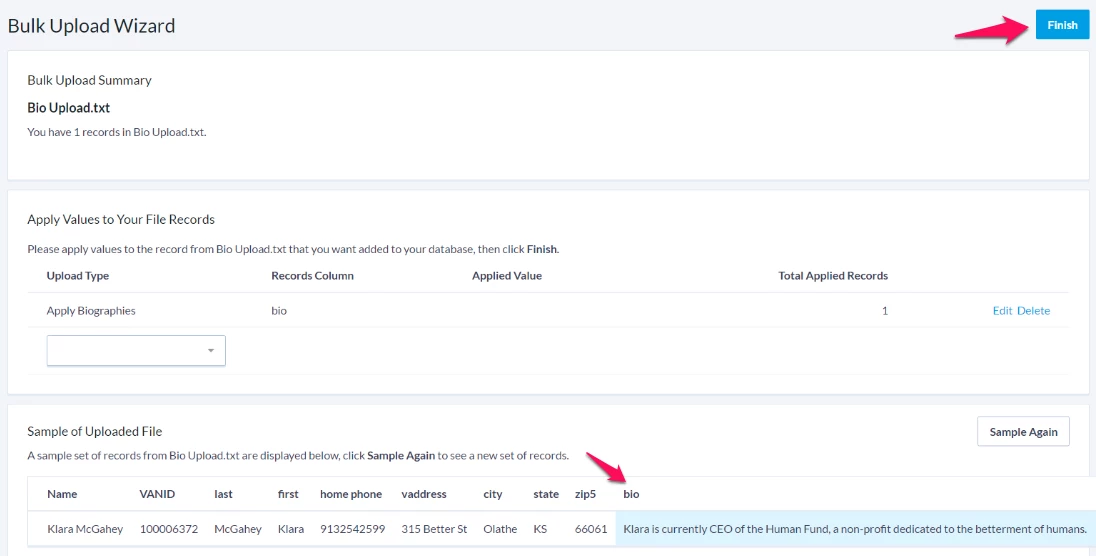
As with other Bulk Upload types, the Bio upload will appear on the Bulk Upload Batches List page and be queued for processing. When complete, the Bio will appear on the contact record.
All users will be able to see the images and bios on the contact records but only those who have permission to upload images and create or edit biographies can change these items.
How do I how to: add images and biographies on contact records? | How does how to: add images and biographies on contact records work in EveryAction? | Why can't I how to: add images and biographies on contact records? | Where do I how to: add images and biographies on contact records in EveryAction? | What is how to: add images and biographies on contact records in EveryAction? | How to how to: add images and biographies on contact records? | Can I how to: add images and biographies on contact records in EveryAction?