



To make sure you are using a voter’s correct, complete, and properly spelled name and pronouns in your canvassing or phone banking efforts, Voter File Managers (or those with Edit Names and Salutations permissions) have the ability to edit a voter’s first, middle, or last name and add or edit their pronouns. This does not change the name on their official voter registration, but the changes will be visible to all committees using the voter file.
Editing the name or pronouns for individuals
Names and pronouns can be directly edited from the Name * Salutation section of a voter record.
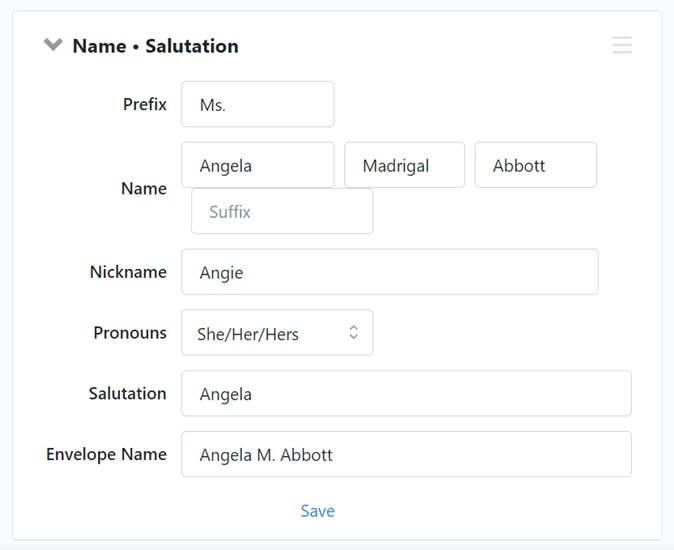
Once you make a change and save it, everywhere in the voter file and across all committees you will only see the name or pronouns you selected, including MiniVAN, Virtual Phone Bank, and any of your reports.
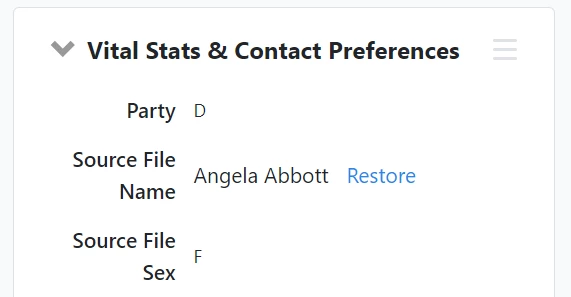
The previous name will be retained only as a Source File Name. Source File Names help us match the record to existing voter records and ensure that we will not overwrite your changes during the next Voter File upload process.
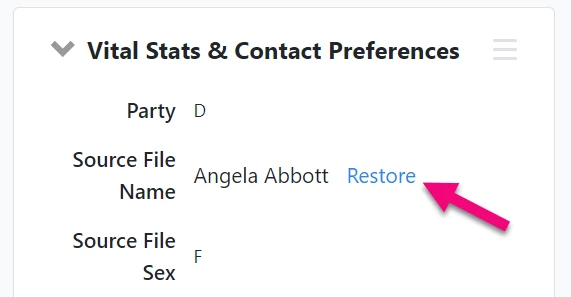
If you later need to see the Source File Name, you can find the entry under the Vital Stats section of the voter record using the All Details view. This value cannot be edited but it will never be displayed anywhere else in your CRM or voter contact tools.
Name and pronoun changes to an individual voter record are also available via API.
Making bulk changes
If you are a Voter File Manager or have the Edit Names and Salutations permission, you can make changes to several names or pronouns at once using the Bulk Upload Wizard and mapping the field with Apply Salutations.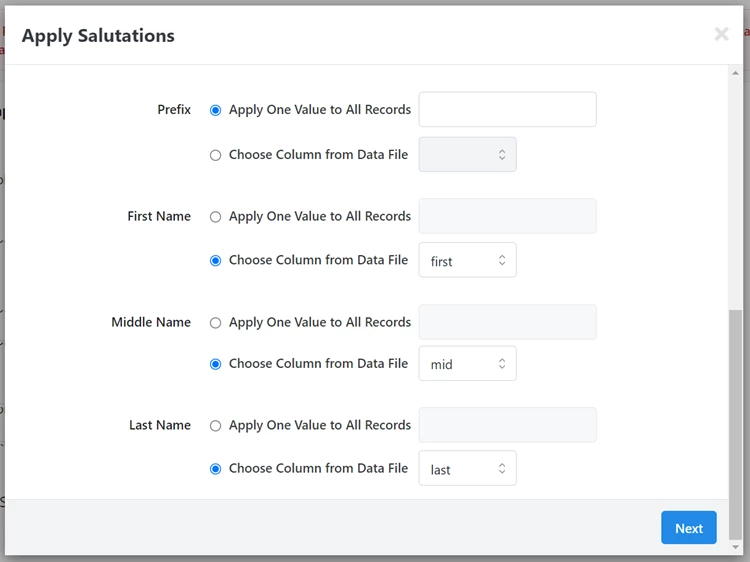
You can also use the Apply Salutations Bulk Import API to make your changes.
Editing from a Virtual Phone Bank
If your phone bank has the Name field enabled as an editable field and your callers have Edit Names and Salutations permissions, they will be able to change a voter name or pronouns right from their calling screen.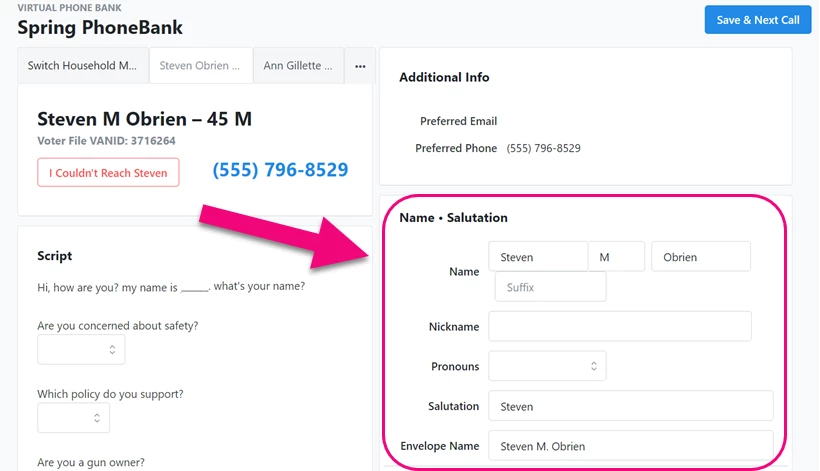
Viewing changes
The easiest way to see which names were edited is to use the Changed Names Report to review which names were changed, when they were changed, and who changed them. You can add a column for pronouns to this report (and to any report that has Contact Details columns available).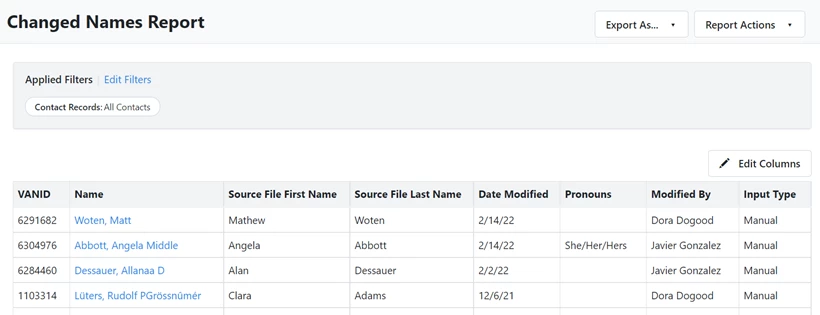
Reverting the name or pronouns
If you need to, you can quickly revert a name to the values from the source file using the Restore link in the Vital Stats section of the voter record using the All Details view.
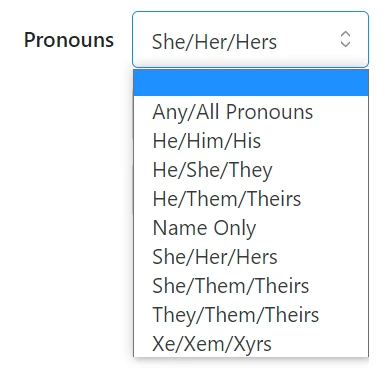
Pronouns can be cleared by selecting the empty space at the top of the dropdown.
You can also restore several names at once or clear pronoun values on several voter records using Report Actions > Bulk Edit in the Changed Names Report.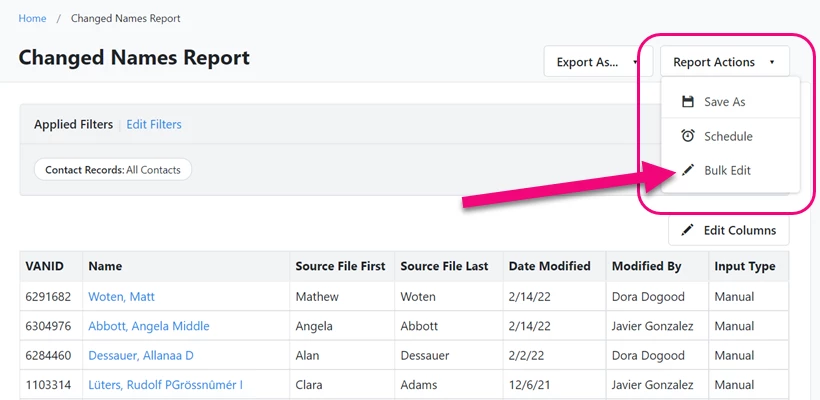
How do I how to: edit voter names and pronouns? | How does how to: edit voter names and pronouns work in EveryAction? | Why can't I how to: edit voter names and pronouns? | Where do I how to: edit voter names and pronouns in EveryAction? | What is how to: edit voter names and pronouns in EveryAction? | How to how to: edit voter names and pronouns? | Can I how to: edit voter names and pronouns in EveryAction?