

How do I resolve issues with User Accounts?
We’ve made some updates to our login experience! If you come across references to “ActionID” in our help resources, those are being updated to reflect the new name: Bonterra Account. Nothing changes on your end as we tidy up the documentation.
If one of your users is having trouble accessing particular features, here are several ways you can help them, including impersonating them to test their settings -
Read more about creating User Accounts here.
1) Pending User Accounts
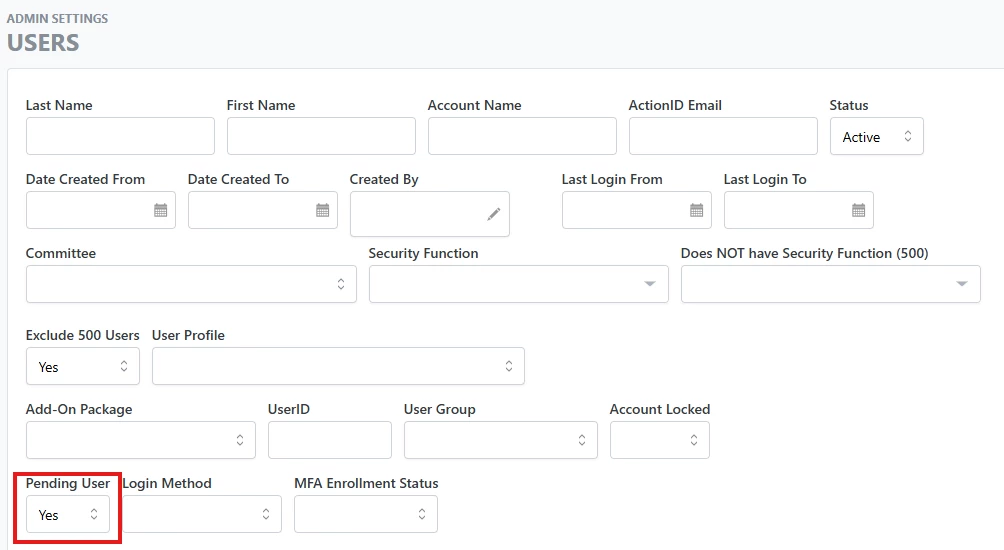
If you sent the invitation to a new user and they have not yet responded, they are classified as 'Pending'. To quickly find all 'Pending' users, use the two filters on the Users list page for 'Pending User' (Yes/No) and 'Has Bonterra Account' (yes/No).
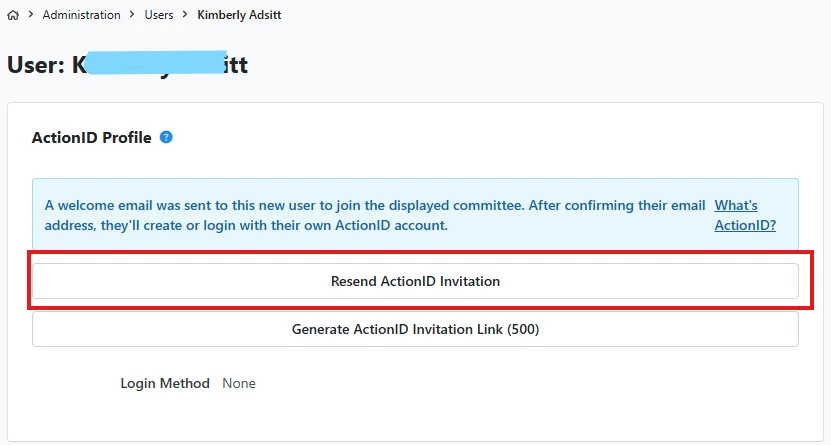
If you need to resend the invitation, you can do so from the User Details page by clicking on the Pending User link from the list page.
2) Editing Name and Contact Information
The First Name and Last Name fields can be edited by other Users only while the newly created user is under a 'Pending' status.
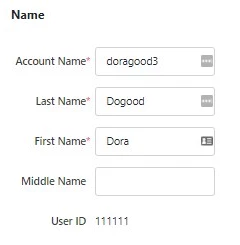
When your new user clicks on the link in the invitation, they will be prompted to enter their first and last name before they can proceed and log in. Once they have finished the login process, the Bonterra Account information and name will populate the fields on the User Details page and will only be editable by that user when they edit their Bonterra Account profile page.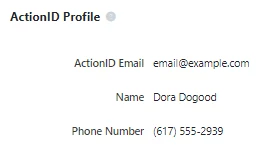
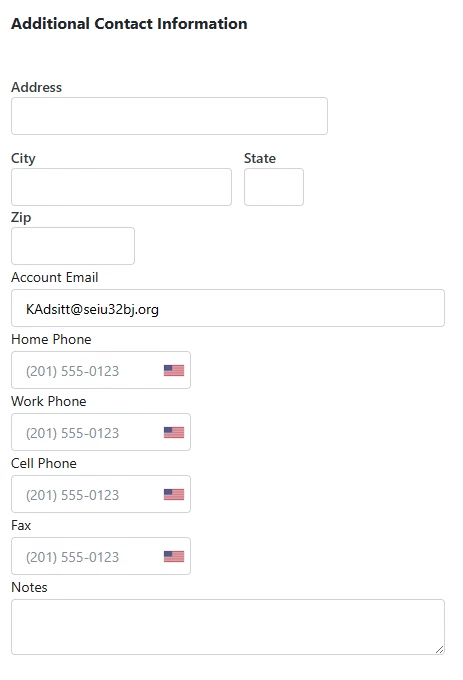
You can still edit contact information on all users, whether they are listed as 'Pending' or 'Active'.
3) Database Access
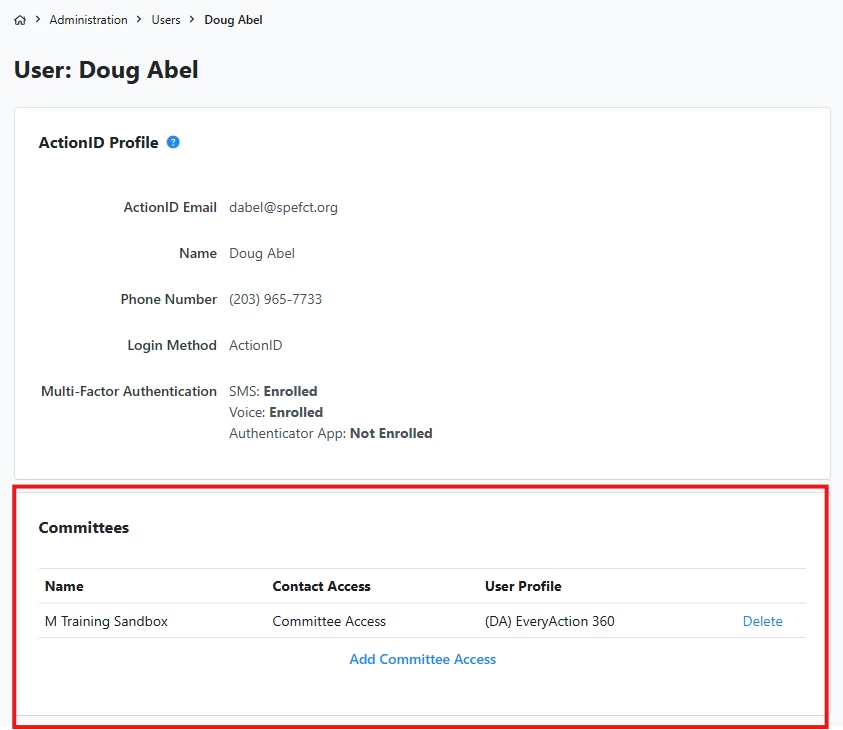
You can adjust the state access for your users - you can view this information in the Committees section.
4) Impersonating User Accounts
You can troubleshoot your user's account by impersonating them. From the Users details page, select More > Impersonate User.
While impersonating a user, the More dropdown disappears, so you cannot purposefully or accidentally make changes to a user account as another user.
You will be able to impersonate another user if all of the following are true:
- your User Profile contains the Create and Edit Users security function
- your User Profile contains the Impersonate Users security function
- you have access to the same or more Committees than the useryou want to edit
- if in a state-based database, you have access to the same or more states than the user account you need to edit
When you are finished, use Return to Self from the Action menu under the user's name.
How do I resolve issues with user accounts? | How does resolve issues with user accounts work in EveryAction? | Why can't I resolve issues with user accounts? | Where do I resolve issues with user accounts in EveryAction? | What is resolve issues with user accounts in EveryAction? | How to resolve issues with user accounts? | Can I resolve issues with user accounts in EveryAction?