


Understanding EveryAction Log in Changes
Bonterra Account Login Overview
Here are the key things to know ahead of the login transition:
- Your credentials stay the same. The email address and password you currently use to log in will not change, and your existing MFA settings will not be affected.
- A new identity experience. Going forward, users will manage their identity through their Bonterra Account rather than ActionID — but this change happens automatically in the background.
- A small group of users may need to reset their password and MFA (if configured) the first time they log in on or after August 10. This will happen automatically and applies to:
- New users who were granted EveryAction access for the first time between July 27 to August 10, 2026
- Existing users who changed their password or MFA settings between July 27 to August 10, 2026
- Some EveryAction users already have a Bonterra Account (previously called ActionID) due to Nonprofit Hub, Network for Good or other Bonterra product access. If you are part of this audience with an existing Bonterra Account (previously called ActionID), to log in to EveryAction after the migration on August 10, 2026, you will use the password that you set up with your existing Bonterra Account (previously called ActionID), or you can simply reset your password.
- No action required from site admins or users regarding MFA. All existing MFA settings at both the user profile and committee level will automatically carry over to the new login experience.
- If you have trouble finding your password, please read this helpful article:
We're rolling out a new login experience for select EveryAction users on August 10, 2026. This update will create a more consistent and secure login experience across Bonterra products.
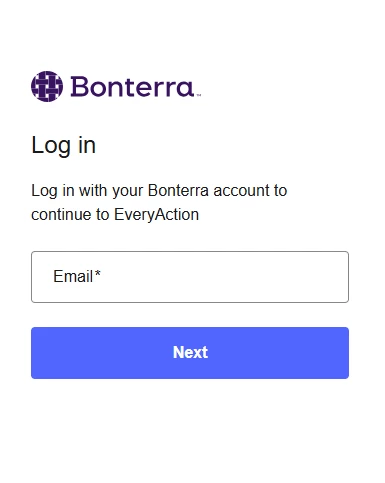
You’ll see a new Bonterra-branded login page (replacing the previous Bonterra Account login experience).
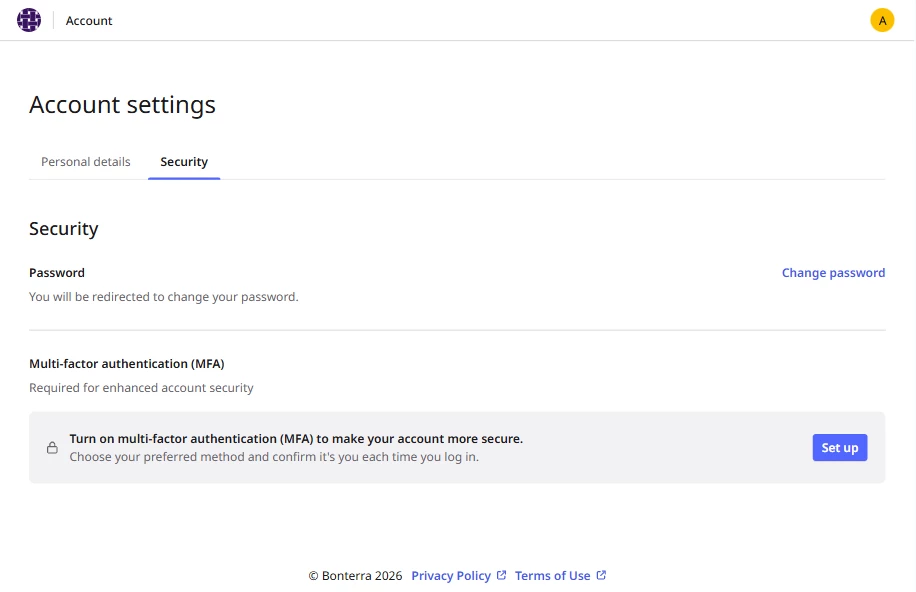
With this new experience, you'll now be able to manage your Bonterra account (previously called ActionID) through our new Bonterra Account Center. This is a centralized space for users to manage core account settings like name, password, MFA, and other account-level settings.
Please note that your account, data, and permissions will remain the same, and we will migrate all existing account credentials (including email, password, and MFA),
If your organization already has MFA set up, there are no changes to the MFA process. All users migrating to the new Bonterra Account log in process should not expect any noticeable log in changes beyond the look and feel of the log in page itself on August 10, 2026. However, if your organization granted EveryAction access to any new users between July 27 to August 10, 2026 or if an existing user updated their password or MFA settings in this time frame, they may be asked to validate with one additional step baked into the Bonterra Account log in flow on August 10, 2026 when logging in for the first time.
What to do now to avoid login issues:
-
Confirm your login email, so you know which email address is tied to your account
-
Make sure you know your password
Please be aware that saved passwords, password managers, and autofill tools may not work after this update, so you may need to manually enter your credentials the first time you log in and re-save them.
Bonterra Account Login Experience
As part of signing in, you may be asked to verify your identity. This usually happens in a short sequence like this:
You will see a Bonterra-branded log in screen like this:
Enter your password on the login screen
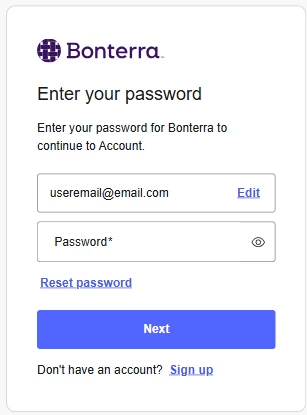
When this update goes live, users will see a Bonterra-branded login page and can continue using their current email address and password to sign in. Existing credentials and account security settings are preserved for most users, with limited exceptions during the migration window.
If you use saved bookmarks or a password manager, you may need to re-save your login details the first time you sign in after the update.
FAQs and Additional Resources
Will I need to reset my password?
- Most users will not need to reset their password. However, new users who create an account between July 27 to August 10, 2026 will be required to reset their password as part of the setup process.
Will my current login still work?
- Yes. You can continue using your existing email address, password, and MFA. Most users will not need to take any action before logging in.
- However, if you are a new user created between July 27 to August 10, 2026 or anyone who resets their password during this migration window, you may need to reset your passwords and MFA.
Do I need to use a different website URL after this update?
- For most users, no. However, if you previously accessed EveryAction via targetsmartvan.com, you'll now use app5.everyaction.com. If your organization uses a custom or standalone URL, nothing changes.
What happens if I try to access a committee that isn't available on the site I'm using?
- If you select a committee that isn't available through your current site, you'll see a message letting you know and directing you to the correct URL to access it.
I have access to both EveryAction and MyVoters (NGP VAN) — what should I expect?
- If your account has access to both Bonterra and NGP VAN supported parts of the platform, you'll need to use different URLs depending on what you're accessing. Starting Monday, August 10, you'll continue using app5.everyaction.com to access your EveryAction database. However, MyVoters databases will no longer be accessible through this URL — you'll need to use either targetsmartvan.com or app5.ngpvan.com to access MyVoters going forward.
Why does the new login screen look like?
- You may see a Bonterra-branded login page as part of this update. This change brings a more consistent and secure login experience across products.
Why can’t I access a product after logging in?
- If you see a message that you don’t have access, it usually means your account doesn’t have permission for that product. Contact your admin or support for help.
Can I change my account email address?
- Changing your account email address is not supported in the initial release.
- If you need to use a different email address, you’ll need to create a new account. Your admin can then help update your access by unlinking your old account and connecting your new one.
How do I delete my account?
- If you want to delete your account, you’ll be prompted to contact support.
Why don’t I see the new login experience yet?
- This update is being rolled out gradually. If you don’t see the new login yet, your organization may still be using the current login experience. You’ll be included in a future update, and no action is needed right now.
Where do I manage my Bonterra Account now?
- You’ll manage your account in the Bonterra Account Center instead of the previous “My Account” page. Access to your Bonterra Account Center will be available when the new log in experience goes live.
Not quite what you were searching for?
-
Navigate back to the User Access Resource Index.
-
Trouble Logging In? How to Find Your Saved EveryAction Password
Why does EveryAction login look different now? | How do I log into EveryAction after Bonterra update? | Why am I being asked for a verification code when logging in? | Do I need to reset my EveryAction password after the login change? | Why can’t I access EveryAction after logging in? | How do I manage my account in Bonterra Account Center? | Why isn’t my saved password working for EveryAction login?