


How do I create a Role? (Role-Based Permissions)
Looking to set up user access in Apricot? This video walks you through how to create a new Role using Role-Based Permissions.
Follow the steps listed below to learn how to create a new Role to assign users for a program.
Step 1: Navigate to the Roles page
In the Administrator view, expand the Access Control category on the navigation bar and select ‘Users’.
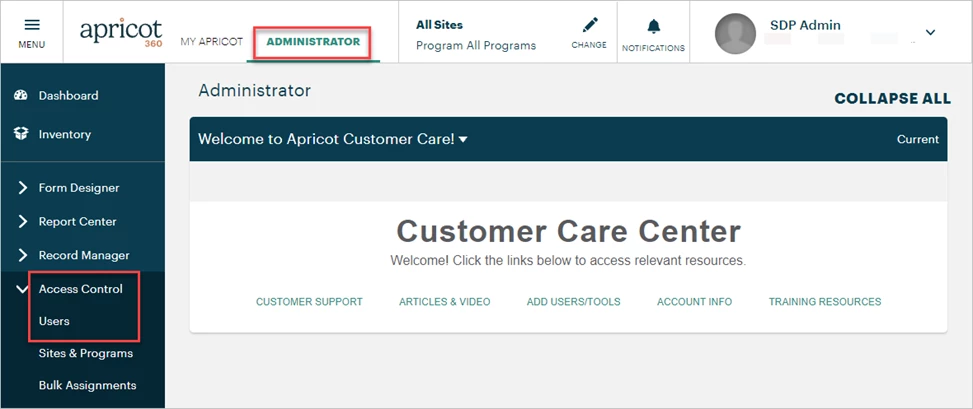
In the Account Management app, select Roles from the navigation bar.
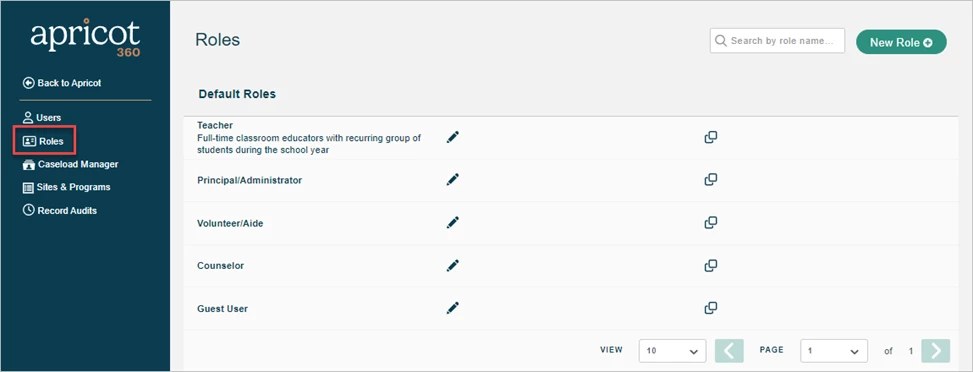
This page is where administrators can view and manage all Roles that are available to assign to users.
Step 2: Add a new Role
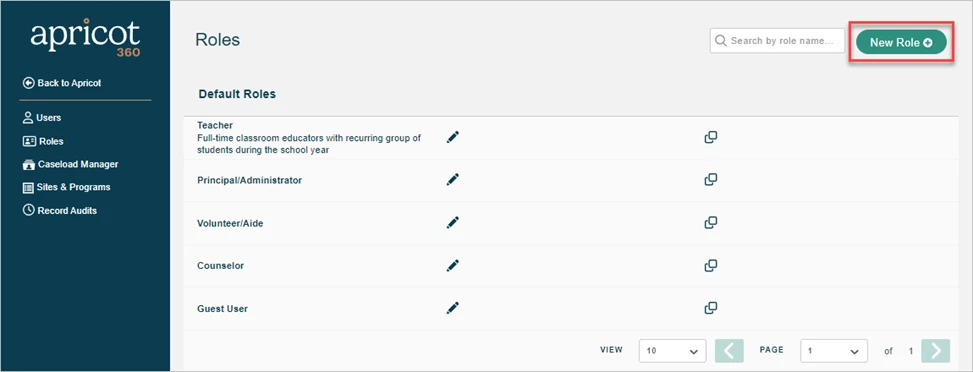
Click the ‘New Role +’ button in the top-right corner of the page to create a new role.
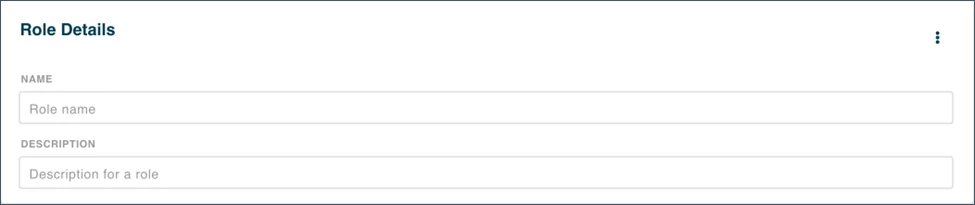
This page allows administrators to manage the Role’s information and permissions. Add a Role name and description in the Role Details section that easily sets it apart from other user groups or kinds of access you’re looking to grant users. The description can include details such as the job titles that may fall under this role or a summary of the access granted to the role.
Step 3: Set the Role’s permissions
Scroll to the Permissions section of the page, where the Forms tab will be open by default. The first column lists the available records within each feature, and the first row lists the available access you can grant users. Administrators can click through each tab to search for Forms, reports, and other features to set permissions for.
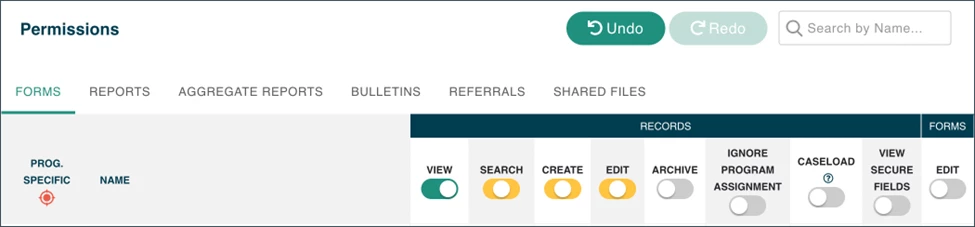
The toggles in the column headers function as a Select All option. A gray toggle indicates that users assigned to this role cannot perform this action for any record. Once a permission box is checked, the gray toggle will turn yellow, indicating that users are able to perform the action for some but not all records. Clicking the toggle itself will then check the permission box for every available record. The toggle will turn green to indicate that users have access to perform this action for all available records. You can click the toggle once again to uncheck all boxes at once or select the Undo button at the top to revert your most recent changes.
Step 4: Save your changes
To confirm your selected permissions, click ‘Create Role’ in the bottom-right corner.
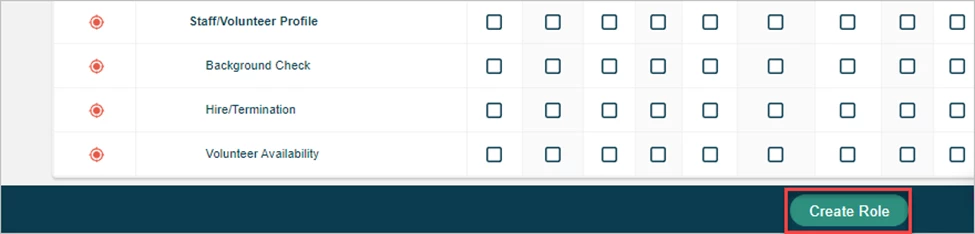
The new Role will then be displayed on the Roles page.
What else do you need help with?
-
Not what you’re looking for? Navigate to overview
How do I create a Role in Apricot? | How do I add a new Role for users? | How do I set permissions for a Role? | How do I assign Forms, Reports, and features to a Role? | How do I use toggles to manage Role permissions? | How do I save and create a new Role? | How do I manage Roles in Apricot?