


How do I give standard users Record Manager access? (Legacy Permissions)
Follow the steps listed below to learn how to assign Record Manager roles to standard users for additional navigation bar features.
Step 1: Navigate to the user
In the Administrator view of Apricot, expand Access Control in the navigation bar and select Users.
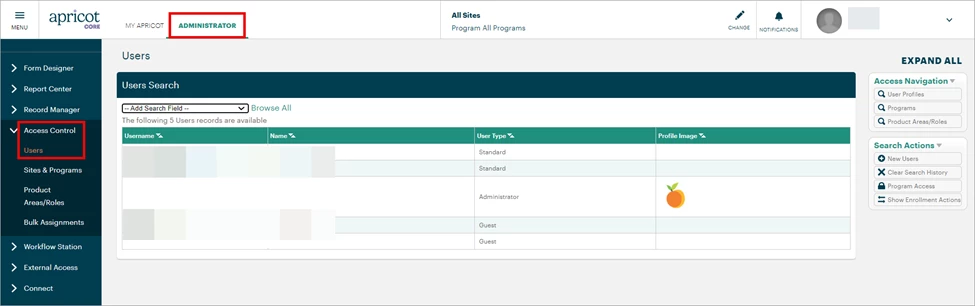
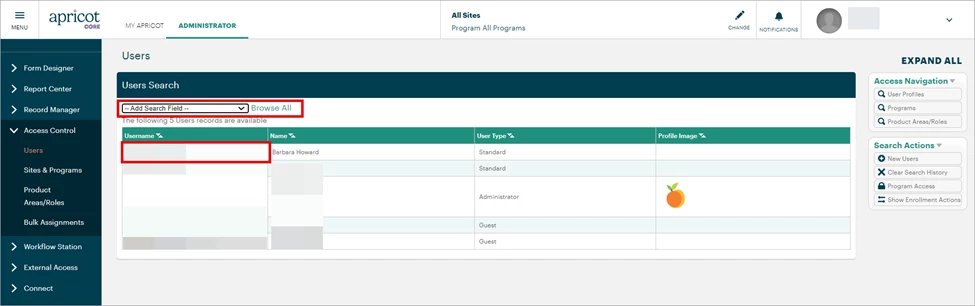
A list of users in your Apricot site will be displayed. You can click the Search Field dropdown to filter the results by username, name, or other criteria. Select the Username of the standard user you want to access the Record Manager category of the navigation bar.
Step 2: Add a Role
Click Edit at the top-right corner of the User Details page.
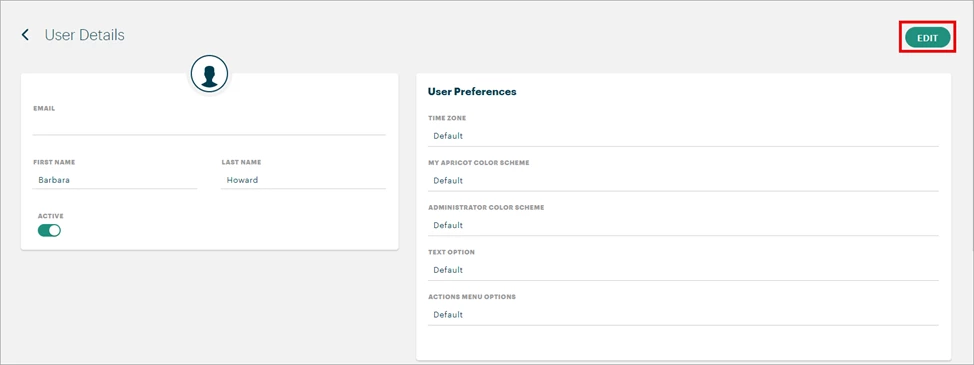
Scroll to the Assigned Roles section and click the ‘+ Add’ button to open the Roles Search pop-up window.

Step 3: Select a Role
Click the gray arrow to expand the Record Manager Product Area and view its available Roles.
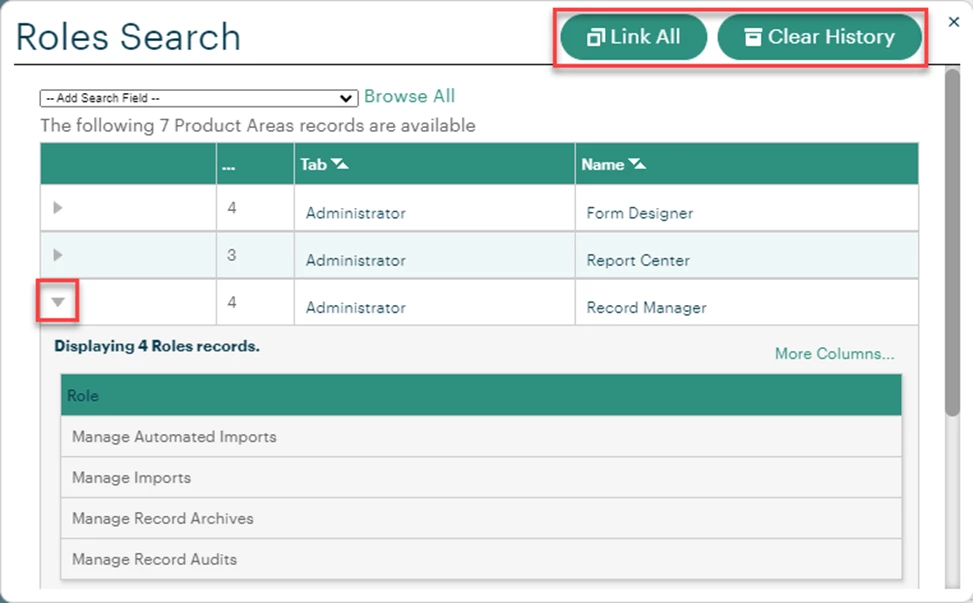
Click the name of each Role you want to assign to the standard user. Note: The ‘Link All’ button will select every role across every Product Area. The ‘Clear History’ button will undo any selected Roles.
-
Manage Automated Imports: This Role is non-functional and will not work if assigned to a standard user as Automated Imports are no longer supported.
-
Manage Imports: The user can access the Import Tool to create new or update existing data into your Apricot database. They can also import links.
-
Manage Record Archives: The user can access the Record Archives to search for records that have been removed from your Apricot database and, if necessary, re-activate or add them back into Apricot.
-
Manage Record Audits: The user can access the Record History tool to see which users have accessed or changed existing records.
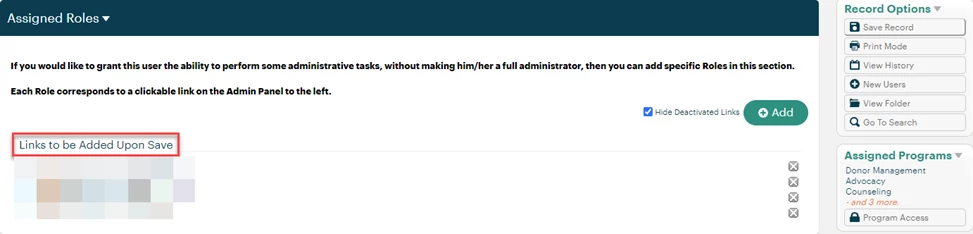
The selected Roles will display under ‘Links to be Added Upon Save’ in the Assigned Roles section.
Step 4: Save the record
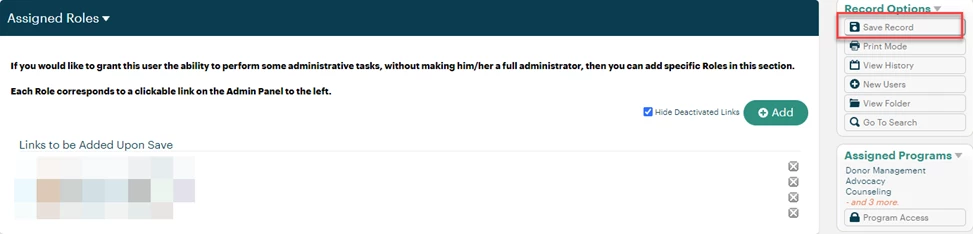
Select ‘Save Record’ in the Record Options palette at the top-right of the page to confirm your changes.
What else do you need help with?
-
Not what you’re looking for? Navigate to overview
How do I give standard users Record Manager access in Apricot? | How do I assign Record Manager roles to a user? | Why can’t a standard user see Record Manager in Apricot? | How do I add Record Manager permissions to an existing user? | What roles allow access to Record Manager in Apricot? | How do I manage imports and record audits with Legacy Permissions? | How do I let a user access record archives in Apricot?