


How do I give standard users Workflow Station access? (Role-Based Permissions)
Follow the steps listed below to learn how to give standard users Advanced Access to Workflow Station tasks in their navigation bar.
Step 1: Navigate to the user
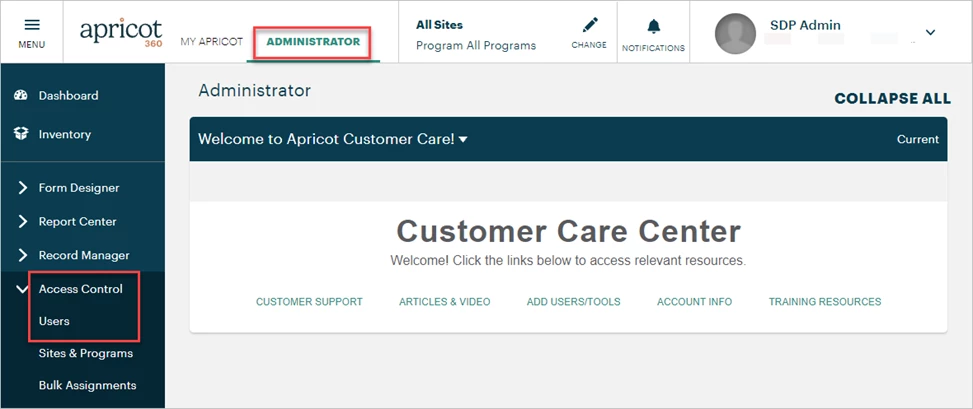
In the Administrator view of Apricot, expand Access Control in the navigation bar and select Users.
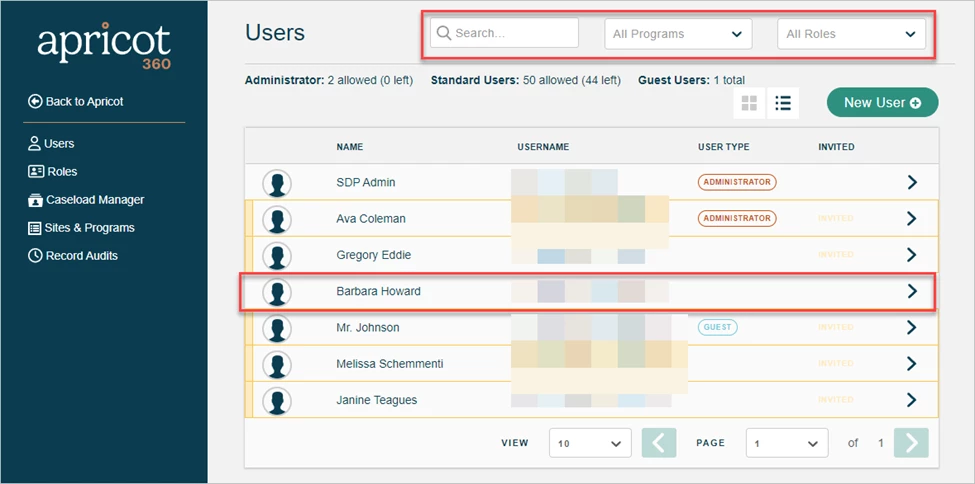
A list of users in your Apricot site will be displayed in the Account Management app. You can type a name in the Search Field or use the Programs or Roles dropdowns to filter the results. Select the standard user you want to edit access for.
Step 2: Select Advanced Access tasks
Scroll to the Advanced Access section at the bottom of the User Details page. Click the ‘+’ icon to expand the Workflow Station category and check the box next to each task you want to assign the standard user.

Once a task is selected, the gray toggle to the right of the category name will turn yellow, indicating that the standard user has access to some administrative tasks.

Clicking the toggle itself will select every task within the category. The toggle will then turn green to indicate the standard user has all available administrative access.

-
Bulletins: The user can create and edit bulletins that appear on the My Apricot landing page.
-
Note: For the user to create a new bulletin, you must either create a Category for the user to place bulletins into and give them ‘View’ permission for the entire Category in their Role(s) or give them ‘View’ permission for an entire existing Category. They will not have access to create a new Category.
-
Note: To allow the user to edit existing bulletins but not create new ones, you can give specific ‘View’ permission to certain bulletins within their Role(s) instead of the entire category.
-
-
Shared Files: The user can upload and delete Shared Files in Apricot.
-
Note: For the user to create a new shared file, you must either create a Category for the user to place shared files into and give them ‘View’ permission for the entire Category in their Role(s) or give them ‘View’ permission for an entire existing Category. They will not have access to create a new Category.
-
Note: To allow the user to edit existing shared files but not create new ones, you can give specific ‘View’ permission to certain shared files within their Role(s) instead of the entire category.
-
-
Apricot Settings: The user can access select settings for your Apricot site.
-
User Licenses (only for sites with the Guest User Module enabled): Can adjust Guest User Forms
-
Security: Can manage password-related settings and the system inactivity timeout
-
General Configuration: Can manage every setting in this section
-
Accessibility: Can manage every setting in this section
-
Step 3: Update their Advanced Access
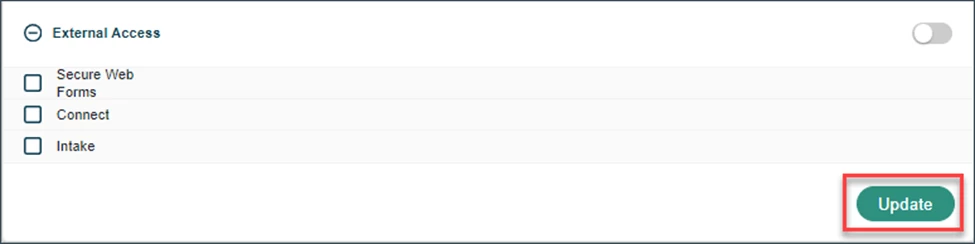
To save the adjustments made to a standard user's Advanced Access, click the "Update" button at the bottom-right of the page.
What else do you need help with?
-
Not what you’re looking for? Navigate to overview
How do I give standard users Workflow Station access? | How do I assign Advanced Access tasks in Workflow Station? | How do I allow a user to create and edit Bulletins? | How do I give a user access to upload and manage Shared Files? | How do I grant a standard user access to Apricot Settings? | How do I update a user’s Advanced Access for Workflow Station? | How do I manage permissions for Workflow Station tasks?