


How do I remove administrative access from a standard user? (Legacy Permissions)
Follow the steps listed below to learn how to remove a standard user’s ability to perform administrative tasks based on their assigned Roles.
Step 1: Navigate to the user
In the Administrator view of Apricot, expand Access Control in the navigation bar and select Users.
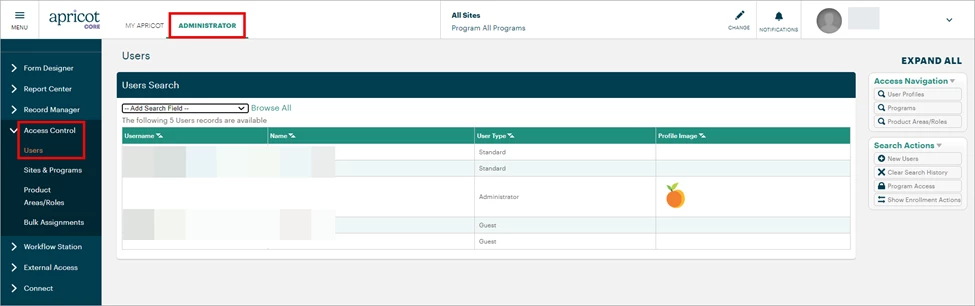
A list of users in your Apricot site will be displayed. You can click the Search Field dropdown to filter the results by username, name, or other criteria. Select the Username of the standard user you want to remove assigned Roles for.
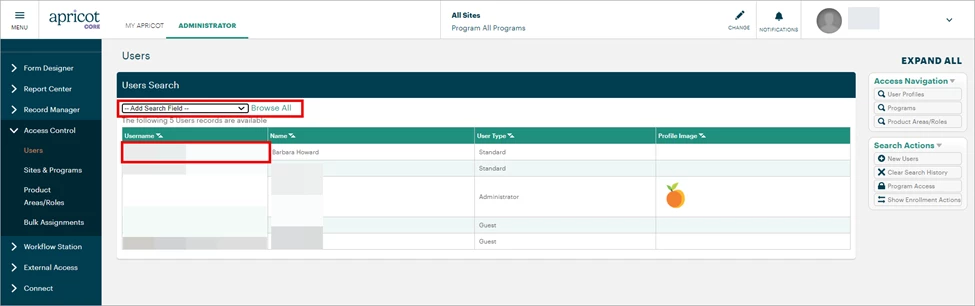
Step 2: Remove an assigned Role
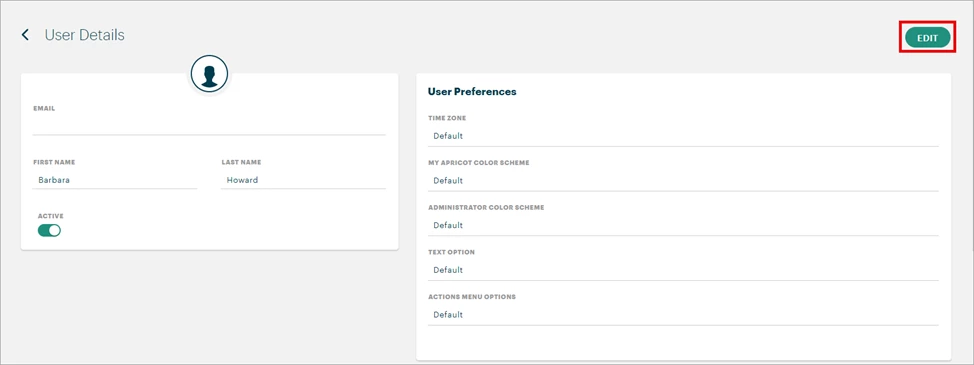
Click Edit at the top-right corner of the User Details page.
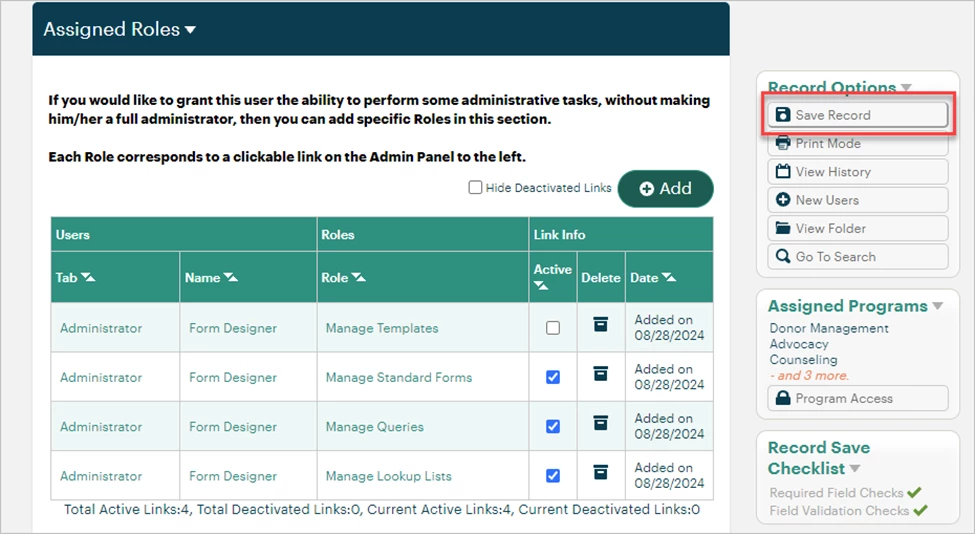
Scroll to the Assigned Roles section to view the user’s previously assigned Roles. In the Active column under ‘Link Info’, uncheck the box next to the Role you wish to remove.
Note: If the ‘Hide Deactivated Links’ box is checked, the unchecked Role will disappear from the table.
Step 3: Save the record
Select ‘Save Record’ in the Record Options palette at the top-right of the page to confirm your changes.
What else do you need help with?
-
Not what you’re looking for? Navigate to overview
How do I remove administrative access from a standard user? | How do I unassign Roles from a standard user in Apricot? | How do I edit a user’s assigned Roles? | How do I deactivate administrative permissions for a user? | How do I save changes after removing a user’s Role? | How do I manage standard user Roles in Apricot? | How do I hide deactivated Roles for a user?