

How do I send a video acknowledgment?
They say a picture is worth a thousand words - but, what about a video?
'Donor Management' enables you to record a personalized video for each donation you receive, and send that message to your donors via e-mail or text.
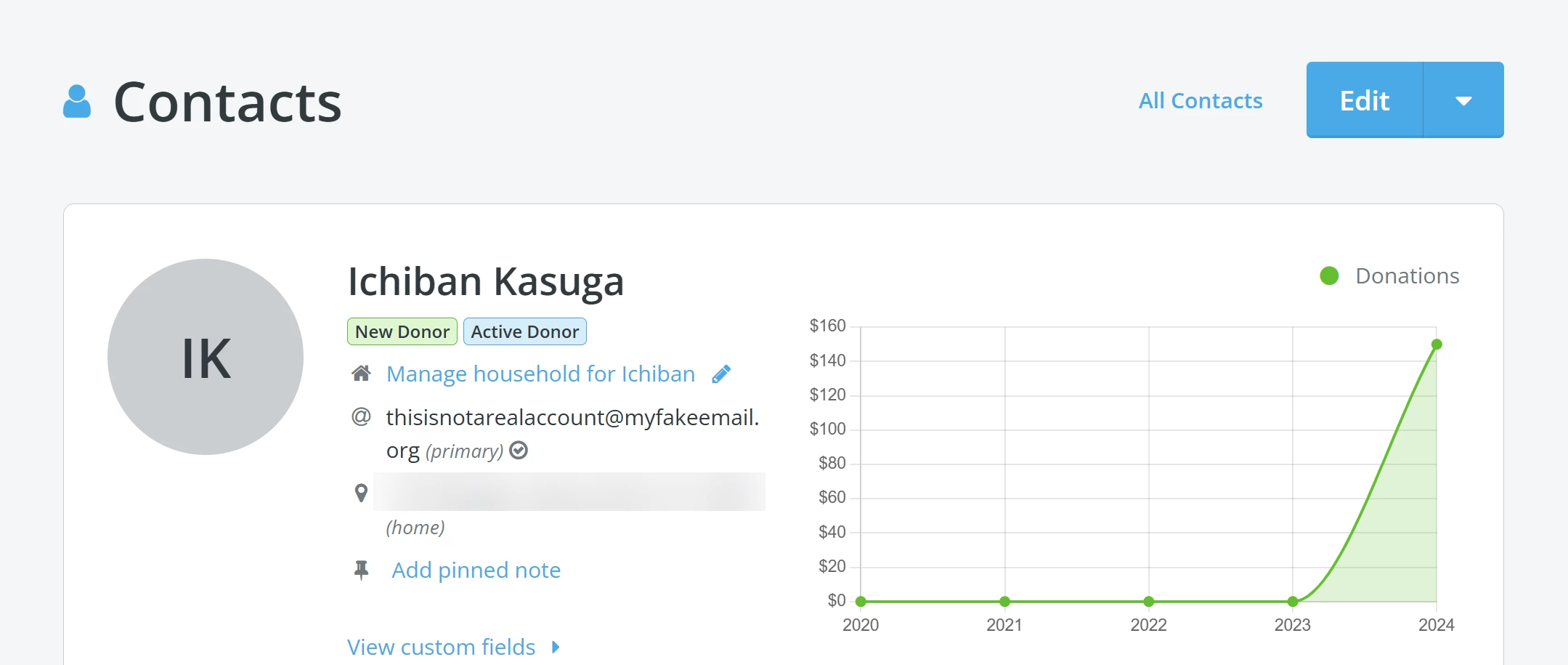
Step 1: Search for your donor
Navigate directly to the donor's profile. It should appear similar to this:
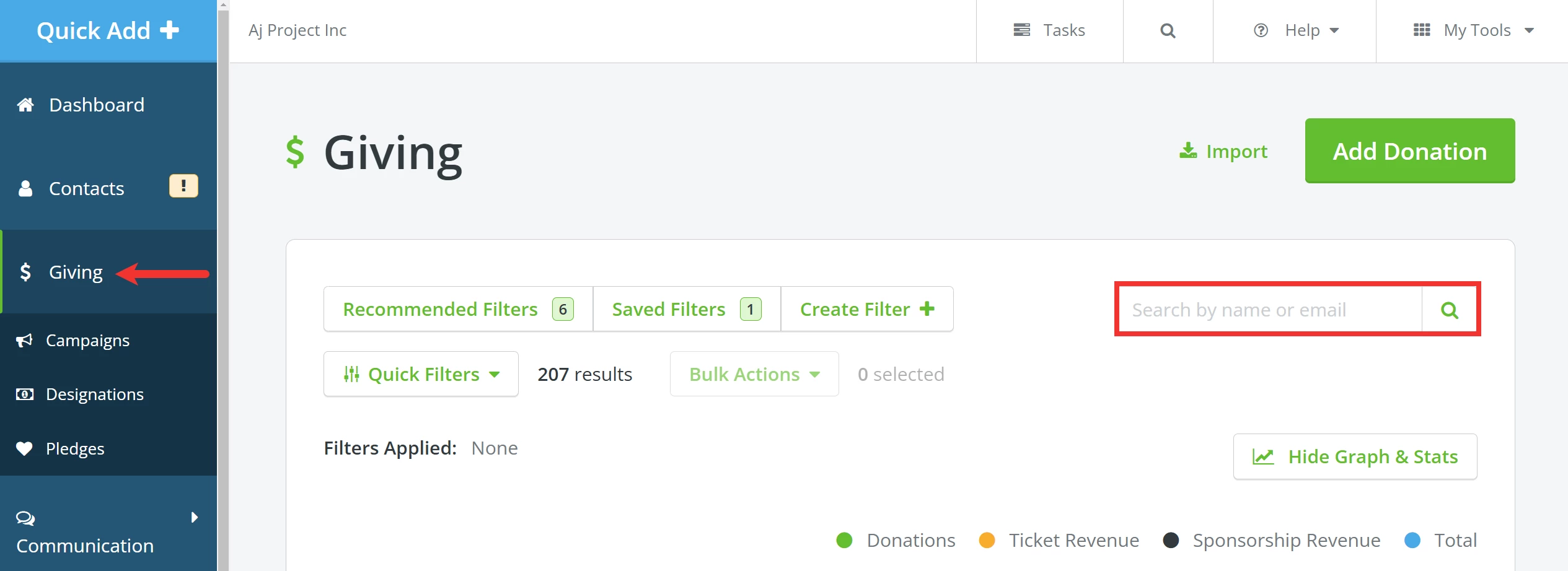
You can also search for the specific donation you want to acknowledge by clicking the 'Giving' tab on the left navigation panel of your 'Donor Management' Dashboard.
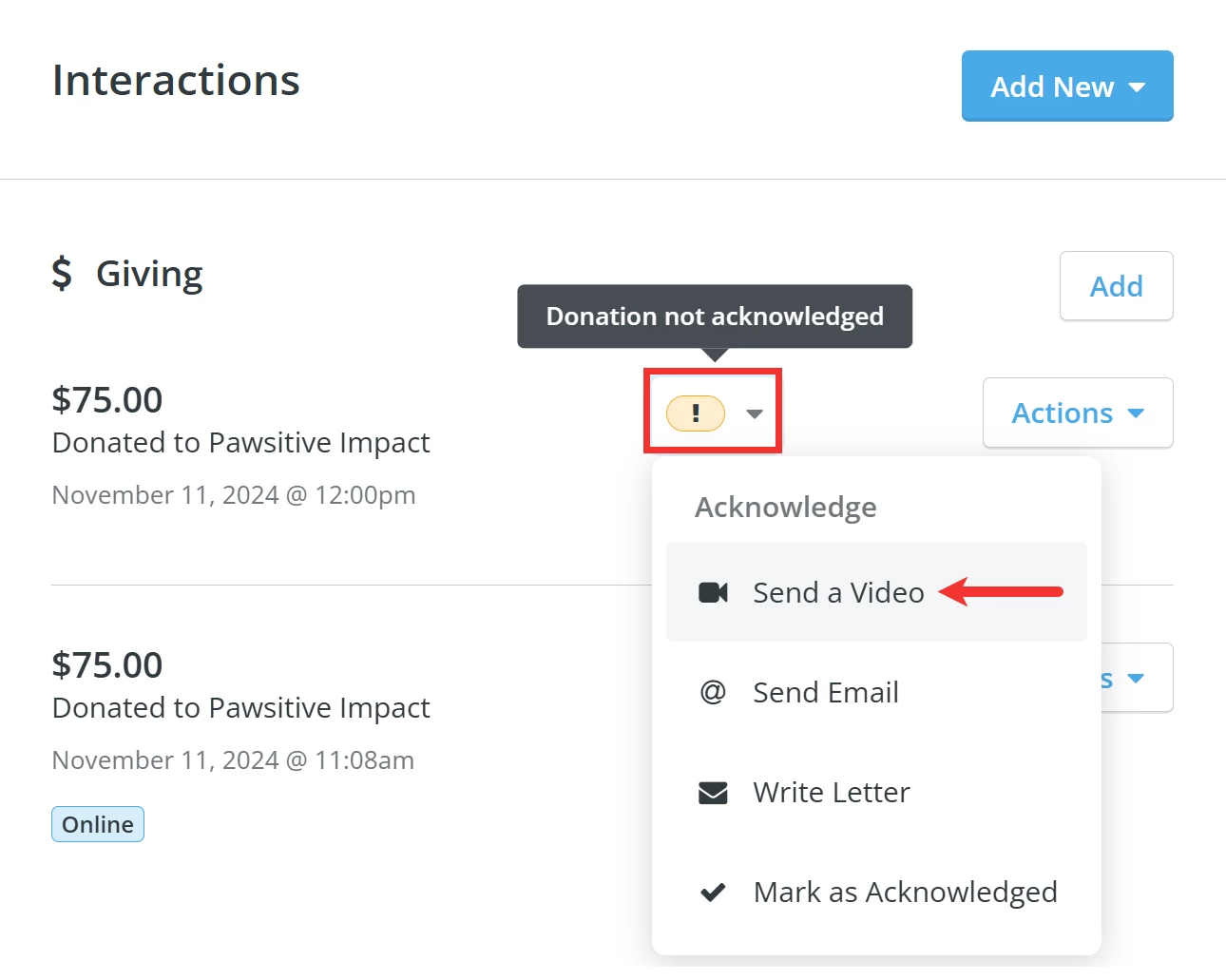
Step 2: Select 'Send a Video'
Scroll down on the donor's profile until you locate the 'Interactions' section. Click the exclamation mark and select 'Send a Video' from the drop-down list of options.
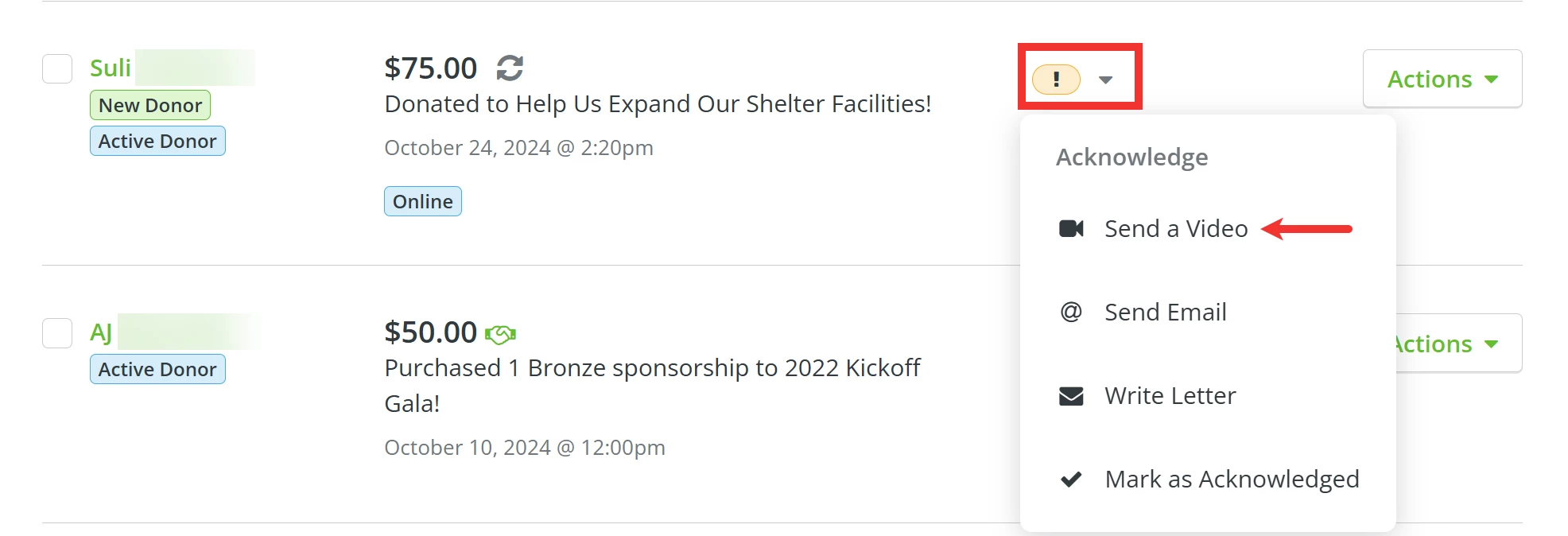
If you searched using the 'Giving' tab in Step 1, you will be directed to your 'Giving' page, where you can click the icon (exclamation mark) under the 'Acknowledge' column for the donation you want to acknowledge. Select 'Send a Video' from the drop-down list of options.
Step 3: Record your video
You will be taken to a page where you can start recording your video or upload one instead.
If you do not have a webcam or would prefer to use your phone to record and send your message, click the link in the box in the upper right corner of the page.
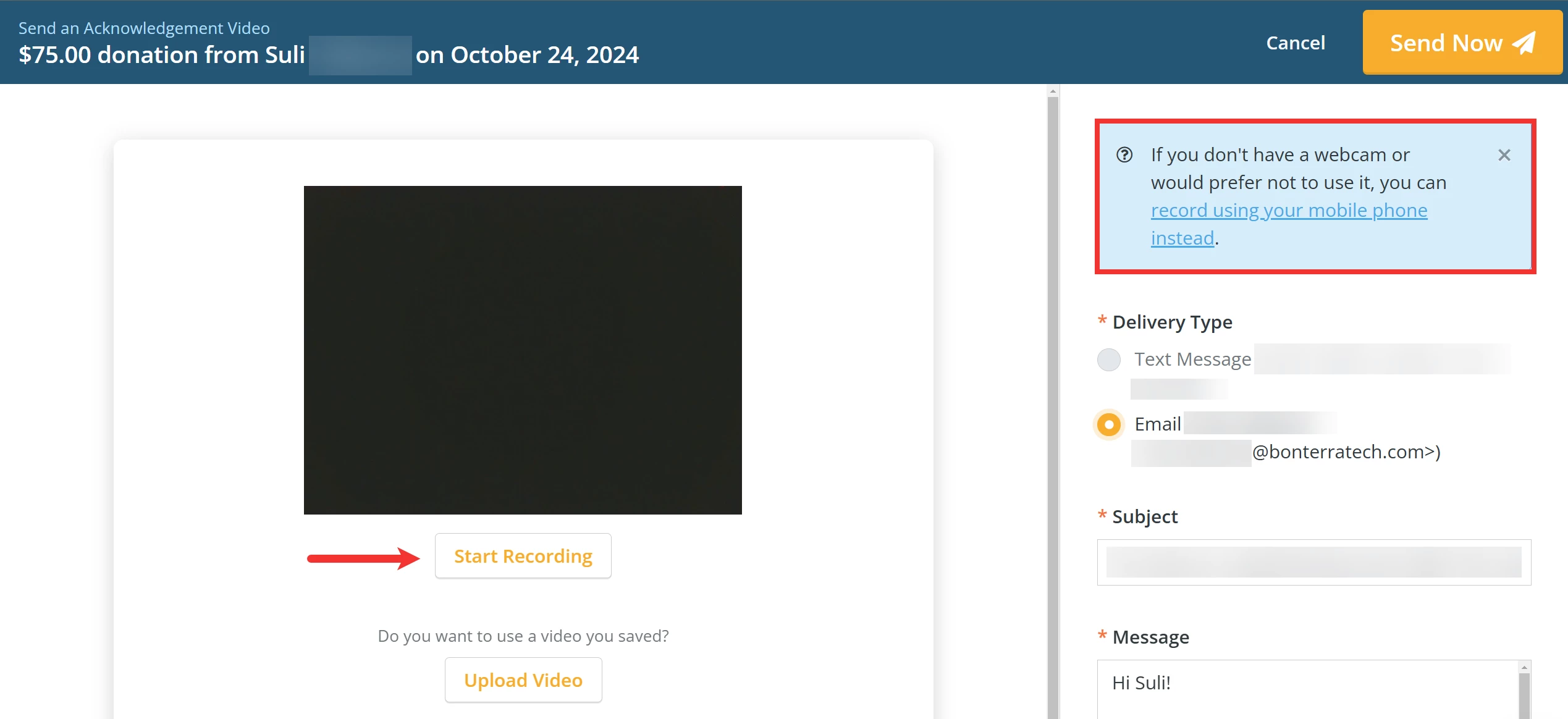
Note: If you click the link to record using your phone, you will be directed to a new page prompting you to enter your mobile number. Click on the 'Send Link' option.
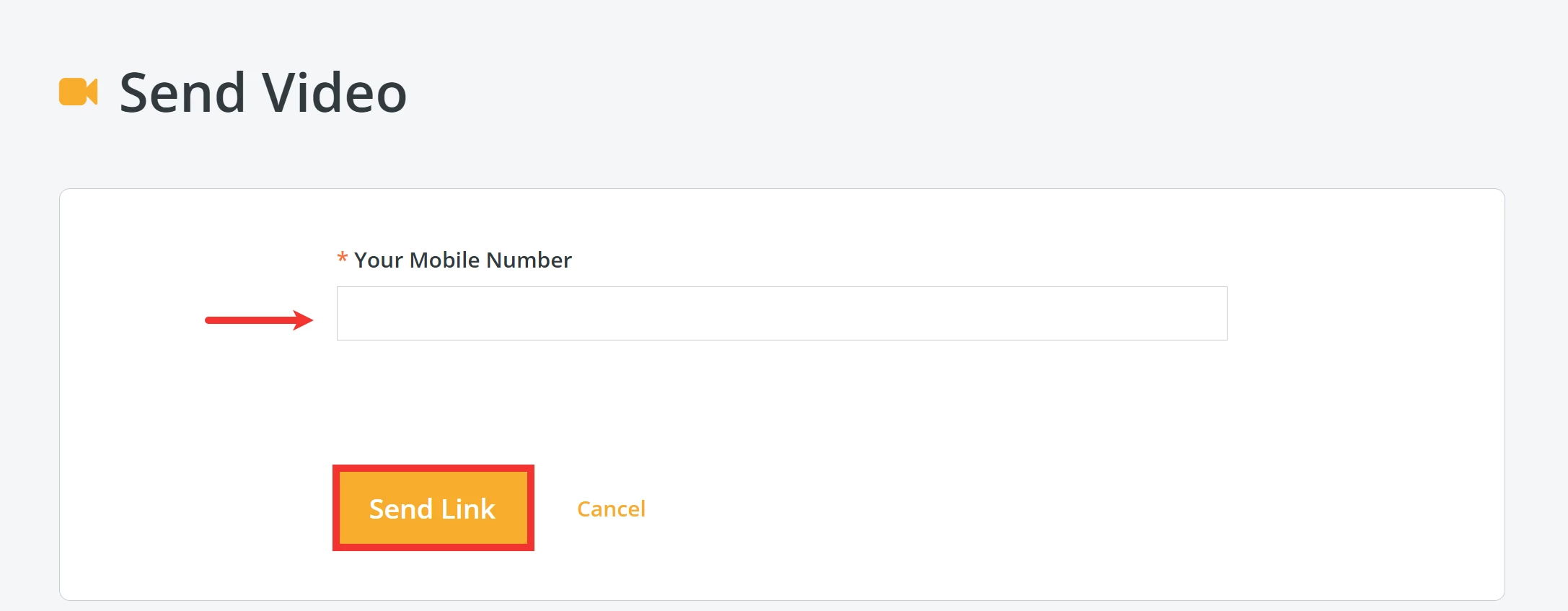
A text message with a unique link will be sent to the number you entered. Click the link to record the video using your phone's camera and make any updates to the message you are sending.
Step 4: Choose the 'Delivery Type'
Use the radio buttons under 'Delivery Type' on the right side of the page to indicate if you are sending your message via text or e-mail.
Note: If there is no valid phone number on the donor's profile, the option to send your message to them via text will be greyed out.
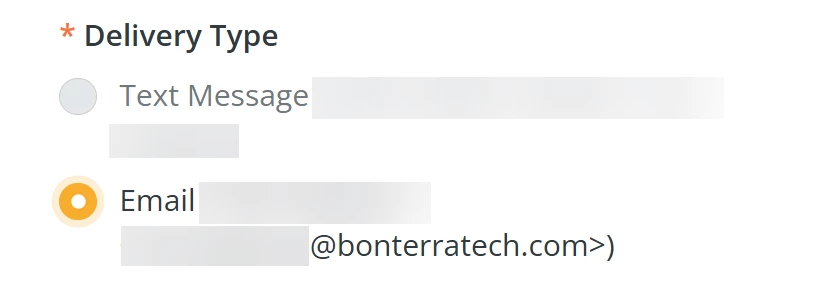
Step 5: Create a subject line and message
Scroll down to start crafting a subject line to grab your donor's attention and include a short message to accompany your video.
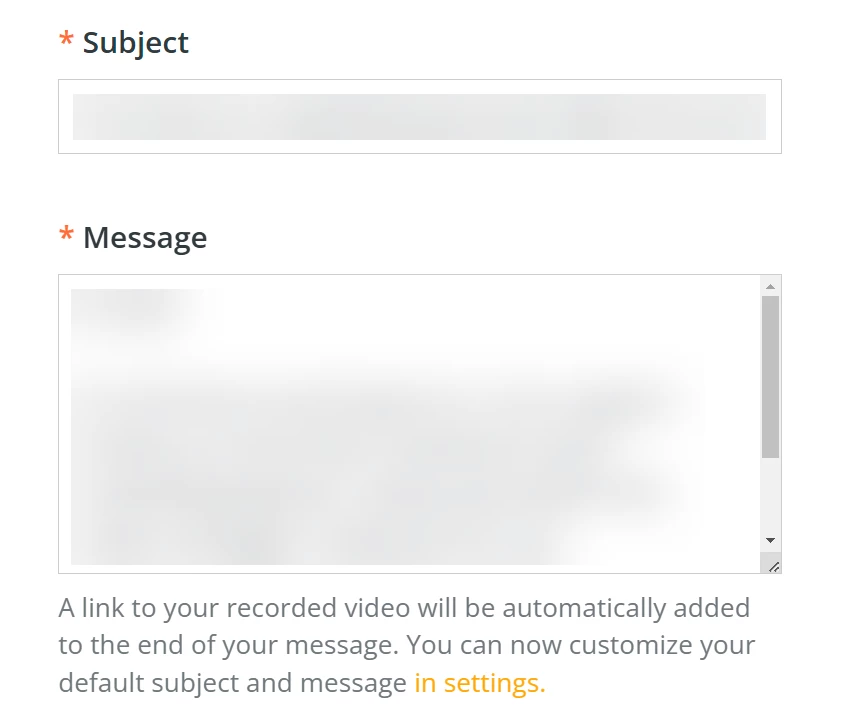
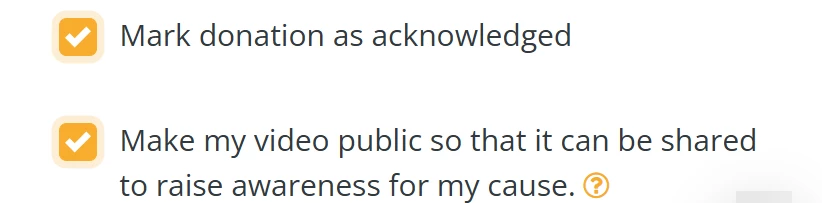
Note: By default, both options under the message composer will be checked. We recommend leaving 'Mark donation as acknowledged' selected - but, it is completely optional to make your video public so it can be shared to raise awareness for your organization's cause.
Step 6: Send your video!
When you are ready, click the 'Send Now' button in the top right corner of the page to send your video on its way!

What else do you need help with?
How do I know what to say in a video message?
How do I send a group video message?
Not quite what you were searching for?
Navigate back to the Feature Overview.
Looking for training?
Explore this feature at your own pace - join a live training session or watch a recorded webinar by clicking the link below.