



The 'Donor Management' system will flag contact records that share unique identifying information (such as name, e-mail, and mailing address) as potential duplicates.
Carefully reviewing these records (and merging them if need be) will help you keep your data accurate and up-to-date! This article highlights a few things to be aware of when dealing with duplicates.
1) The system alerts you of any duplicates there are to review
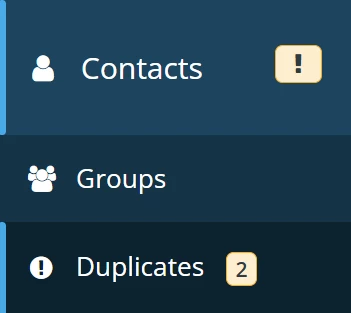
If there are duplicate records for you to review, 'Donor Management' will add an exclamation mark in your 'Contacts' tab in the left navigation panel. Clicking on that tab, you will find a number indicating how many records there are under 'Duplicates'.
2) Matching information should be flagged during contact creation
During contact creation, the system will prompt you to review existing records or alert you that a record already exists with that specific information if the details you are adding match anything on file.
Example 1:
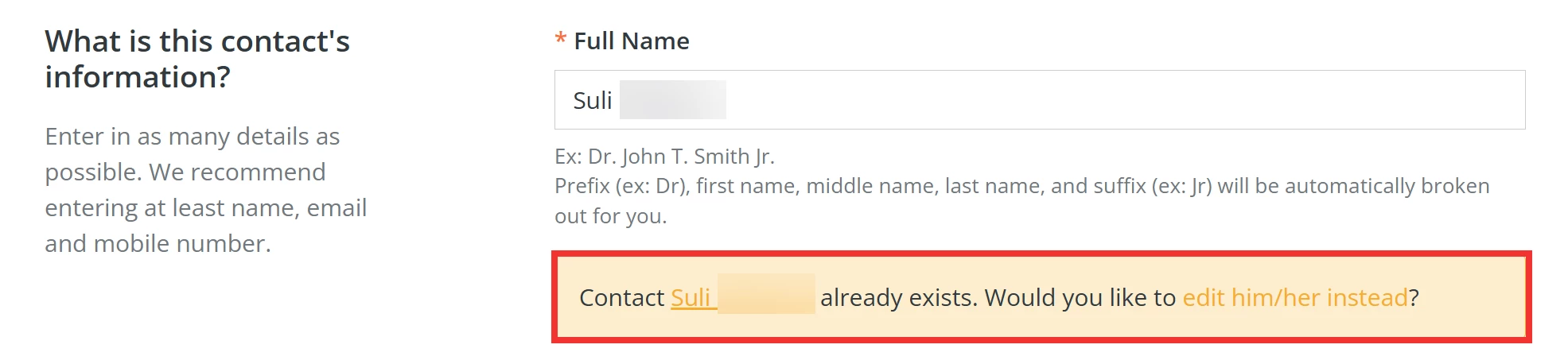
Example 2:

3) Contacts can share secondary and work e-mail addresses
Because of this, records that share e-mail addresses may not always get flagged as duplicates.
If the system did not flag duplicate records you need to merge, you can manually flag them for review following the steps in this article.
Note: The primary e-mail address for a contact must be unique.
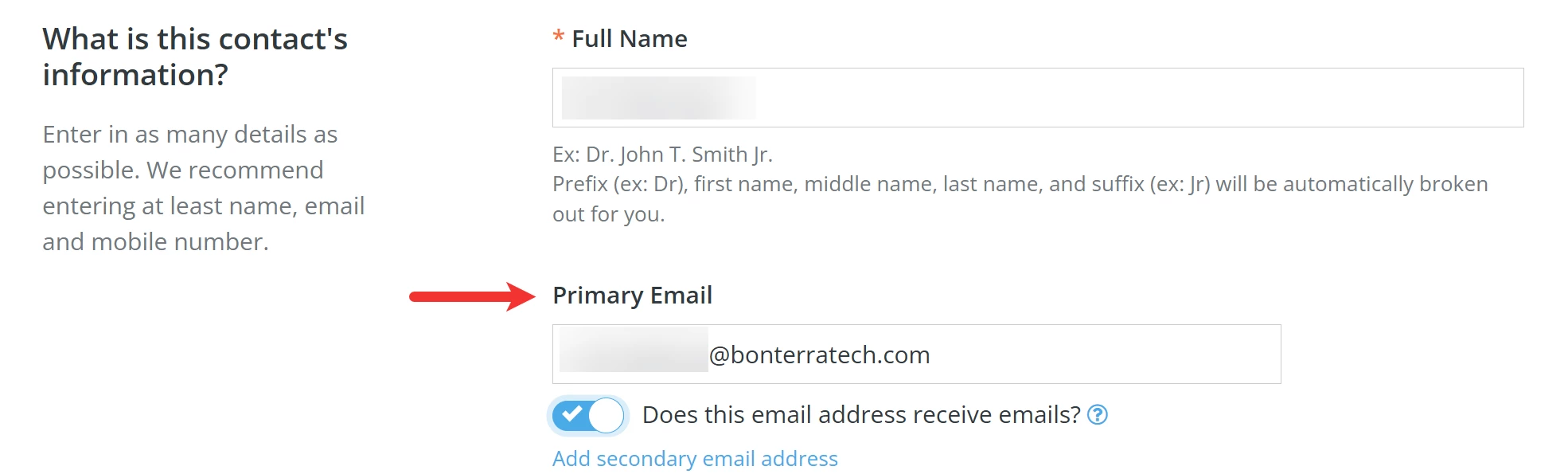
The system will not allow you to create a new contact if it shares its primary e-mail with an existing record.

Not quite what you were searching for?
Navigate back to the Feature Overview.
Not quite what you were searching for?
- Navigate back to the Zapier Resource Index.
How do I find duplicate contacts in Donor Management? | Why am I seeing a duplicate warning when adding a contact? | How do I review flagged duplicate records? | Why can’t two contacts have the same primary email? | How do I manually flag duplicate contacts? | What does the exclamation mark on the Contacts tab mean? | How do I prevent duplicate contact records in Network for Good?
How do I use pre-designed zap templates? | How does use pre-designed zap templates work in EveryAction? | Why can't I use pre-designed zap templates? | Where do I use pre-designed zap templates in EveryAction? | What is use pre-designed zap templates in EveryAction? | How to use pre-designed zap templates? | Can I use pre-designed zap templates in EveryAction?