

How do I use the Bonterra Calendar Reference Dataset in Impact Hub?
Overview
Impact Hub includes a Bonterra-maintained Calendar Reference Dataset — a continuous sequence of dates with associated attributes like day of week, month name, week number, quarter, and fiscal year. It's available to all Impact Hub users with no setup required.
Joining it to your own data unlocks two things standard date filters can't do: show true zero counts on days with no activity, and filter or group data by non-standard time periods like fiscal quarters or specific days of the week.
Important things to know
- Available to all Impact Hub users. No connection configuration or special permission is required. The Calendar Reference Dataset appears in the dataset picker alongside your organization's own datasets.
- Works with single-date records. This dataset is designed for records with one meaningful date per row — a service contact date, a case note date, a form submission date.
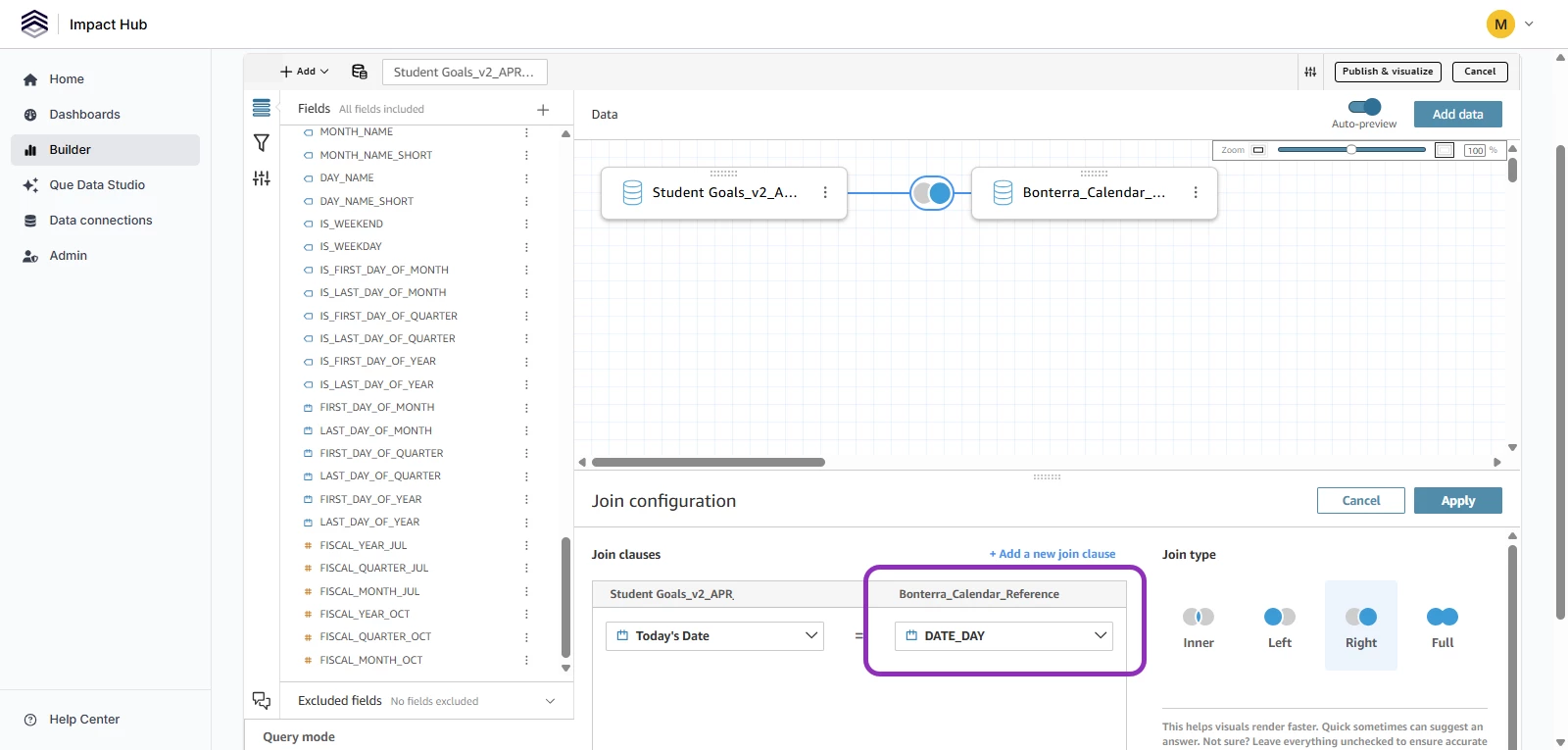
- The join must be configured so every calendar date appears in the output. When joining your data to the Calendar Reference Dataset, every date in the calendar — including dates with no matching records — should be present in the result.
- Date attributes enable non-standard grouping. Once joined, you can group or filter your report by fields like fiscal quarter start, day of week, or week number — without building calculated fields yourself.
- Date coverage. The Calendar Reference Dataset covers multiple years of dates. To scope a report to a specific period, apply a date range filter on the calendar date field. This limits the dates that appear in your visual without changing the dataset itself.
Show activity on every date, including days with no activity
Use this approach when you have records with a single date field and want to see counts for every day or week in a period — including days when nothing was recorded.
Without the Calendar Reference Dataset, reports built on your activity data skip dates with zero records in most visual types. Dates only appear when at least one record exists.
Step 1: Create or open a custom dataset for your activity data
The Calendar Reference Dataset is added as a join from inside the dataset editor. You need a custom or child dataset for your data before you can configure the join.
If you don't already have one, create a custom dataset for the data you want to analyze. For instructions, see How do I build a custom child dataset?
Once it exists, open it in the dataset editor and continue to Step 2.
Step 2: Add the Calendar Reference Dataset and configure the join
- In the dataset editor, add Bonterra Impact Hub | Calendar Reference dataset as a join source.
- Set the Join condition: match your record's date field to the calendar date field in the Calendar Reference Dataset.
- Configure the join so that every calendar date is preserved in the output, including dates with no activity.
- Recommended: Add a dataset-level filter on the calendar date field to limit the date range before the data reaches your report — for example, filter to the past 12 months. This keeps the dataset focused and improves performance. You can adjust the filter later.
- Save the dataset.
Step 3: Build a visual using the calendar date field
- Add a new visual to your analysis (line chart, bar chart, or table).
- Use the calendar date field from the Calendar Reference Dataset as the X axis or row dimension — not the date field from your own data.
- Add your activity measure (for example, count of records) as the value.
- Apply a date range filter on the calendar date field to scope the report to the period you want.
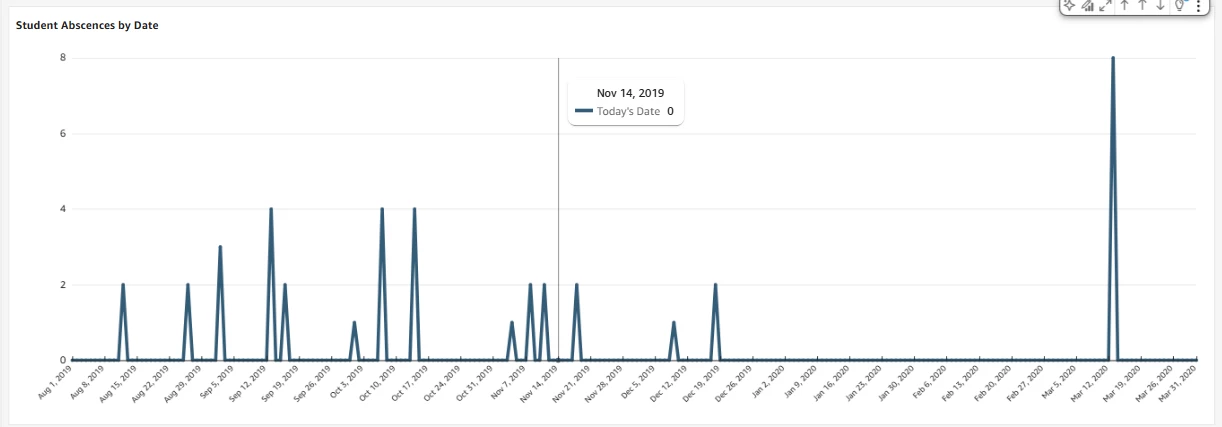
Days with no activity will now show a count of zero rather than being absent from the chart.
Filter and group data by fiscal periods and other date attributes
The Calendar Reference Dataset includes date attribute fields you can use to slice your data by non-standard time periods — including fiscal years and quarters that start at various points throughout the year, day of week, week number, and more — without building calculated fields yourself.
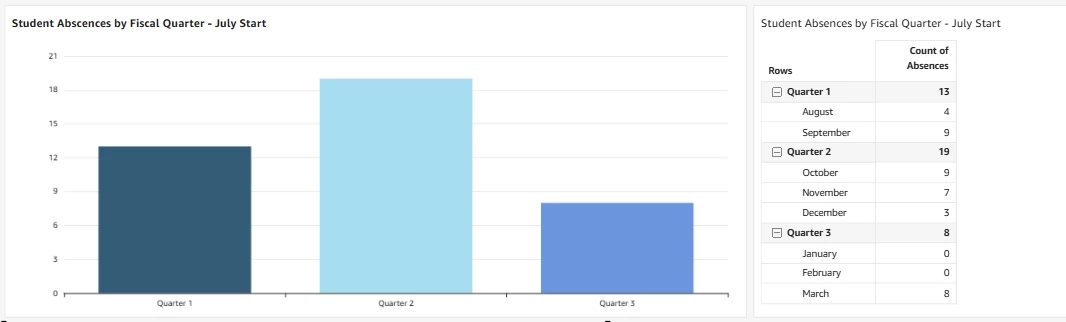
Once you've joined the Calendar Reference Dataset to your data (see steps above), these attribute fields are available in your analysis alongside your own fields. Use them as grouping dimensions or filter conditions the same way you would any other field.
Example uses:
- Fiscal quarter grouping: Group service contact counts by your organization's fiscal quarter rather than the standard calendar quarter.
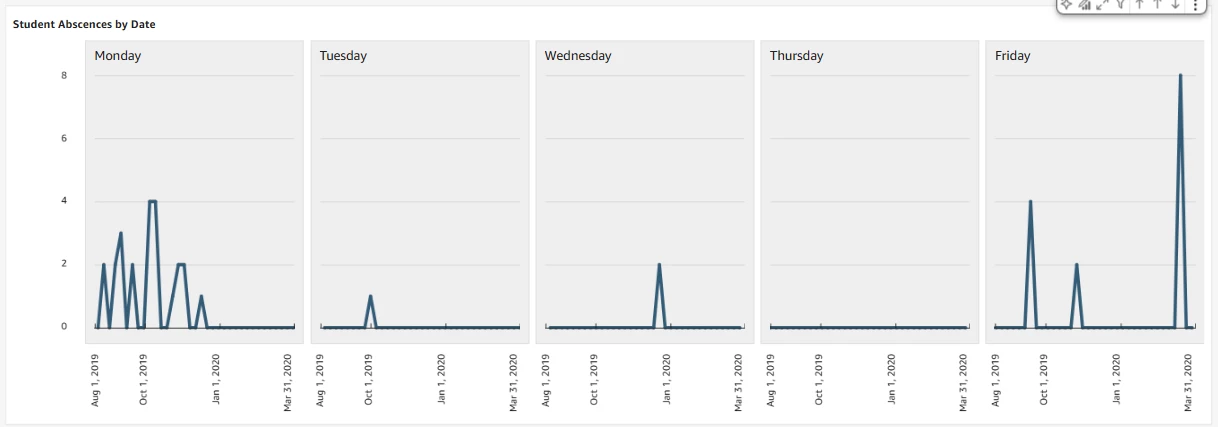
- Day of week analysis: See which days of the week have the highest activity — useful for identifying patterns in service delivery or staffing.
- Week number reporting: Summarize activity by week number across a full fiscal or calendar year.
Use a date attribute field in a visual
- In your analysis, open the Data panel and locate the Calendar Reference Dataset fields.
- Drag the date attribute field you want into the Group/Color well or the X axis well.
- Use your activity measure as the value.
- Adjust the sort order as needed. Some fields like month name or day of week sort alphabetically by default and may need a custom sort to appear in calendar order.
Break data on a specific day of week or period
- Find the variable for days of the week.
- Add it to your visual. The example visual uses small multiples to look across each day.
- Select the values you want to include — for example, filter to weekdays only (Monday–Friday) to exclude weekend records from a service activity report.
Troubleshooting checklist
Pre-checks
- Do you have a custom or child dataset for your activity data? The Calendar Reference Dataset is joined from inside a dataset you own — you can't add it directly to a report on its own. If you haven't created a custom dataset yet, see How do I build a custom child dataset? before continuing.
- Is the Calendar Reference Dataset available in the dataset editor? Open your custom dataset in the dataset editor and try adding a join source. If Bonterra Impact Hub | Calendar Reference dataset doesn't appear, it may not yet be available in your environment — contact your Bonterra support team.
- Does your data have a single date field per record? The Calendar Reference Dataset works with equality joins on a single date. If your records have a start date and an end date and you need to count what was active on each date, this dataset does not compute that — reach out to your implementation team.
- Is the join configured so every calendar date appears in the output? The join must preserve all dates from the Calendar Reference Dataset, including dates with no matching activity records. If true zeros are missing, revisit the join type and dataset order in the dataset editor.
Post-change verification
- Do days with no activity show a zero? After joining, the chart or table should include every date in your selected range, with zero for dates that had no records. If dates with no activity are still missing, revisit the join configuration — the join must preserve all calendar dates, including unmatched ones.
- Is the date axis continuous with no gaps? A line or bar chart should show every date in your range without skips. Gaps may indicate the join condition isn't matching correctly, or a filter is applied to the wrong date field.
- Are date attribute fields sorting in calendar order? Fields like month name or day of week may default to alphabetical sort. Use Sort options on the visual to set a custom sort if the order looks wrong.
- Did you use the calendar date field (not your own date field) on the axis? Using your data's date field on the axis instead of the Calendar Reference Dataset's date field reintroduces the drop-dates-with-no-activity behavior you're trying to avoid.