


FAQs: Troubleshooting Connect for Participants
Intake Forms
If a participant reaches out regarding an issue while filling out an intake form, go through this list with them and have them try submitting again:
-
If they are on an iPhone, it may be necessary to have them use a desktop in order to capture necessary error information from the browser's console
-
Have them clear their cache
-
Have them disable any browser extensions they may have installed or they can try submitting the form in an incognito window
-
Ensure they are filling out all required fields on the form
-
Ensure they are not putting invalid characters into a field (for example, letters into a phone number field)
-
For image or document uploads, determine if the participant is uploading the appropriate file type and that the file is no larger than 25MB
Viewing and Updating Records in the Participant Portal
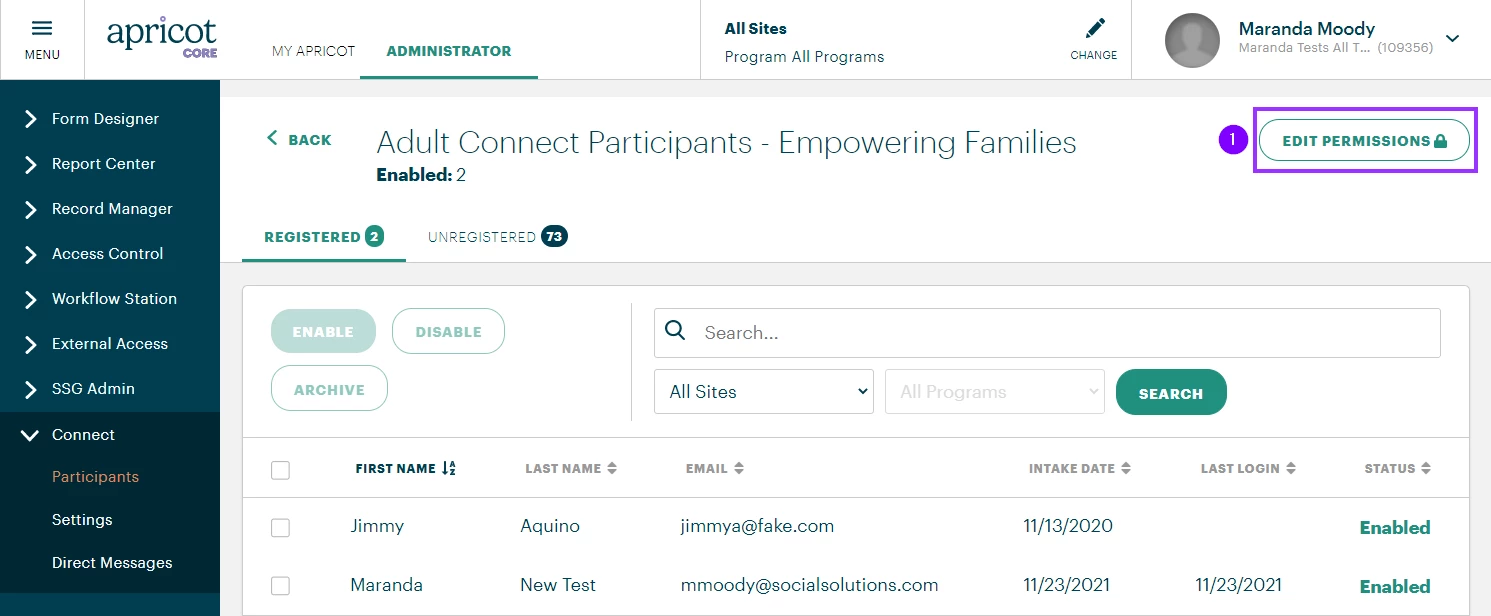
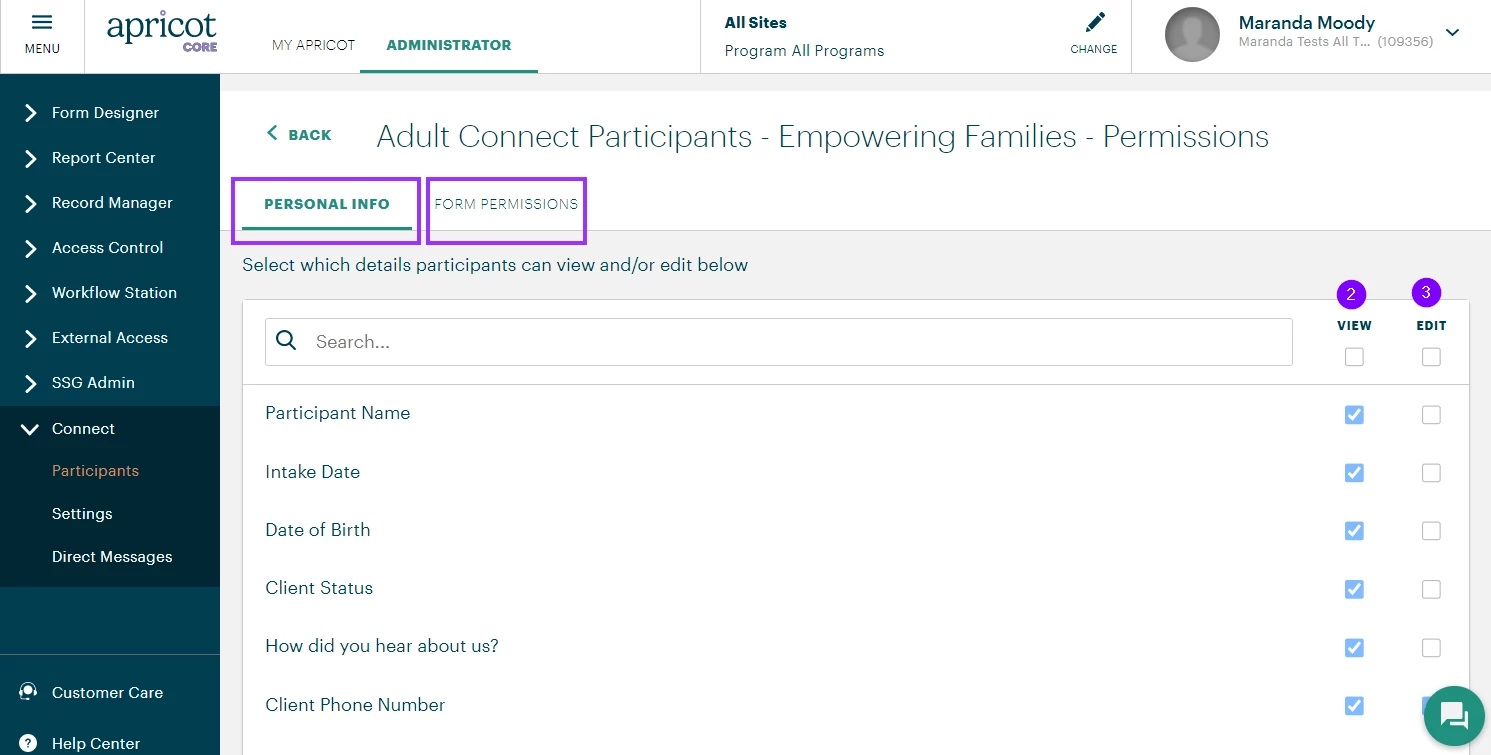
If a participant has trouble accessing or updating their Tier 1 record or certain fields from the portal, go through the following steps:
-
Verify that the form permissions for both the Tier 1 "Personal Info" and Tier 2 "Form Permissions" are set up properly for the program in the Participant Type
-
Determine whether the participant is entering invalid characters or pasting text from another application (such as Word or Google Docs)
Sample Scenarios:
-
If a Tier 2 Form isn't visible in the participant portal even though program access is granted, check that the Tier 1 Record (often the Client or Participant Profile) has access to the program as well
-
If all fields in the Tier 1 record have the correct values but a participant is unable to save, ensure the participant has view/edit permissions in the Participant Type for those specific fields
Contacting Support
If you are not able to solve the issue after going through these steps with your participant, reach out to Support via chat or email with the information you collected from the participant, including but not limited to:
-
The name of the record where the issue is occurring and/or a link to the intake form
-
The name of the participant experiencing the issue
-
The specific fields they are attempting to update
-
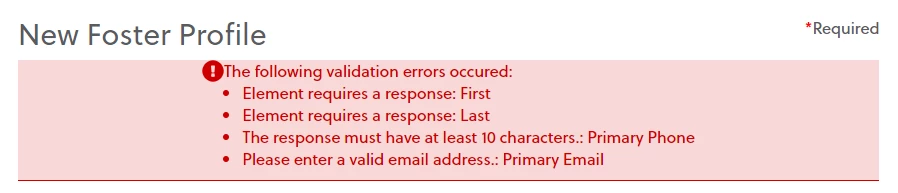
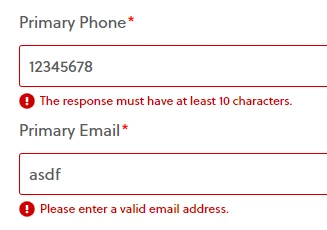
The exact error message the participant received and have them provide a screenshot if possible. For example:
-
If Support is unable to determine the cause of an error with this information they may ask for a screenshot of the Error Console. Have your participants follow the steps in the article to provide the screenshot.
For a more in depth look at Connect and all its features, check out the article titled Apricot Connect.
Why Can’t a Participant Access Apricot Connect? | How Do I Fix Login Issues for Participants in Connect? | How Do I Troubleshoot Messaging Problems in Connect? | Why Isn’t a Participant Seeing Direct Messages in Connect? | How Do I Help a Participant Who Can’t Receive Notifications in Connect? | What Do Participants Need to Use Apricot Connect? | How Do I Resolve Permission Errors for Participants in Connect? Administrators can go through these steps with their Connect Participants directly to help troubleshoot basic errors