

How do I record attendance data?
After setting up your Term, Sessions, and participant roster, you’re ready to start recording attendance. The Attendance Table provides a weekly view where you can mark participants present or absent, enter notes, tag attendance, and use session-specific fields like time in/out or activities.
Step 1: Navigate the Attendance Table
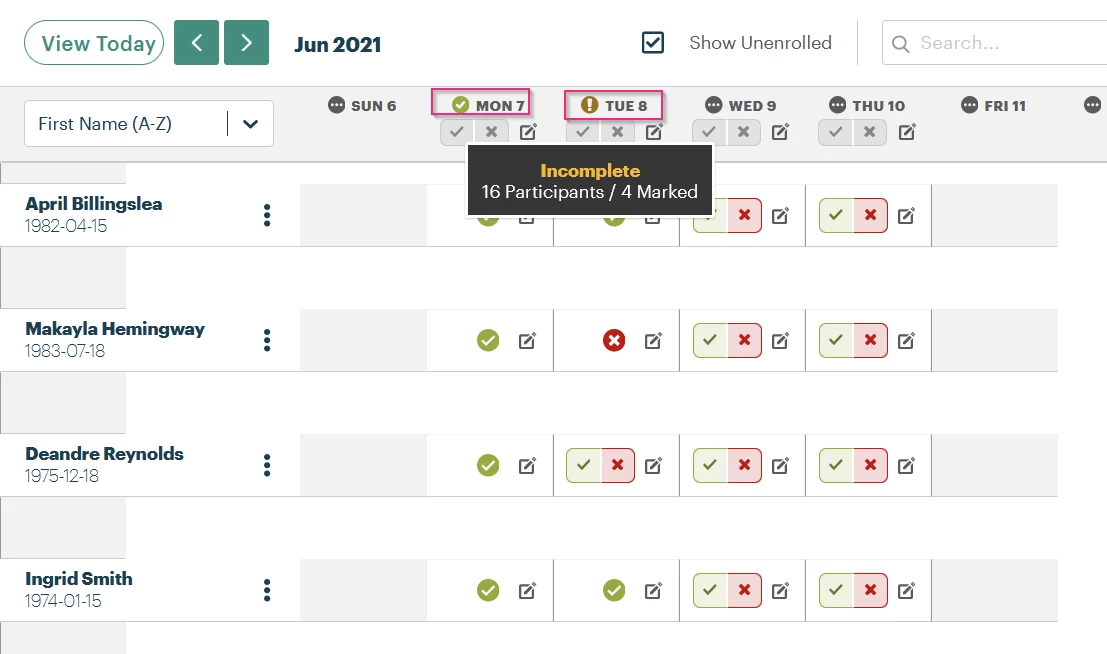
From the Term view, you'll see a weekly grid where each row represents a participant and each column represents a day (or Session). Use the arrows to move forward or backward in the schedule, or click View Today to jump to the current week.
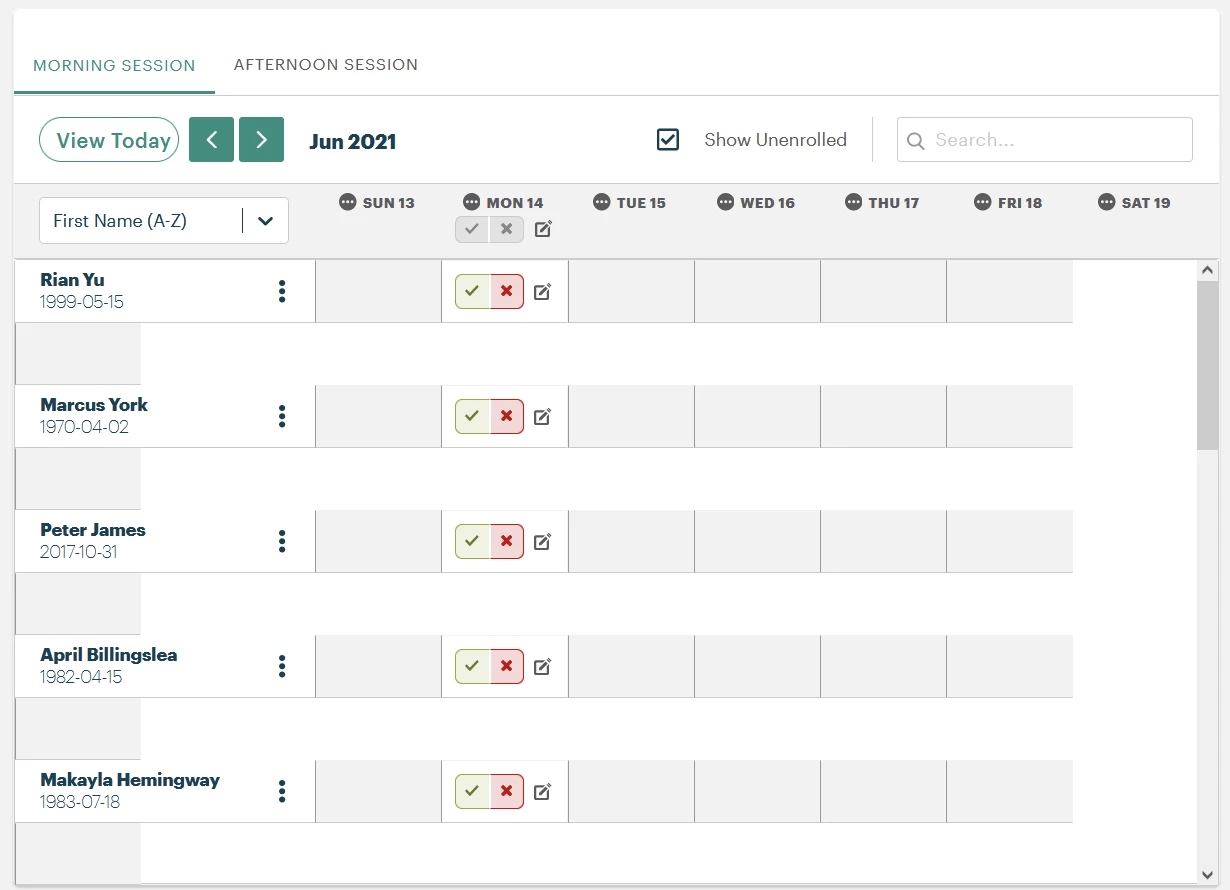
If you’ve created multiple Sessions, tabs will appear above the table—each one represents a different Session (e.g., “Morning” or “Afternoon”). Make sure you’re working in the correct tab before entering attendance.
Step 2: Mark Attendance
Click on a cell to mark a participant Present (green check) or Absent (red X). Click again to change the status.
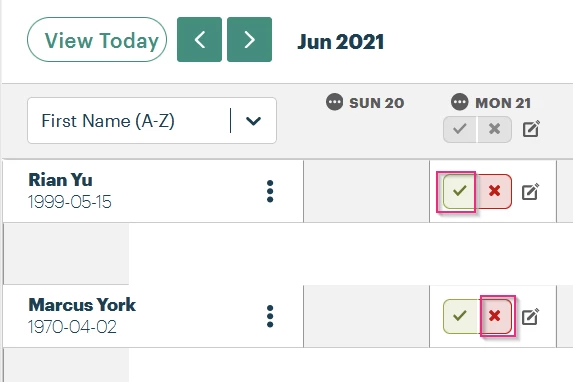
To apply attendance to multiple participants at once, use the group controls beneath the column header:
-
Click the green check to mark all as Present.
-
Click the red X to mark all as Absent.
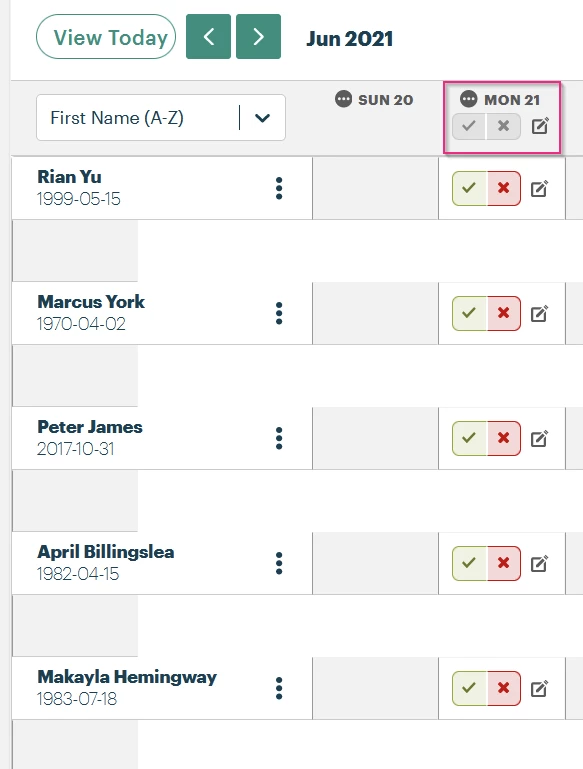
Important: Group actions overwrite any existing values in that column. A warning will appear before changes are applied.
Step 3: Add Attendance Notes or Tags
Each cell contains a notes icon in the corner. You can also use the group control to apply notes in bulk. If it turns yellow, it means there’s additional data recorded for that day.
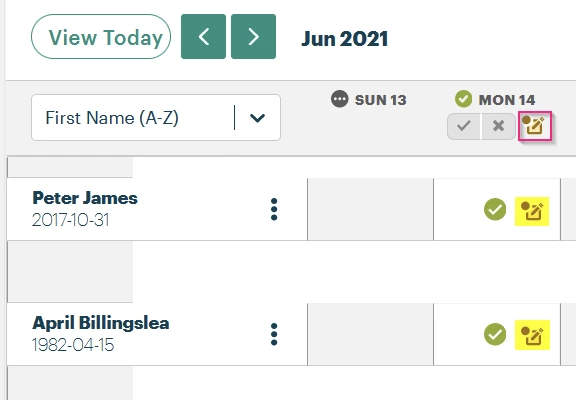
Click the icon to:
-
Enter or edit Notes
-
Select Activities
-
Record Time In/Out
-
Apply Make-Up, Tardy, Excused, or Suspended tags (if enabled)
These fields are configured through Attendance Note Settings and may vary by Term.
Important: Notes field entries are limited to 500 characters.
Step 4: Monitor Attendance Quality
The system uses small icons to help indicate the quality of the attendance record:
-
Green check: All attendance fields completed for the day
-
Yellow exclamation: Some data is missing or incomplete
Hover over these icons for more details.
Frequently asked questions
Can I mass remove attendance records?
If you need more than 50 attendance records removed, contact Support. To help ensure the right records are removed, provide a CSV spreadsheet with a single column listing all the attendance IDs you want deleted. You can generate this list using a report — see How do I access and report on attendance data? for instructions.
What else do you need help with?
How Do I Record Attendance Data in Apricot? | How Do I Enter Attendance for Participants in Apricot? | Where Do I Record Attendance in Apricot? | How Do I Take Attendance Using the Attendance Tracker in Apricot? | How Do I Mark Participants as Present or Absent in Apricot? | Can I Record Attendance in Bulk in Apricot? | Why Can’t I Record Attendance in Apricot?