


How do I edit a report? (Native Reporting)
Users with access to the Report Builder in Apricot can edit native reports within your database. Follow the steps listed below to learn how to edit different components of a report.
Step 1: Open a report
In the Administrator tab, expand the Report Center category in the navigation bar and select Reports.
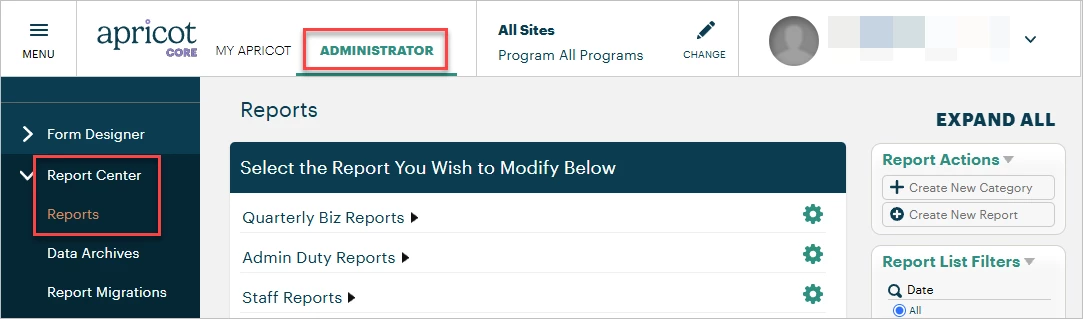
Then, click the black arrow next to a report category to expand the list of reports within it.
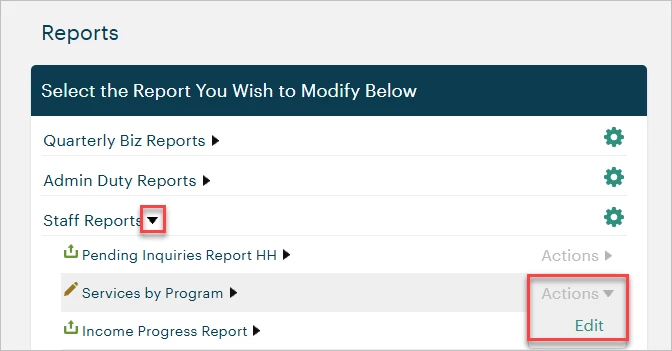
Scroll to find the report you want to open, then hover your mouse over the Actions tab next to it and click Edit. This will open the report in Edit mode within the Report Builder.
Step 2: Review all properties
To edit properties that affect the entire report, click the green gear icon to the right of the report name. This window is where you manage Auto Run settings for a report.
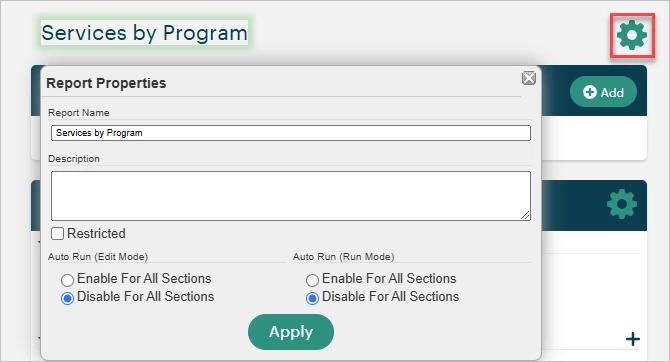
Each section within the report also has its own gear icon to manage its section properties.
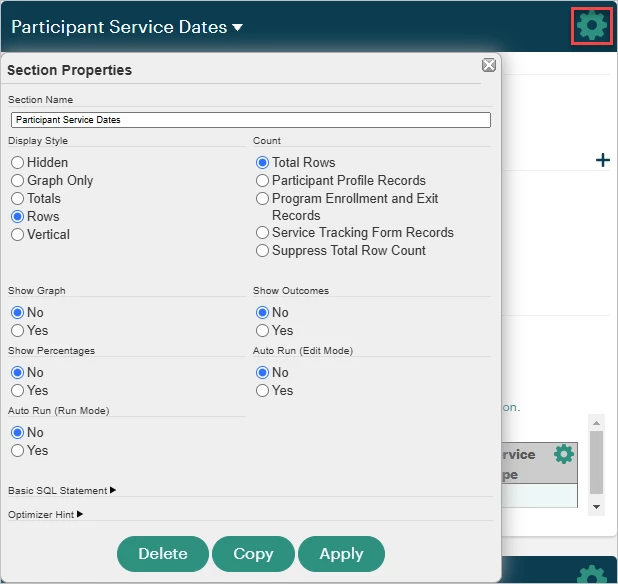
Click the green gear icon next to a column to edit column properties. The options available to edit here depend on the data type of the field selected; for example, the column properties available for Date fields are different than the column properties available for Text fields.
To learn more about report columns, click here.

Step 3: Manage filters
Global Values can be added to a report by clicking '+ Add' in the section header. Click the pencil icon next to an existing Global Value to edit it.

Add a new report filter by clicking the + icon in the Filters section, or edit the Filter Properties by clicking the pencil icon next to it. This is also where you apply Global Values to filters.


For reports with more than one filter, Filter Logic can be adjusted within the text field.

To learn more about report filters, click here.
What else do you need help with?
-
Not what you're looking for? Navigate to overview
How do I edit a native report in Apricot? | Where do I find my saved native reports? | Why can’t I open a native report to edit it? | How do I change fields in a native report? | How do I save changes to a native report? | How do I preview a native report after editing? | What permissions do I need to edit native reports in Apricot?