

How do I apply Source Codes to records during a Bulk Upload?
Note: We're transitioning to a new and improved bulk upload process. Click here to learn more about Better Bulk Upload.
Step 1: Prepare Your File
-
Use supported formats: Google Sheets, Excel (.xls, .xlsx), or plain text (.csv, .txt).
-
Ensure all required columns are included and correctly labeled
-
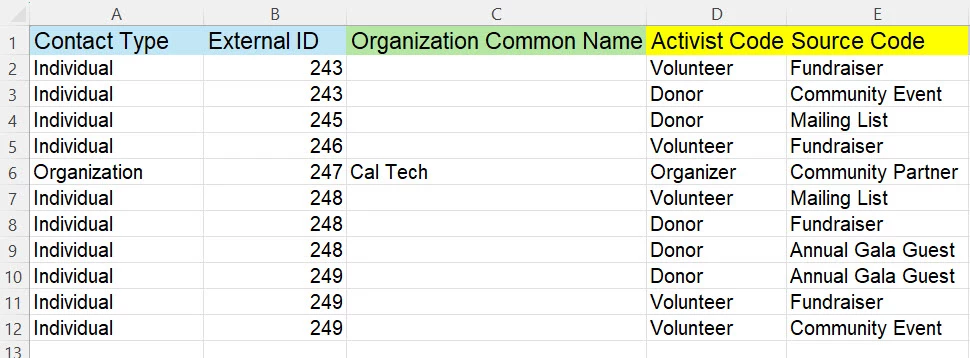
Add a column labeled Source Code or Activist Code in your file
-
Populate the column with the appropriate codes for each record
Step 2: Start the Bulk Upload Process
Log In to EveryAction and access the Bulk Upload Wizard through the administrative menu. Then select your file. (Link to document titled “How do I Bulk Upload a Spreadsheet?)
Step 3: Map the Columns
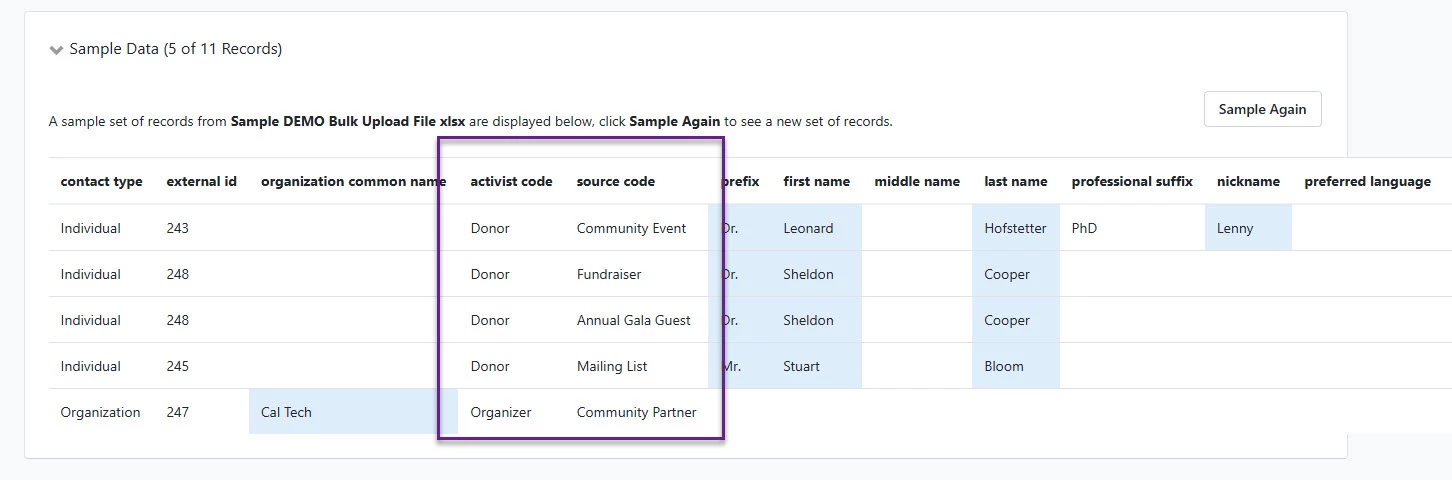
Map your file's columns to EveryAction fields. Ensure the column containing codes is mapped to the Source Code or Activist Code field.
Step 4: Complete the Bulk Upload
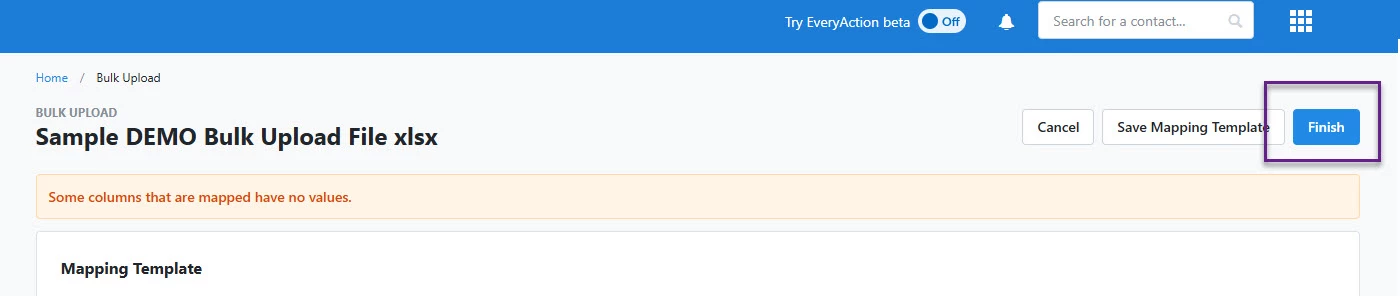
The final step on this page is to select Finish! Be sure you are ready to complete this step before submitting for final approval.
Not quite what you were searching for?
- Navigate back to the Bulk Upload and Edit Resource Index.
How do I apply source codes to records during a bulk upload? | How does apply source codes to records during a bulk upload work in EveryAction? | Why can't I apply source codes to records during a bulk upload? | Where do I apply source codes to records during a bulk upload in EveryAction? | What is apply source codes to records during a bulk upload in EveryAction? | How to apply source codes to records during a bulk upload? | Can I apply source codes to records during a bulk upload in EveryAction?