


Troubleshooting: Bulk Uploads
(5 min read)
To ensure that the data that you are adding to your records via Bulk Upload is complete and without errors, Advanced Error Handling is enabled by default for most organizations. Advanced Error Handling will identify fields in your upload that may need further review before being imported. When this happens, the row containing that field will not be imported and you will have an opportunity to fix it and then re-upload it.
Some organizations will have the ability to turn off the error handling for individual uploads by unchecking the box for Enable Advanced Error Handling and Reporting on the first screen of the Bulk Upload Wizard. This is not generally recommended, but there may be some instances where you will need to turn it off in order to load your data properly.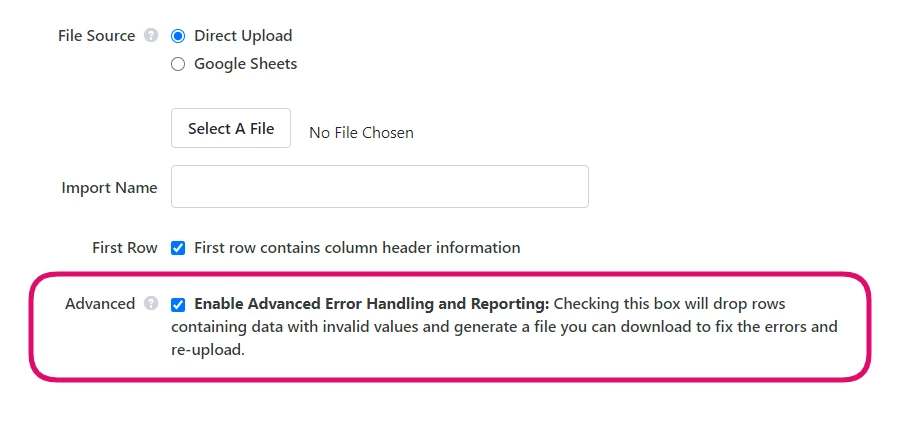
Adding incorrect data to your records can be costly for you to reverse since this usually requires contracting with our Data Services team. If you have a complex request or are encountering unexplained errors with your file, please contact the Support team to assist you with your upload.
Tracking errors in your Bulk Upload
When the error handling service encounters invalid values in your file (such as letters in the phone number field, for example), it will exclude those rows from your upload. Once the upload is complete, you will see a notification of the number of errors encountered in the Issues column on the Bulk Upload Batches page.
The Count and Processed columns identify how many records were updated or affected by that upload type and if the upload has been fully processed. The Count may not always reflect the number of records in the data. If some rows could not be updated or there were no values for a particular upload field, those records will not be included in the count.
Any rows with errors will be NOT be uploaded. You will need to correct them and re-upload them.
Uploads containing at least one error code, including null (blank) values for that particular kind of upload, will not display as 100% processed even if all valid rows (that is, rows not containing an error) have fully uploaded and processed and even after you have corrected and re-uploaded your data.
Correcting errors in your Bulk Upload
Any uploads that had problems being completed will appear with a link and a number under the Issues column. Following the link will download the Issues Report which contains two files that will help you correct your errors.
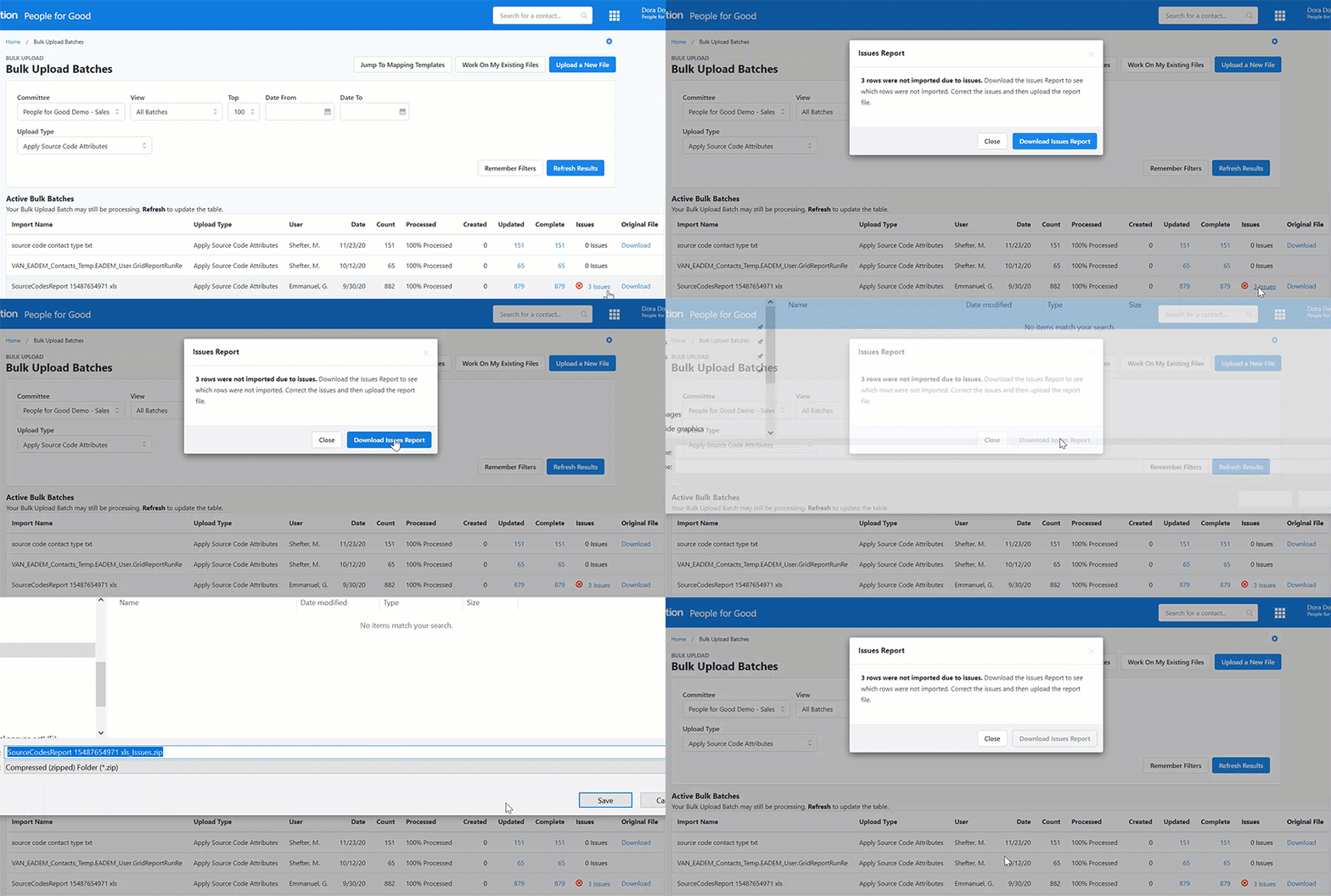
The IssuesReport file is a text document that contains a line by line accounting of any rows that triggered an error message and an explanation of what the Issues were. Each Issue will create a separate entry, so in some case there may be multiple entries for a single data row in the original file. Blank values can sometimes trigger an Issue with certain kinds of uploads. When this happens, you can find the rows and add the information needed to make sure the row will upload without further issues.

The IssuesData file contains the rows from your original spreadsheet that caused the errors. You can correct the data in this file and then re-upload it once the data is ready.
There are some instances, such as when you upload contacts with Activist Codes or Contributions, where multiple related files will be created and listed in the Bulk Upload Batches page, as a normal part of the upload process. You will see your base Upload Contacts file listed as well as several more entries of secondary files with the same original filename but a different upload type.
Any Issue reports created for secondary upload types are most likely related to errors in the initial Upload Contacts file. If you open the Issue report for your secondary upload type, you may see an error message that says Failed row on required parent batch.
You will need to look at the Issues report for the original Upload Contacts file to find out why the upload for that record failed. Fixing the error for that contact record row and re-uploading it will often resolve all of the additional Issues related to that record in the secondary upload files.
Understanding Bulk Upload requirements and limitations
There are a few rules for how to prepare your file for uploading.
-
The file should be either a Google Sheet, plain text, or an Excel file.
-
Plain text files should be comma delimited (.csv) or tab delimited (.txt).
-
Only the first Worksheet in Google Sheets or Excel files will be imported.
-
The file name cannot contain any parentheses within it.
-
The size of your file cannot be larger than 20MB.
-
If you are using a compressed file (.tar, .gz, .zip, or .rar) for your plain text or Excel spreadsheet, make sure the compressed file name is exactly the same as the source file name.
-
You should not have more than one column with the same header name.
Special Characters
-
Double quotes are ignored when parsing the data and will not be included. More specifically, they cannot be used to indicate that commas in that cell are not delimiters (for example, ["100 Main Street, Apartment 4"]; the double quotes will still be ignored and the comma will still be treated as a delimiter.
-
Single quotes are included and cause no issues if used in text fields.
-
Ampersands (&) cannot be used.
Common Field Requirements and Limitations
Maximum Number of Columns: The maximum number of columns in a spreadsheet that can be uploaded is 50.
Unique Values: Fields, such as Activist Codes, whose values are typically applied to several records at once are limited to 60 unique values in an upload file. This is not true for fields whose values are typically unique to one or two records, such as name, address, and phone fields; upload files can contain many unique values for these fields. If there are more than 60 unique Activist Codes or other applied codes in a file, you will need to break your file down into a smaller one that uses less than 60 codes or field values.
| Address | Cannot be greater than 500 characters |
| | Must contain "@", and be fewer than 100 characters |
| Employer | Cannot be greater than 50 characters |
| First Name | Cannot be greater than 75 characters |
| Gender | Values must start with "M" or "F" |
| Last Name | Cannot be greater than 150 characters |
| Middle Name | Cannot be greater than 75 characters |
| Occupation | Cannot be greater than 50 characters |
| Phone Numbers | Numeric values only; limited to 10 numeric characters |
| State | State must be a valid US State or territory |
| Suffix | Cannot be greater than 5 characters |
| Zip Code | Numeric Values only; cannot be greater than 10 characters |
Looking for training?
Explore this feature at your own pace - join a live training session or watch a recorded webinar by clicking the link below.
How do I troubleshoot : bulk uploads? | How does : bulk uploads work in EveryAction? | Why can't I troubleshoot : bulk uploads? | Where do I troubleshoot : bulk uploads in EveryAction? | What is : bulk uploads in EveryAction? | How to troubleshoot : bulk uploads? | Can I troubleshoot : bulk uploads in EveryAction?